
Your WordPress storage keeps filling up, but you can’t figure out why? Find duplicate images in WordPress and you may uncover files taking up valuable space without you realizing it.
Duplicate images are easy to create but surprisingly difficult to spot, especially when your Media Library contains hundreds or thousands of files.
In this guide, we’ll show you how to find duplicate images in WordPress, review them safely, and remove unnecessary copies using ThumbPress.
What Are Duplicate Images in WordPress?
A duplicate image is essentially a repeated copy of an image that already exists in your WordPress Media Library.
For example, you may upload: product-watch.jpg
Later, the same image is uploaded again, and WordPress stores another copy, such as: product-watch-1.jpg
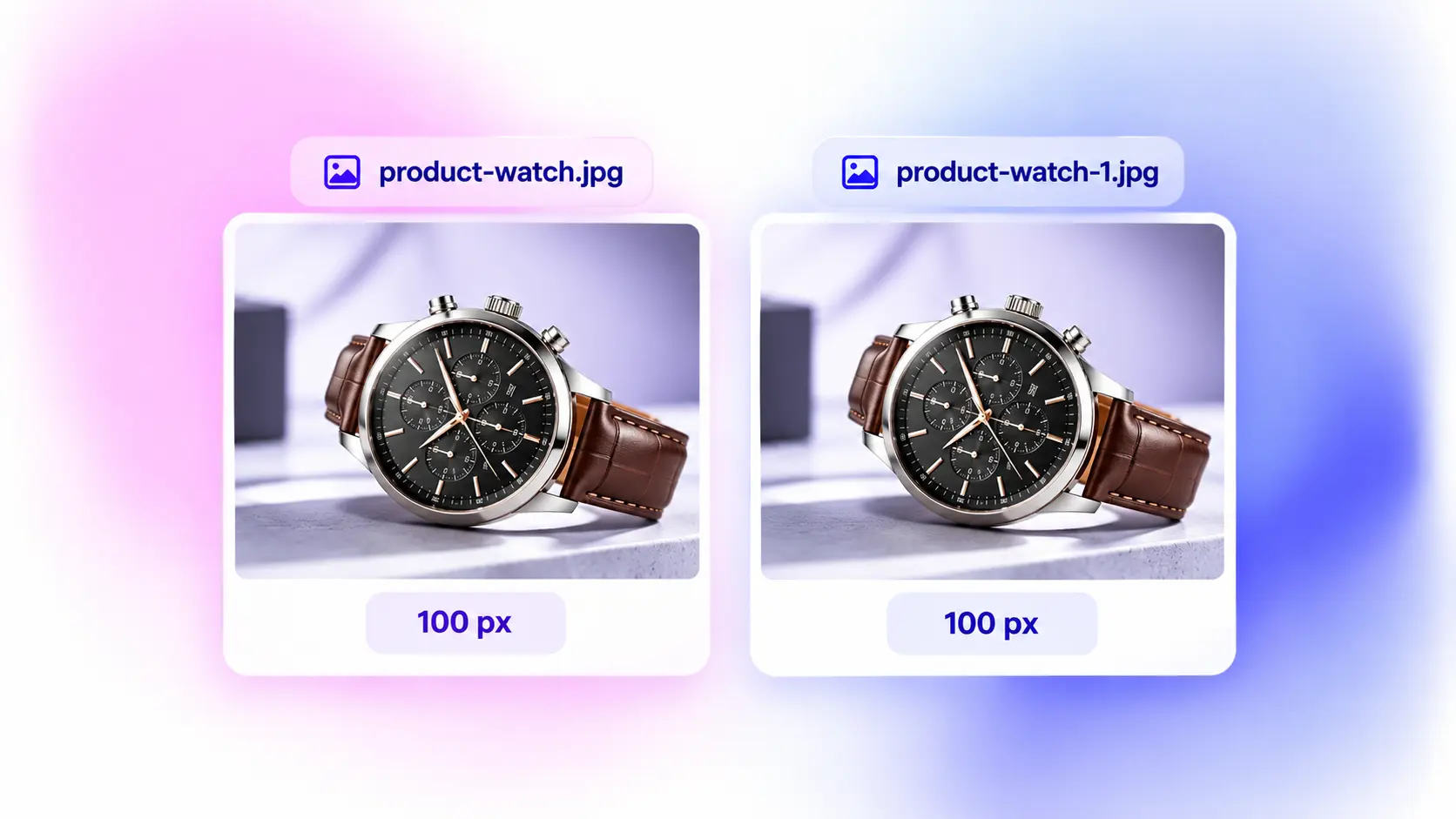
Both files contain the same image, but WordPress treats them as separate media items.
However, not every similar-looking image file is a duplicate.
When you upload one image, WordPress can create additional image sizes for different uses. Your theme and plugins can also register their own image sizes.
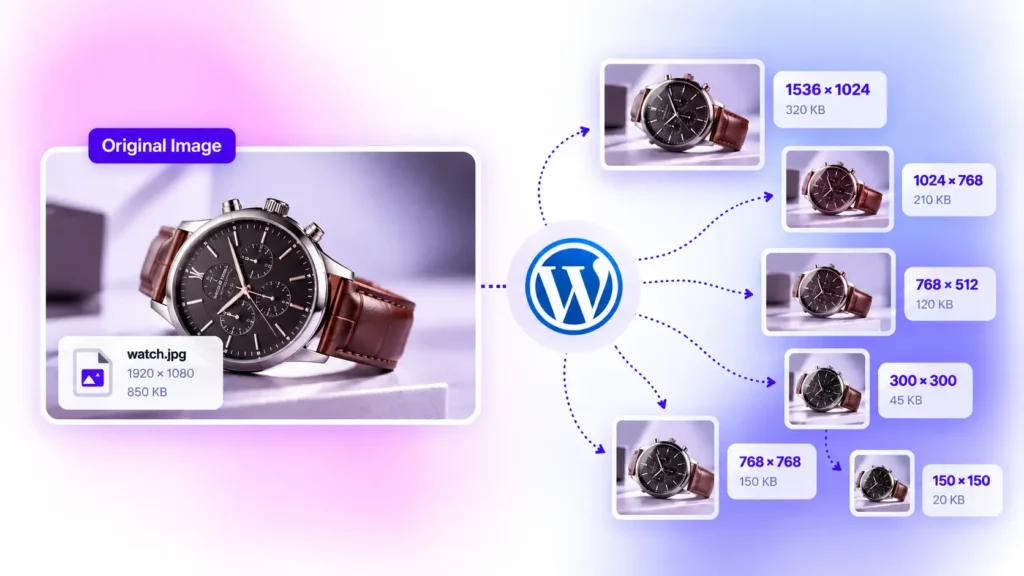
These files may all come from the same original image but serve different purposes.
That distinction is important when you find duplicate images in WordPress because deleting the wrong files can cause missing or incorrectly displayed images.
Are Duplicate Images Bad for WordPress?
Having a few duplicate images will not automatically break your website. The problem is what happens when unnecessary copies accumulate over months or years.
They Consume Storage
Every unnecessary image occupies server space. A few duplicates may not matter, but hundreds or thousands can contribute significantly to media bloat.
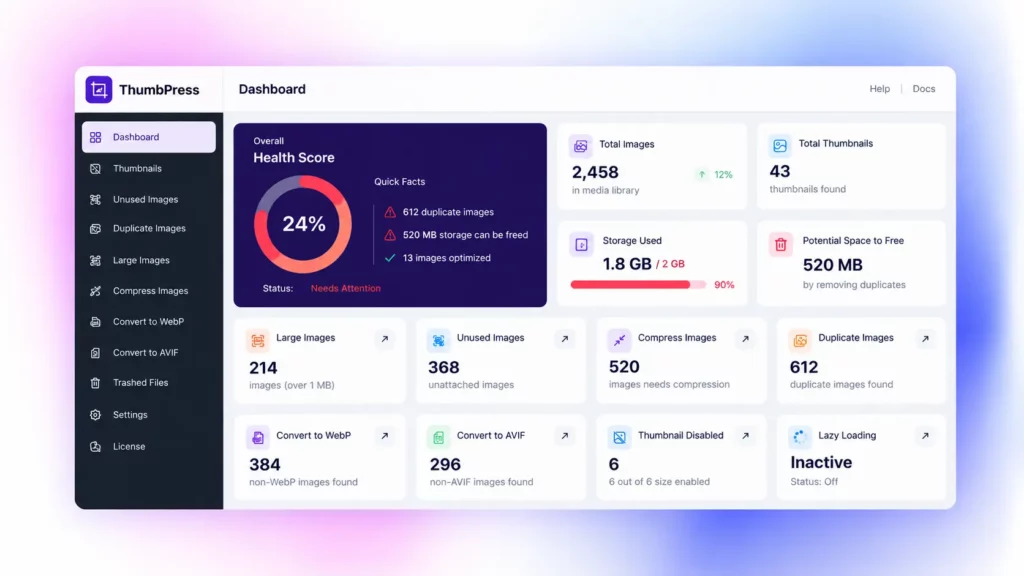
This becomes especially important for image-heavy blogs, WooCommerce stores, and websites with large product catalogs.
This becomes especially important for image-heavy blogs, WooCommerce stores, and websites with large product catalogs. If you’re managing a growing online store, tools like EasyCommerce can help keep your ecommerce operations organized alongside your WordPress content.
Increase Backup Size
Your website backups can include files stored in your WordPress uploads directory. More unnecessary media means more data to back up, store, and potentially restore.
Make the Media Library Harder to Manage
Imagine searching for a product image and finding six identical versions.
- Which one should you use?
- Which one is currently being used?
- Which ones are safe to remove?
The more duplicates you have, the harder these questions become.
The more duplicates you have, the harder these questions become. For more practical ways to organize, clean, and manage your WordPress Media Library, check out our guide to cleaning up your WordPress Media Library.
Add Overall Media Bloat
Duplicate images are only one part of a larger WordPress media problem.
Unused images, oversized originals, unnecessary thumbnails, and old campaign assets can all increase the size of your Media Library.
That is why a proper cleanup should look beyond duplicates.
How to Find Duplicate Images in WordPress
There are two simple ways to find duplicate images in WordPress:
- Method 1: Manual Search
- Method 2: Automated Detection
If you want to keep your WordPress Media Library organized beyond just duplicate detection, see our guide on WordPress image management for practical tips on managing and optimizing your images.
Find Duplicate Images in WordPress with ThumbPress
ThumbPress provides a Detect Duplicate Images feature that can scan your WordPress Media Library and group duplicate files for review.
Here is how the process works.
Step 1: Install and Activate ThumbPress
Install ThumbPress from your WordPress dashboard.
Dashboard → Plugins → Add New Plugin
Search for ThumbPress, then install and activate it.
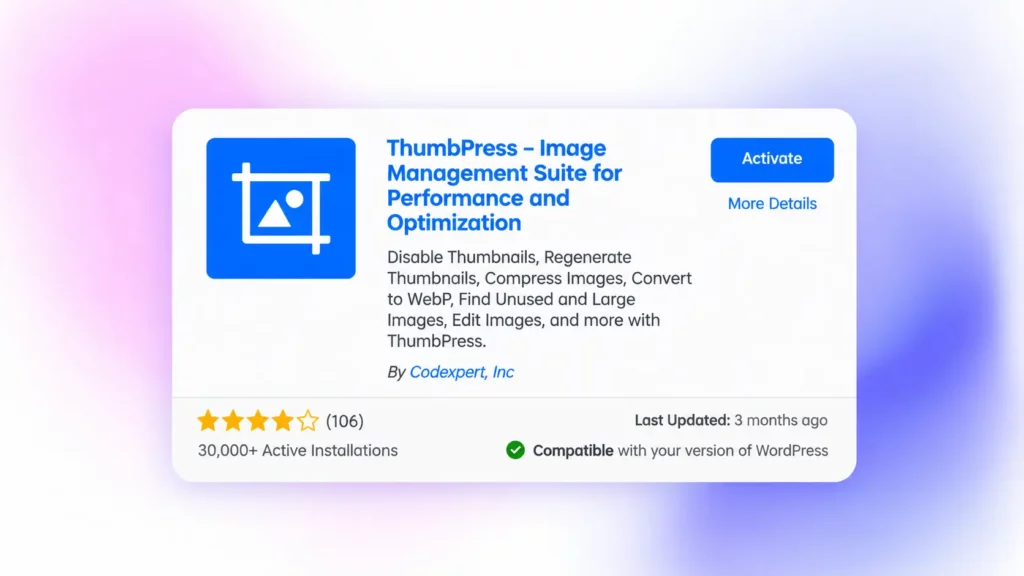
The Duplicate Images feature is part of ThumbPress Pro.
Step 2: Scan Your Media Library
ThumbPress → Duplicate Images – Click Detect.
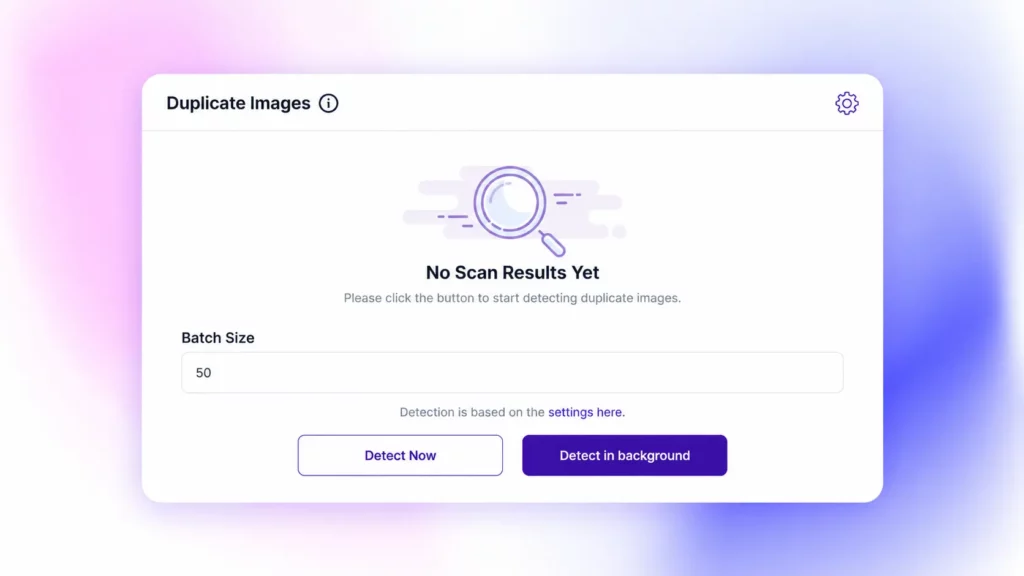
ThumbPress scans your Media Library and displays duplicate images grouped by match. You can also adjust the Chunk Size to control how many images are processed at a time. A smaller batch can reduce server load during scanning.
Step 3: Review the Results
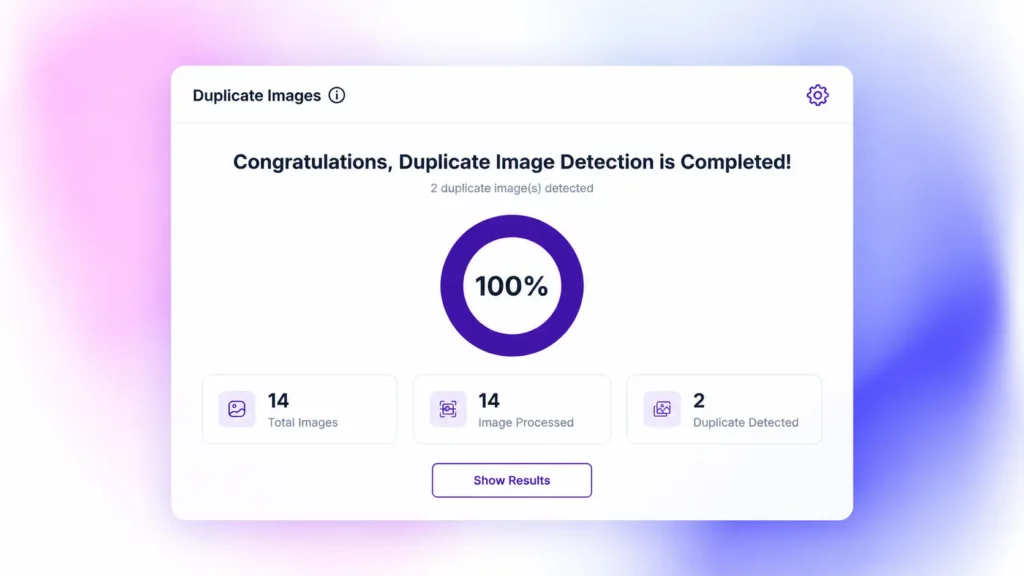
Once the scan finishes, review the detected duplicate groups.
Do not blindly delete every result.
Check whether the images are genuinely identical.
For example, two product images may show the same product but use different crops or backgrounds. Those are not necessarily duplicates.
ThumbPress lets you view the detected results before taking action.
Step 4: Merge the Duplicate Images
After reviewing the results, you can merge duplicate images individually.
Click Merge for the duplicate group you want to clean up.
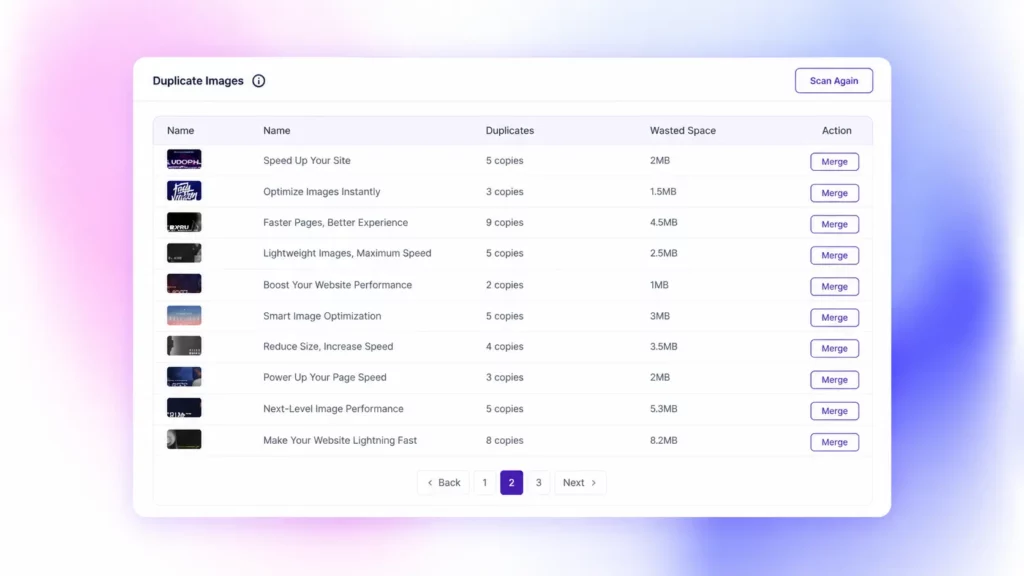
The purpose is to retain the original while removing the unnecessary duplicate copy.
Step 5: Replace Duplicate References with the Original
During the merge process, supported references can be updated to use the original image.
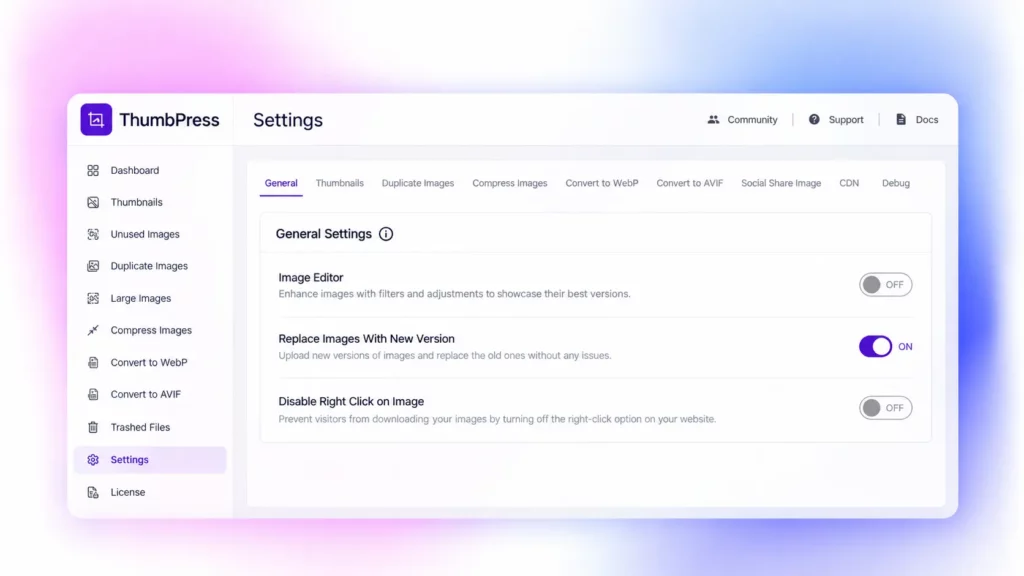
This is important because the goal is not simply to make files disappear. You want your existing content to continue using the correct image while removing unnecessary copies.
How to Remove Duplicate Images Safely
Before you start deleting anything, follow these steps.
- Back Up Your Website
- Test on a Staging Site
- Review Detected Duplicates
- Don’t Delete Generated Image Sizes
- Check Your Website After Cleanup
How to Prevent Duplicate Images in WordPress
Cleaning existing duplicates is only half the job.
You also need to prevent them from returning.
- Enable Duplicate Upload Prevention – Use ThumbPress to prevent identical images from being uploaded again.
- Search Before Uploading – Check the Media Library before adding a new image.
- Use Consistent File Names – Use clear names like blue-running-shoes.jpg instead of IMG_4728.jpg.
- Audit Your Media Library Regularly – Check for duplicates, unused images, oversized files, and unnecessary thumbnails.
For content-heavy websites, duplicate prevention should be part of a broader image management strategy. Learn more about keeping your images optimized and your Media Library under control in our guide to optimizing images for a content-heavy WordPress blog.
Final Thoughts
Duplicate images are easy to create and easy to ignore – until your Media Library becomes difficult to manage.
If you have only a few files, you can find duplicate images in WordPress manually. For larger websites, an automated scanner can save significant time and make the cleanup process easier to manage.
ThumbPress lets you scan your Media Library, review duplicate groups, merge confirmed duplicates, and prevent identical images from being uploaded again.
For the best results, combine duplicate detection with regular Media Library cleanup, image compression, and thumbnail management.
Frequently Asked Questions
Use Media → Library for small sites or an automated scanner like ThumbPress for larger Media Libraries.
WordPress can generate multiple image sizes, but these are different from uploading the same image multiple times.
They mainly waste storage, increase backup sizes, and make your Media Library harder to manage.
Yes, if you confirm they are genuine duplicates. Always back up your site before deleting files.
Yes. ThumbPress includes a Prevent Duplicate Upload feature to stop identical images from being uploaded again.
A duplicate is a repeated copy of another image, while an unused image is a unique file that is no longer used on your website.
