
Find & Merge Duplicate Images Safely
The same image gets uploaded again and again under different names. ThumbPress finds the byte-identical copies, keeps the one you're actually using, and trashes the rest - without breaking a single page.
Get Started Now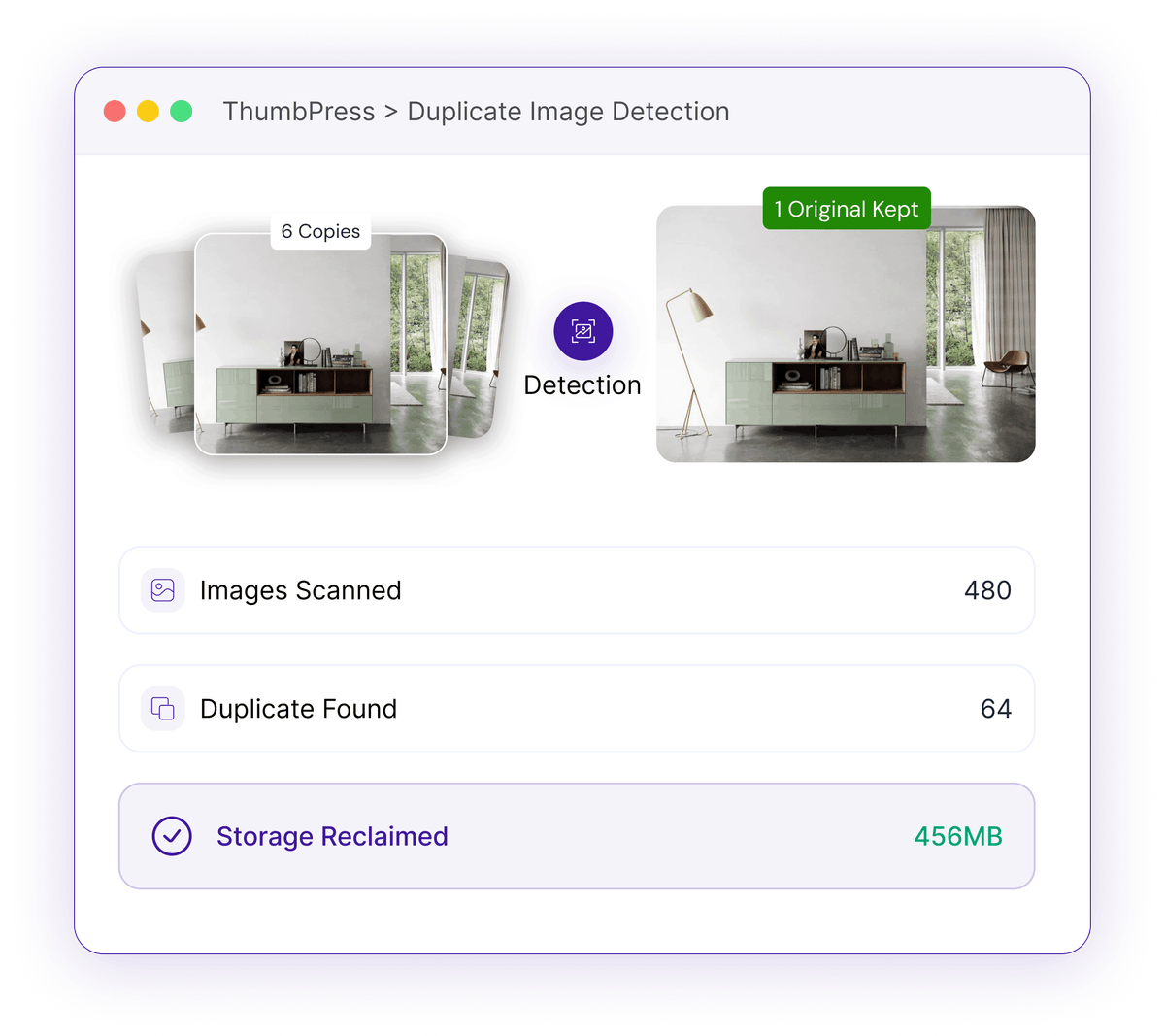
Duplicate Images Pile Up Where You Can't See Them
Renamed re-uploads look unique in the grid, but they're the exact same file underneath.
Silent Storage Bloat
The same logo, product shot, or hero image gets re-uploaded by different authors under different filenames. Each copy takes full disk space, plus every thumbnail size WordPress makes from it.
Every duplicate doubles its full storage costRenamed, Not Detected
WordPress happily accepts image-2.jpg, image-final.jpg, and image-final-v3.jpg as separate files - even when the pixels are byte-for-byte identical. The grid never tells you.
Identical files hidden behind different namesRisky Manual Cleanup
Deleting duplicates by hand is nerve-racking - delete the wrong copy and a featured image, gallery, or product photo goes blank across your site.
One wrong delete breaks live pagesHow Duplicate Detection Works
It matches by content, then cleans up without breaking references.

Hash
ThumbPress fingerprints every image with an md5 content hash, so matches are based on the actual file - not the filename.

Group
Images with an identical hash are grouped together as true byte-for-byte duplicates, even if they were renamed.
Merge
It keeps the copy that's actually in use, repoints every reference to it, and trashes the rest so nothing breaks.
Detect Free, Clean Up in Pro
See the problem at a glance, then fix it in a few clicks.
Detect & merge
The Pro tool scans your library, lists every set of duplicates, then merges them - repointing post content, featured images, WooCommerce galleries, Elementor designs, ACF fields, logo and site-icon references to the copy you keep before trashing the rest.
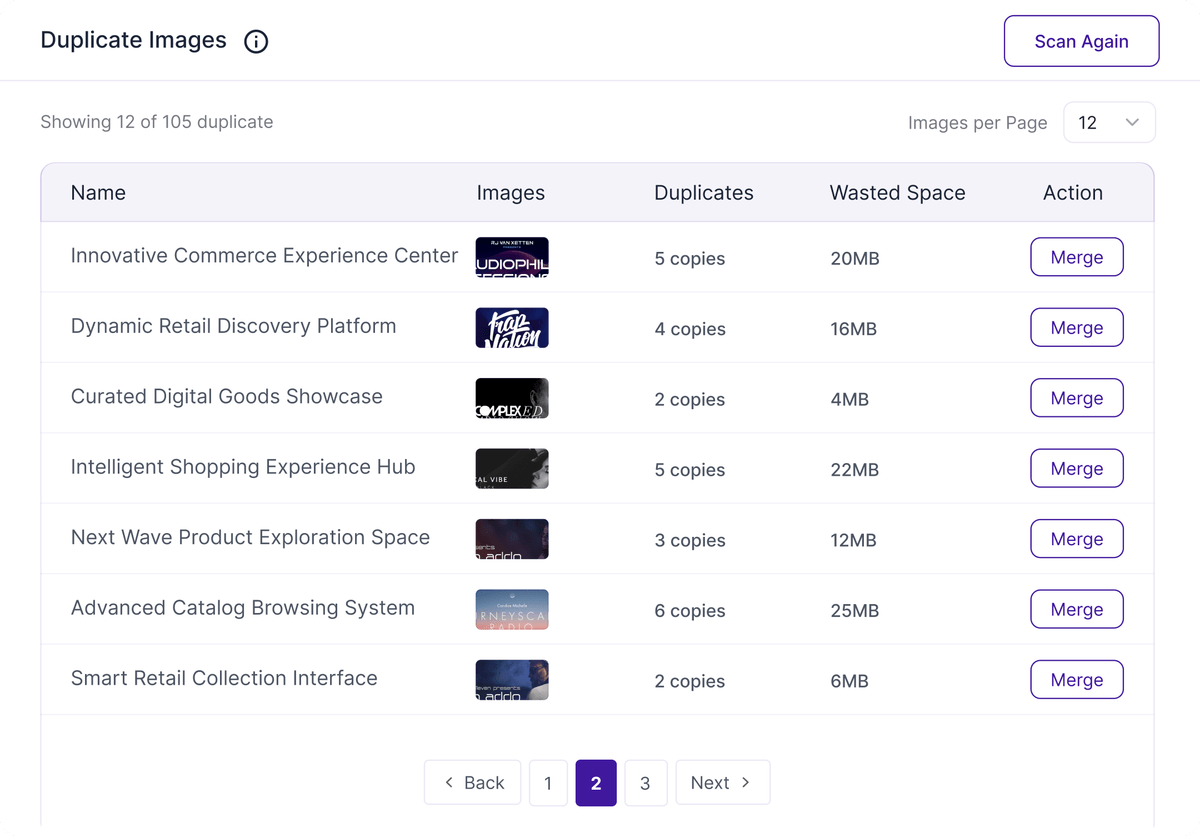
Live duplicate count
Your dashboard shows a live count of duplicate images for free, computed straight from content hashes - so you always know how much clutter is waiting.
Deduplicate with confidence
Reclaim space without breaking a single reference.