How to Detect Large Images &
Take Desired Actions
Learn how to detect large WordPress images using ThumbPress and
get a blazing-fast website in no time!
Install and Activate ThumbPress & ThumbPress Pro
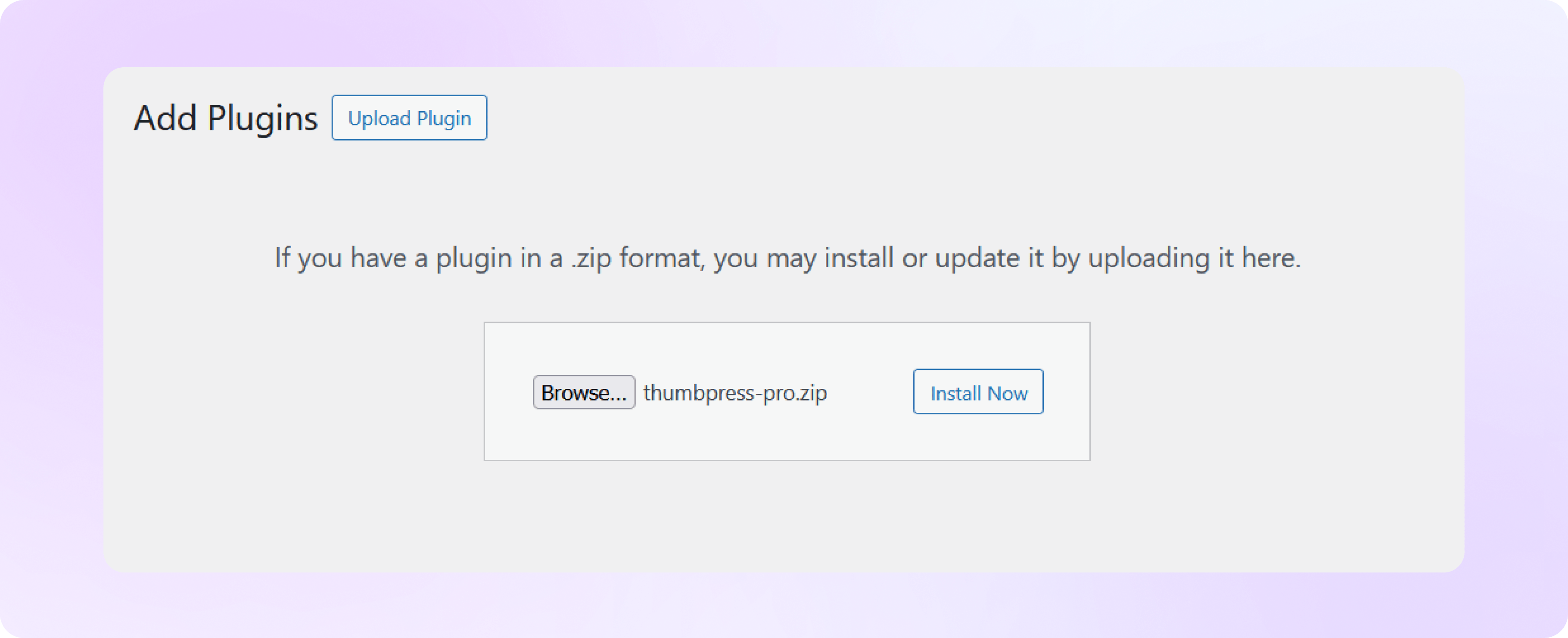
First, you need to install ThumbPress on your dashboard. To install and activate ThumbPress
Go to Dashboard > Plugins > Add New Plugin and search for ThumbPress in the search bar on the top right of the screen.
Click Install Now and then Activate ThumbPress.
Note: Detect Large Images is a premium ThumbPress feature. Get ThumbPress Pro to unlock this feature. After that, upload it to your site and activate the license.
Insert Chunk Size & Minimum File Size for Scanning
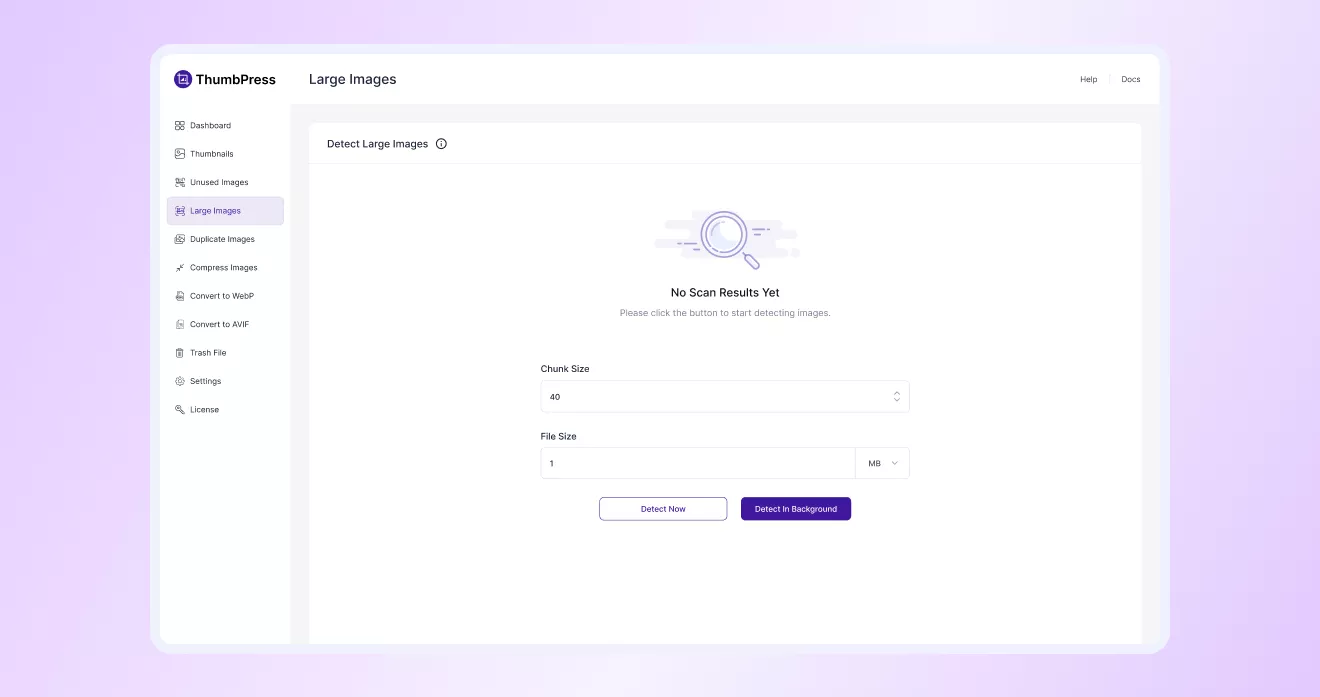
Navigate to ThumbPress > Large Image. In the ‘Large Image’ section, input the batch size & minimum size to identify
all images larger than the value. Click on the Detect Now button to find a list of large images below.
Note: Here, Chunk Size is the number of images processed in a single batch per server request.
Review and Manage Unused Images
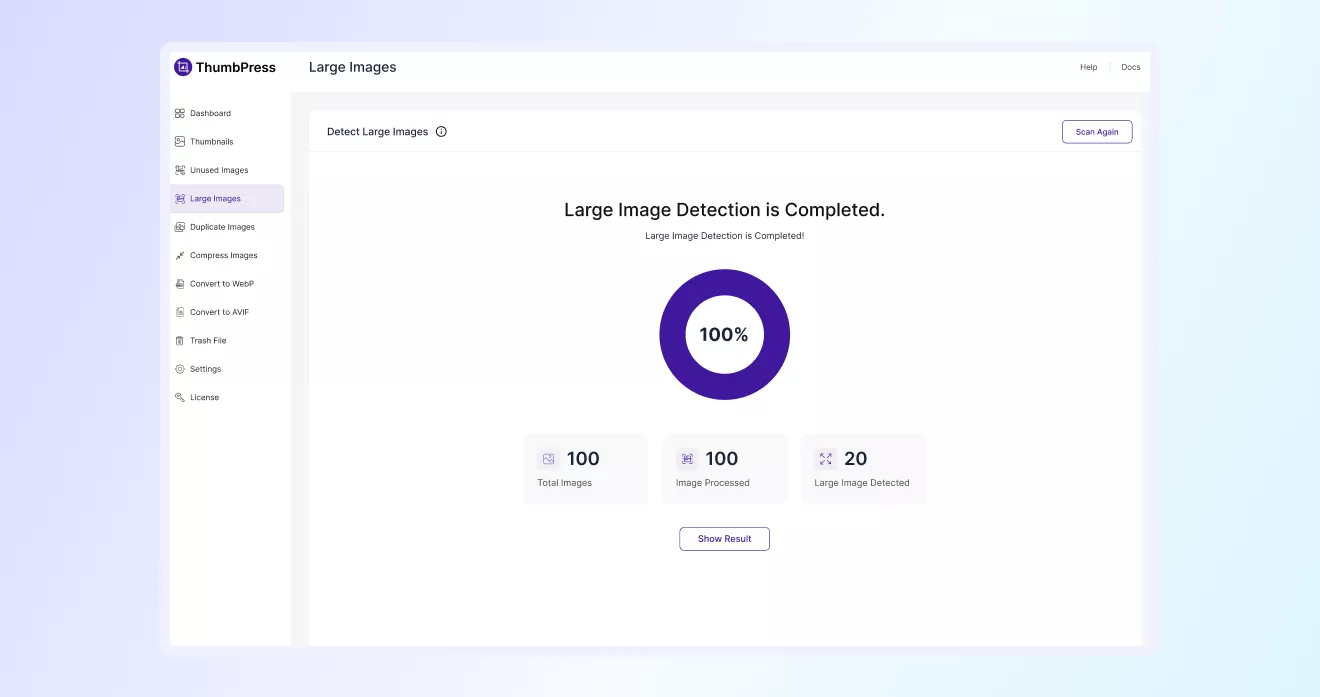
Once the scan is complete, you’ll see a summary of detected large images.
Click on Show Result to view the full list.
Select Images to Compress/Delete
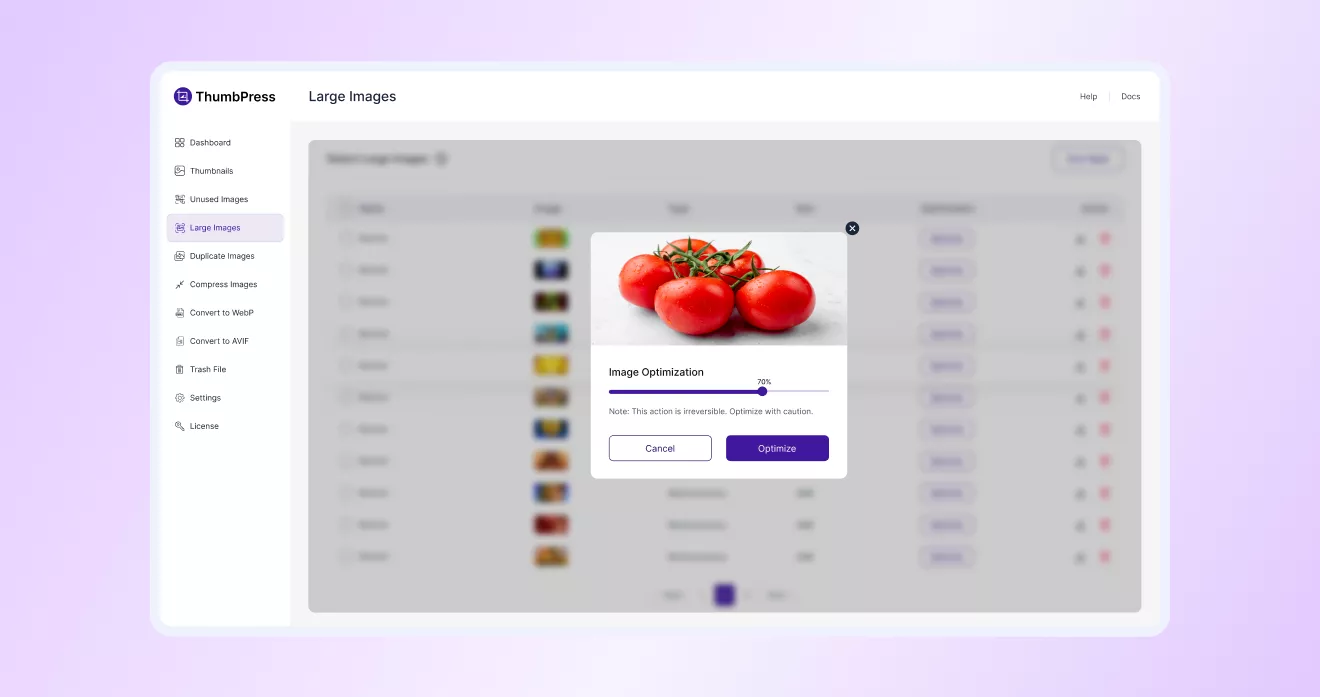
From that page, select and click the Delete or Compress button on specific images from the list of detected
large images from your website. You can click on the Apply button to optimize each image.
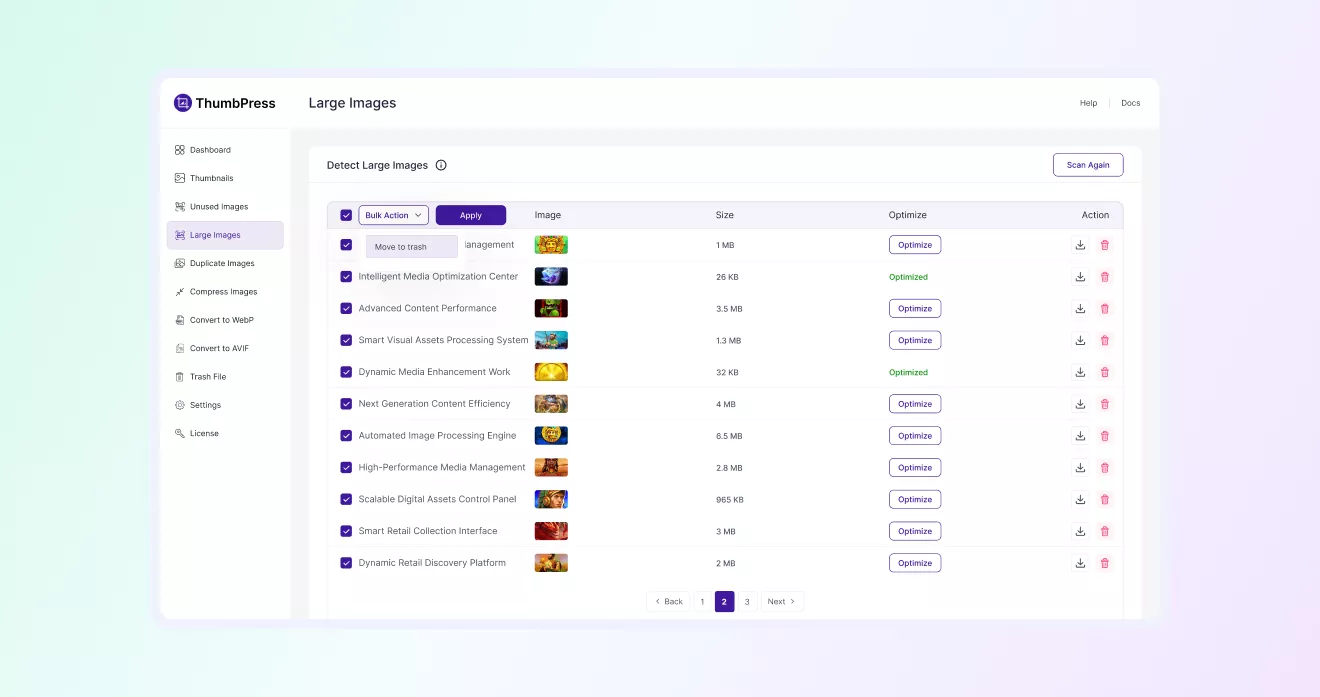
Optimize Large Images
Select the large images if you want to optimize from the detected image list on your website.
You can adjust the optimization level and click the Optimize button to compress each image and reduce its file size.