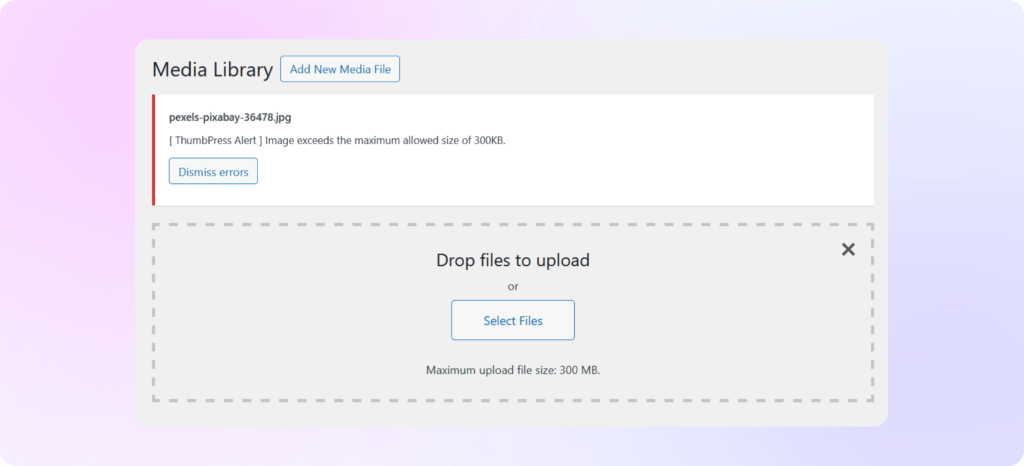

How to Set Image Upload Limit
with ThumbPress
Let’s have a look at how you can set the image upload limit using ThumbPress and
maintain a consistent approach.
Install and Activate ThumbPress
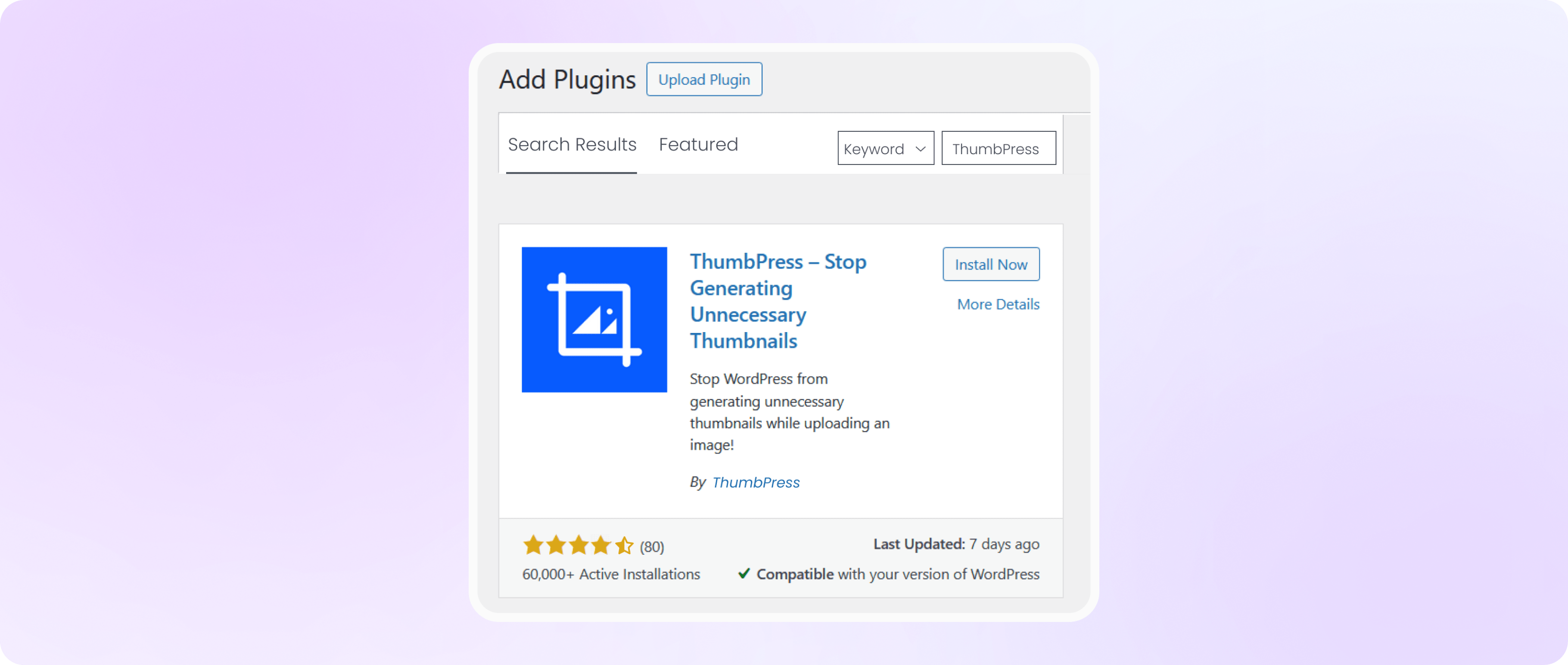
First, you need to install ThumbPress on your dashboard. To install and activate ThumbPress
Go to Dashboard > Plugins > Add New Plugin and search for ThumbPress in the search bar on the top right of the screen.
Click Install Now and then Activate ThumbPress.
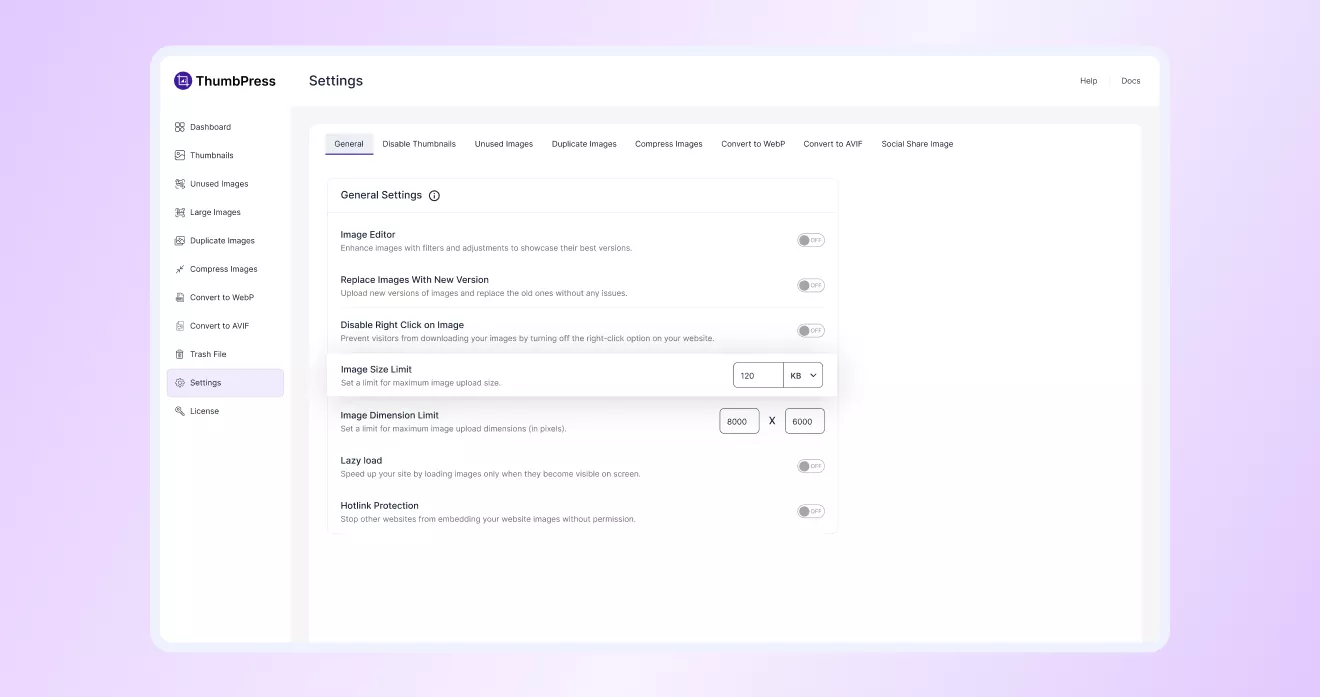
Set Image Upload Limit from ThumbPress Settings
Head over to the ThumbPress > Settings > General option,
set the ‘Image Upload Limit’ to a value, and hit the save settings button.
Set Limit For Image Results Notice
Now every time you upload an image that exceeds the maximum size limit that you have set,
you will be notified via an error message.