How to
Regenerate Thumbnails
Learn how to regenerate thumbnails using ThumbPress and optimize your
server space and website performance in a flash!
Install and Activate ThumbPress
First, you need to install ThumbPress on your dashboard. To install and activate ThumbPress
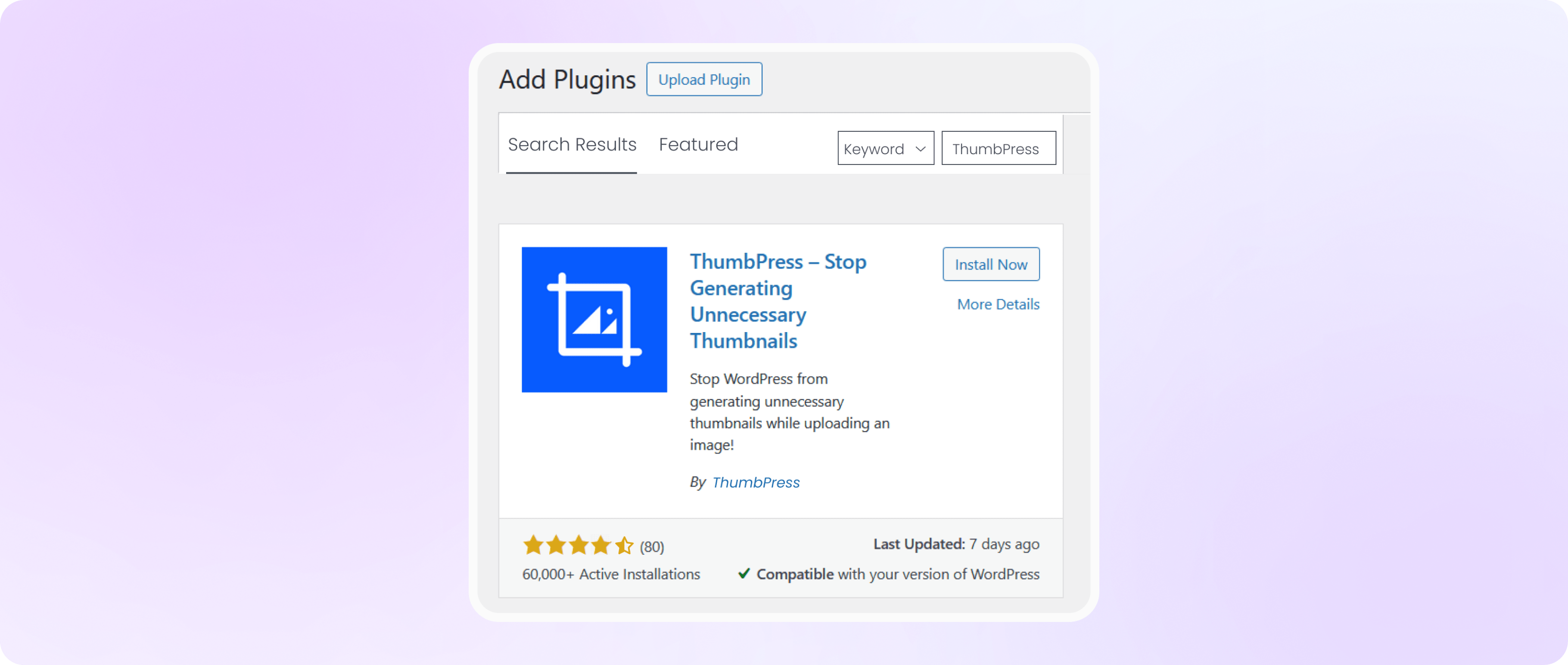
Go to Dashboard > Plugins > Add New Plugin and search for ThumbPress in the search bar on the top right of the screen. Click Install Now and then Activate ThumbPress.
Regenerate Existing Thumbnails
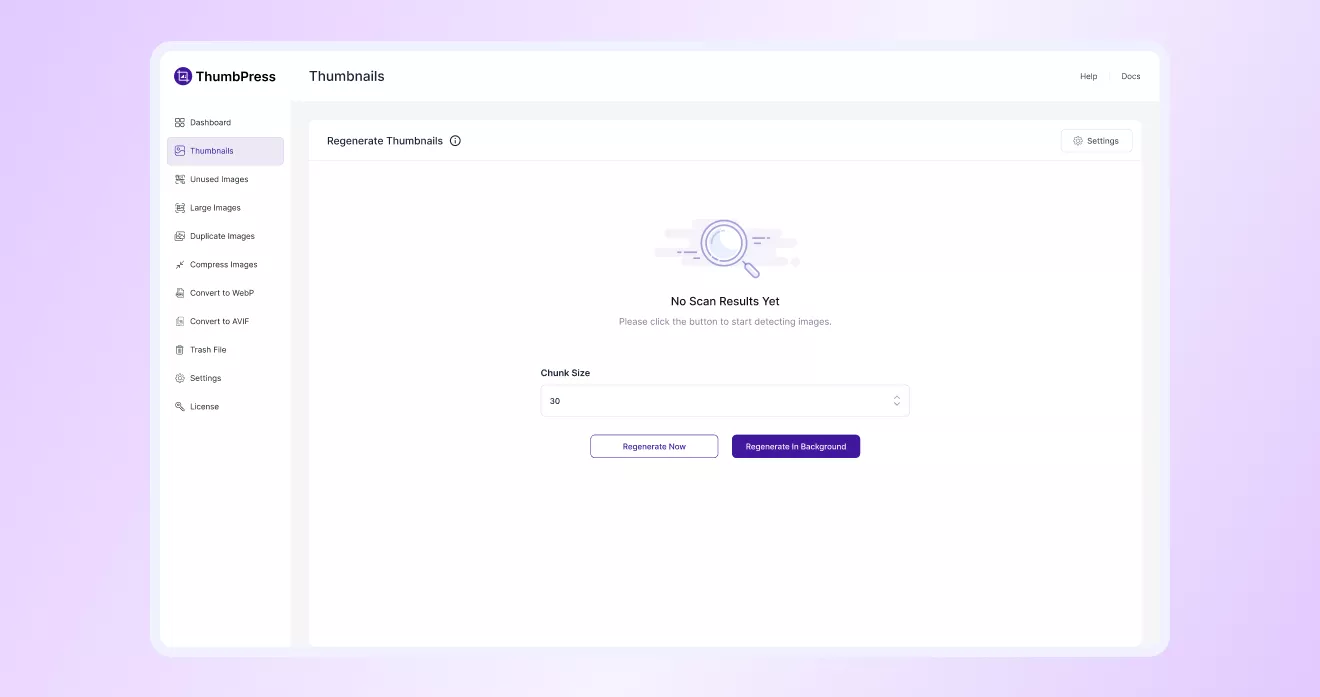
In the ‘Thumbnails’ section, you can restore the selected thumbnail sizes for your existing
images, according to your preference. Set the Chunk Size and click the Regenerate Now button to get started.
If you’ve already selected the thumbnail sizes you want to keep in the Disable Thumbnails section, WordPress will only generate
those enabled thumbnail sizes for new image uploads. Any disabled thumbnail sizes will be automatically removed.
Note: Here, Chunk Size is the number of images processed in a single batch per server request.
Check Final Progress
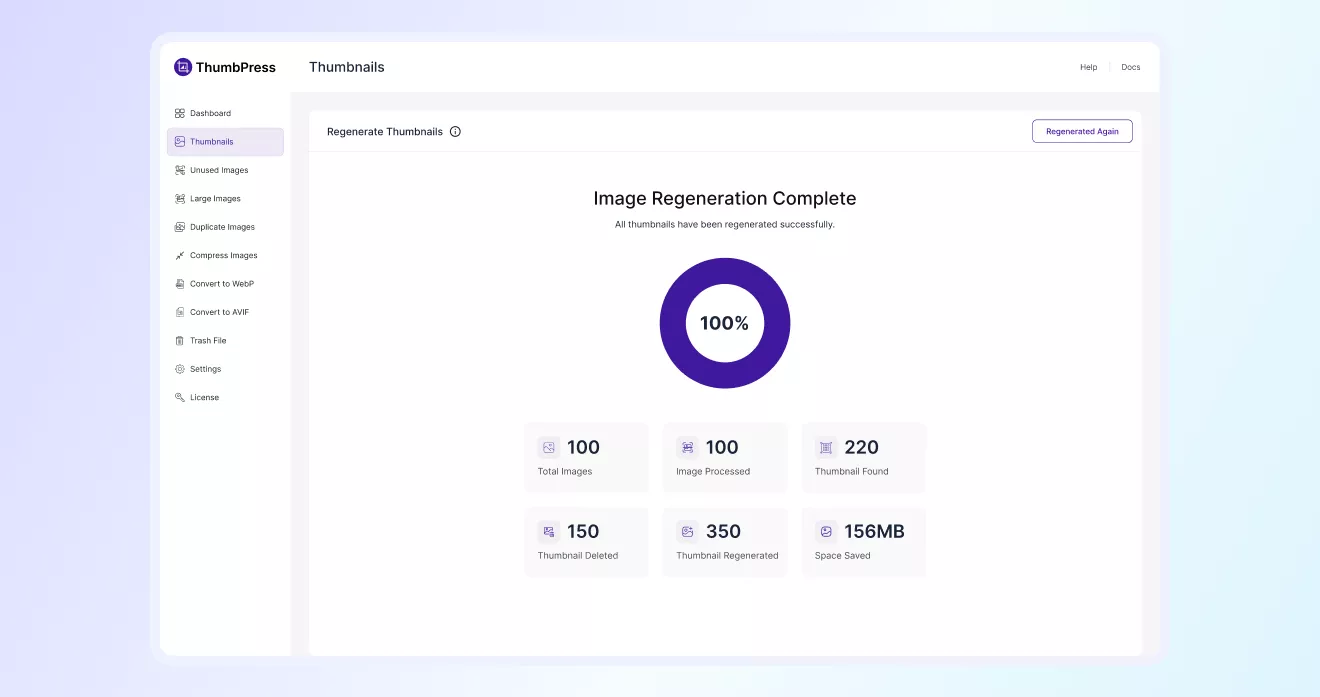
Once you click the Regenerate Now button, you will be shown a progress bar to keep track of the processes and space saved.
Once the process is complete, you’ll see the Image Generation Complete message.
Note: Regenerating thumbnails might take some time, and you cannot close that tab until it is complete. To avoid this inconvenience, you can hit the Regenerate in Background button to process the images while you focus on other tasks.