Find and Delete Unused Images on WordPress – A Step by Step Guide



Losing valuable server space due to piled-up unused images?
Pictures make our WordPress sites beautiful and engaging, but sometimes we upload a few extras that never get used. These forgotten images can pile up, taking precious storage space and making your site sluggish.
Imagine searching through all your files, one by one, trying to find those unused pictures. That sounds like a major time stuck. Luckily, there’s a much better way.
In this blog post, we’ll share a super simple method to find and delete unused images in just a few clicks. It’ll free up valuable storage space and keep your website running smoothly. Let’s dive in and discover how to keep your site clutter-free and lightning-fast!
Impact of Unused Images on Your Website
Unused images are not only difficult to maintain but also can hurt your website. Here are a few of the impacts unused images can have on your website.
- Unused images can take up valuable hosting space. This can be problematic for your website, especially when you are on limited storage. Taking additional storage may cost you a fortune in the long term.
- Unused images do not directly affect your site performance, however, taking backups of your data can be slower due to unused images.
- Having a lot of unused images in your library makes media library management difficult. You can face difficulty managing media files and finding the right one at the right time.
There are tons of other impacts of unused images and files on your website. Those may not be identified in a short time but they will be a big issue in the long term. So clean up your unused images now.
How to Find and Delete Unused Images on WordPress
Finding and deleting unused images in WordPress can be a daunting task, often involving countless manual work.
Fortunately, ThumbPress simplifies this process with its standout premium feature, ‘Detect Unused Images’. This powerful tool swiftly identifies and purges unused images from your media library with just a few clicks, saving you time and effort.
Experience the magic of ThumbPress and streamline your site’s management without any hassle. Choose ThumbPress for a faster, cleaner, and more efficient WordPress experience.
Now let’s see how you can use this magic of ThumbPress and detect unused images.
Step 1: Install ThumbPress
Detect Unused Images is a premium feature of ThumbPress. To enjoy this incredible feature you need to have both ThumbPress and ThumbPress Pro.
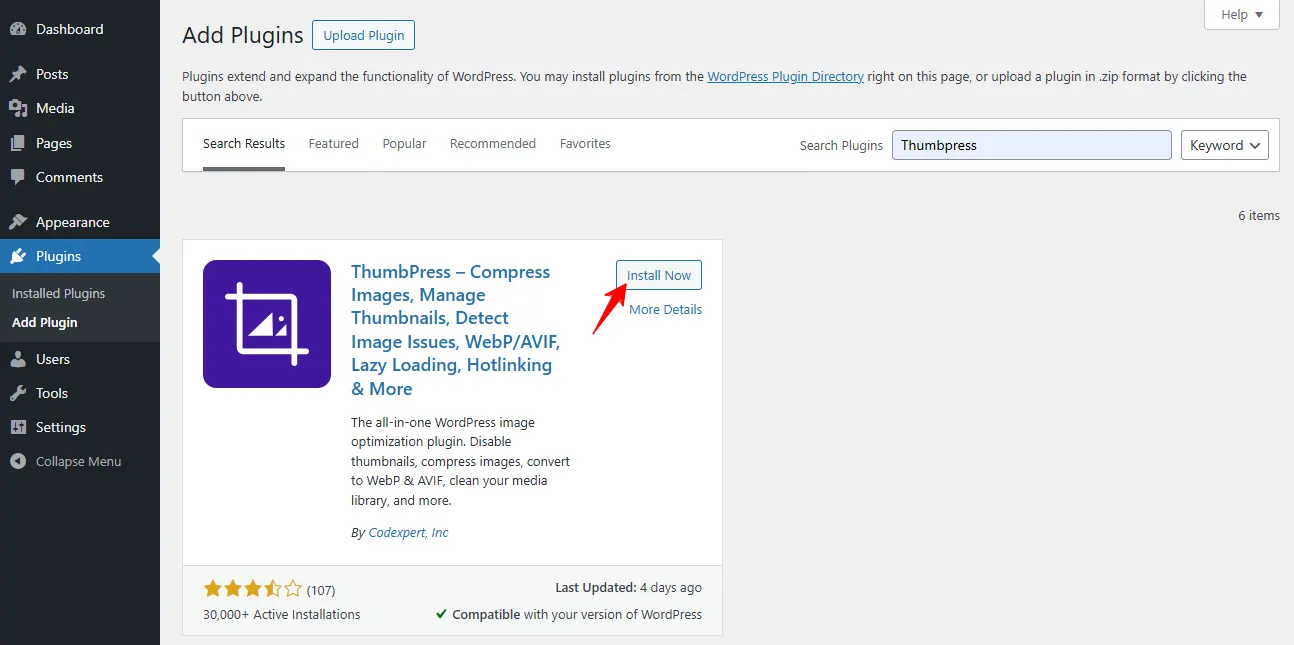
You can install ThumbPress from your WordPress dashboard and activate it. And for the ThumbPress Pro, you can get your desired package from here. Get your desired package and activate it in your WordPress dashboard.
Now you are all set to head over to the next step.
Step 2: Detect Unused Images
After you have enabled the feature, you are all set to detect unused images.
To access this section, please go to
WordPress Dashboard > ThumbPress > Unused Images
Then, Set Chunk Size. Hit the Detect Now button. Detecting images might take some time and you cannot close that tab until it’s complete. To avoid this inconvenience you can enable Detect in Background.
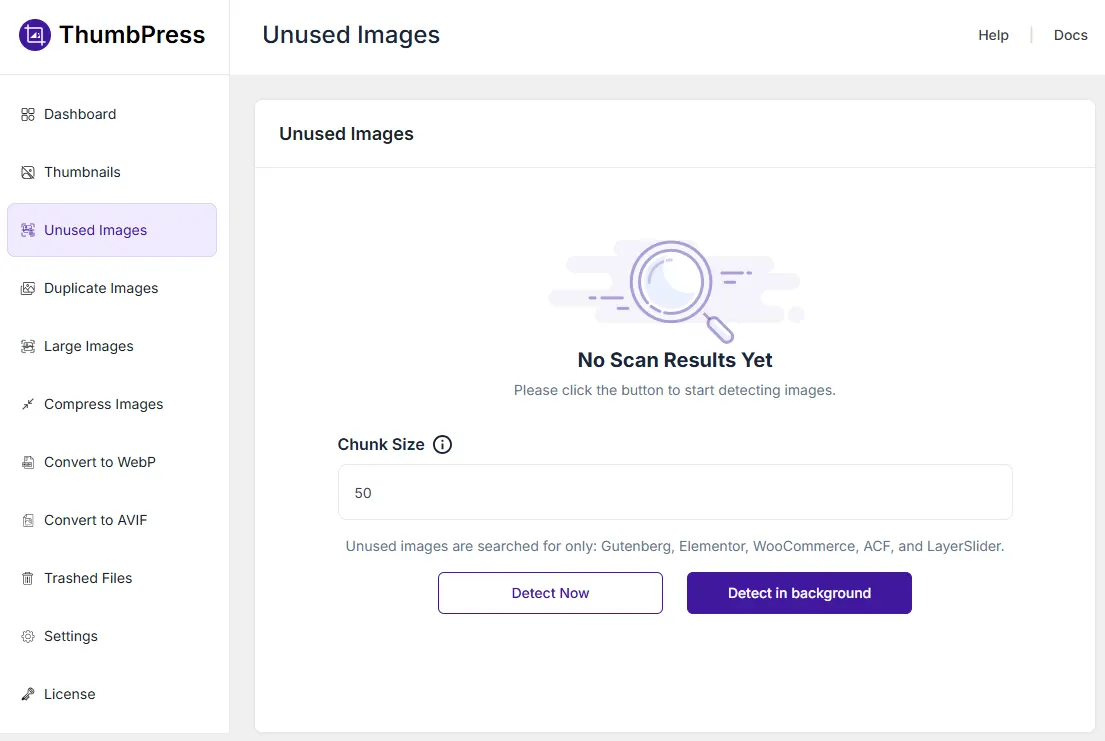
Now all your unused images are detected. You can easily get rid of these image files from here and tidy up your website.
Remarks
Manual detection and removal of unused images can be time-consuming when you are working with a bulk of images. Often it is demotivating to clean up your WordPress space on a daily basis.
This is why we have introduced you to an easy solution, ThumbPress. With the help of the handy ThumbPress plugin, finding and deleting unused images in WordPress is a breeze. With the process described, you will free up valuable server space and sometimes you may discover unused gems to put to good use.
Cleaning up and managing storage is an ongoing process, so remember to run scans with ThumbPress to have a clutter-free, faster space.
Subscribe to Our Newsletter
Get the latest WordPress tutorials, trends, and resources right in your inbox. No Spamming, Unsubscribe Anytime.

Thank you for subscribing to our newsletter!