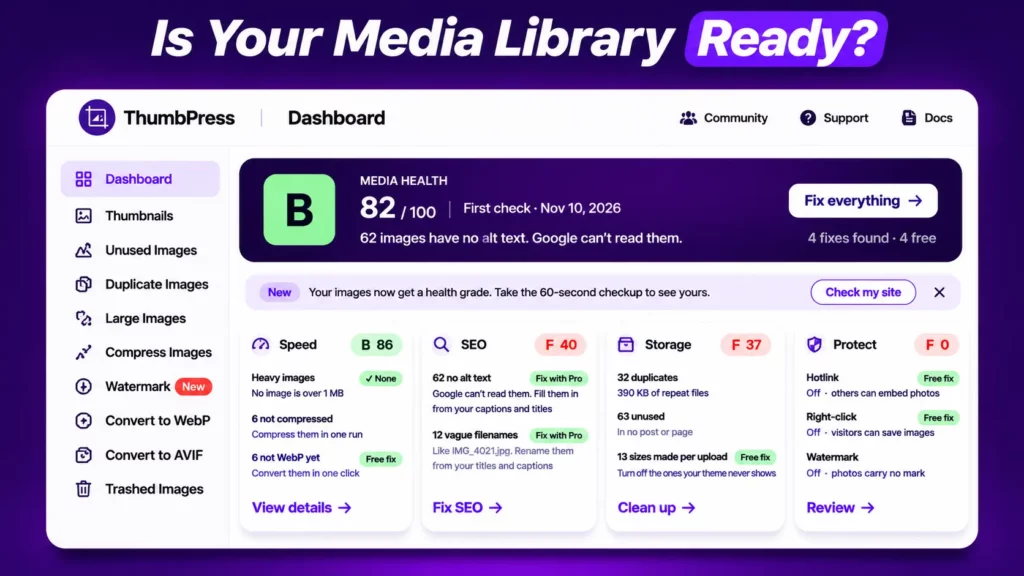
A Black Friday media library audit is a check of every image on your site, done before the sale so heavy, duplicate or poorly labelled files do not slow your pages when traffic peaks.
Black Friday is November 27 and Cyber Monday is November 30, so you have about two and a half weeks to finish, with changes frozen around November 21.
Most Black Friday checklists give images one line: “optimize your images.” That is true, but it does not tell you which images, how to find them or what is safe to change.
This Black Friday media library audit gives you seven checks in order, with what to look for, what to fix and what to leave alone until the sale is over.
Key takeaways
- Audit first, delete later. Fix oversized files, formats, thumbnails and alt text now, and leave risky deletions until after Cyber Monday.
- The seven checks in the audit are a baseline, oversized images, formats, extra thumbnails, duplicates and unused files, alt text and file names, and upload limits.
- Back up before you change anything, and test your sale pages afterwards.
- ThumbPress covers most of these checks from one dashboard, with free and Pro tools.
What is a Black Friday media library audit?
A Black Friday media library audit is a structured review of your WordPress media library, done before the sale. It finds oversized, duplicate, unused and unlabeled images, along with extra thumbnail sizes and weak upload rules.
You fix the problems that slow your pages and leave the risky cleanup for later.
Why run a Black Friday media library audit now
A sale page is mostly images: banners, product photos, galleries and category tiles. Several numbers show why they deserve a check.
- Shoppers are on phones. According to Adobe Analytics, 57.5% of Cyber Monday 2025 sales came from mobile.
- Images are heavy. The 2025 Web Almanac reports that the median mobile home page carries about 911 KB of images out of 2,559 KB in total.
- Stores are not ready. The WooCommerce support team reviewed more than 100 stores before a past Black Friday and found nearly every one had room to improve. It called unoptimized images often the biggest contributor to page size and loading time.
- Labels are often missing. The 2026 WebAIM Million, as reported by Priority Pixels, found missing alternative text on 53.1% of home pages.
A media library audit will not fix everything, because images are not the only cause of a slow store. Hosting, caching and plugins matter too, and our guide to ecommerce website speed optimization covers them. But images are the part you can audit and fix fastest.
Before you start: 4 safety rules
A media library audit touches files that your pages depend on. Follow these rules first.
- Take a full backup of your site and your uploads folder. Check that you can restore it.
- Use a staging site if you can. Test changes there before you apply them to the live store.
- Keep your originals. When you convert or compress, make sure you can get back the original file if you need it.
- Do not bulk-delete anything. A deleted image that a page still uses becomes a broken image on a sale page.
The 7 checks in your Black Friday media library audit
Work through the checks in this order. Each one builds on the last, and the riskiest work comes last or waits until after the sale.
Check 1: Get a baseline
Start by measuring. You cannot show an improvement without a starting number.
- Open the ThumbPress dashboard. Version 6.9.0 added a letter grade and four scored areas: Speed, SEO, Storage and Protect. It also adds a Site Image Checkup that grades your library and offers one-click fixes. You can run it again from Settings > General.
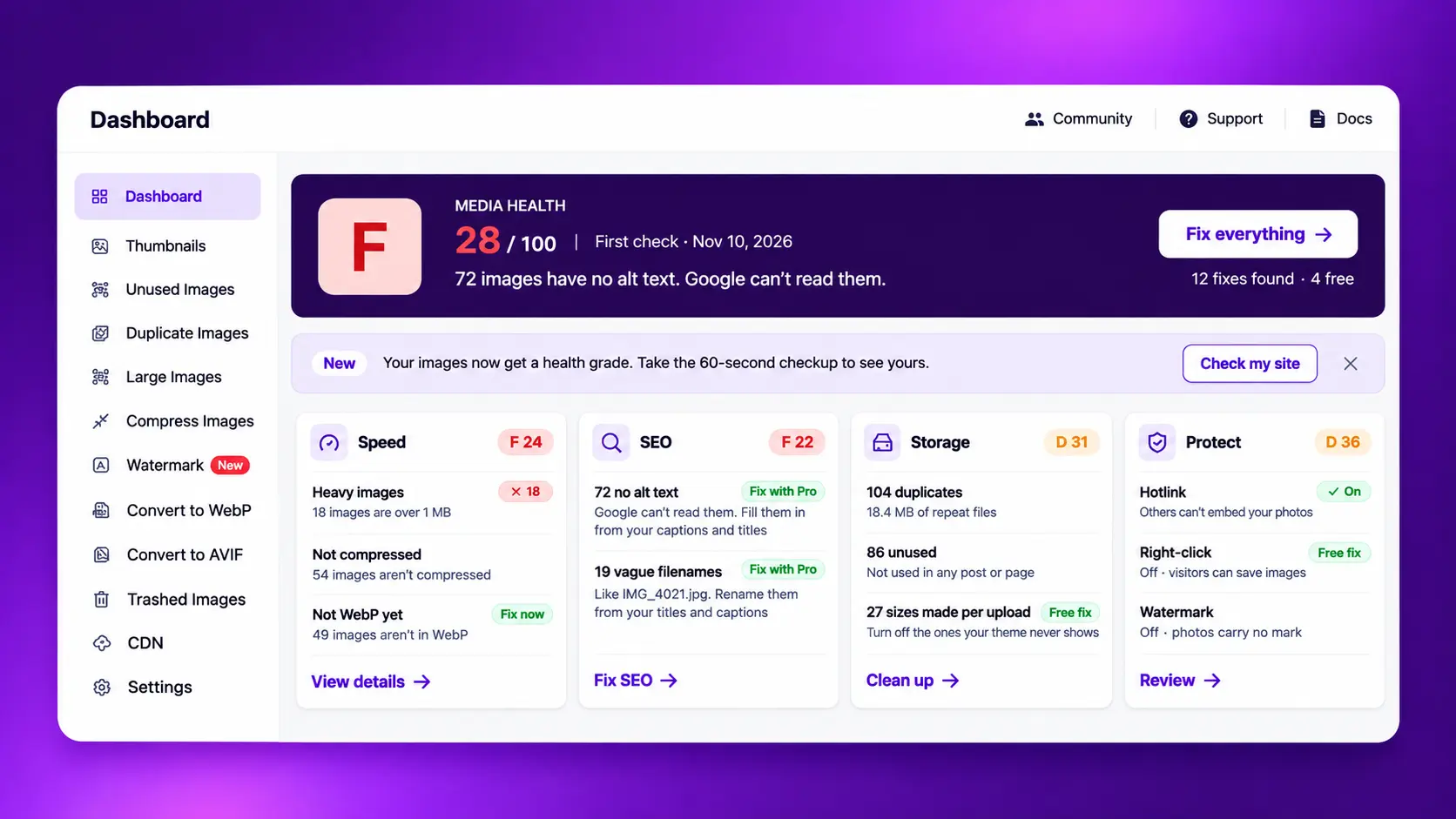
- Run your sale landing page and your best-selling product page through PageSpeed Insights on mobile. Write down the Largest Contentful Paint (LCP).
Save both results. You will compare them again in Check 7.
Check 2: Find oversized images
An oversized image is a file far larger than the space it fills. A 4,000-pixel product photo shown in a 600-pixel slot is the classic example.
Sort the Media Library by file size, or use the Detect Large Images tool in ThumbPress Pro to flag them. Start with the images on your sale page, your top product pages and your home page, because those get the traffic.
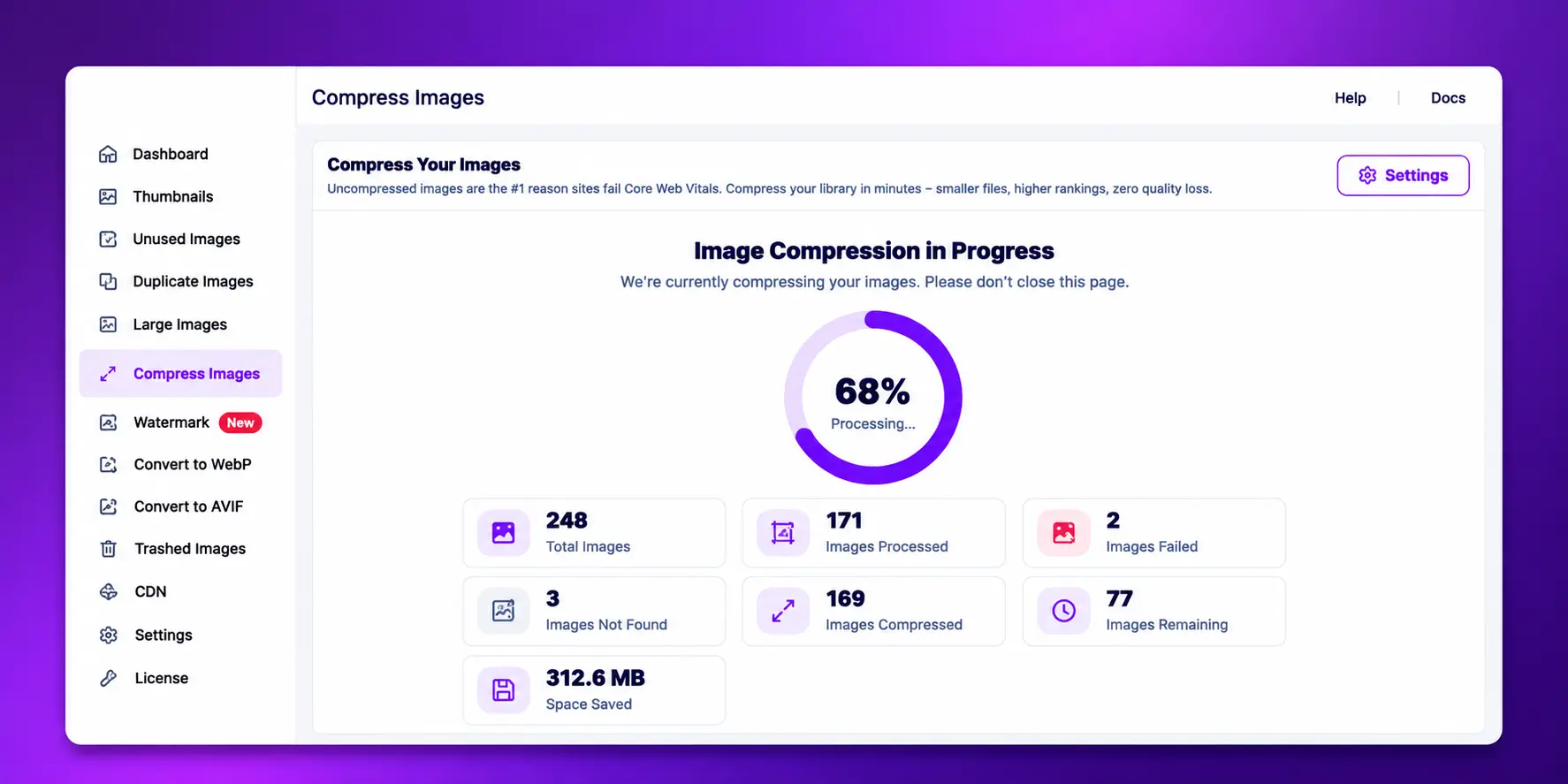
Then compress them. The Compress Images feature in ThumbPress Pro shrinks files in bulk or automatically on upload. Keep the images sharp enough to zoom: shoppers judge products by their photos.
Check 3: Check your image formats
Many libraries still hold mostly JPEG and PNG files. WebP and AVIF are usually lighter at similar quality.
The ThumbPress dashboard counts the images that are in neither WebP nor AVIF, so you can see the scale of the job. The Convert to WebP feature works on single images or in bulk. Two safety details from the ThumbPress 6.10.0 release help here:
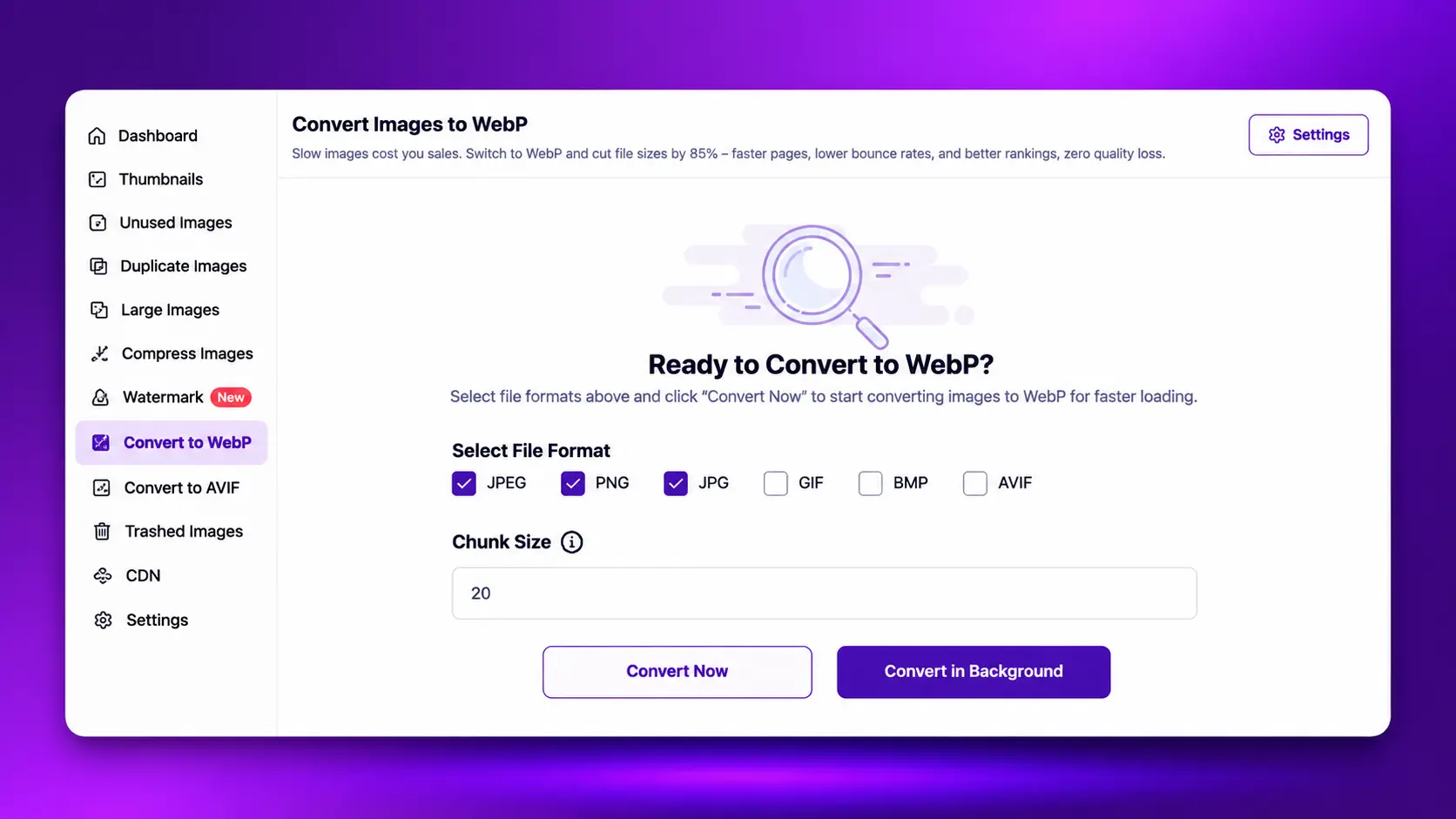
- Conversion skips animated GIFs and files that are already WebP or AVIF, and keeps the original when the converted file would not be smaller.
- A confirmation now warns you before conversion deletes your original files. Keep your originals until the sale is over.
Test a few pages after you convert. Check that product images, galleries and banners all still display.
Check 4: Remove extra thumbnail sizes
Every upload creates several copies in different sizes. Your theme, WooCommerce and your plugins each add their own. Many of those sizes are never displayed.
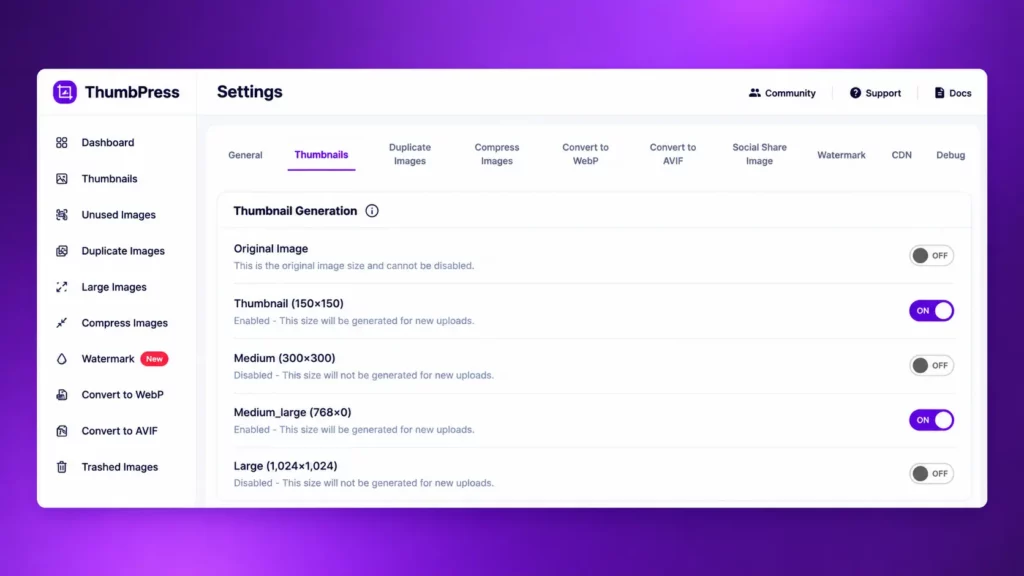
Use the Disable Thumbnails feature in ThumbPress to switch off the sizes you do not use. It applies to future uploads. If you change sizes and need existing images rebuilt, use Regenerate Thumbnails, and read our guide on how to regenerate thumbnails in WordPress first. Do this early, because regenerating a large library takes time and you should not start it close to the sale.
Check 5: Look for duplicate and unused images
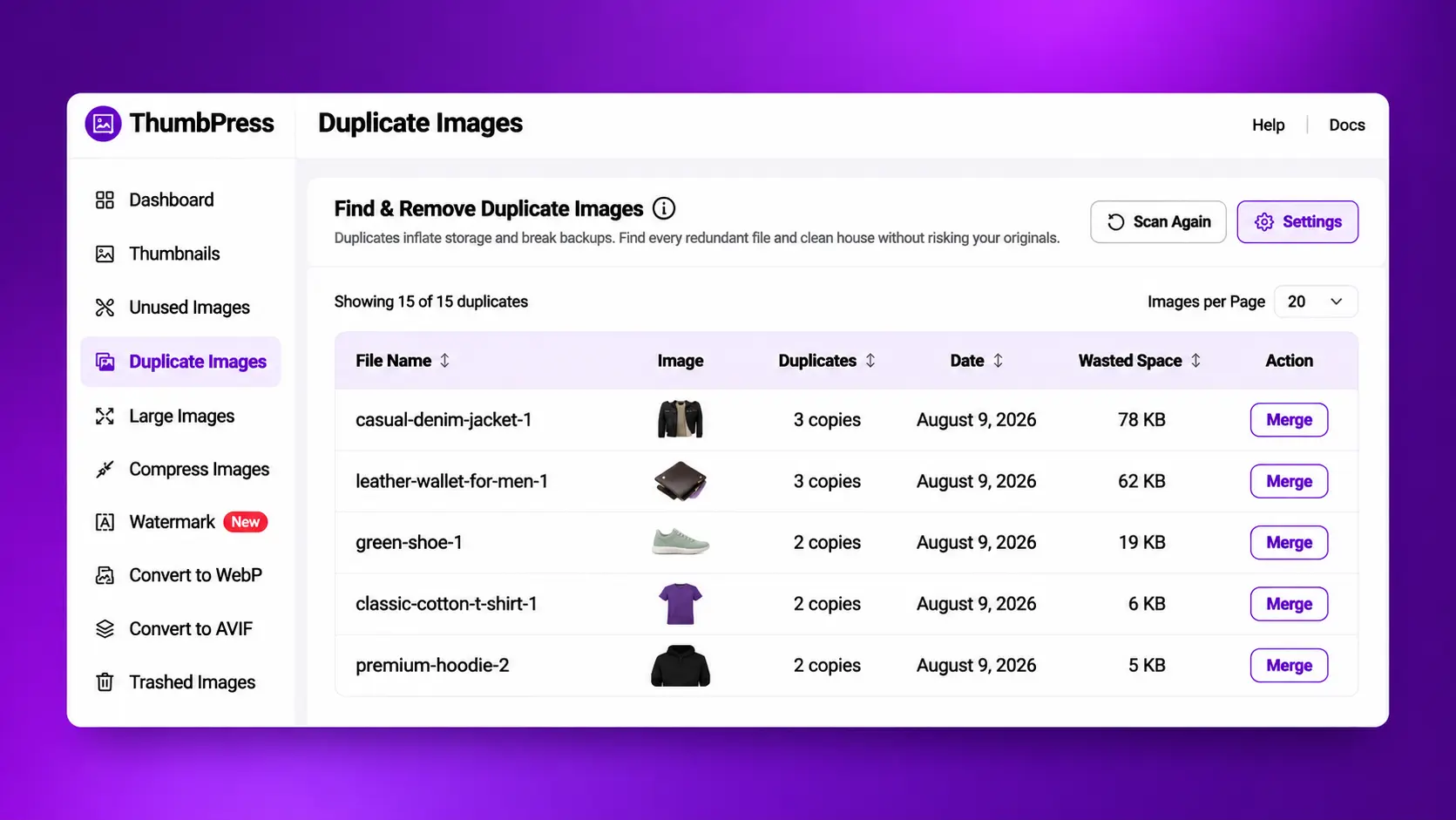
Duplicates waste storage and slow backups. Unused files clutter the library. Both are common in stores that have been running for years.
ThumbPress has Duplicate Images and Unused Images tools, and the dashboard reports duplicate storage and an estimate of unused images. Treat the unused figure as a guide only.
ThumbPress notes in its changelog that page builders can hide references, so an image that looks unused may still appear on a page.
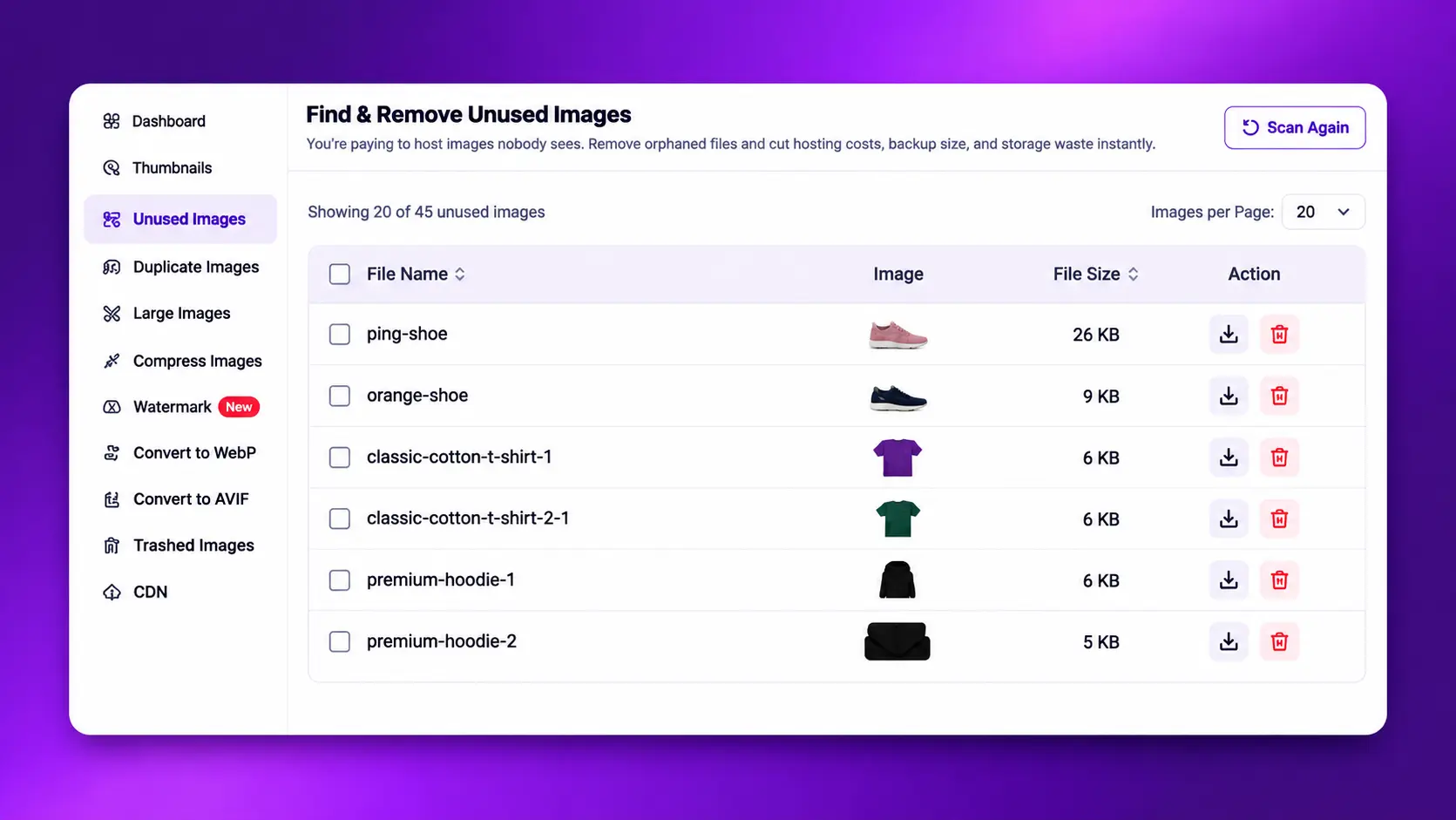
That is why this check has one rule: review now, delete after the sale. The same caution appears in other cleanup guides. MainWP’s media library tips warn that unattached files may still be used by custom themes or plugins, so scan results need a manual review.
If you must remove duplicates before the sale, remove only the ones you can confirm, and back up first.
Check 6: Fix missing alt text and vague file names
Alt text and file names do two jobs: they help people who use screen readers, and they help search engines understand your images. Google’s image guidance calls alt text the most important metadata for an image, and recommends short, descriptive file names such as my-new-black-kitten.jpg over IMG00023.JPG.
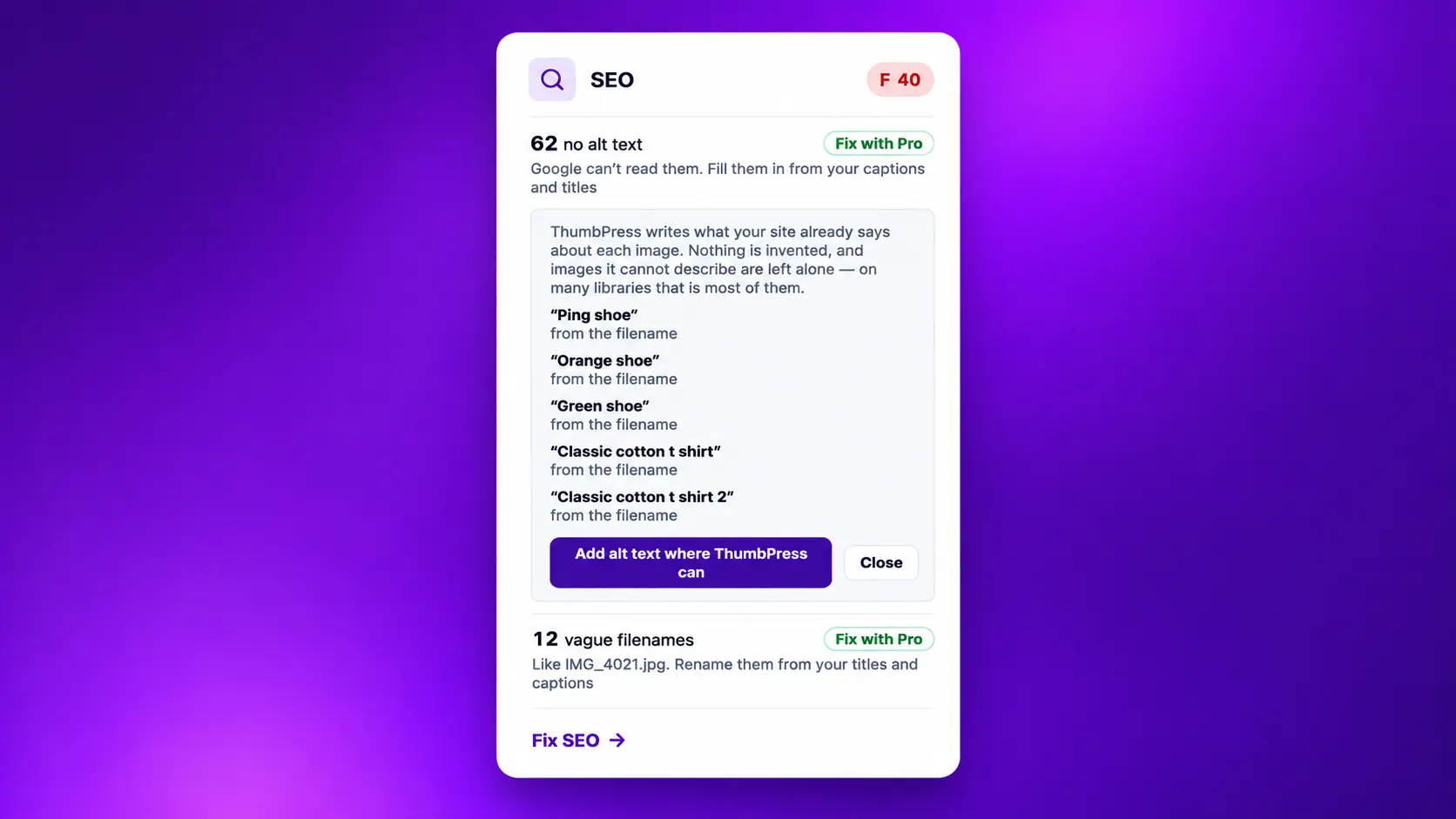
The ThumbPress dashboard reports images with no alt text and vague file names. With ThumbPress Pro you can fix those lines from the dashboard. Prioritize the images on your sale page and your best-selling products first.
Write alt text that describes the image in a few useful words, and include a product name only when it fits. Avoid stuffing keywords.
One caution on file names. Renaming a file that is already live can change its URL and break links to it, including in cached pages and social previews. Rename new campaign images freely, and test or back up before you change older ones.
Check 7: Set upload rules, then retest
New banners will arrive every few days during the sale. Without rules, one oversized file can undo your audit.
Use the Set Image Upload Limit feature in ThumbPress, which is free, to cap the file size for uploads. Tell everyone who uploads, including agencies and freelancers, what the limit is and what size a hero image should be.
Turn on automatic compression and WebP conversion for new uploads if you use them.
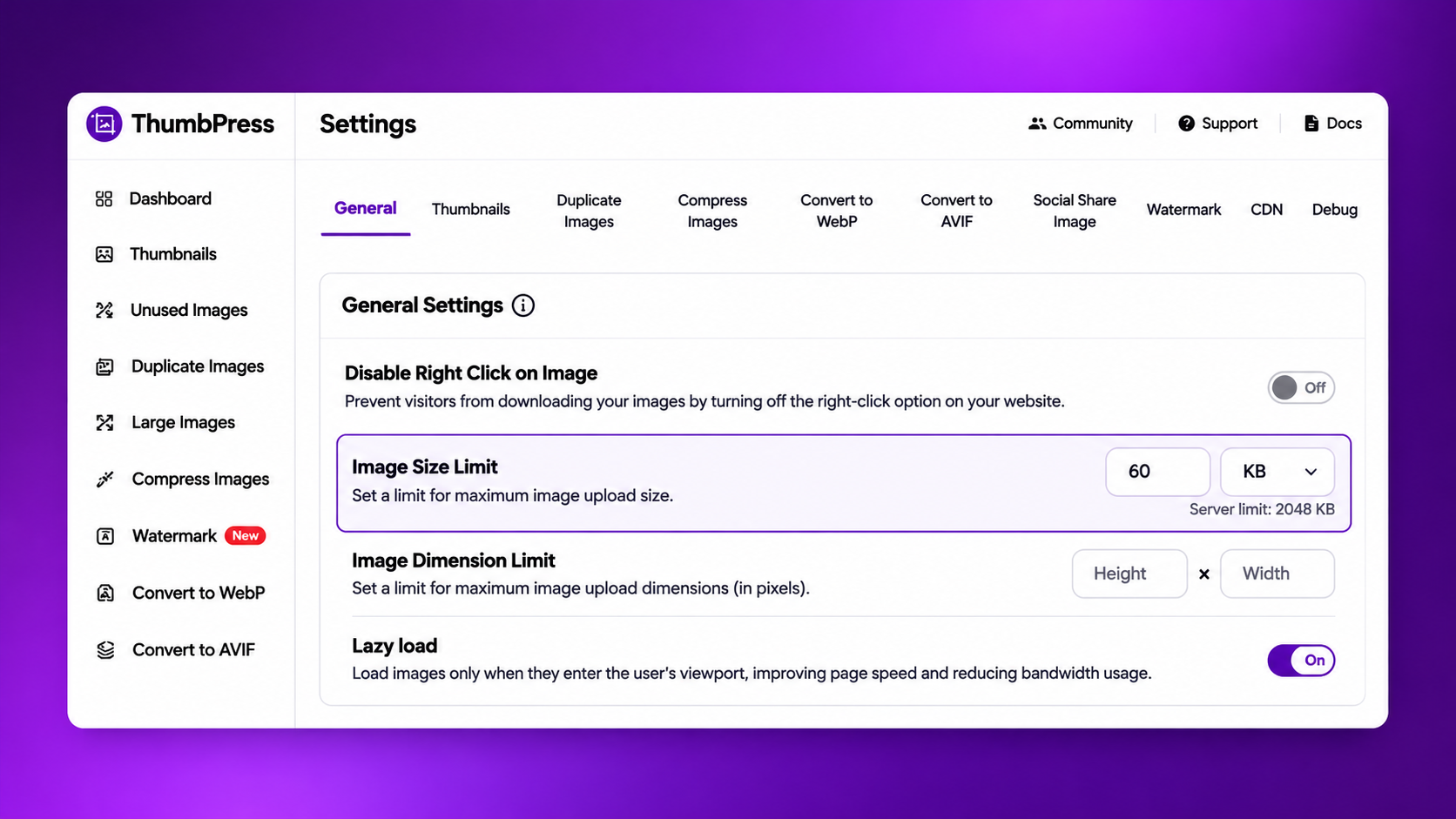
Then retest. Run the same pages through PageSpeed Insights again, compare the LCP with your baseline, and open the ThumbPress dashboard to see the new grade. Place a test order on your phone.
After that, freeze your changes from about November 21.
Black Friday media library audit scorecard
Use this table to track your progress. Free and Pro labels follow the ThumbPress plugin listing, so check your version for current details.
| Check | What to look for | ThumbPress tool | Plan |
| 1. Baseline | Dashboard grade, LCP on sale pages | Dashboard and Site Image Checkup | Free |
| 2. Oversized images | Files far larger than their display size | Detect Large Images, Compress Images | Pro |
| 3. Formats | Images not in WebP or AVIF | Convert to WebP | Free (WebP) |
| 4. Thumbnails | Sizes your theme never uses | Disable Thumbnails, Regenerate Thumbnails | Free |
| 5. Duplicates and unused | Identical files, estimated unused files | Duplicate Images, Unused Images | Pro |
| 6. Alt text and file names | Missing alt text, names like IMG_0042 | Dashboard report, Pro fixes | Report free, fix Pro |
| 7. Upload rules | Oversized new uploads | Set Image Upload Limit | Free |
What to leave until after the sale
Not everything belongs in your pre-sale audit. Hold these until after Cyber Monday:
- Bulk deletion of unused or duplicate images.
- Renaming files that are already live.
- Large regeneration jobs on a big library.
- Changing your image sizes or theme settings.
- Deleting original files after conversion.
Write them down as a list now, and clean them up in December. Our checklist for WooCommerce image optimization and our guide to how to optimize images for WordPress are good places to start that cleanup.
Common Black Friday media library audit mistakes to avoid
- Auditing everything equally. Start with the sale page, the top products and the home page.
- Skipping the backup. One wrong deletion can break a sale page.
- Trusting the unused count. It is an estimate, and page builders can hide references.
- Deleting originals too soon. Keep them until the sale is over.
- Forgetting new uploads. Set the limit and automatic compression, or your fixes will be undone.
- No retest. Compare your before and after numbers, or you will not know what helped.
Run your Black Friday media library audit before the traffic arrives
A Black Friday media library audit does not need to be big. Measure your baseline, fix the images on your sale pages first, set upload rules and freeze your changes a week before the sale. Leave the deep cleanup for December.
ThumbPress puts the dashboard, compression, conversion, thumbnail control and upload limits in one plugin. ThumbPress Pro is 50% to 70% off during the Black Friday and Cyber Monday sale, from $29.50 a year, with a 30-day money-back guarantee.
See the ThumbPress pricing page to compare plans. If you also want a plan for the sale itself, read our Black Friday marketing strategy.
Frequently Asked Questions
It is a review of the images in your WordPress media library before the sale. You look for oversized, duplicate, unused and unlabelled images, extra thumbnail sizes and weak upload rules, then fix what slows your pages.
A small store can finish the seven checks in a day. A large library may need a week, because bulk compression, conversion and regeneration take time to run. Start now so you can finish and freeze changes by November 21. The Black Friday media library audit is mostly waiting on bulk jobs, not on your time.
It is safer to wait. Unused-image scans are estimates, and page builders can hide references to an image. A deleted image that a page still uses will show as broken on that page. Review now and delete after the sale, with a backup.
It helps indirectly. Alt text helps customers who use screen readers, and Google says it is the most important metadata for understanding an image. Fix the images on your sale page and best-selling products first.
The dashboard, Site Image Checkup, WebP conversion, Disable Thumbnails, Regenerate Thumbnails, lazy loading and the Image Upload Limit are free. Detecting Large Images, Compress Images, Duplicate Images, Unused Images and the alt text and file name fixes need ThumbPress Pro. Every Pro purchase has a 30-day money-back guarantee.
Yes. Treat your Black Friday media library audit as the first of four. A quick check every quarter keeps oversized uploads, duplicates and missing alt text from building up again.