
Convert Your Images to WebP for Free
WebP files are roughly 25-35% smaller than JPEG with the same visual quality. Convert your JPEG, PNG and GIF images in place - unlimited, on your own server, with links that never break.
Get Started Now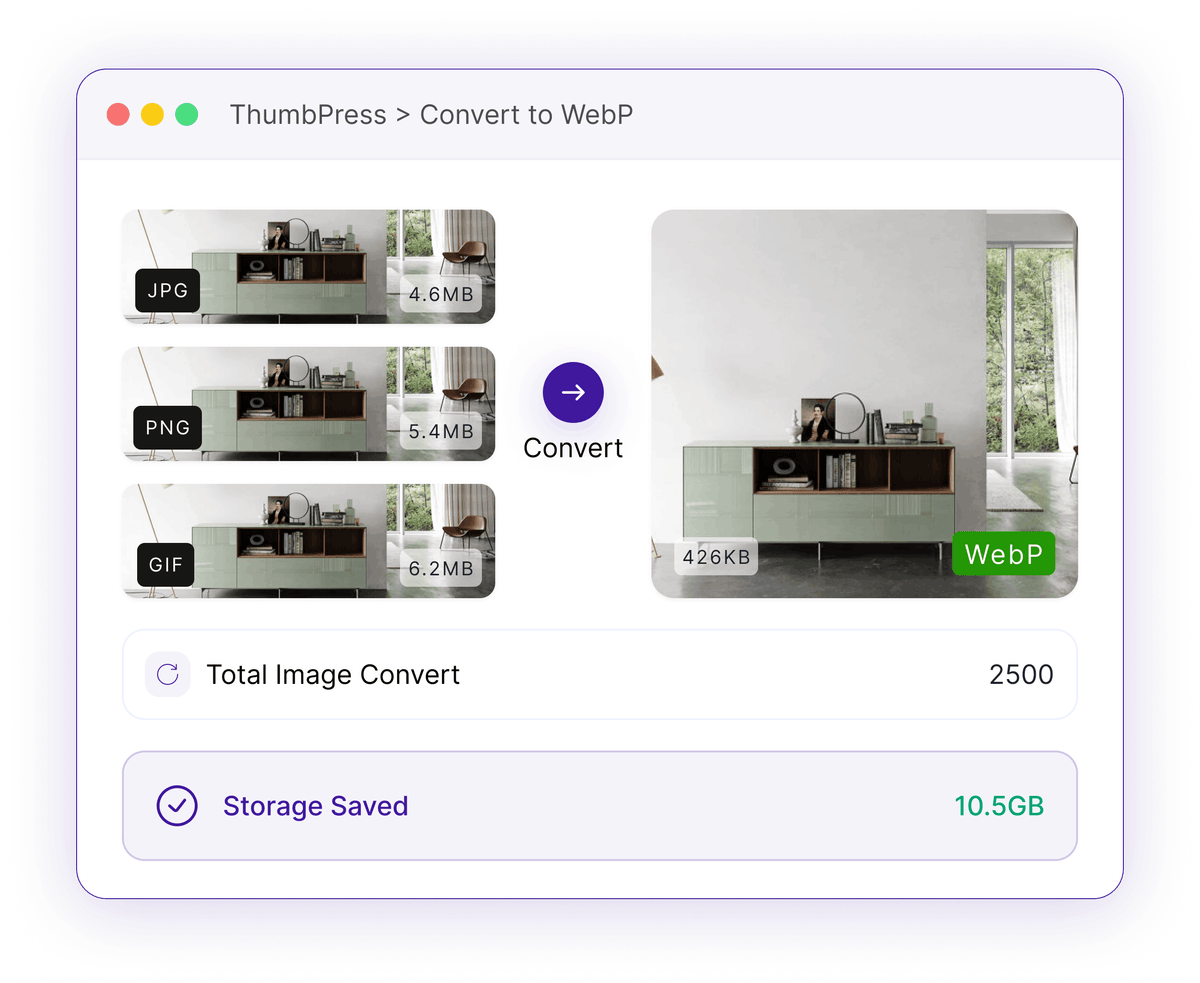
Old Image Formats Are Costing You Speed
If your media library is still all JPEG and PNG, you're shipping more bytes than you need to.
The "Next-Gen Formats" Warning
PageSpeed Insights flags JPEG and PNG images and tells you to serve them in next-gen formats. Until you do, that audit keeps failing and your score stays capped.
WebP is ~25-35% smaller than JPEGHeavier Pages, Slower Loads
Every extra kilobyte an old format carries is a kilobyte your visitor waits for. Across a full page of images that adds up to a slower LCP and a worse first impression.
Slower LCP hurts Core Web VitalsManual Conversion Breaks Links
Converting images by hand and re-uploading spawns new URLs, leaving old posts and product pages pointing at files that no longer exist.
Broken images across posts and productsHow WebP Conversion Works
One safe pass turns your existing formats into lean, next-gen WebP.

Select
Choose which source formats to convert - JPEG, PNG, GIF - so you stay in control of what gets touched.

Convert
ThumbPress writes a smaller WebP version first, pre-flighting available memory so large images never crash the process.
Rewrite
It rewrites stored URLs across post content, meta and options - including WooCommerce - then deletes the old file only after the new one is safely in place.
3 Ways to Convert
Convert everything at once, fix a single image, or automate it from here on.
Bulk conversion
Convert your whole library in one go. It runs in the foreground or in the background via Action Scheduler with live progress and a cancel button, so even large sites never time out.
Converting library
1,064/1,248 images
Single image
A one-click WebP button right in the media library - ideal for converting a hero image or testing the result before a full run.
herobanner.jpg
Convert
Auto-convert on upload
Enable it once and every new image is converted to WebP automatically as it's uploaded, so your library stays next-gen without a thought.
Convert during upload
Compress with Confidence
Smaller files, unbroken links, and nothing ever leaves your server.
Frequently Asked Questions
Ready to Go Next-Gen?
Install ThumbPress free and convert your library to WebP - no image caps, no credits.
Let's Go