How to Speed Up Your WordPress Site in 2026 (Complete Guide)


You spent hours getting your website right. The copy, the design, the offer. And then someone lands on it and leaves before any of it loads.
That’s not a traffic problem. That’s not a marketing problem. That’s three seconds of silence that cost you a real person who was genuinely interested.
While your site was loading, theirs was already up. Same search, same intent, different outcome. Not because their product was better. Because their page was faster.
The good news is you don’t need a developer, a big budget, or a full site rebuild to fix this. Speeding up your WordPress site is one of those rare things where a focused afternoon of the right moves pays off for years, in rankings, in conversions, and in visitors who actually stick around long enough to become customers.
Let’s make that happen.
In short: If you do nothing else, do these three things:
i) Upgrade to a caching plugin,
ii) Optimize your site images,
iii) And confirm your server TTFB is under 300ms.
These three changes resolve most speed issues on most WordPress sites.
The Performance Landscape: Why Speed Dominates 2026
Before we dive into the technical “how-to,” we must understand the environment. In 2026, Google’s ranking signals have evolved.
The Impact of INP (Interaction to Next Paint)
While we once obsessed over LCP (Largest Contentful Paint), the current gold standard is improving INP WordPress performance. This metric tracks how long it takes for a site to respond after a user clicks a button or interacts with a menu. A site that looks loaded but feels “heavy” or “laggy” will be penalized in search rankings.
The Conversion Reality
Data continues to show that speed is the highest-ROI marketing spend.
- User Retention: 53% of mobile visits are abandoned if pages take longer than 3 seconds to load.
- Trust Factor: A fast site creates an immediate perception of professionalism and security.
- SEO Efficiency: A fast site allows Google’s crawl bots to index more of your pages in less time.
9 Proven Steps to Speed Up Your WordPress Site
While there is a problem, there is a way. Below are expert-tested methods that consistently deliver results.
1. Start with a Deep Performance Audit
The most common mistake when trying to speed up a WordPress site is guessing at the problem. You might spend an hour minifying CSS when your actual bottleneck is a server taking 900ms just to respond. Measure first.
Google PageSpeed Insights
Go to pagespeed.web.dev and test your URL. This is the single most important tool because it draws on real-world Chrome user data – not a simulated test from a lab environment. It scores you on all three Core Web Vitals and tells you exactly what to prioritize.
The 2026 benchmarks you need to hit:
- LCP (Largest Contentful Paint): Under 2.5 seconds
- INP (Interaction to Next Paint): Under 200 milliseconds
- CLS (Cumulative Layout Shift): Under 0.1
Always test your mobile score separately from your desktop. Google’s mobile-first indexing means your mobile performance is the one that matters for rankings.
GTmetrix
GTmetrix produces a waterfall chart showing every file your page loads and the time each one takes. This is where you discover that your 4MB hero image is holding up everything else on the page, or that a forgotten third-party script from a deactivated service is still adding a full second to your load time.
Pay particular attention to which element triggers your LCP. Find it in the waterfall, and that becomes your first optimization target.
Run Both – Not Just One
Different tools measure different things and test from different server locations. A site might score well on a test from a New York server but load slowly for someone in Tokyo. Use both tools and test from at least two geographic regions before concluding.
2. Hosting and Server Setup are Crucial for Speed
Choose the Right Hosting and Server Setup
Every plugin, every optimization tweak, every CDN configuration you put in place sits on top of your hosting. If the foundation is weak, nothing you build on top of it will fully compensate.
TTFB (Time to First Byte) is your key measurement here. It tells you how long your server takes to begin responding after a visitor makes a request. A TTFB above 600ms means hosting is your primary bottleneck.
| Hosting Type | Typical TTFB | Best Suited For |
| Shared Hosting | 400ms – 900ms | New blogs or low-traffic test sites |
| VPS Hosting | 200ms – 400ms | Growing sites needing more control |
| Managed WordPress Hosting | 100ms – 250ms | Business sites, WooCommerce stores |
| Cloud Hosting (e.g., Cloudways) | 150ms – 300ms | Sites needing flexible scaling |
The PHP Version Nobody Updates
Here is a free, five-minute upgrade that can cut your server processing time by up to 60%: switch to PHP 8.3.
WordPress runs on PHP. Older versions of PHP, especially 7.4, which many sites are still running, process WordPress code significantly slower than PHP 8.3. The difference is not marginal. It is substantial.
To check your current PHP version: go to Tools → Site Health in your WordPress dashboard. To upgrade: log into your hosting control panel, find the PHP version selector, and switch to PHP 8.3. Before doing so, verify that your theme and key plugins are compatible, most are, but it takes 30 seconds to check.
Why Shared Hosting Causes Unpredictable Speed
On shared hosting, your site competes for the same server resources as potentially hundreds of other websites. When one of those sites spikes in traffic or runs a heavy background task, every other site on that server slows down. You have zero control over this. If your speed test results are wildly inconsistent between runs, this is almost certainly why. The only real fix is to move to dedicated resources through VPS or managed hosting.
3. Caching: The Fastest ROI in WordPress Optimization
If your site feels slow, caching is often the fastest fix. It cuts processing time and serves pages instantly to your visitors. Still, there is more. Let’s explore:
Implement Caching for Faster Performance
WordPress caching optimization is the art of delivering a “static” version of your site so the server doesn’t have to think.
Without caching, every page load on your WordPress site triggers a chain of events: PHP executes, the database is queried, HTML is assembled, and then the page is sent to the visitor. This takes hundreds of milliseconds per request and puts constant pressure on your server.
Caching breaks that chain. After the first visitor loads a page, a static copy of that HTML is saved. Every subsequent visitor gets served the saved version, instantly, with no PHP or database involvement.
There are three layers of caching that work together:
(i) Page caching saves the full HTML output of each page. This is the most impactful layer for general-purpose sites.
(ii) Object caching (via Redis or Memcached) stores the results of database queries in server memory. For WooCommerce stores and membership sites where the same queries run repeatedly, this can dramatically reduce database load.
(iii)Browser caching instructs visitors’ browsers to hold onto static files like images, fonts, and CSS locally, so they do not re-download them on every return visit.
Caching Plugin Comparison
| Plugin | Free? | CWV Pass Rate* | Best For |
| WP Rocket | Paid ($59/yr) | ~49% | Most sites — works well out of the box |
| LiteSpeed Cache | Free | ~51% | Sites on LiteSpeed servers |
| NitroPack | Paid ($7/mo) | ~54% | Non-technical users wanting automation |
| W3 Total Cache | Free + Paid ($7/yr) | ~32% | Developers who want granular control |
| WP Super Cache | Free | ~28% | Beginners on simple blogs |
Pass rates based on Chrome User Experience Report data across a large sample of sites.
Practical guidance: If your host uses LiteSpeed servers (common with Hostinger, A2 Hosting, Namecheap), use LiteSpeed Cache; it is free and deeply integrated at the server level. On any other server type, WP Rocket is the most reliable option for most site owners who want results without configuration complexity.
4. Media Management: WordPress Image Optimization
Optimize Images with Better Media Management
Images account for more than 50% of the average page weight on a typical WordPress site. A single unoptimized photograph from a modern camera can be 5–8MB. Your visitor’s browser has to download every byte of that before the image appears.
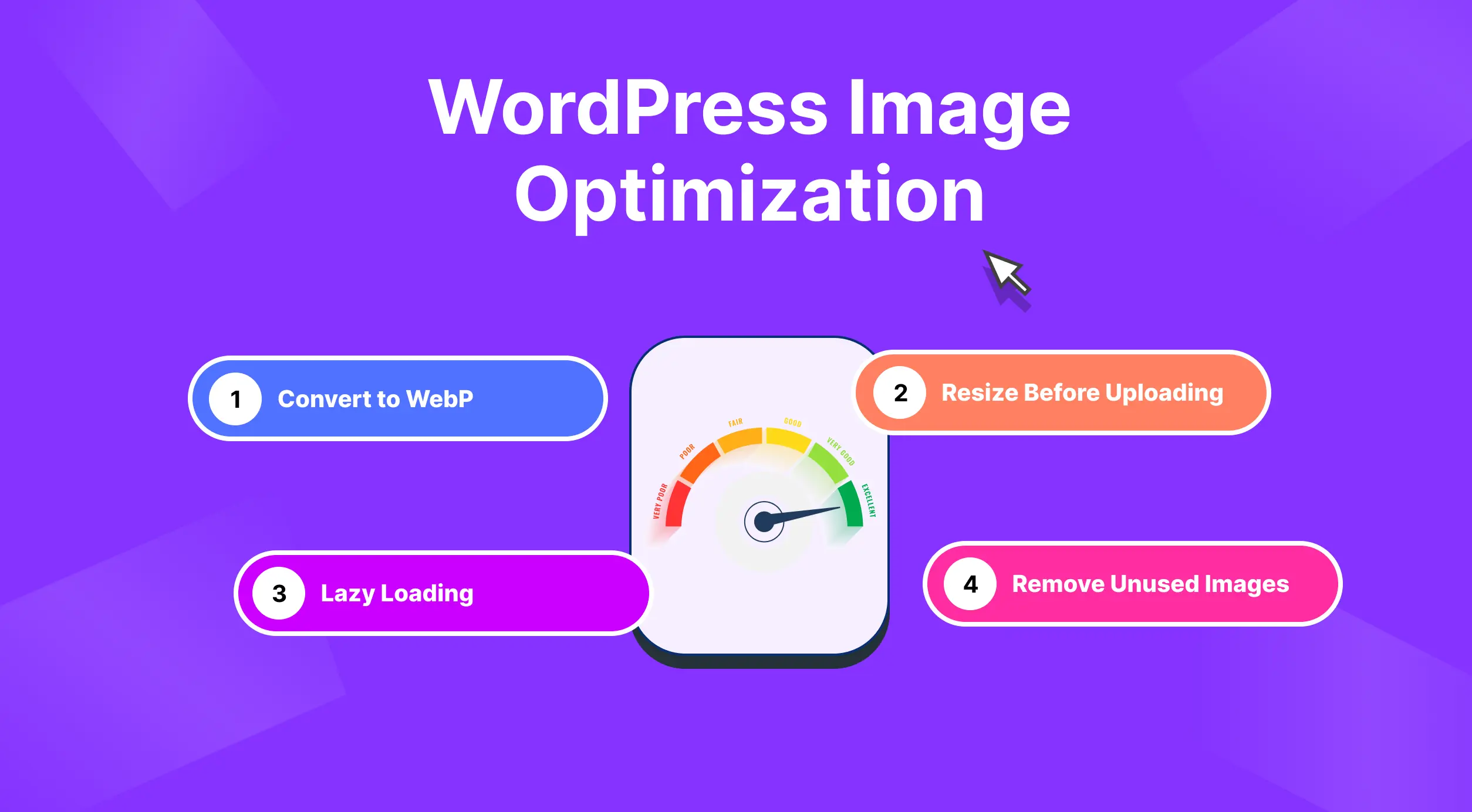
The good news: you can cut image weight by 70–80% with no visible quality loss using three techniques.
- Convert to WebP
WebP is the image format developed by Google. At equivalent visual quality, WebP files are 25–35% smaller than JPEG and up to 80% smaller than PNG for transparent images. Every major browser, Chrome, Firefox, Safari (since 2020), and Edge, supports WebP natively.
You do not need to re-upload your entire image library manually. Plugins like Imagify and ShortPixel will bulk-convert your existing media library and automatically convert new uploads going forward.
- Resize Before Uploading
If your blog post content column is 800px wide, upload an 800px image, not the raw 4000px file from your camera.
WordPress creates resized versions of every upload, but it also keeps the original. That full-resolution original often ends up loading in contexts where a smaller version would have served just as well. Resize images in any photo editor before uploading, targeting your site’s maximum display width (usually 800–1200px for most themes).
- Lazy Loading With One Important Exception
Lazy loading holds off on downloading images that are below the visible area of the page. Instead of loading all 15 images on a page at once, the browser loads only what is visible, then loads more as the visitor scrolls. WordPress has included native lazy loading since version 5.5.
The critical exception: Never lazy-load your hero image or whatever element is your LCP element. If the browser delays loading it, your LCP score takes a direct hit. Quality caching plugins like WP Rocket and LiteSpeed Cache handle this automatically, but verify the setting in your plugin configuration.
- Remove Unused Images
Over time, WordPress media libraries collect images that are no longer used, old drafts, deleted pages, duplicate uploads, or replaced visuals. These unused files take up storage space, slow down backups, and make media management harder.
Regularly cleaning your media library helps keep your website organized and efficient. You can manually review files or use plugins that detect orphaned images and safely remove them after confirmation.
Before deleting anything, always create a backup. Some images may still be used in theme files, widgets, or custom code even if they do not appear in posts or pages.
Note: You can solve all these problems by using a single Image Optimization plugin, ThumbPress.
5. Core Web Vitals Deep Dive: What Google Is Actually Scoring You On (And How to Pass)
Core Web Vitals directly impact your site’s speed, usability, and SEO performance. Improving them helps you rank better and keep users engaged.
Improve Core Web Vitals for Better Scores
Understanding what Google is actually measuring helps you prioritize fixes with precision.
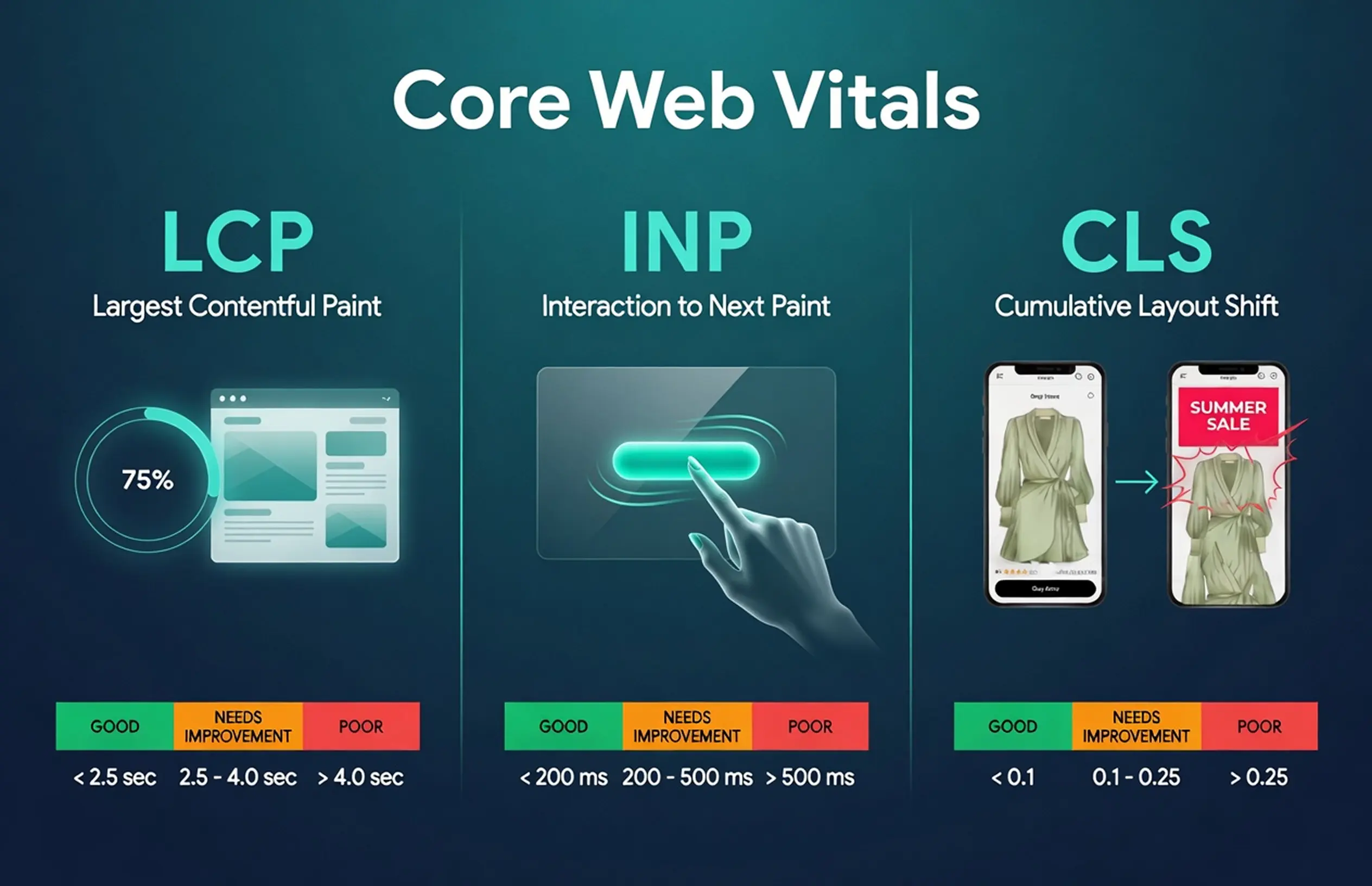
LCP: Make the Main Content Load Fast
LCP measures the time it takes for the largest visible element on the page to fully render. For most WordPress sites, this is the hero image at the top of the page.
The fastest LCP improvement is to add fetchpriority=”high” to your hero image tag, which tells the browser to prioritize loading it above other assets. Combine this with converting the image to WebP, compressing it to approximately 80% quality, and ensuring it is not wider than its display dimensions.
INP: The Metric Most Sites Are Failing Right Now
INP replaced FID in March 2024. While FID measured the delay before the browser began responding to a click, INP measures the full cycle: from click to the moment the browser finishes updating the screen.
A poor INP score is almost always caused by too much JavaScript running on the main browser thread. When a visitor clicks something, the browser has to pause its JS work to respond. More JS means longer pauses.
To diagnose this, open Chrome DevTools, go to the Performance tab, and interact with your page. The flame chart will show you which scripts are consuming the main thread. Tasks taking longer than 50ms are your targets.
CLS: Stop the Page from Jumping
CLS measures how much your page layout shifts while loading. The fix is simple: add explicit width and height attributes to every image in your HTML. When the browser knows the dimensions before the image downloads, it reserves the correct space and no layout shift occurs.
6. Optimize CSS, JavaScript, and Fonts
These are a bit technical. Take professional help if required.
Minification
Minification strips whitespace, line breaks, and comments from CSS and JS files without changing their behavior. A 200KB stylesheet can shrink to 140KB. This is built into every quality caching plugin, turn it on and test. If something breaks visually, identify which file caused it and exclude it.
Defer Non-Critical Scripts
Render-blocking scripts are among the most common causes of poor PageSpeed scores. When a browser encounters a script tag in your HTML, it pauses page rendering while the script downloads and executes.
Deferring tells the browser: load this in the background, but wait until the page is rendered before running it. Analytics tools, chat widgets, and social sharing buttons are almost always safe to defer. Do not defer scripts that control critical layout elements or core WordPress functionality.
Self-Host Your Google Fonts
Loading Google Fonts from Google’s servers adds a DNS lookup, a TCP handshake, and a TLS negotiation, on top of the actual font download. On a slow mobile connection, this can add 400ms or more to your LCP.
The solution is to self-host fonts from your own server. The OMGF (Optimize My Google Fonts) plugin automates this for WordPress. Alternatively, if your design allows it, switching to a system font stack costs zero milliseconds — the fonts are already on the visitor’s device.
7. Clean Up Your Database Regularly
Every WordPress page load triggers multiple database queries. A cluttered database makes those queries slower, which slows down every page on your site.
The biggest source of database clutter is post revisions. Every time you save a draft, WordPress stores a complete copy. After a year of publishing, a single post can accumulate 50+ revisions.
Limit future revisions by adding this to your wp-config.php file:
define('WP_POST_REVISIONS', 5);Clean up existing revisions using the WP-Optimize plugin, which also handles spam comments, expired transients, and orphaned metadata left behind by deleted plugins.
| What to Clean | Why It Matters | Frequency | Tool |
| Post revisions | Largest source of database bloat | Limit at the config level | WP-Optimize |
| Spam and trashed comments | Unnecessary rows in DB | Weekly | WP-Optimize |
| Expired transients | Stale cached data is cluttering tables | Monthly | Advanced DB Cleaner |
| Orphaned plugin metadata | Left behind after plugin removal | Monthly | WP-Optimize |
Always run a full database backup before any cleanup operation.
8. Set Up a CDN for Global Speed
A Content Delivery Network copies your static files, images, CSS, and JavaScript to servers distributed around the world. When a visitor loads your site, those files are served from the location geographically closest to them.
If your WordPress host is in Frankfurt, a visitor in Singapore is pulling your entire page across thousands of miles of undersea cables. With a CDN that has a Singapore edge location, those files travel a fraction of the distance – and load measurably faster.
Cloudflare’s free plan is the standard starting point for most WordPress sites. It covers 310+ global locations, includes DDoS(Distributed Denial-of-Service) protection, provides a free SSL certificate, and has a WordPress plugin that automatically clears your cache when you publish. Setup requires changing your domain’s nameservers, which takes about 30 minutes.
One setting to configure immediately after setup: in Cloudflare’s caching settings, increase the browser cache TTL to at least 4 hours. The default is very short and causes unnecessary re-downloads of your static assets.
9. (Advisory Step) Audit Your Theme and Plugins
While not a direct fix, auditing your theme and plugins and taking the right steps can still improve your WordPress site speed. Therefor-
Choose a Lightweight Theme
A feature-rich page builder theme like Divi or Avada loads 300–500KB of CSS and JavaScript on every single page, including scripts for layout features that are not even used on that specific page.
Lightweight themes like Astra, GeneratePress, and Kadence are architected to load only what each page actually needs. A default Astra page loads in roughly 50KB.
That gap of 250–450KB translates to hundreds of milliseconds of render time, on every page, for every visitor.
If switching themes is not practical, use the Asset CleanUp plugin to selectively disable CSS and JS files on pages where they serve no purpose.
Audit Plugins Regularly
Every active plugin adds to your page load time. The goal is not to minimize plugin count blindly, a well-coded set of 25 plugins can be faster than a poorly-coded set of 10. The goal is to remove plugins that are not actively earning their place.
Every six months, open your plugins list and ask: is this plugin doing something useful on my live site right now? If it was installed for a one-time task and is still active, deactivate it. If you are not sure, deactivate and check if anything breaks.
Use the Query Monitor plugin to see precisely how much PHP execution time and how many database queries each plugin contributes to each page load. This replaces guesswork with data.
WooCommerce Speed Optimization: What’s Different
WooCommerce presents a specific challenge that does not exist on simple content sites. Cart status, session data, inventory levels, and pricing rules are user-specific and change constantly. This means significant portions of a WooCommerce store cannot be served from page cache, a cached checkout page with stale cart data breaks the purchase flow entirely.
Things you can do differently for WooCommerce:
- Configure your caching plugin to exclude cart, checkout, and My Account pages from page caching. WP Rocket, LiteSpeed Cache, and NitroPack do this automatically for WooCommerce, but verify that the setting is active.
- Set up Redis object caching. On an active WooCommerce store, Redis delivers the single biggest performance gain of any optimization. A product page generating 80 database queries, for inventory, pricing, session, and related products, can be reduced to 15 effective queries when Redis serves repeated lookups from memory. The response time improvement in busy stores is dramatic.
- Use Query Monitor to identify any single database query taking over 50ms. One poorly-optimized query from a poorly-coded plugin or theme function can add 2+ seconds to every product page load.
Final Thoughts: Where to Start Right Now
If you have read this far and are not sure where to begin, here is the order that will get you the fastest results for the time invested.
Each step on that list has a greater impact than the one below it. Start at the top, test after each change, and you will see real results without needing to execute the entire list before anything improves.
WordPress Speed optimization is not a project you complete once and file away. It is a habit. A monthly 30-minute review of your PageSpeed scores and Core Web Vitals catches slowdowns early, before they compound into a rankings problem or a conversion rate problem. Build the review into your workflow, and your site will stay fast as you grow.
Frequently Asked Questions (FAQs)
Why is my WordPress site slow, even though I have a caching plugin?
Caching helps, but it only addresses part of the problem. If your hosting TTFB is 700ms, caching reduces server work, but the slow network response from your host still delays everything. Check your TTFB first, it is the root cause that caching cannot fully compensate for.
How do I speed up WordPress without installing any plugins?
Focus on server-level improvements: upgrade to PHP 8.3 in your hosting control panel, set up Cloudflare via nameserver change (no plugin required), enable OPcache through your PHP settings, and resize and convert images before uploading them. These changes operate below the WordPress plugin layer.
Does my theme really affect page speed that much?
Yes, significantly. The difference between a lightweight theme (50KB) and a feature-heavy page builder theme (400–500KB) can represent 300–600ms of extra render time. If speed is a business priority, your theme choice is one of the highest-leverage decisions you make.
How long until I see ranking improvements after speeding up my site?
PageSpeed tools show results immediately after each change. Google Search Console Core Web Vitals data updates on a 28-day rolling window. Ranking improvements tied to better page experience signals typically show up in search results over 4-12 weeks.
Subscribe to Our Newsletter
Get the latest WordPress tutorials, trends, and resources right in your inbox. No Spamming, Unsubscribe Anytime.

Thank you for subscribing to our newsletter!


Table of Content
- The Performance Landscape: Why Speed Dominates 2026
- 9 Proven Steps to Speed Up Your WordPress Site
- 1. Start with a Deep Performance Audit
- 2. Hosting and Server Setup are Crucial for Speed
- 3. Caching: The Fastest ROI in WordPress Optimization
- 4. Media Management: WordPress Image Optimization
- 5. Core Web Vitals Deep Dive: What Google Is Actually Scoring You On (And How to Pass)
- 6. Optimize CSS, JavaScript, and Fonts
- 7. Clean Up Your Database Regularly
- 8. Set Up a CDN for Global Speed
- 9. (Advisory Step) Audit Your Theme and Plugins
- WooCommerce Speed Optimization: What's Different
- Final Thoughts: Where to Start Right Now
- Frequently Asked Questions (FAQs)