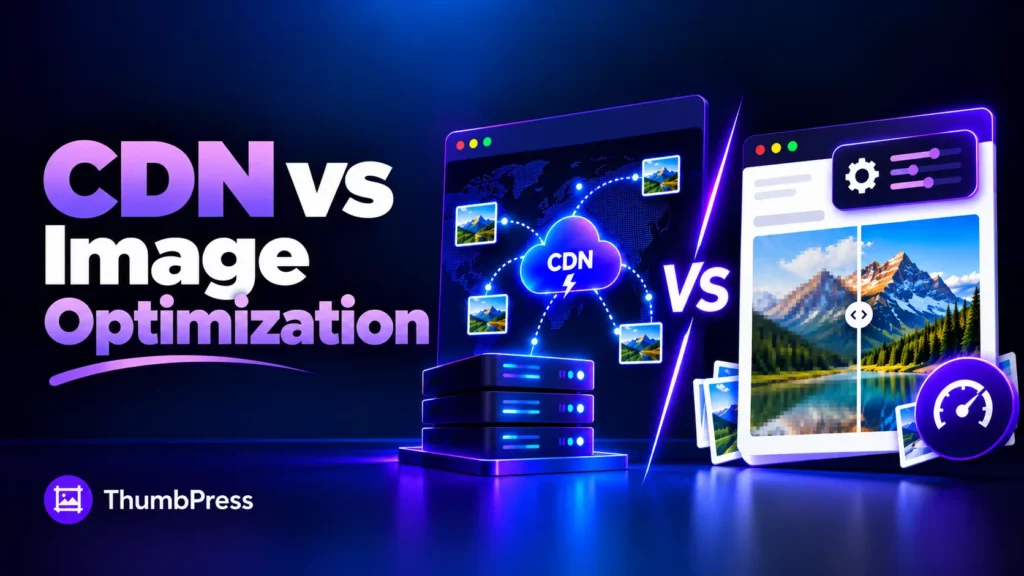
CDN vs image optimization is one of the first questions WordPress site owners hit when their pages feel slow. Both promise faster images. Both show up in every speed guide. So which one do you need?
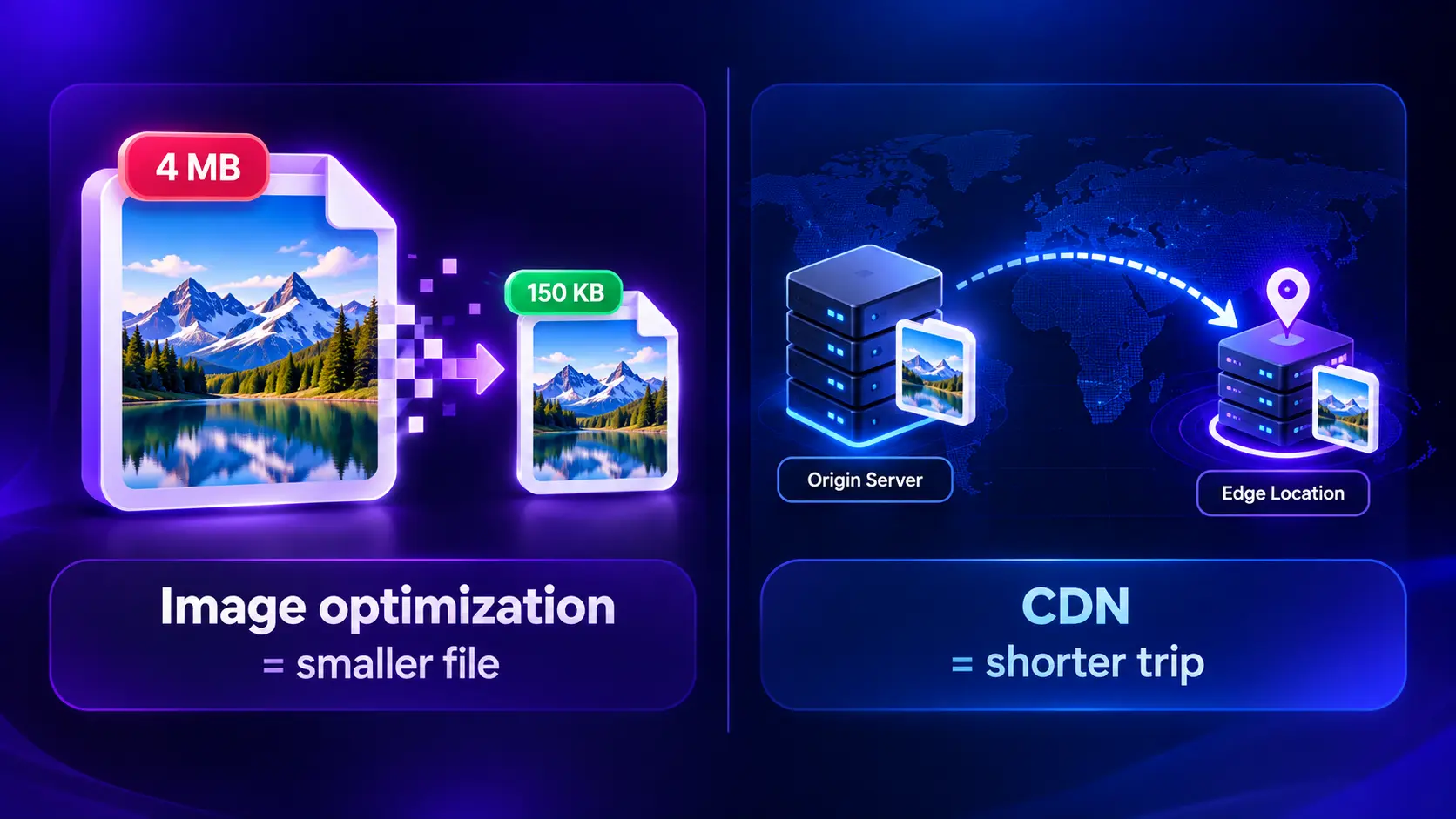
Here’s the short version. A CDN moves your image files closer to your visitor. Image optimization makes each file smaller. They fix two different problems, and most slow sites have both.
This guide breaks down CDN vs image optimization in plain language. You’ll see what each one does, where each one fails on its own, which to set up first, and how to run both in WordPress without stacking five plugins.
What Is a CDN?
A CDN (content delivery network) is a network of servers spread around the world. It stores copies of your images at many locations and serves each visitor from the nearest one.
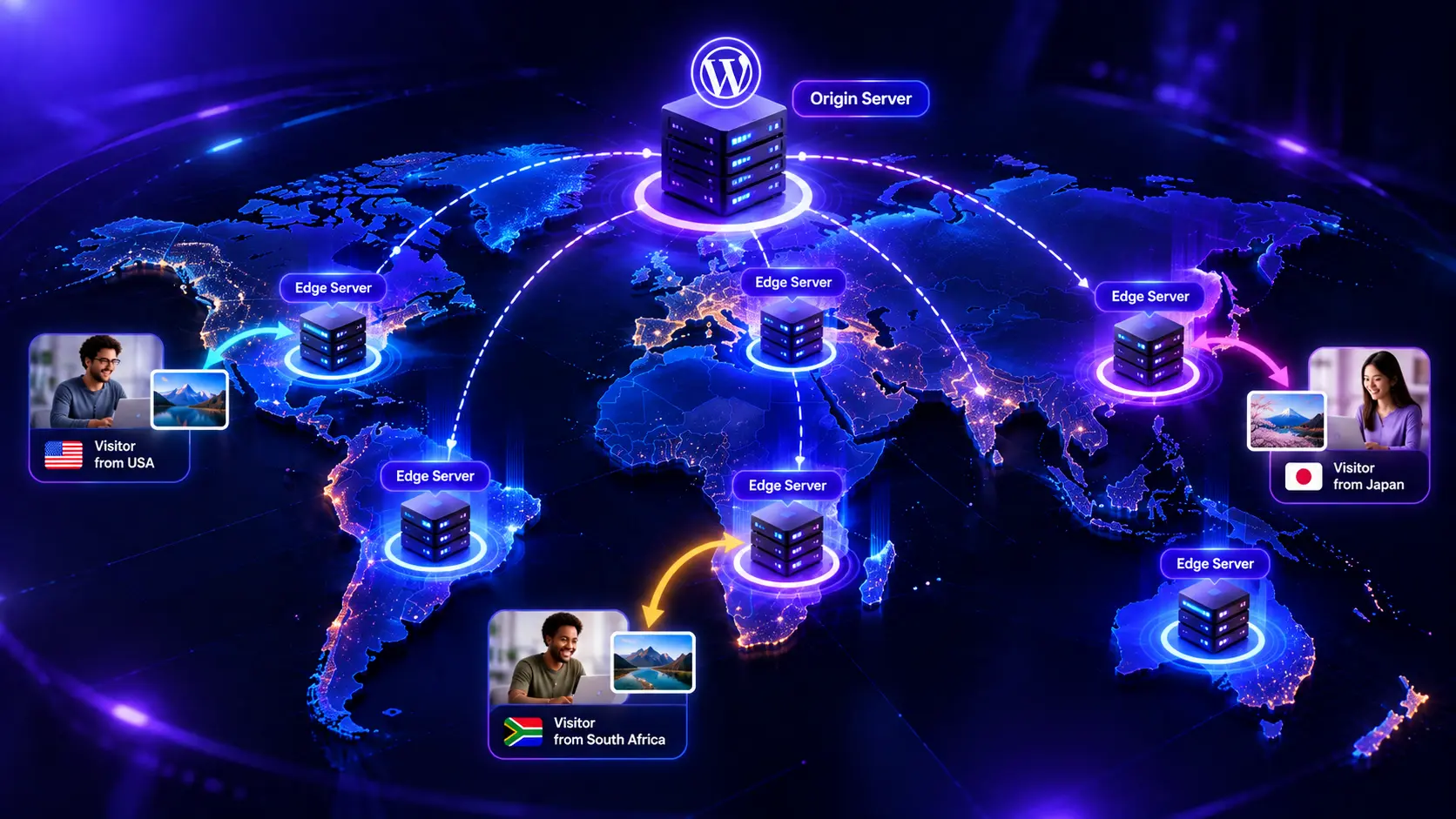
- What it does: caches your images at edge locations. A visitor in Dhaka loads them from Asia. A visitor in Berlin loads them from Europe.
- The problem it solves: distance and server load. Without a CDN, every visitor pulls every image from one server in one place.
- What to expect: images start loading sooner for visitors far from your server. Your host answers fewer requests, and traffic spikes hit the CDN, not your hosting plan.
- What not to expect: smaller files. A regular CDN delivers a 4 MB image as a 4 MB image. Only an image CDN, such as Optimole or Cloudflare on paid plans, also resizes and compresses on the way out.
What Is Image Optimization?
Image optimization is everything you do to make an image file smaller without making it look worse. It changes the file itself.
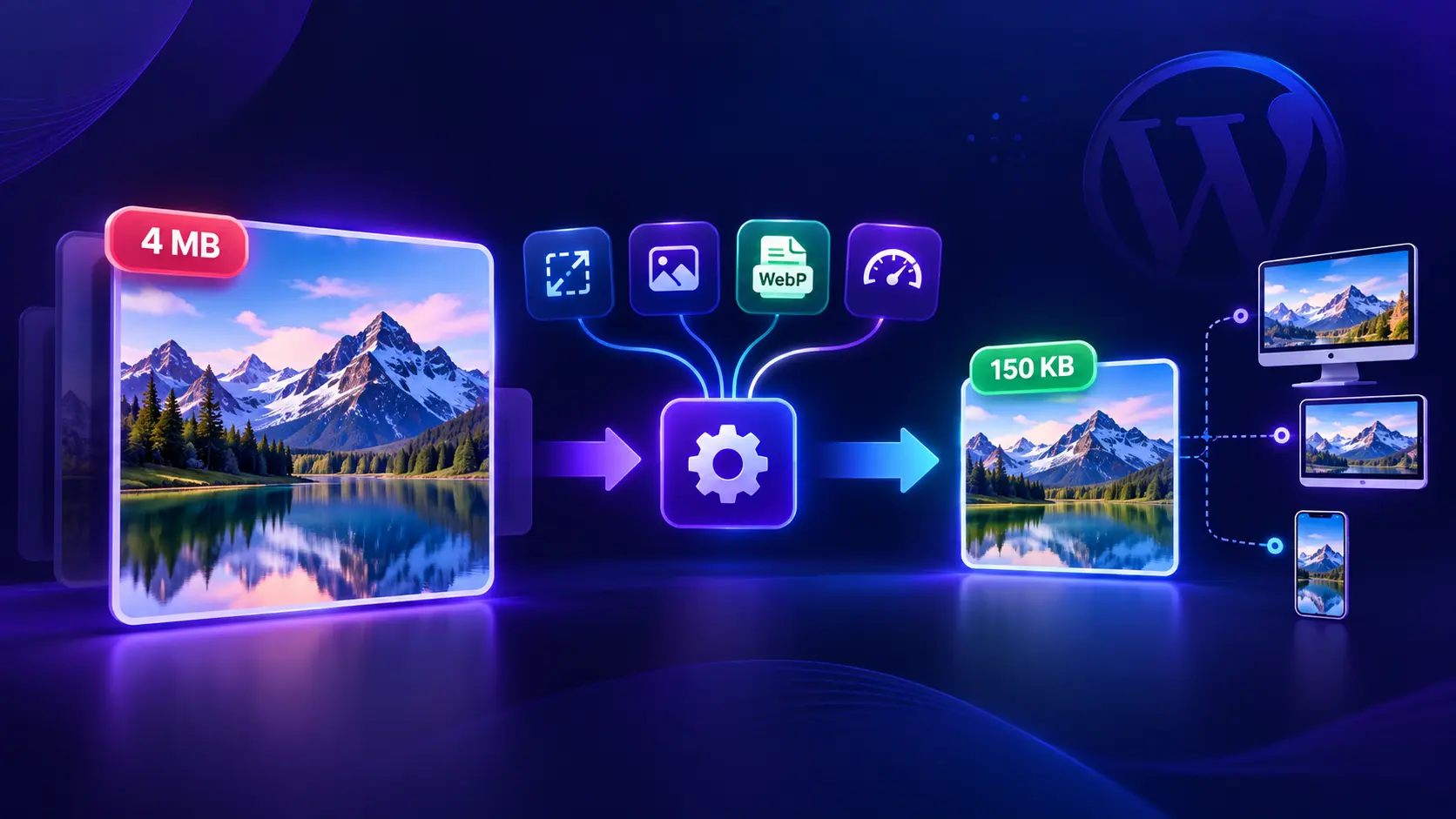
- What it does: compresses the image, resizes it to the space it fills, converts it to a modern format such as WebP or AVIF, serves the right size to each device, and lazy loads images below the fold.
- The problem it solves: file size. A photo straight from a phone can be 4,000 pixels wide and 4 MB, shown in an 800-pixel column. Most of that download is wasted.
- What to expect: lighter pages for every visitor, near or far. You also use less storage and get smaller backups. Google’s data puts WebP at roughly 25 to 34 percent smaller than comparable JPEGs.
- What not to expect: a shorter trip. A 150 KB image still has to travel from your server to your visitor, however far that is.
WordPress also creates several sizes of every upload, which fills storage over time. Our WordPress image management guide covers how to keep that under control.
So a CDN fixes distance, and image optimization fixes weight. Here’s how the two compare.
6 Key Differences between CDN vs Image Optimization
Here’s the CDN vs image optimization comparison point by point.
1. The problem each one solves
Image optimization solves file size. A CDN solves distance and server load. If your images are 3 MB each, a CDN delivers 3 MB images faster. They’re still 3 MB.
2. Where the work happens
Optimization happens on your server, or in a cloud service, before the image is served. A CDN works in the network, between your server and the visitor.
3. Who benefits
Optimization helps every visitor on every connection. A CDN helps most when visitors are far from your origin. If your audience is in one city and your host is in the same country, the CDN gain is small.
4. Effect on storage and hosting costs
Optimization shrinks files on disk, so your storage use and backup size drop. A CDN doesn’t touch storage. It lowers bandwidth and CPU load on your host instead.
5. Setup effort
Optimization is usually a plugin and one bulk run. A traditional CDN often means a new account, DNS or nameserver changes, and cache rules. Plugin-based CDNs skip most of that.
6. Cost model
Optimization tools charge per image, per month, or a flat fee. CDNs charge by bandwidth, requests, visits, or storage. Check which limit applies to your site before you pick one.
Real Example of CDN vs Image Optimization
Numbers make the CDN vs image optimization difference easier to see. Take one hero image and one visitor. The figures below are illustrative, not a benchmark.
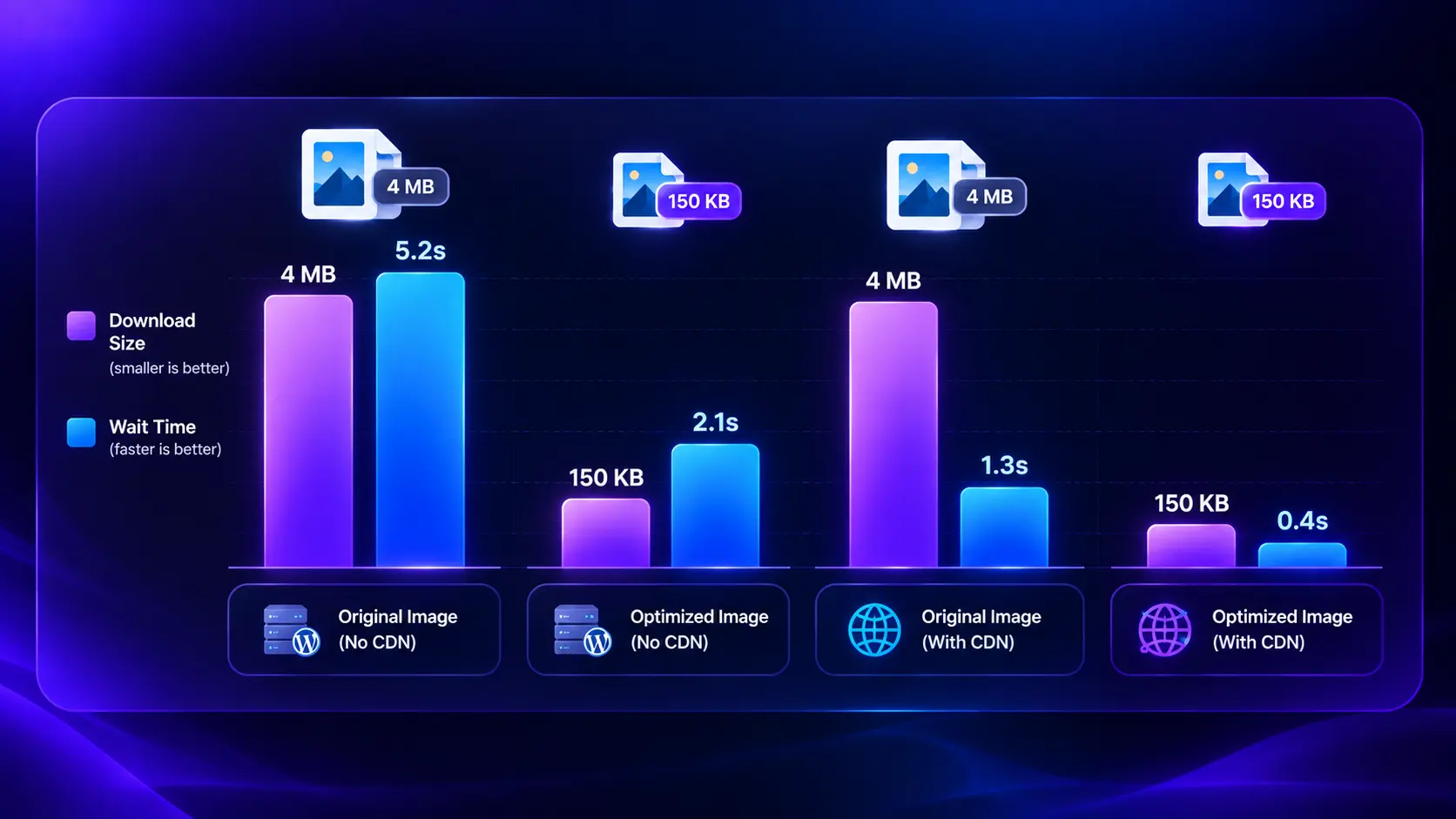
- The image: a 2.4 MB JPEG, 4,000 pixels wide
- The server: Dallas, USA
- The visitor: Dhaka, Bangladesh, on mobile data
| Setup | File the visitor downloads | Where it comes from | Result |
| Nothing | 2.4 MB JPEG | Dallas | Slow start, slow download |
| CDN only | 2.4 MB JPEG | Nearby edge | Faster start, still a heavy download |
| Optimization only | 180 KB WebP | Dallas | Light download, slow start |
| Both | 180 KB WebP | Nearby edge | Fast start, light download |
The CDN-only row is the one that surprises people. The connection is quicker, but a phone on mobile data still has to pull 2.4 MB. Optimization cut the download by more than 90 percent. The CDN then removes most of the wait before that download begins.
CDN vs Image Optimization: Where Should You Start?
Start with image optimization. It helps every visitor, it takes one plugin and one bulk run, and smaller files make any CDN cheaper to run. Add a CDN when distance or server load is still slowing you down.
| Your site | What you need |
| Local business site, visitors in one region | Image optimization only |
| Content-heavy blog | Image optimization first, then a CDN once readers are spread across regions |
| Online store | Both |
| International audience | Both, and the CDN matters most |
| Image-heavy site (photography, real estate, travel) | Both, plus regular cleanup of unused images |
A CDN on its own is almost never the answer. The one exception is an image CDN that also optimizes on the fly, and then you’re still doing both.
For the optimization side, bloggers can follow our guide on how to optimize images for a content-heavy WordPress blog.
Store owners can start with the WooCommerce image optimization checklist and these ecommerce image optimization tips.
How to Use a CDN and Image Optimization Together in WordPress
The usual way to get both is a stack: one plugin to compress, one to convert formats, one to lazy load, plus a CDN account with DNS changes. That works. It also means four dashboards, four sets of settings, and a real chance two of them conflict.
ThumbPress does both from one dashboard. Optimize first, then switch on the CDN.
Before you start, test two or three key pages in PageSpeed Insights. Note the Largest Contentful Paint (LCP), which is the time until the main content appears, and the total image weight. You’ll compare against these at the end.
Set Up a CDN in WordPress
- Get ThumbPress Pro. The Image CDN is included in every Pro plan, from $59 a year with 10 GB of CDN storage.
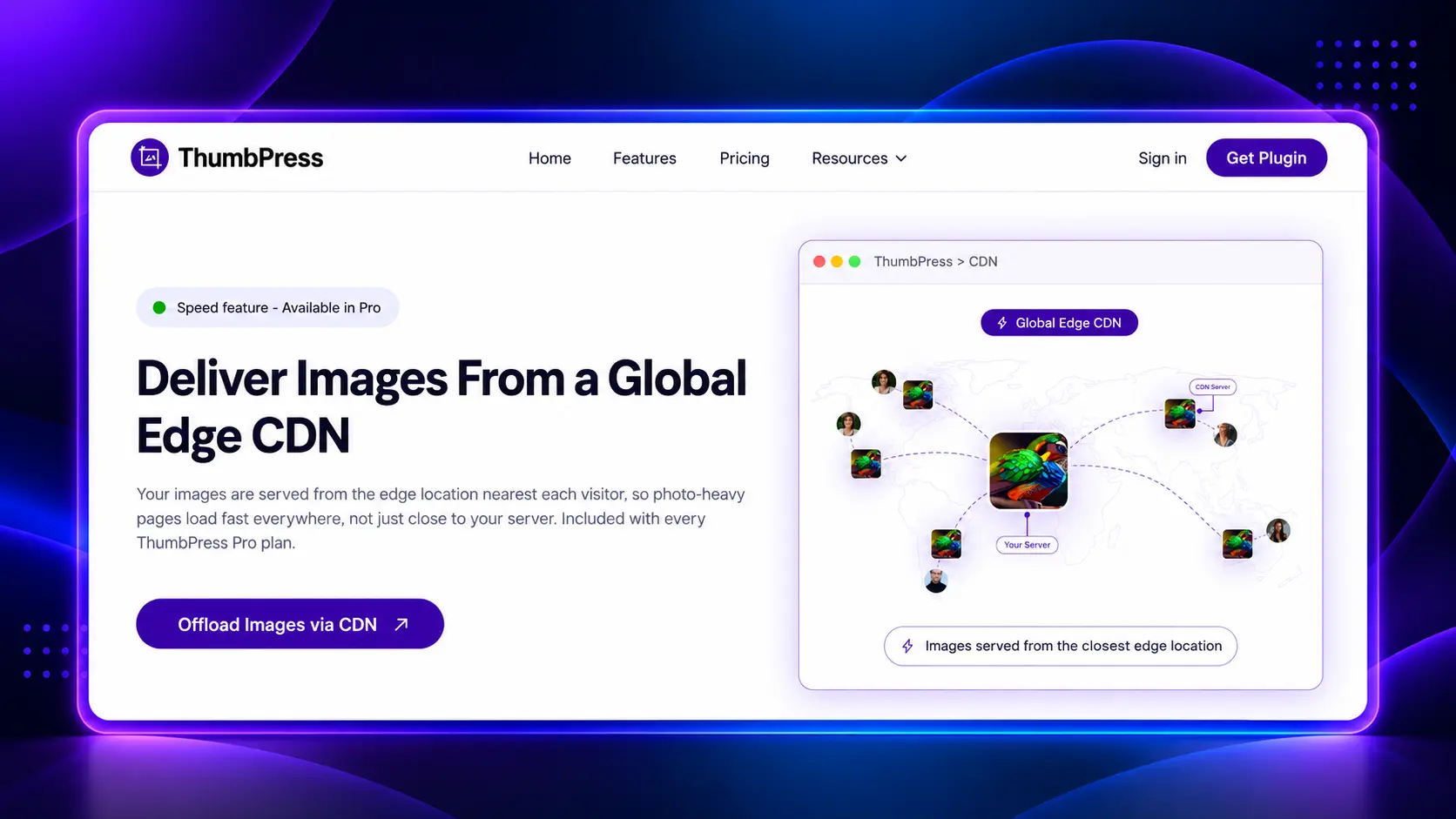
- Turn on the Image CDN. Open the ThumbPress dashboard and switch it on. There are no DNS changes and no separate CDN account.
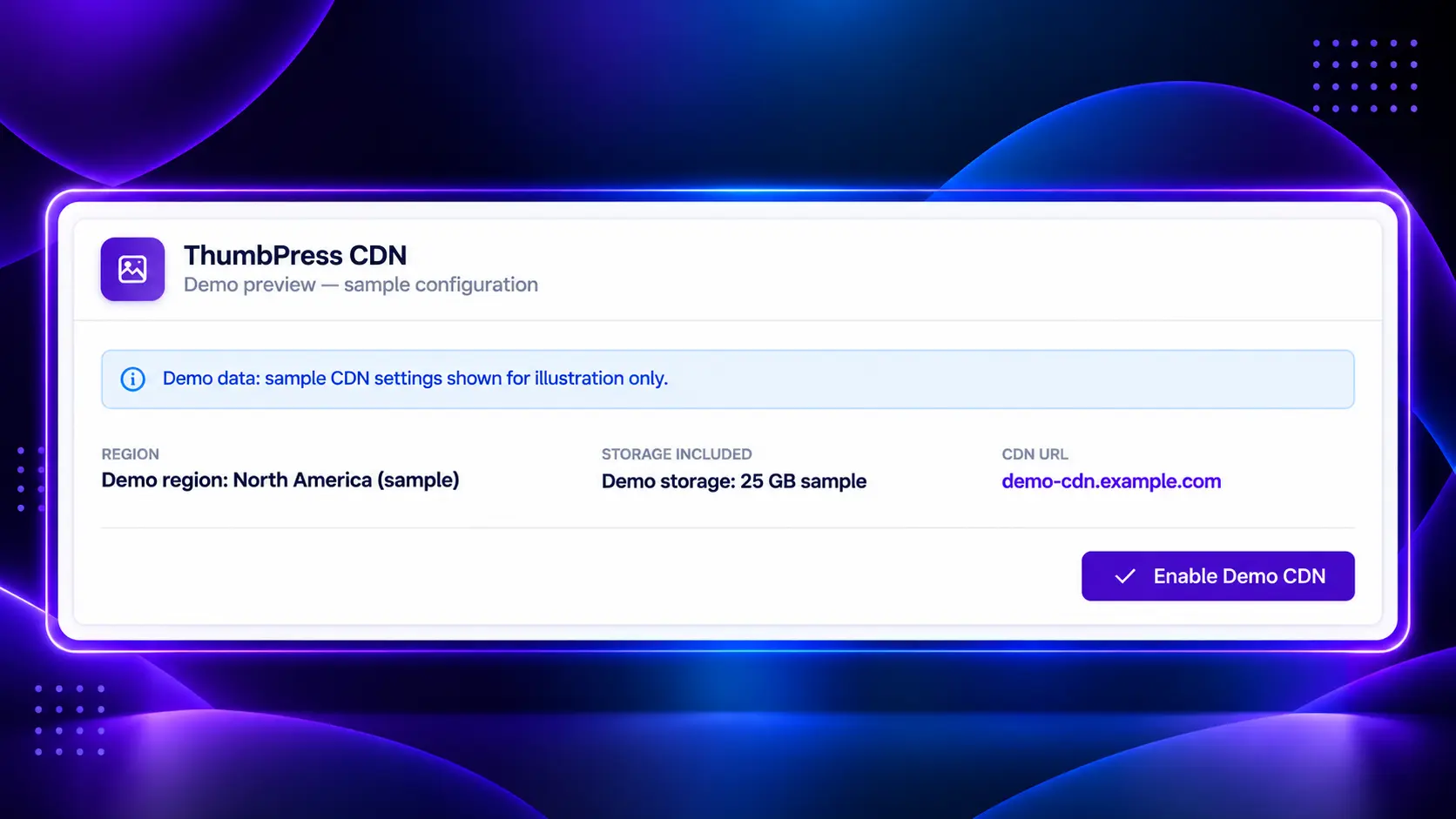
- Let it distribute. ThumbPress caches your images across its edge network. Your existing images and their URLs stay as they are.
- Test again. Re-run the same pages in PageSpeed Insights, from your main audience regions if you can.
You can read the full details in our ThumbPress Image CDN announcement.
Optimize Images in WordPress
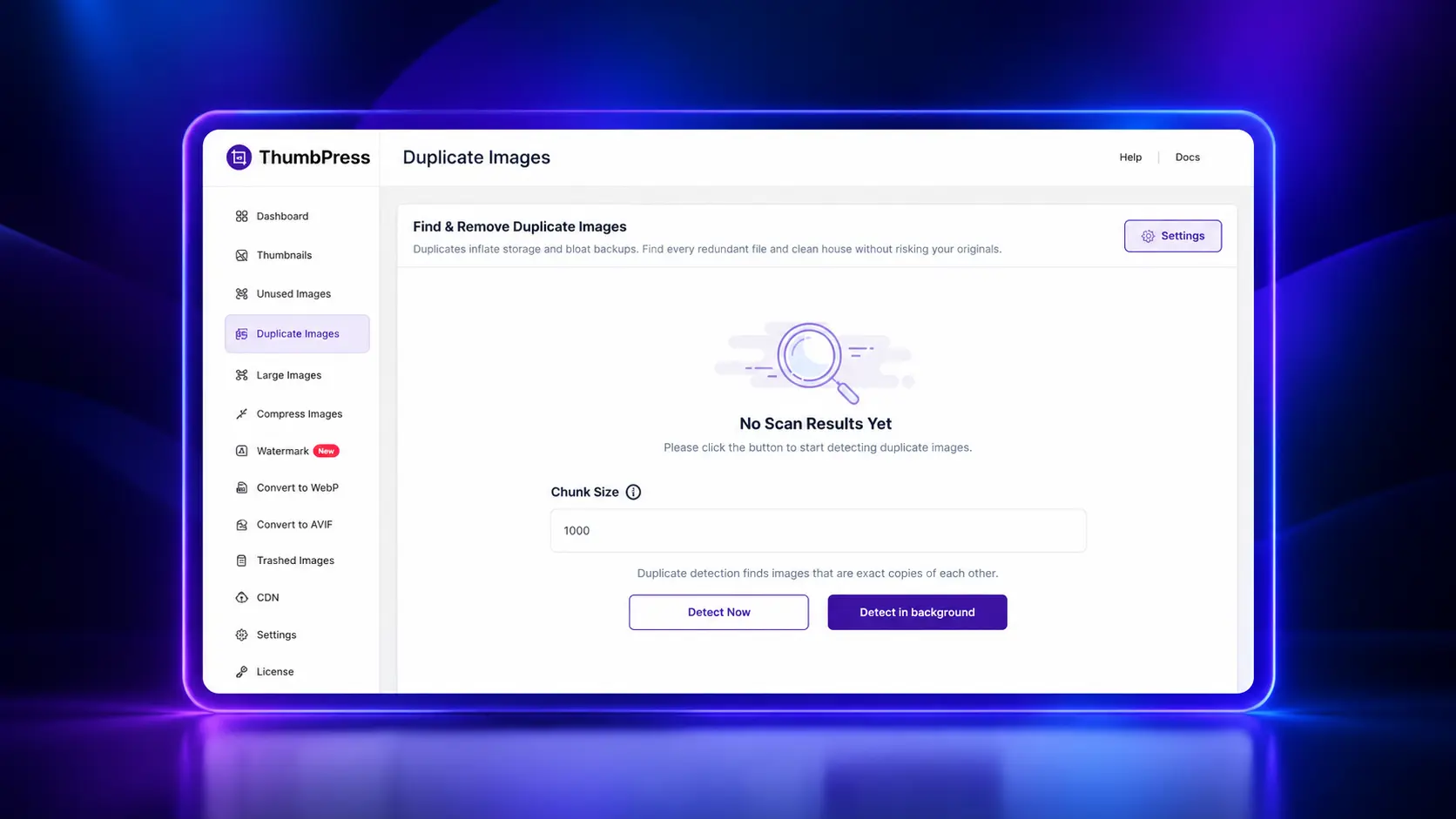
- Clean up first. There’s no point compressing images you don’t use. Remove unused images and duplicates. Here’s how to find duplicate images in WordPress and remove them safely.
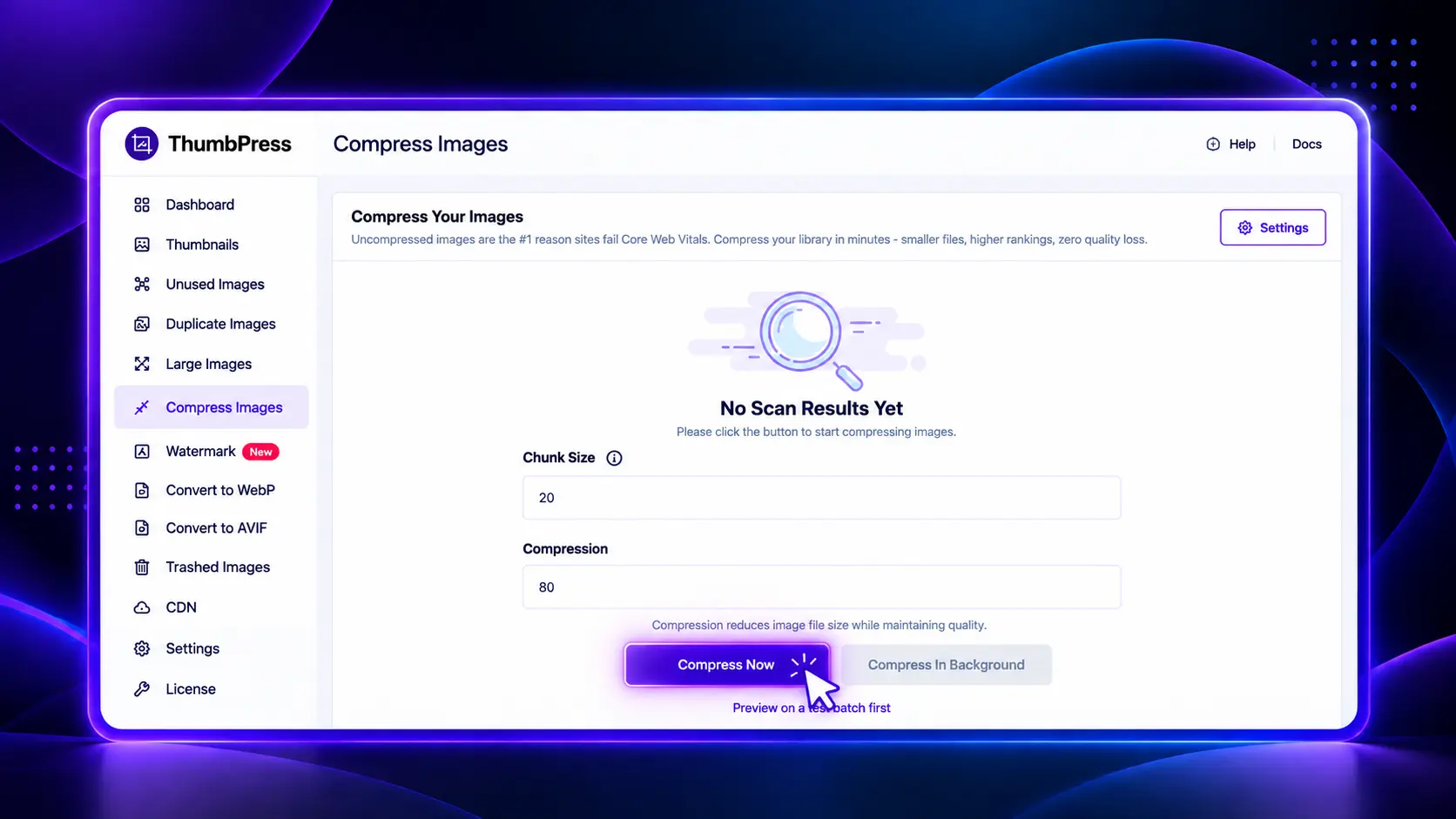
- Compress your library. Run bulk compression on your existing images, and turn it on for new uploads. Bulk compression is a Pro feature.
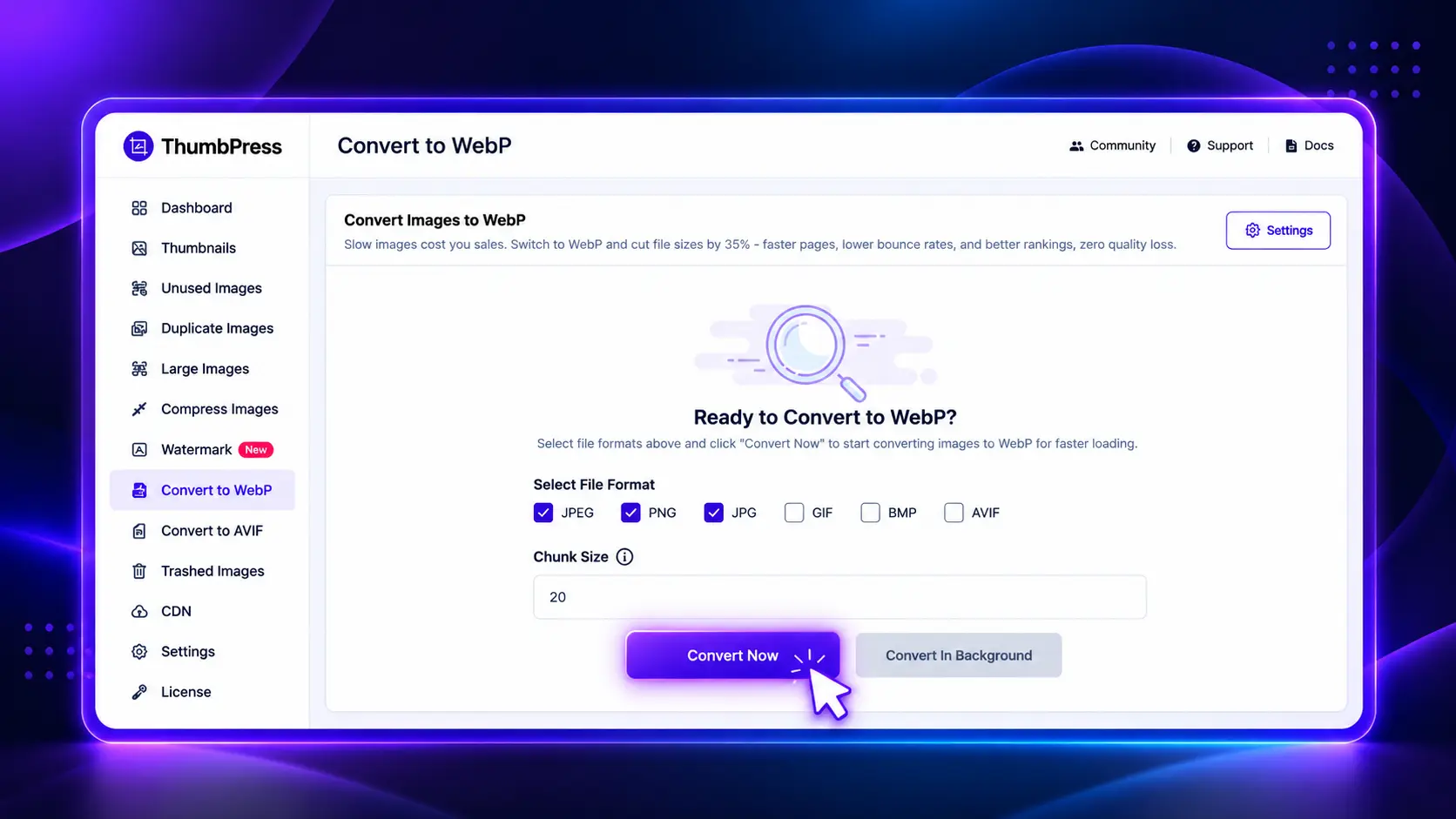
- Convert to WebP or AVIF. Convert your existing JPEGs and PNGs, then let ThumbPress handle new uploads automatically.
- Turn on lazy loading. Offscreen images wait until the visitor scrolls near them. Keep your hero image out of it, so the largest image at the top loads immediately.
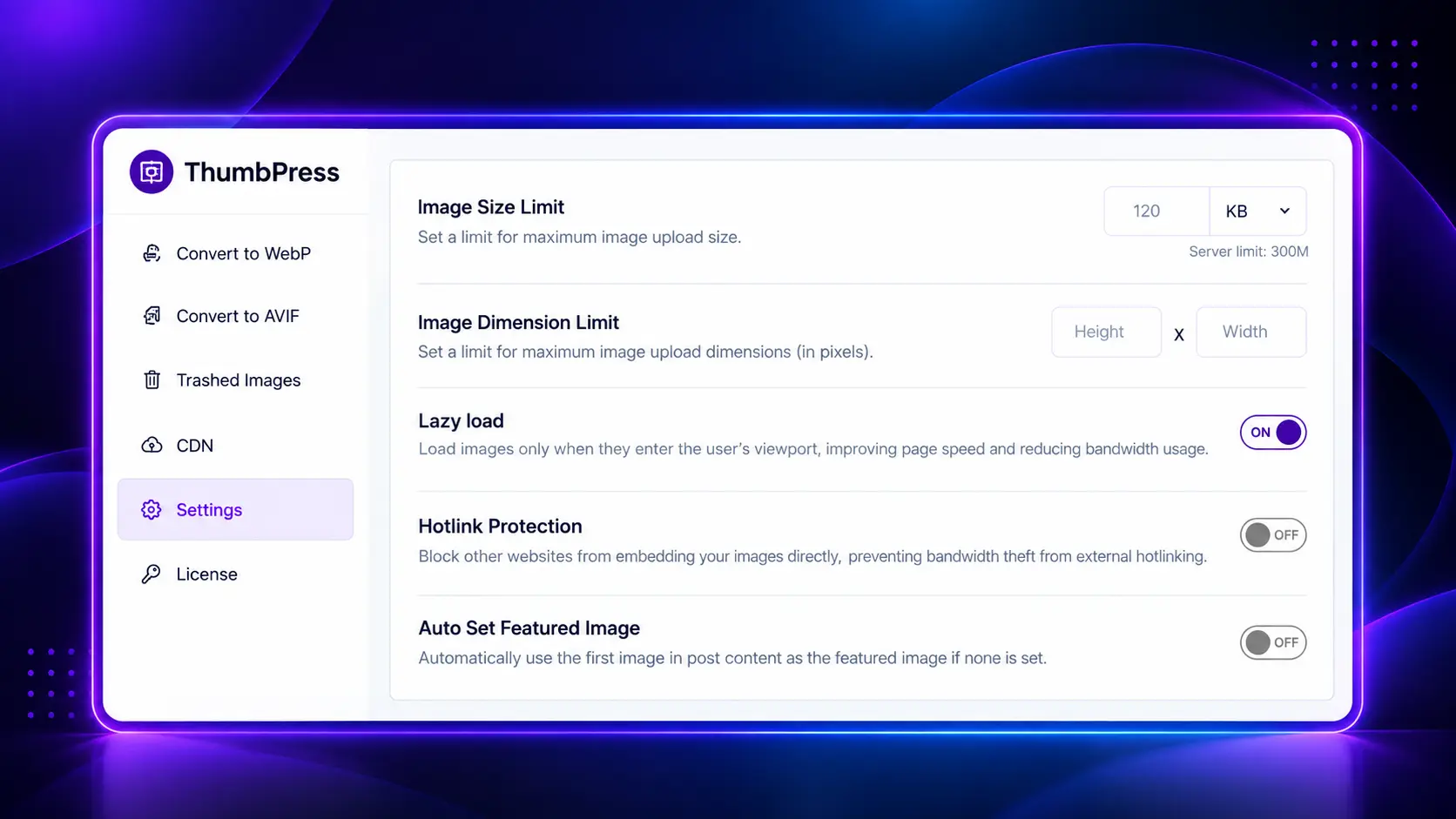
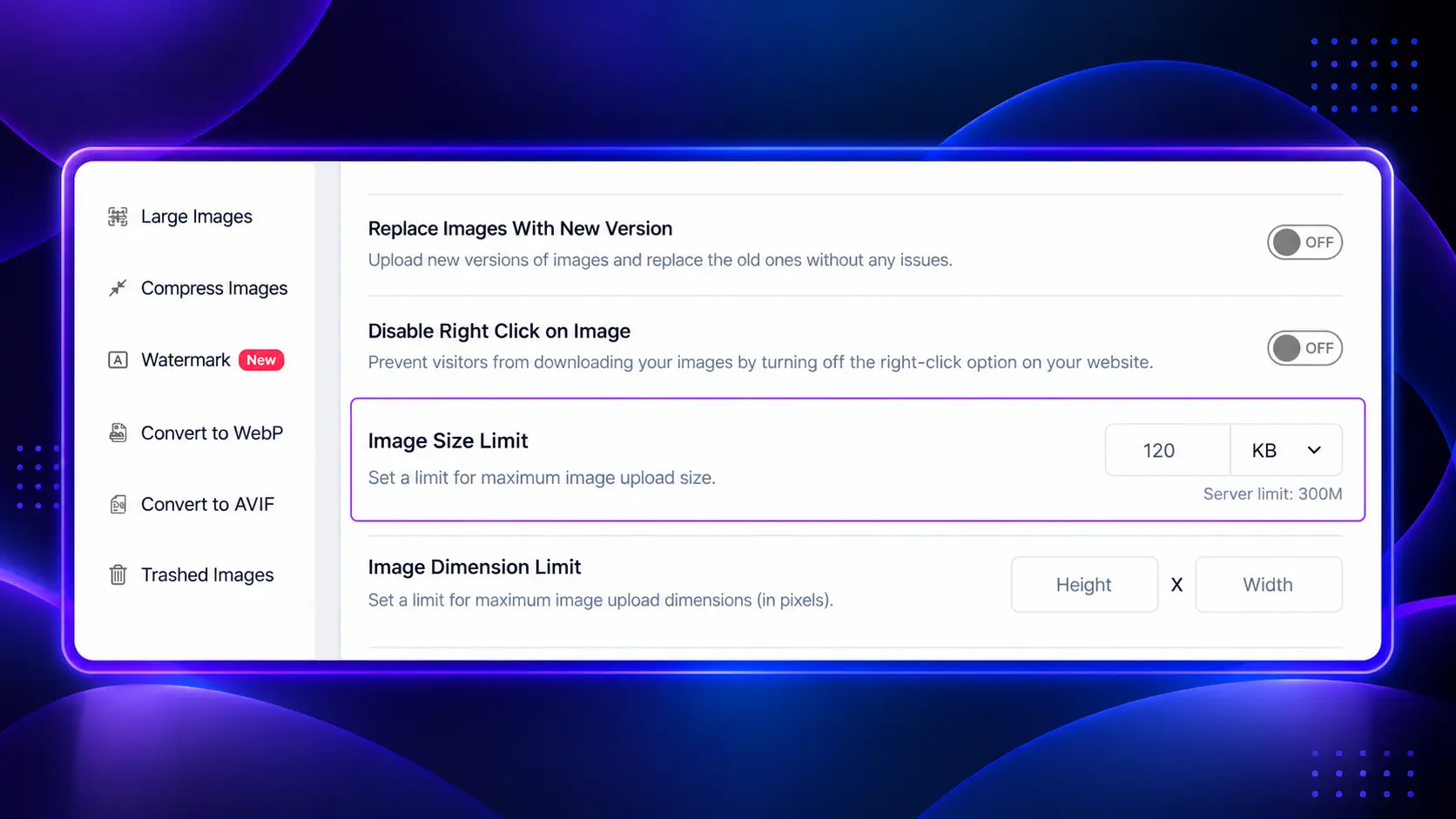
- Set an upload limit. Stop oversized originals from getting into your library in the first place.
Why Do Both From One Plugin?
- One dashboard. Compression, formats, lazy loading, cleanup, and CDN sit in the same place.
- No conflicts. You don’t have two plugins converting formats or rewriting image URLs at once.
- No DNS work. The CDN turns on with a switch.
- One yearly price. There’s no separate CDN bill based on bandwidth.
One honest note. The ThumbPress Image CDN delivers images only. If you also want your CSS, JavaScript, and HTML cached at the edge, pair it with a whole-site CDN such as Cloudflare. 5 Best Image CDNs for WordPress“
If your LCP hasn’t moved after both steps, the bottleneck is elsewhere, usually hosting, page caching, or heavy scripts. Our guide on how to speed up your ecommerce store covers those.
5 CDN and Image Optimization Mistakes to Avoid
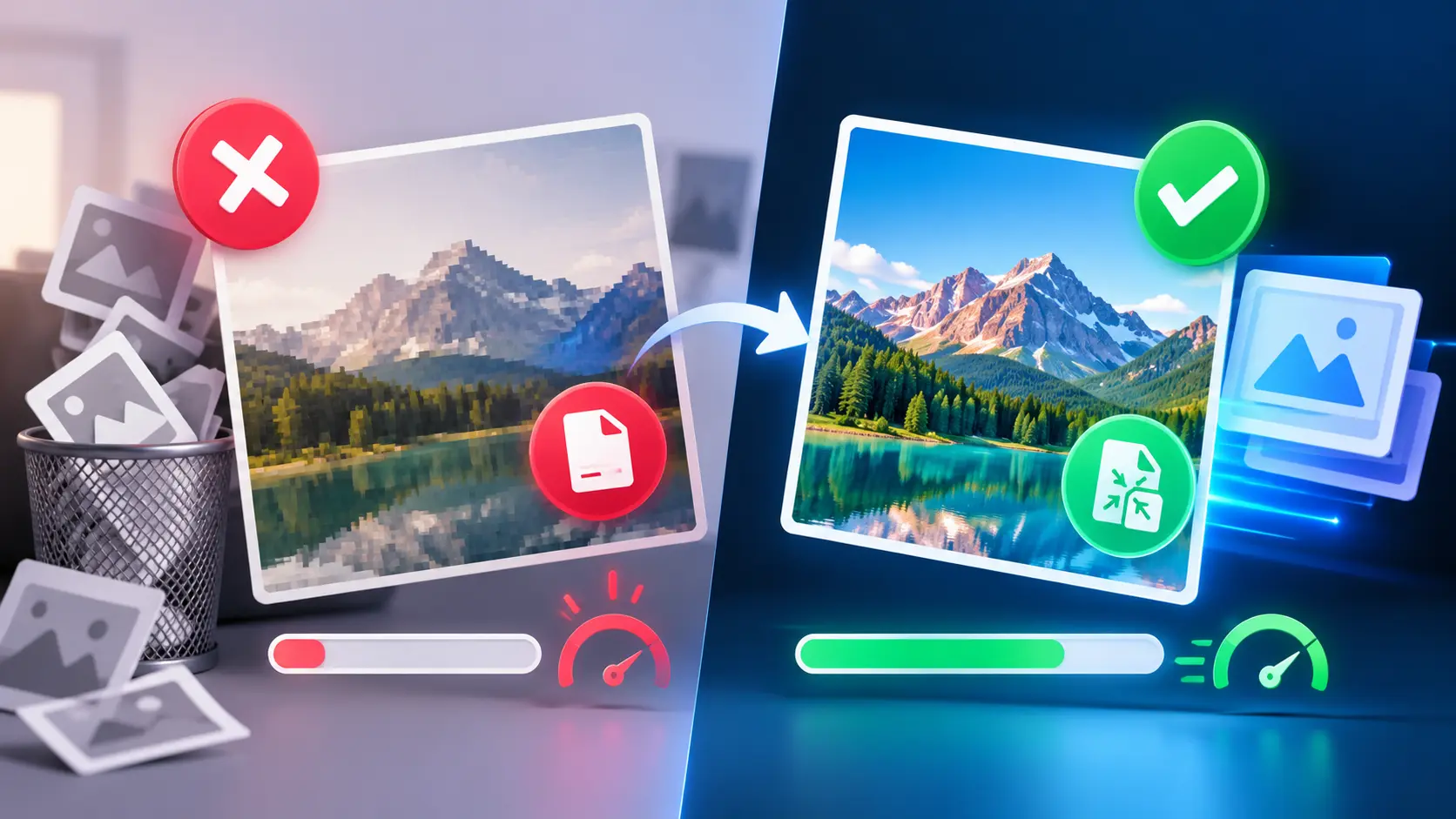
- Putting a CDN in front of unoptimized images: This is the most common one. You pay to deliver heavy files quickly, and your mobile visitors still wait.
- Running two tools that do the same job: Two plugins that both rewrite image URLs, convert formats, or lazy load will fight each other. Pick one tool per job.
- Lazy loading the hero image: If your LCP element is lazy loaded, your LCP gets worse, not better.
- Uploading giant originals and trusting the toolsL: Tools help, but a 6,000-pixel upload still fills your storage and your backups. Set an upload size limit so oversized files never get in.
- Never measuring: If you don’t test before and after, you don’t know which change helped. Five minutes in PageSpeed Insights saves a lot of guessing.
Final Thought
CDN vs image optimization isn’t a choice between two rivals. They’re two halves of the same job.
- Start with image optimization. It’s the bigger win for most sites and it helps every visitor.
- Add a CDN when your audience is spread out, your pages are image-heavy, or your server struggles under load.
- Use both if you run a store or a blog with international traffic.
If you’d like both in one place, ThumbPress covers compression, WebP and AVIF conversion, lazy loading, cleanup, and an Image CDN from a single dashboard. The free version handles the basics. Pro adds bulk compression and the Image CDN, from $59 a year with a 30-day money-back guarantee.
Explore ThumbPress and Speed Up Your Site →
Frequently Asked Questions
No. Image optimization makes the file smaller. A CDN serves the file from a location closer to the visitor. Some image CDNs do both, but they are still two separate jobs.
For most WordPress sites, image optimization. It cuts the download for every visitor. A CDN adds the most when visitors are far from your server.
Yes, unless your CDN optimizes images on the fly. A regular CDN delivers your files exactly as they are, heavy or not.
Only if distance or server load is a problem. If most visitors are near your server and your pages load well, you can skip it.
A regular CDN doesn't. An image CDN can compress, resize, and convert formats during delivery. Check which type you have.
Indirectly. Both can improve LCP, which is part of Google's Core Web Vitals. Neither replaces good content, but slow pages hold good content back.
Yes, and it's the best setup. Make sure only one tool handles each task, so you don't get two plugins converting formats or lazy loading at once.