Product images have to do two things well: show enough detail to help shoppers make a decision and load fast enough to keep them on the page.
High-resolution images can improve the shopping experience, but oversized files can quickly slow down an ecommerce store, especially on mobile.
Ecommerce image optimization is about finding the right balance. The goal is to deliver the right image, at the right size, in the right format without sacrificing useful product detail.
Here are 10 practical ecommerce image optimization tips to help you build a faster store without compromising image quality. The principles below apply to any WordPress ecommerce setup, since image handling is a WordPress media-library function, not a checkout-plugin function.
What Ecommerce Image Optimization Actually Means
Ecommerce image optimization is the process of preparing and delivering ecommerce-friendly product, category, and promotional images so they load quickly without sacrificing the visual quality shoppers need to evaluate a product. It includes choosing the right file format, compression level, dimensions, responsive delivery, and keeping the store’s media library clean over time.
This matters more in ecommerce because a single product rarely corresponds to a single image. A customer may encounter category thumbnails, the main product shot, alternative angles, color variants, lifestyle photos, review images, recommendations, and high-resolution zoom images during a single session.
According to the 2025 HTTP Archive Web Almanac, images make up about 1,059 KB on the median homepage and 911 KB on the median inner page. Homepages are usually heavier because they often include large hero images and featured-product galleries. For image-heavy stores, that number can climb much higher.
Why This Affects Both Sales and Rankings
Speed is not just a technical metric when money changes hands.
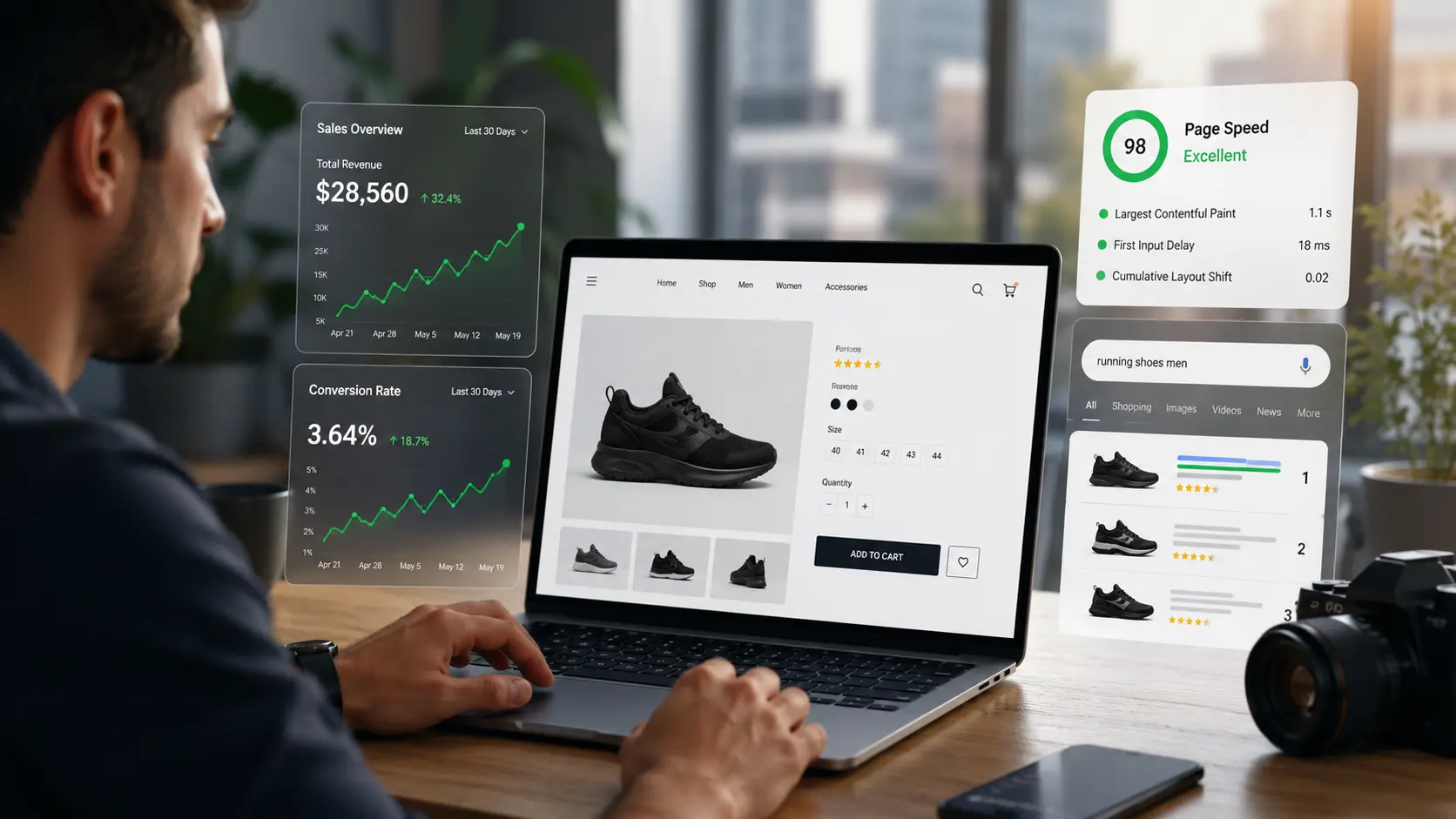
Deloitte’s 2020 “Milliseconds Make Millions” study, commissioned by Google and based on 30 million sessions across 37 retail, travel, and luxury brands, found that a 0.1-second improvement in mobile site speed was associated with an 8.4% increase in retail conversion rates and a 9.2% increase in average order value. It’s a widely cited benchmark, but it’s now several years old; treat it as directional rather than a guaranteed outcome for any single store.
Portent’s site-speed research (an older but still commonly referenced dataset) found a similar pattern: conversion rates in its dataset were close to 40% at a one-second load time, falling to 34% at two seconds and 29% at three.
But speed cannot come at the expense of useful product photography. Baymard found that 56% of users began exploring product images as their first action on a product page, while 25% of ecommerce sites in its benchmark did not provide sufficient image resolution or zoom.
Google also uses Core Web Vitals as part of its page-experience systems, so oversized or poorly loaded product images can affect both shoppers and organic visibility. Beyond load speed, images without a defined width and height (or CSS aspect-ratio) are one of the most common causes of Cumulative Layout Shift – the page visibly “jumps” as each image finishes loading, which is both a poor shopping experience and a directly measured Core Web Vitals.
Setting explicit dimensions on every product image avoids this.
10 Ecommerce Image Optimization Tips
There are many ways you can optimize images for ecommerce use. The following 10 are considered among the finest and most proven methods-
1. Choosing the Right Image Format
JPEG and PNG still have their place, but they should not be your automatic choice for every upload.

JPEG works well for traditional photography. PNG makes sense when you need lossless graphics or transparency. For most product photos, however, WebP and AVIF deserve serious consideration.
WebP or AVIF?
WebP gives you strong compression, broad compatibility, transparency, and a mature ecosystem.
AVIF can push file sizes even lower. The 2025 Web Almanac describes AVIF as a format built around state-of-the-art compression efficiency, and its real-world dataset shows substantially smaller file-size ranges for AVIF than older formats. Results will still vary by image and encoding settings.
If you want a deeper format comparison, see AVIF vs WebP vs JPEG.
Why fallback still matters
Modern browser support for AVIF is strong, but your image pipeline may also need to account for older browsers, embedded webviews, themes, plugins, and CDN behavior.
A practical setup can generate AVIF or WebP while retaining an original format as fallback.
For WordPress stores, ThumbPress can convert existing and newly uploaded images to WebP or AVIF, so you do not have to re-export a whole catalog manually.
2. Compress Images Without Making Products Look Cheap
Compression is where store owners often go too far.
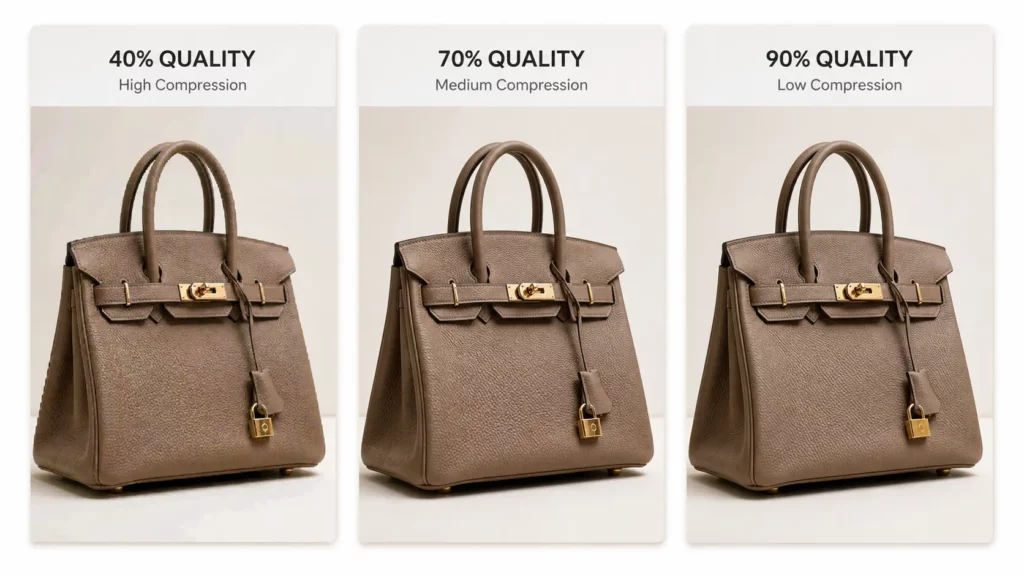
A slightly rough blog illustration may go unnoticed. Compression artifacts around a diamond, fabric weave, watch face, or furniture finish can actively make the product look worse.
Lossy vs lossless
Lossless compression reduces file size without permanently discarding image information. Use it when preserving exact visual detail is important.
Lossy compression removes some image information in exchange for a much smaller file. For photography, carefully tuned lossy compression is often the better performance trade-off.
In short: lossless keeps every pixel of information at a smaller file size; lossy trades a controlled, usually invisible amount of detail for a much smaller file. For product photography, lossy is almost always the right default.
There is no universal quality percentage. Test the actual output.
Manual vs automated compression
Squoosh and TinyPNG work well when you have a handful of images.
They become tedious when you have 800 products, six images per product, and new stock arriving every week.
WordPress stores can instead automate the process. ThumbPress supports bulk compression of an existing media library as well as compression during upload. Our guide to compressing images in WordPress walks through that workflow.
Useful file-size targets
Treat these as working budgets, not hard rules:
| Image | Practical starting target |
| Product/category thumbnail | 30–80 KB |
| Main product image | 80–200 KB |
| Gallery image | 80–200 KB |
| Large lifestyle image | 150–300 KB |
| High-resolution zoom image | 200–500 KB |
A detailed jewelry shot may need more. A simple white-background bottle may need far less.
3. Serve Responsive, Properly Sized Images
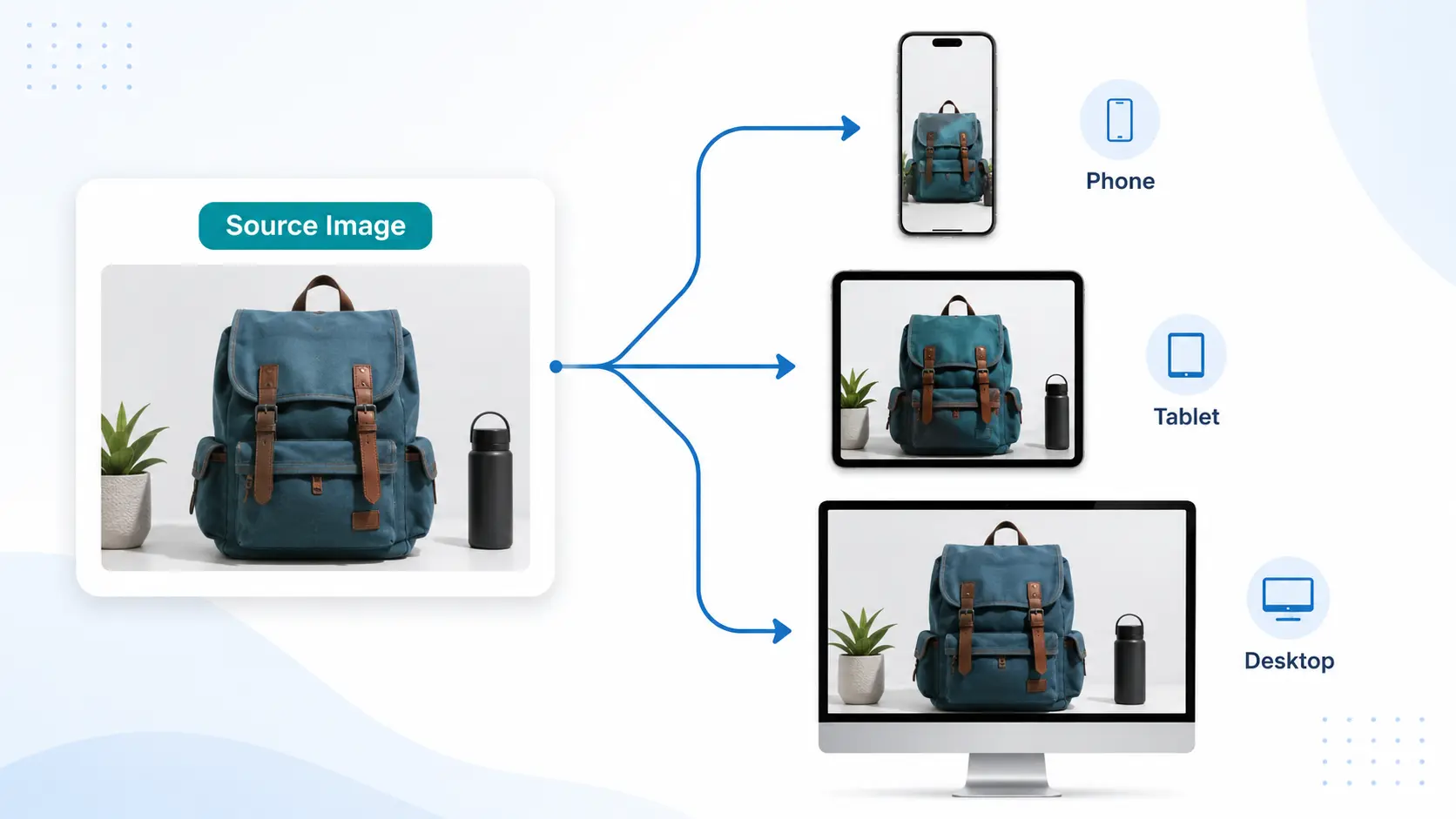
Never send a 2,000px product photo when the browser is displaying it at 400px.
Responsive images solve this by giving the browser multiple sizes to choose from. With srcset and sizes, a phone can request a smaller version while a large desktop display receives something more appropriate.
WordPress handles much of this automatically.
The downside is that WordPress, WooCommerce, themes, and plugins can create numerous resized copies every time an image is uploaded. Some are useful. Others may never appear anywhere.
If your store has been running for years, review which sizes you actually need. ThumbPress’s guide to disabling unnecessary thumbnails explains how to control that WordPress-specific bloat.
And do not sacrifice useful imagery just to reduce requests. Baymard’s 2024 testing found shoppers need access to three or more product thumbnails in product lists to get sufficient visual information about many products.
4. Lazy Load Images, but Not Everything
Lazy loading is excellent when applied to images visitors cannot see yet.
Think:
- Related products
- Review photos
- Long product grids
- Images farther down the description
- Secondary content below the fold
The browser can delay those requests until the shopper approaches them.
The main product image is different.
If an image is your Largest Contentful Paint element, lazy loading it delays one of the most important resources on the page. Google’s web.dev documentation explicitly recommends never lazy-loading the LCP image.
Load your above-the-fold product image promptly. Lazy-load the gallery and recommendations that appear later.
5. Use SEO-Friendly File Names and Alt Text
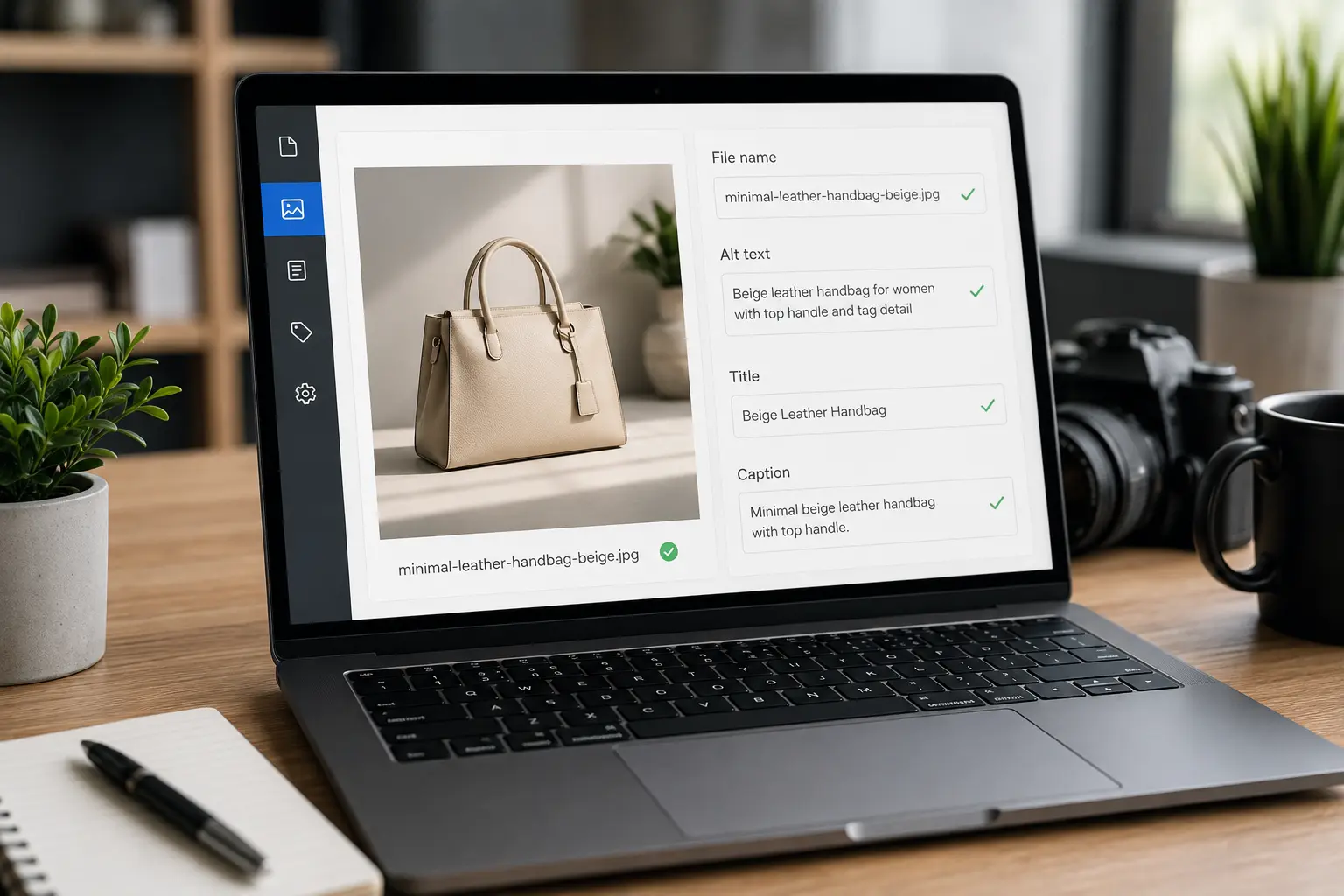
DSC_87293-final-2.jpg tells nobody much. Something like black-leather-chelsea-boot-side.webp is far more useful.
Keep file names descriptive and specific. Product name, color, variation, and viewing angle can all help when relevant.
Alt text deserves the same restraint.
Bad: “best black boot leather boot buy boots online”
Better: “Women’s black leather Chelsea boot, side view”
Alt text exists primarily to describe useful visual information for people who cannot see the image. SEO benefits from clarity, not repetition. A lifestyle or banner image and a specific product-variant image should get different alt text, too, describe what’s actually in each shot rather than reusing the product name everywhere it appears.
Google recommends descriptive filenames and alt text and uses surrounding page content to understand images.
6. Connect Images to Product Structured Data
This is where many otherwise well-optimized stores stop too early.

Schema.org allows the image property of a Product to reference either an image URL or a more detailed ImageObject.
Check your SEO plugin first, Yoast, Rank Math, and WooCommerce itself often generate Product structured data automatically, including the image reference. Confirm it’s outputting correctly before assuming you need to add it manually.
More importantly, Google’s Product structured data can make product information eligible for richer Search experiences, including Google Images and Google Lens.
Make sure the image associated with your Product markup actually represents the product on the page.
Structured data is also useful beyond traditional blue-link SEO because it reduces ambiguity around entities, products, offers, variants, and images. That said, adding ImageObject markup is not a guaranteed ticket into AI Overviews or an AI shopping assistant.
Use structured data because it describes your products accurately, not because someone promised an AI-ranking shortcut.
7. Set Up an Image Sitemap
Large catalogs can contain thousands of product and variant images.
An image sitemap gives Google additional information about where those images live and can help it discover images that might otherwise be difficult to find, especially those reached through JavaScript.
You can either add image information to an existing sitemap or maintain a dedicated image sitemap.
Before building one manually, check your SEO plugin. Your WordPress setup may already generate the necessary sitemap data.
Once available, submit the sitemap through Google Search Console and monitor it for crawl or processing errors.
8. Deliver Images Through a CDN
A shopper in Singapore should not necessarily have to fetch every product image from the same origin server sitting in North America.
A CDN stores or caches assets across geographically distributed edge locations, reducing the distance between the visitor and the file.
For an international ecommerce store, that can make image delivery noticeably more consistent.
Just remember that a CDN does not excuse bad image hygiene.
Putting a 4 MB product photo on a CDN still means you have a 4 MB product photo. Resize and compress first, then improve delivery.
9. Be Careful With AI-Generated Product Images
Generative AI makes lifestyle imagery dramatically easier to produce, but ecommerce requires a different standard from a social-media post.
AI is relatively safe for:
- Decorative backgrounds
- Campaign concepts
- Lifestyle settings
- Non-product illustrations
Be much more cautious with the main product image.
If AI changes the texture, dimensions, included accessories, color, fit, or features, you are showing shoppers something they may not receive.
That matters because people actively use images to judge physical characteristics. Baymard found that 42% of users try to understand a product’s scale from its images.
Use AI to improve presentation, not invent the product.
10. Clean Up Your Media Library
This is the ecommerce image optimization step that rarely makes the checklist.
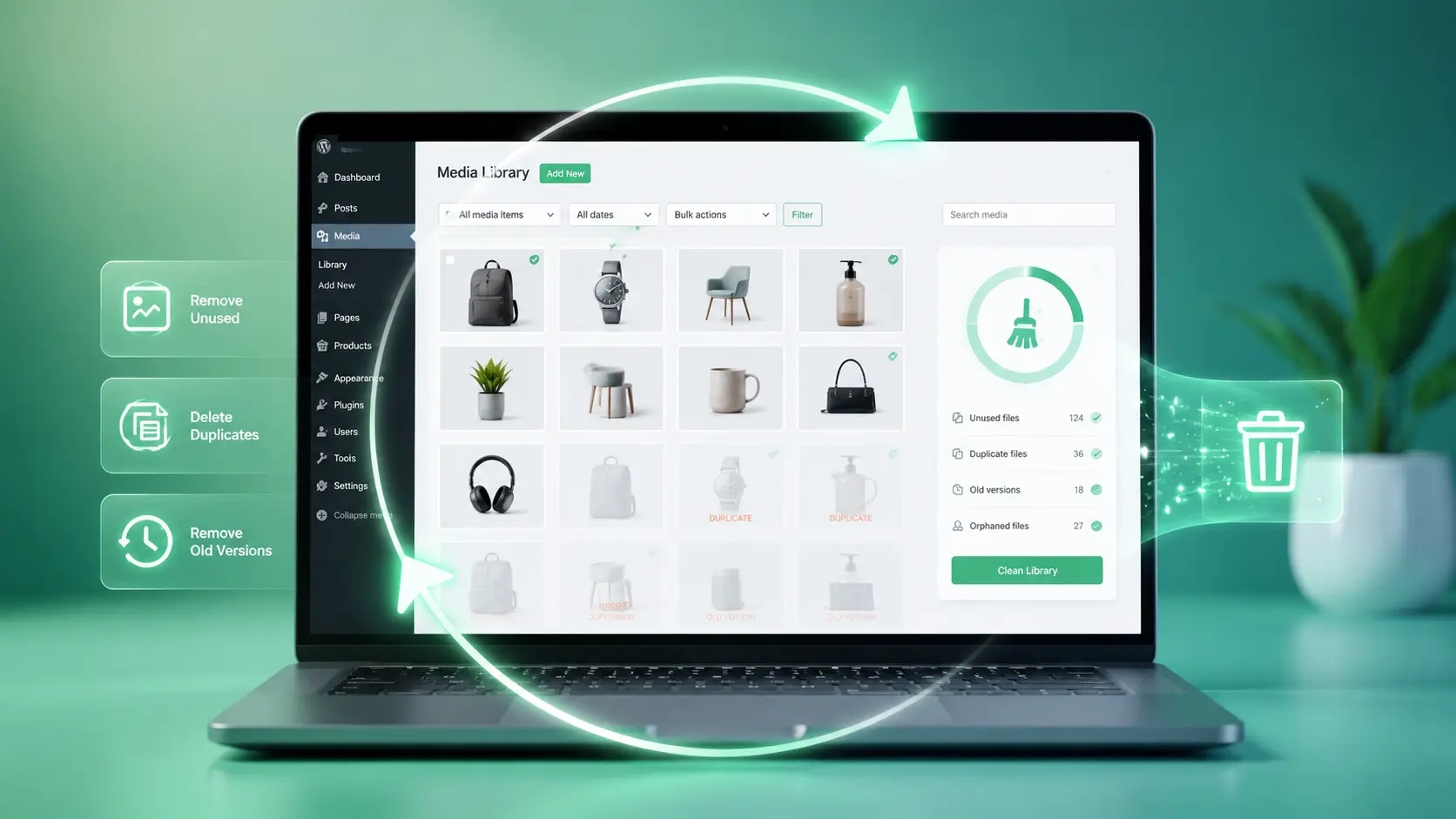
A WooCommerce store changes constantly. Products get discontinued. Photos are replaced. Seasonal banners expire. Someone uploads the same supplier image three times. Old themes leave thumbnail sizes behind.
None of that disappears automatically.
Unused files do not directly slow a product page if the browser never requests them, but they do consume storage, increase backup size, and make a growing media library harder to maintain.
Audit:
- Unused images
- Exact duplicates
- Oversized originals
- Old product photos
- Unnecessary thumbnail sizes
Do not delete files solely because WordPress says they are “unattached.” Images can still be referenced by builders, templates, custom fields, CSS, or WooCommerce data.
Our guide, find and delete unused WordPress images explains the safer approach.
For the wider lifecycle, see the complete WordPress image management guide.
Implement This on WordPress and WooCommerce
For a small catalog, manual optimization is manageable.
For a store with hundreds of products, consistency matters more than heroic one-time cleanup.
In short, this is the same 10 steps above, applied as an ongoing habit rather than a one-time cleanup: resize and compress on upload, generate modern formats, keep only the thumbnail sizes you use, serve responsive sizes, keep the LCP image out of lazy loading, and periodically re-scan for duplicates and unused media.
Doing this image by image may work for a 20-product store, but it quickly becomes unmanageable with hundreds of products.
That is where ThumbPress can help. It brings compression, WebP/AVIF conversion, thumbnail control, lazy loading, duplicate detection, large-image detection, and unused-image detection into one WordPress dashboard.
Instead of handling each image manually, you can automate key settings and get a clearer, real-time view of your site’s image health.
You could assemble those jobs with several separate tools. The value of using one workflow is simply that the boring maintenance is easier to keep doing.
If your catalog has grown to the point where checking every image manually isn’t realistic, ThumbPress can run compression and WebP/AVIF conversion across your existing library in bulk, apply the same settings automatically to new uploads, and flag duplicate or oversized files so cleanup doesn’t depend on someone remembering to do it.
Quick Ecommerce Image Audit Checklist
Before calling your image optimization done, check:
- Product images are not larger than their intended display size.
- WebP or AVIF is available where appropriate.
- Images are compressed without visible product-detail loss.
- Mobile devices receive appropriately sized files.
- The LCP product image is not lazy-loaded.
- Below-the-fold imagery is lazy-loaded.
- Images have explicit width/height (or CSS aspect-ratio) set to prevent layout shift.
- File names describe the actual product.
- Alt text is useful and natural.
- Product structured data points to the correct images.
- Google can discover important catalog images.
- Old and duplicate files are reviewed periodically.
5 Mistakes Most Stores Are Still Making
Where the checklist above tells you what to confirm, these are the recurring patterns behind why stores fail that checklist in the first place:
- Uploading camera originals: A 5 MB source photo should not become your category thumbnail.
- Lazy-loading every image: Your hero or main product image may need to load immediately.
- Compressing until products look bad: A perfect PageSpeed score is useless if customers cannot inspect what they are buying.
- Using one image size everywhere: A zoom image and a cart thumbnail have completely different jobs.
- Ignoring the media library after publishing: Optimization is a workflow, not a one-time plugin setting.
Conclusion
The best ecommerce image optimization tips have one thing in common: they remove waste without removing useful visual information.
Use modern formats. Compress carefully. Send phones smaller files. Keep the main product image fast. Lazy-load what can wait. Give search engines clear image and product data. Then periodically clean up the files your store no longer needs.
Most importantly, judge optimization from a shopper’s point of view.
Every optimization decision should pass one test: does this image still answer “can I trust what I’m buying?” A product image needs to load quickly, but it also needs to answer the questions that stand between “I’m interested” and “Add to cart“.
If your store runs on WordPress or WooCommerce, much of the repetitive work can be automated with an image-management plugin such as ThumbPress. That leaves you with the part software cannot decide for you: which images actually help someone understand and buy the product.
Frequently Asked Questions
Optimized images can help ecommerce stores improve page speed and mobile experience, making it easier for shoppers to browse products and complete purchases.
Layout shift happens when an image loads without the browser already knowing its dimensions, causing surrounding content to jump as the image renders. Setting explicit width and height attributes (or a CSS aspect-ratio) on every product image reserves the space in advance and prevents this.
No - a zoom or detail image is doing a different job than a thumbnail, and needs a higher file-size budget to stay useful. Optimization means matching file size to the image's actual purpose, not minimizing every file uniformly.
Yes. Descriptive file names, useful alt text, proper product structured data, and easily discoverable images can help search engines better understand and index ecommerce product images.