You published a post that took hours to write. Then you opened it on your phone and watched it crawl in, one blurry block at a time. If that feels familiar, you almost certainly have images slowing down your website, and your visitors noticed before you did.
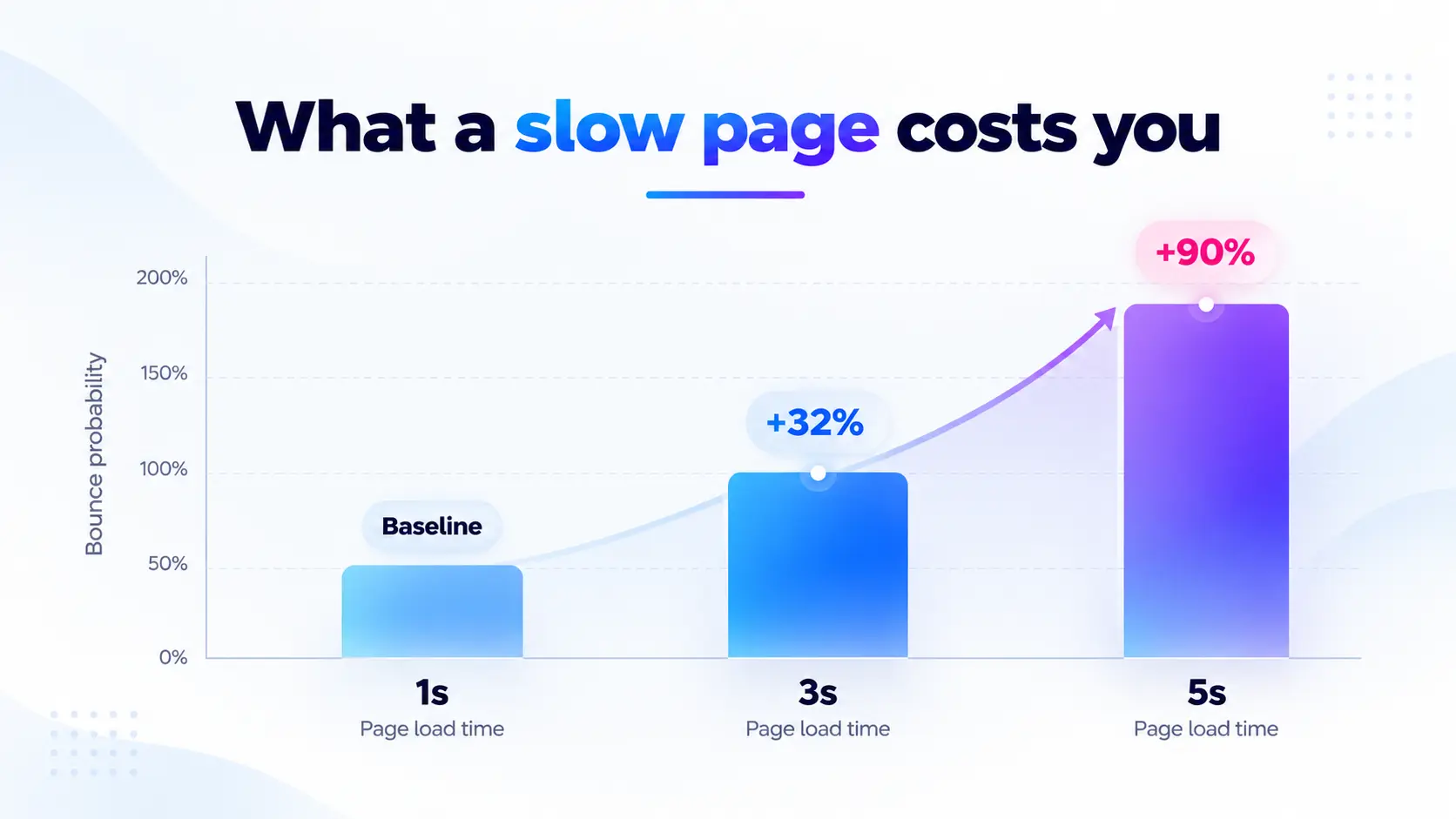
A 2017 Google study of mobile landing pages found that when load time goes from one second to three, the chance a visitor bounces rises by 32%. At five seconds, it rises by 90%.
This guide shows why images slow your site down, how to confirm it in two minutes, and how to fix it step by step with ThumbPress.
How Badly Are Images Slowing Down Your Website?
Images Are One Third of the Page
HTTP Archive’s 2025 Web Almanac puts the median desktop homepage at about 1,058 KB of images, out of 2,862 KB in total. On mobile it’s about 911 KB of 2,559 KB. That makes images roughly 36–37% of the average page, so a site full of unoptimized uploads can sit well above that median.
Images Decide Core Web Vitals Score
Largest contentfull Paint (LCP) measures how fast the biggest visible element appears. The Web Almanac found an image is the LCP element on about 85% of desktop pages and 76% of mobile pages. Only 74% of desktop and 62% of mobile pages meet that target.
If your images are slow, your LCP is almost certainly slow.
Slow Pages Cost Real Money
A Portent study of just over 100 million page views across 20 business and ecommerce sites found a one-second page converted about 3 times better than a five-second page for lead generation and about 2.5 times better for ecommerce.
For a blog, that’s lost readers and ad revenue. For a store, it’s abandoned carts. Either way, images slowing down your website show up in your income.
7 Reasons Images Are Slowing Down Your Website
You may have several of these at once.
1. You’re Uploading Full-Size Originals
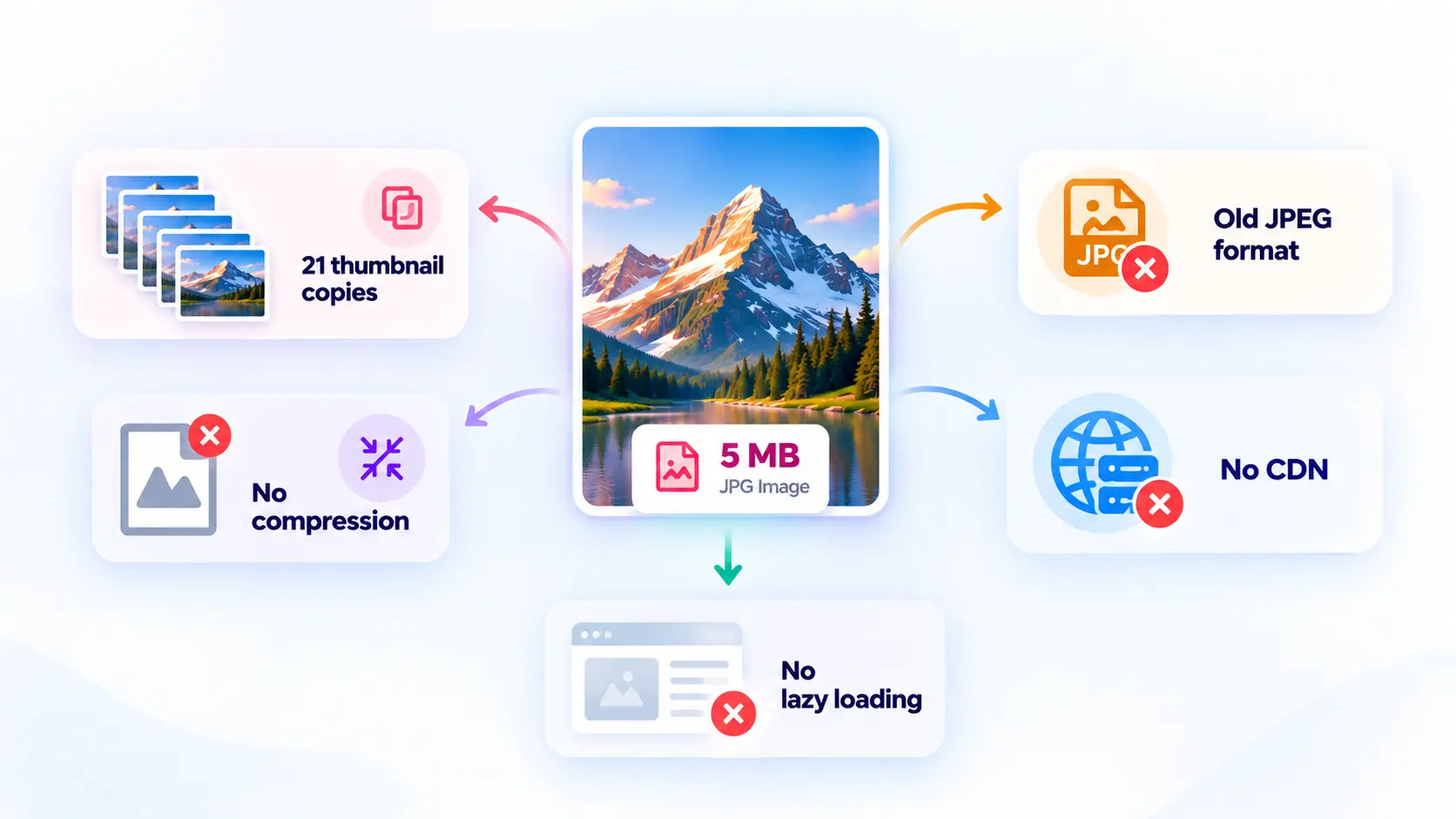
A photo may be several megabytes, even when your blog displays it at just 800 pixels wide. WordPress creates a scaled copy of images over 2,560 pixels but keeps the original.
As DebugBear’s example shows, resizing a 4.3 MB photo reduced its size to 495 KB—an 89% saving before compression.
2. Images Aren’t Compressed
Uncompressed images carry redundant pixel data and hidden metadata (camera details, GPS tags, color profiles) that visitors never see. Stripping it is the cheapest speed win available.
ThumbPress reports that photo-heavy libraries commonly shrink 40–70% after compression.
3. Still Serving JPEG and PNG
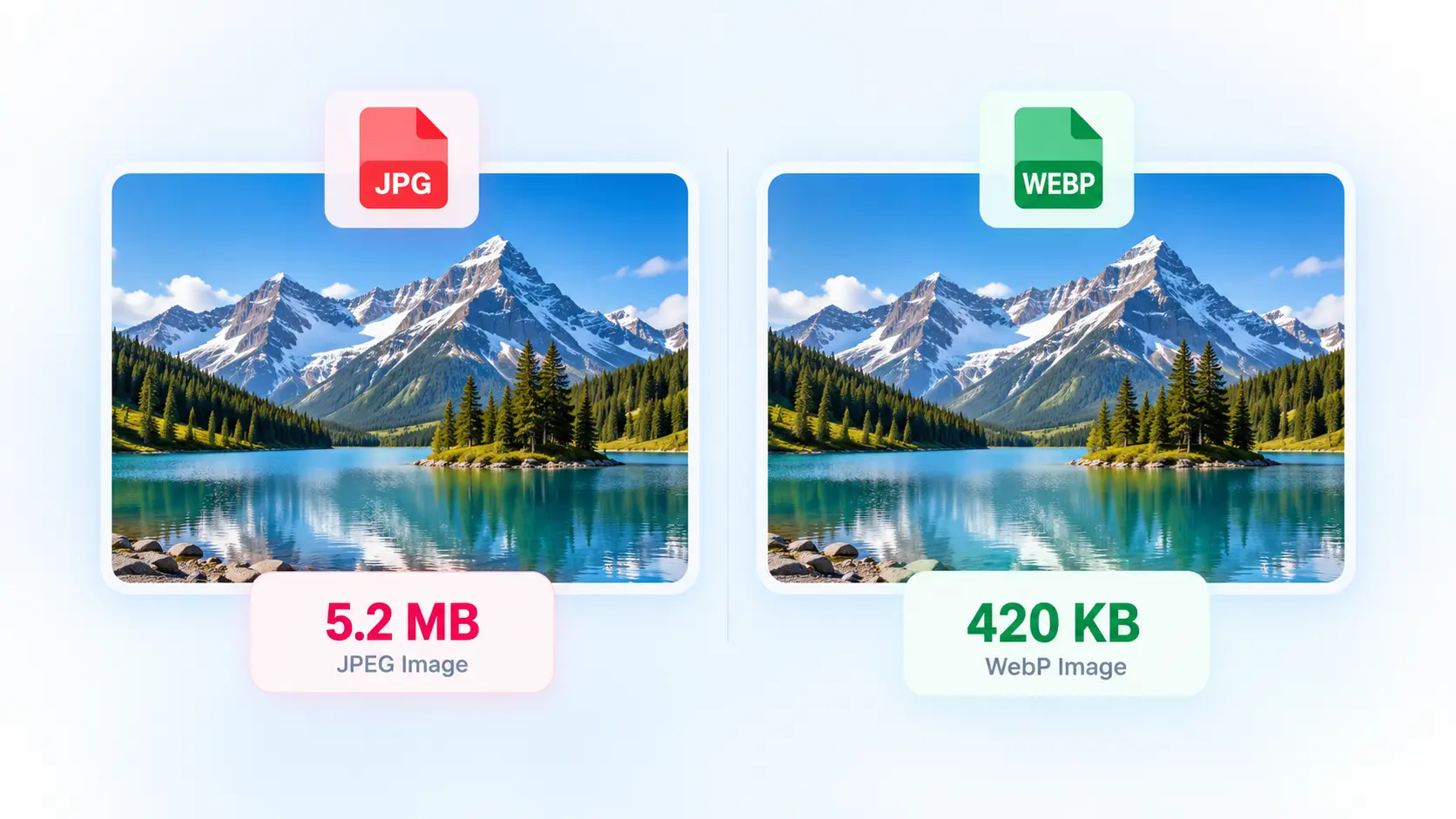
Modern formats do the same job in less space. Google says WebP lossy images are 25–34% smaller than comparable JPEGs at equivalent quality, and WebP lossless is 26% smaller than PNG.
AVIF usually compresses better again; ThumbPress cites roughly 20% over WebP. If you haven’t switched, you’re sending visitors bytes they don’t need.
4. WordPress Quietly Multiplies Every Upload
This is the cause most owners never see. Each upload spawns resized copies from WordPress, your theme and your plugins, often 10 or more files, most of which are never displayed.
One WordPress.org reviewer reported a site that had picked up 21 thumbnail sizes over the years and cleared roughly 6,000 unnecessary thumbnails in seconds. That means wasted storage, heavier backups and slower uploads.
5. Lazy Loading Is Missing or Misapplied
Without lazy loading, browsers download images even if visitors never scroll to them. WordPress has supported lazy loading since version 5.5, but some theme and page builder images may be missed. However, lazy loading your main LCP image can hurt performance.
WordPress core testing found that skipping lazy loading for the first content image improved median LCP by about 7%.
6. Images Travel Too Far
If your server is in Virginia and your visitor is in Dhaka, every image makes a long round trip. A CDN stores copies on servers around the world and delivers from the nearest one.

web.dev notes that switching to an image CDN can yield 40–80% savings in image file size, because the CDN also resizes and converts formats on the fly.
How to Check If Images Are Slowing Down Your Website
This takes about two minutes.
- Run Google PageSpeed Insights on your homepage and a key post. Look for “Properly size images,” “Serve images in next-gen formats,” “Efficiently encode images” and “Defer offscreen images.”
- Find your LCP element. PageSpeed Insights names it. If it’s an image, that image is your top priority.
- Sort the Network tab by size. In Chrome DevTools, filter by “Img” and sort by size. The top five rows are usually the whole story.
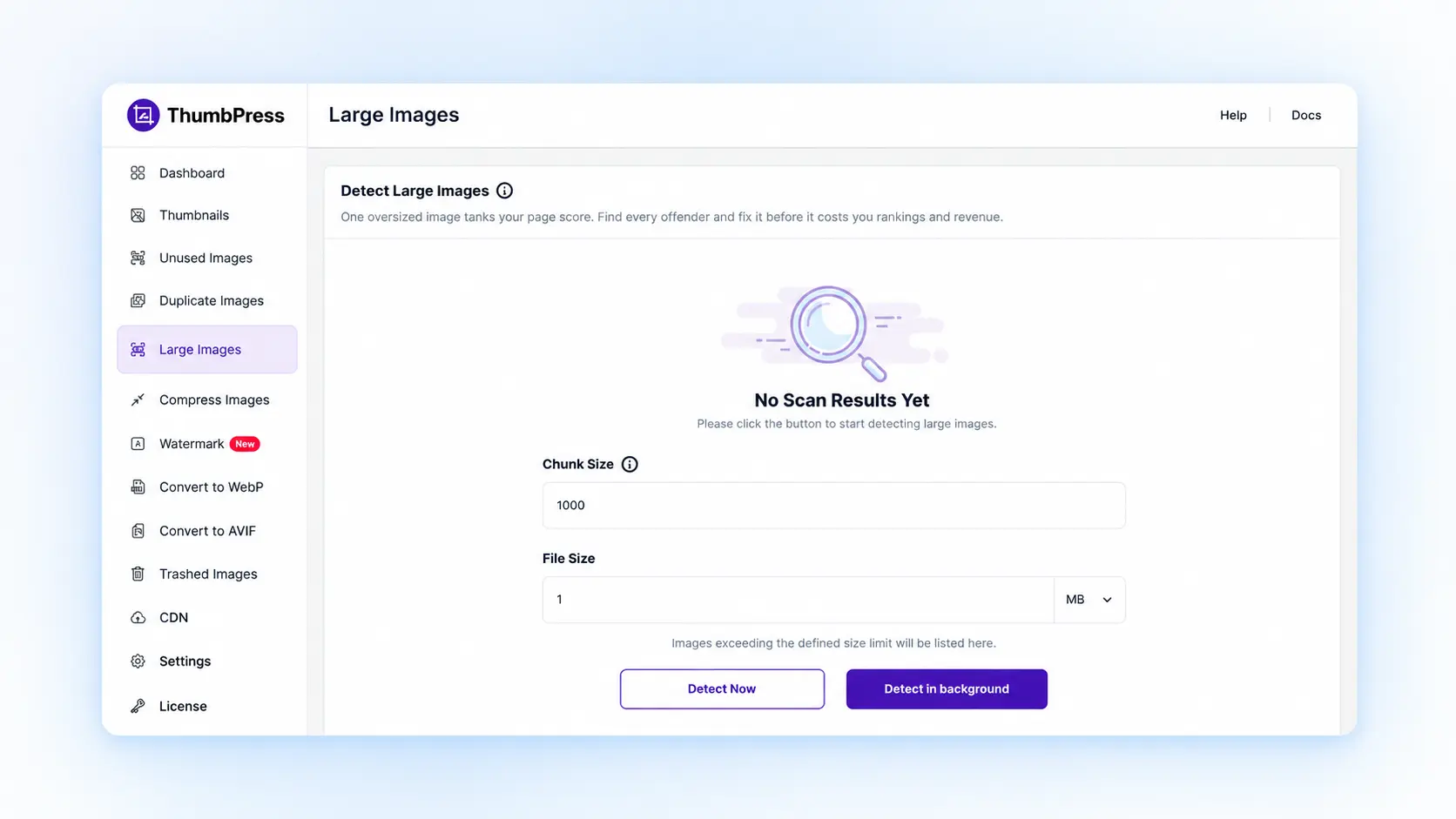
- Scan your library. ThumbPress’s Detect Large Images tool checks every attachment against a size threshold you set (default 1 MB) and always measures the true original file, even when WordPress made a smaller display copy. ThumbPress 6.9 also added a new dashboard and an Image Checkup to show which images need attention.
How to Fix Images Slowing Down Your Website with ThumbPress
ThumbPress is an all-in-one image optimization plugin trusted by 30,000+ WordPress users. It combines compression, format conversion, thumbnail management, lazy loading and cleanup in one place. The free version covers essentials, while Pro adds bulk compression and Image CDN.
Step 1: Find the Heaviest Images First
Run Detect Large Images with the default 1 MB threshold, adjusting it to your needs. Compress oversized images first and delete only those you don’t need. Most large files need optimization, not removal.
Step 2: Compress Your Library, Then Every New Upload
This is the biggest single win. ThumbPress gives you three ways to compress:
- Bulk compression works through your library in background batches with live progress and a cancel button, so even tens of thousands of images finish without hitting a PHP time limit.
- Single image is a one-click option from the media library, ideal for testing quality first.
- Auto-compress on upload optimizes every new image as it arrives, so the problem doesn’t return.
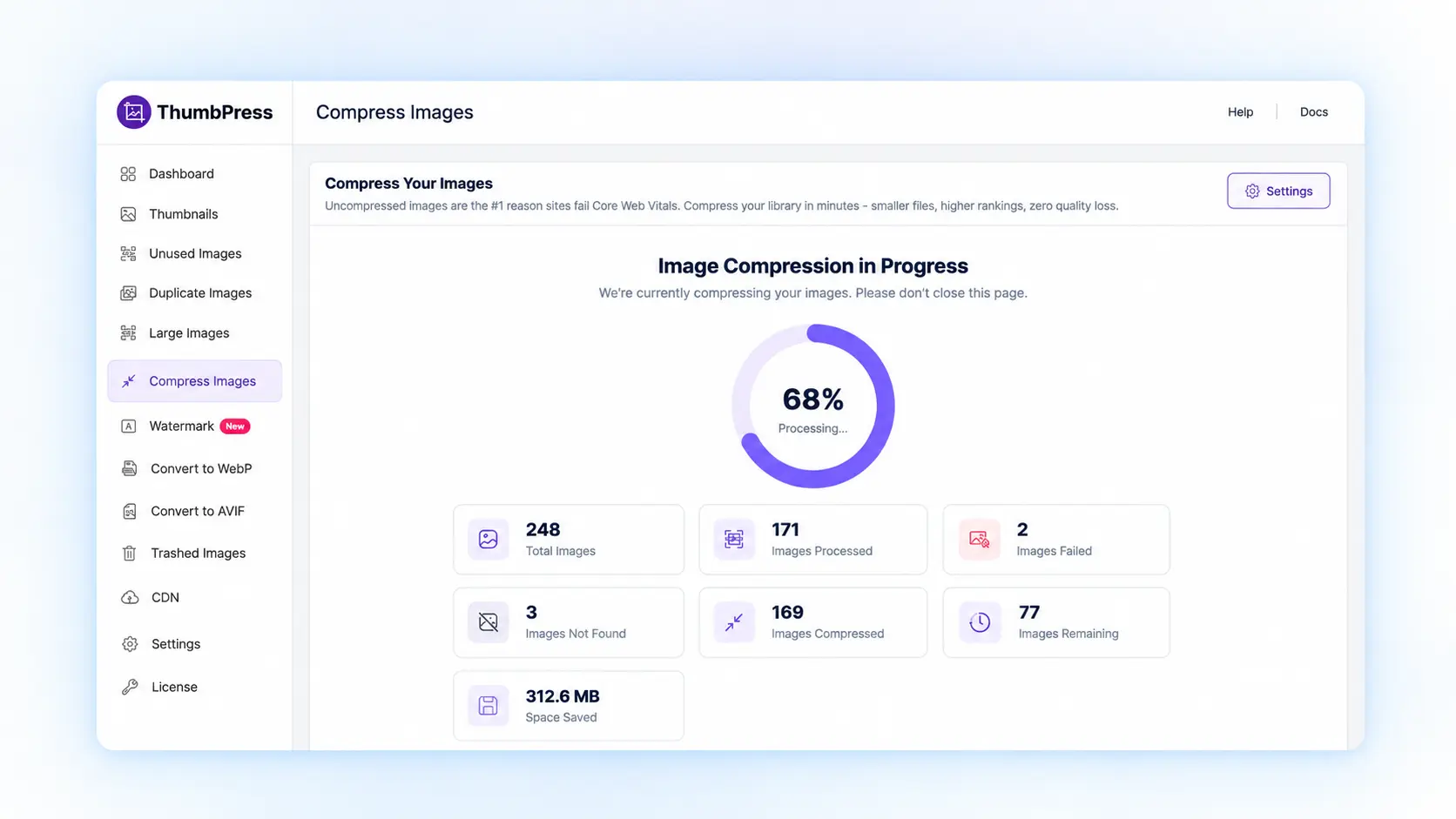
You choose lossy or lossless and set quality from 1 to 100. Lossy suits photos; lossless suits logos, screenshots and line art. Thumbnails are compressed alongside the original, and everything runs on your own server, so there are no per-image credits and nothing leaves your site.
One important note: compressed images replace the originals and aren’t automatically restored. Take a full backup before your first bulk run, and test a single image first.
Step 3: Convert to WebP and AVIF
Once images are optimized, convert them to modern formats like WebP and AVIF using ThumbPress. Follow our guide to using WebP images on WordPress. Enable conversion for new uploads, convert your existing library, and check key pages. Note that bulk AVIF conversion of existing images requires Pro.
Step 4: Stop Generating Thumbnails You Never Use
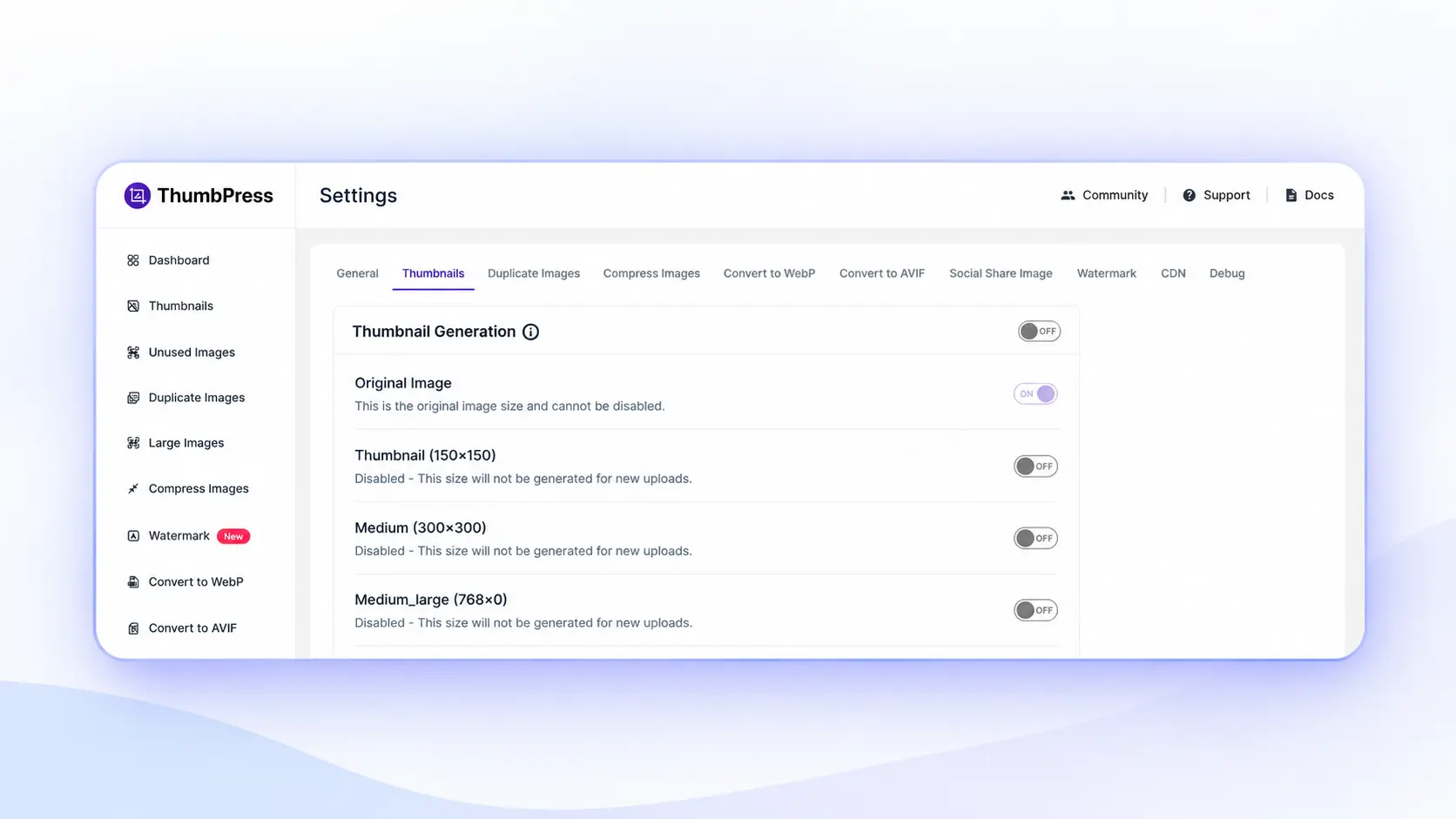
Open ThumbPress’s Disable Thumbnails tool. It lists every image size registered on your site, whether from core, your theme or your plugins, and lets you untick the ones nothing uses. WordPress then stops creating them on future uploads.
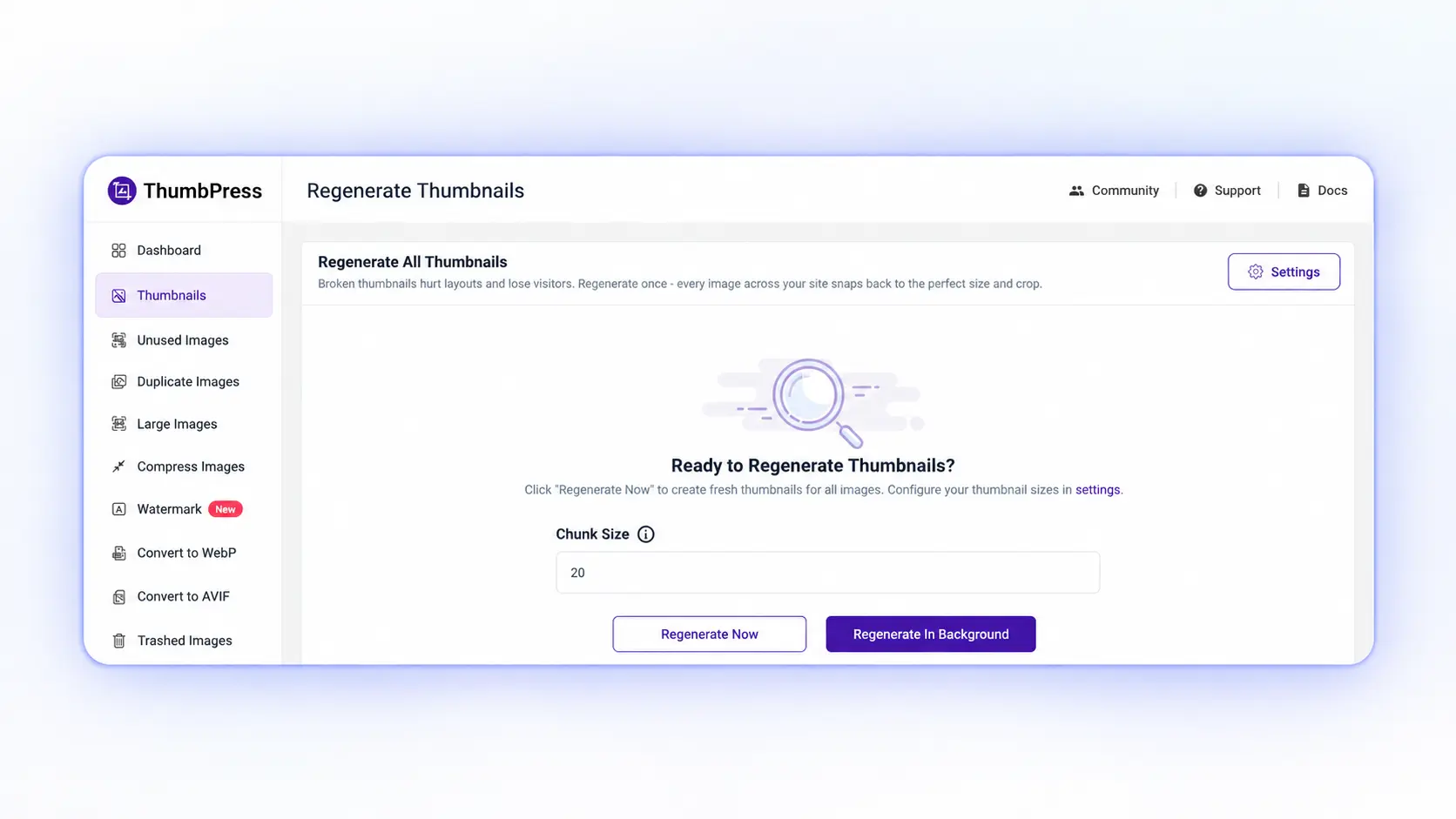
Next, run Regenerate Thumbnails to rebuild your library against the sizes you kept and clear the copies you switched off. Disable one or two sizes at a time and check your key pages first, so you don’t remove one your theme still needs.
Step 5: Lazy Load the Images WordPress Misses
Enable ThumbPress Lazy Load Images to lazy-load images missed by WordPress, including those from themes, page builders, and custom fields.
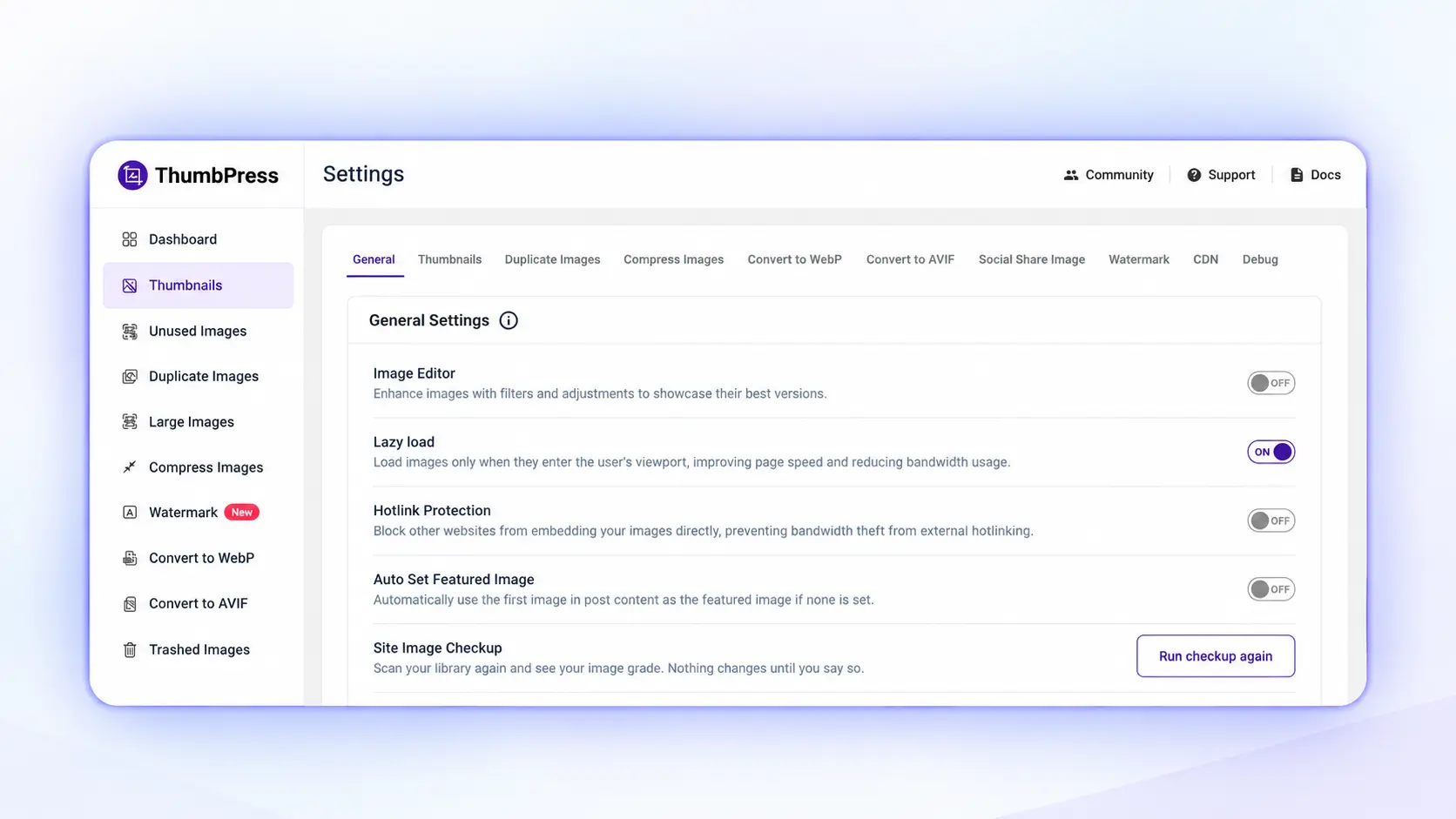
It works without JavaScript and keeps above-the-fold images loading eagerly. Avoid running multiple lazy-loading features simultaneously to prevent conflicts and flickering.
Step 6: Serve Images from the Edge with the ThumbPress Image CDN
For visitors far from your server, the Image CDN (on Pro plans) delivers your WordPress images from a global edge network, with no DNS changes and no separate CDN account.
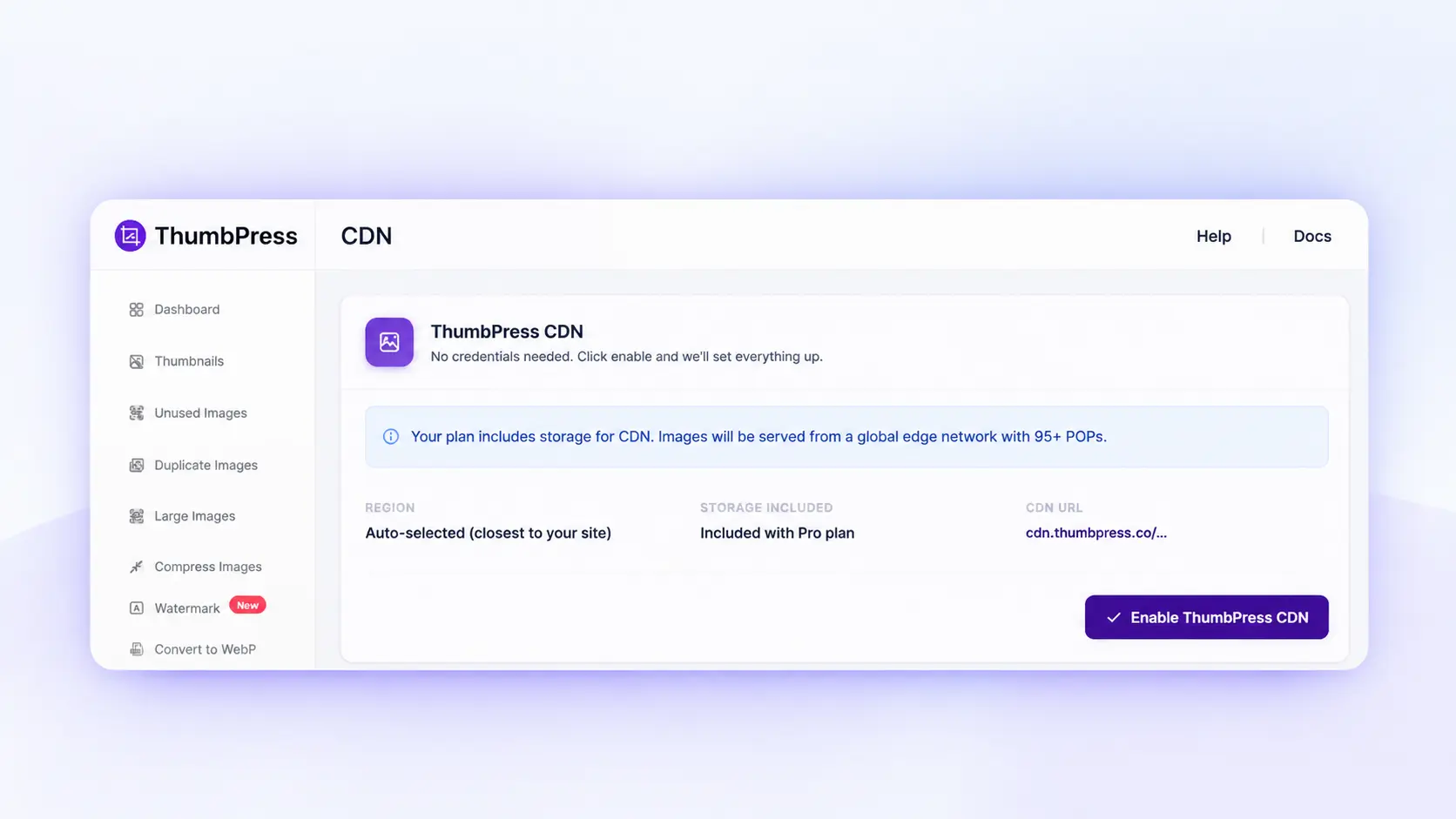
Learn how the ThumbPress Image CDN works and how it helps deliver images faster.
Step 7: Clean Up Duplicates and Block Future Bloat
Finish by clearing dead weight. ThumbPress finds exact duplicates and unused images, soft-trashes them so you can recover them, and blocks duplicate uploads before they happen.
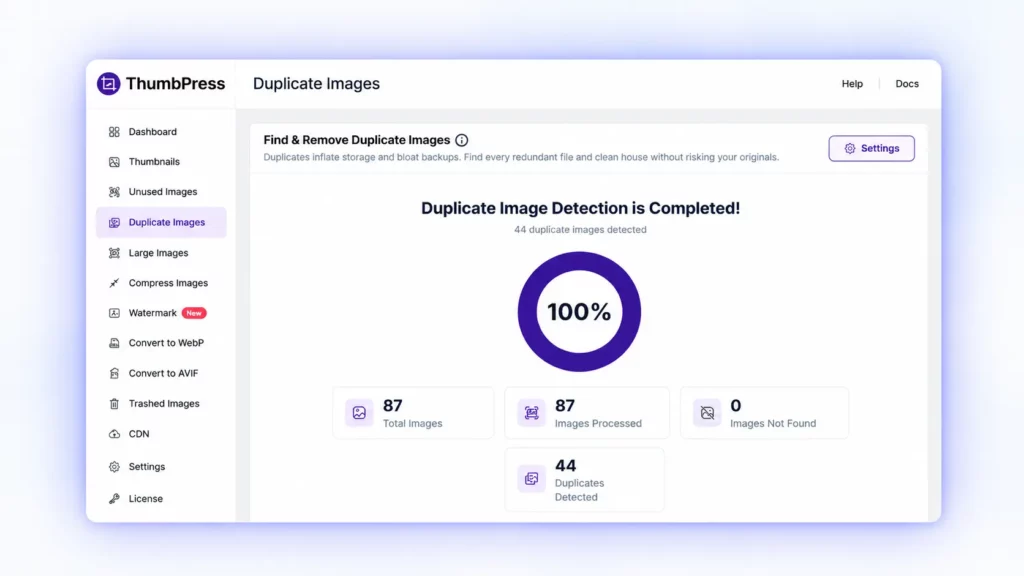
Our guide to finding and removing duplicate images in WordPress walks through it safely. Set an upload size limit too, so a 9 MB phone photo can’t land in your library untouched again.
3 Habits That Make ThumbPress Work Harder
Plugins do the heavy lifting, but three habits multiply the result.
- Resize before you upload. Pixels you never display still cost bytes. Upload images at roughly twice their display width, not at camera size.
- Protect your hero image. Your first visible image should never be lazy loaded and should load with high priority. The Web Almanac found only about 17% of mobile pages set fetchpriority=”high” on their LCP image, so this is an easy edge.
- Test on mobile, at the 75th percentile. Office Wi-Fi hides the problem. Check mobile results in PageSpeed Insights, since Google judges LCP at the 75th percentile, not the average.
Quick Image Speed Checklist
Use these as rules of thumb, not hard limits.
- Hero and banner images: aim for roughly 200 KB or less
- Blog and product images: aim for roughly 100 KB or less
- Format: WebP or AVIF wherever possible
- Compression: auto-compress on upload switched on
- Thumbnails: only the sizes your theme uses
- Lazy loading: on below the fold, off for the hero image
- Delivery: images served from a CDN
- Library: no large, duplicate or unused files
Common Mistakes to Avoid
- Lazy loading everything. Your first visible image should load immediately, or you delay LCP.
- Compressing without a backup. Compression replaces the originals, so back up first.
- Over-compressing. Quality set too low causes blur and artefacts. Test one image before a bulk run; ThumbPress suggests around 80 as a starting point for photos.
- Regenerating thumbnails blindly. Disable sizes gradually and check your pages.
- Relying on one trick. Compression alone won’t fix a site that also serves 21 thumbnail sizes from a distant server. The wins stack.
Final Thoughts
Images should make your site more engaging, not slower. You now know the causes: oversized uploads, missing compression, old formats, thumbnail sprawl, lazy loading gaps, distance and library clutter. And you know the fix, in order: find the heavy files, compress, convert to WebP and AVIF, trim thumbnails, lazy load, serve from a CDN and clean up.
ThumbPress puts every one of those steps in a single plugin, so you don’t juggle five tools or touch code. Install the free version to start trimming thumbnails today, or go Pro for bulk compression and the Image CDN. Every Pro plan has a 30-day money-back guarantee, so there’s no risk in trying it on your own site.
Get ThumbPress and speed up your WordPress images for free →
Frequently Asked Questions
Run your page through Google PageSpeed Insights and look for "Properly size images," "Serve images in next-gen formats," "Efficiently encode images" and "Defer offscreen images." You can also sort Chrome DevTools' Network tab by size. To audit your whole library at once, ThumbPress's Detect Large Images tool lists every file above your chosen size threshold.
There's no single rule. A practical target is about 200 KB or less for hero images and about 100 KB or less for content images, in WebP or AVIF, and no wider than the largest size displayed. ThumbPress's Image Upload Limit helps stop oversized files before they reach your library.
Within the limits you set. You choose lossy or lossless and a quality level from 1 to 100, and ThumbPress reports no visible quality loss at around 80. Test one image first. Because compressed images replace the originals, back up your library before a bulk run.
No. ThumbPress compresses on your own server in background batches, uses the browser's native lazy loading instead of heavy JavaScript, and offers CDN delivery on Pro plans. It's built to reduce page weight, not add to it.
ThumbPress has a free version and Pro plans. The free version covers essentials such as thumbnail management, while Pro unlocks advanced tools such as bulk image compression and the Image CDN. Every Pro plan includes a 30-day money-back guarantee.
Yes. ThumbPress is theme-agnostic and works with page builders including Elementor, Divi and Gutenberg. Lazy loading and optimization apply across your frontend, so WooCommerce product galleries, category pages and blog archives all benefit without per-template setup. For store-specific tactics, see our ecommerce image optimization tips.