If your WooCommerce product pages are slow, the cause is usually one of seven things: oversized images, a slow server, weak caching, heavy plugins and scripts, a bloated theme, complicated variable products, or a gallery that loads too much at once.
Your homepage can score well while a single product page struggles, because product pages do far more work: they pull product data, build variation options, load galleries, and run extra scripts.
Find the bottleneck first, then fix the biggest one. This guide shows you how to diagnose slow WooCommerce product pages in about 15 minutes, then walks through seven targeted fixes, a priority order, and where an image plugin like ThumbPress fits in.
How to Diagnose Why WooCommerce Product Pages Are Slow
Spend 15 minutes measuring before you change anything. You need a baseline to prove that a fix actually helped.
Step 1: Test the Right Page
Open Google PageSpeed Insights and test the URL of a product page that feels slow. Test at least one simple product and, if you sell them, one variable product with several attributes.
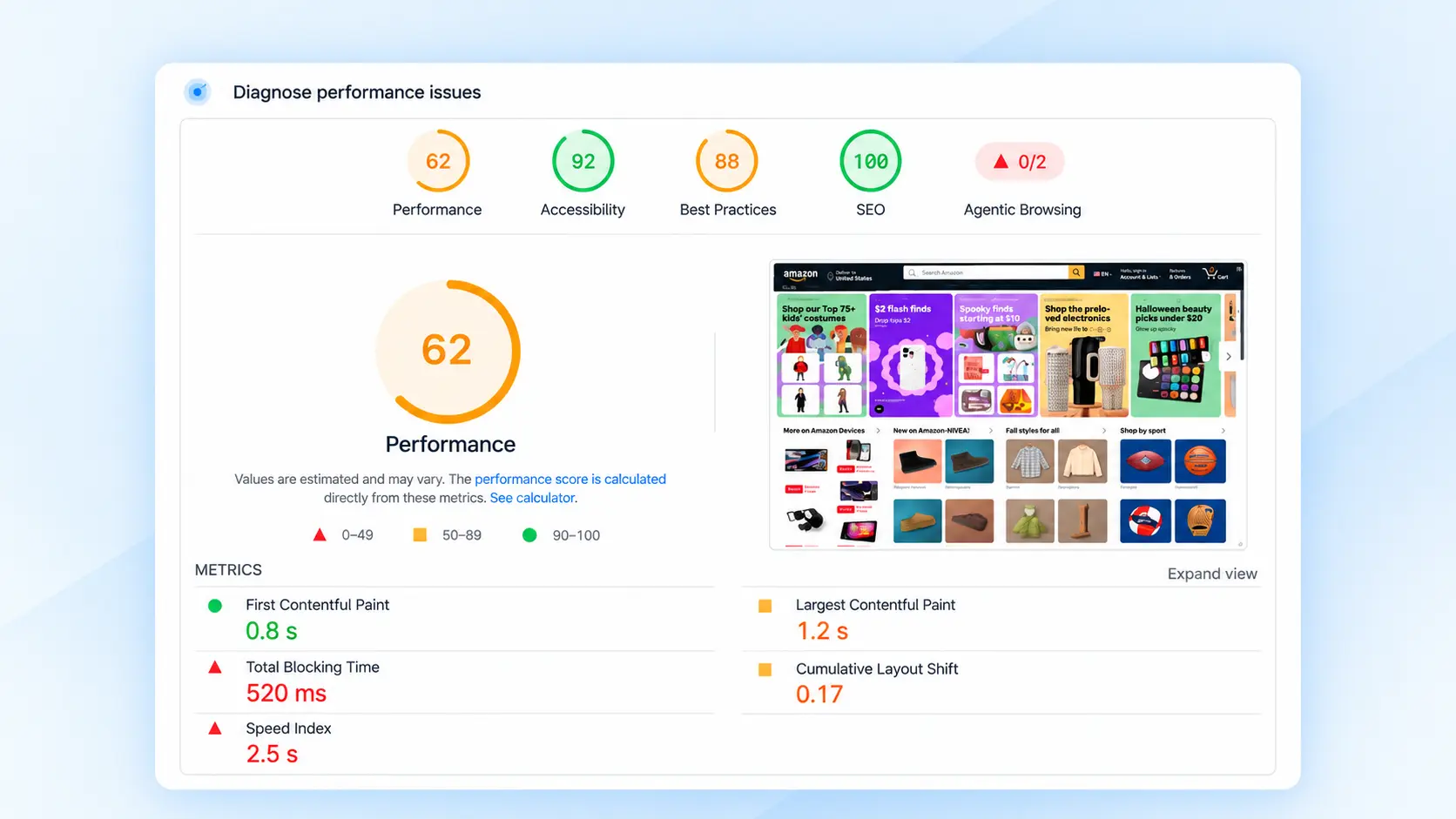
Record these three Core Web Vitals. Google defines them with the following “good” thresholds, assessed at the 75th percentile of real-user visits:
| Metric | What it measures | Good | Needs improvement | Poor |
| Largest Contentful Paint (LCP) | How fast the main content appears | ≤ 2.5 s | ≤ 4.0 s | > 4.0 s |
| Interaction to Next Paint (INP) | How fast the page responds to taps and clicks | ≤ 200 ms | ≤ 500 ms | > 500 ms |
| Cumulative Layout Shift (CLS) | How much the layout jumps around | ≤ 0.1 | ≤ 0.25 | > 0.25 |
A single lab test is useful for diagnosis, but it isn’t the same as real-user data. If your site has enough traffic, PageSpeed Insights also shows field data from real Chrome users, which is the more reliable number.
Step 2: Match the Symptom to the Cause
| What you notice | Most likely cause | Where to look |
| Nothing appears for a long time | Slow server response | Hosting, caching, database, heavy plugins |
| Product image appears late | Large or late-loading image | Image size, format, loading priority |
| Page appears but taps lag | JavaScript overload | Third-party scripts, variation selector, theme scripts |
| Content jumps while loading | Missing image dimensions, late banners | Image width/height, fonts, injected content |
| First visit slow, repeat visits fast | Weak page or browser caching | Cache rules, cache headers |
| Only variable products are slow | Variation processing | Variation count, add-ons, custom code |
For example, if LCP is slow but the HTML document arrives quickly, look at the main image before you touch hosting. Several problems can exist together, so confirm the cause before you change settings.
Step 3: Look Inside the Page
For a deeper look, open the product page in Chrome, right-click, choose Inspect, and open the Network tab. Reload the page and sort requests by size and time.
Check three things:
- The first request (the HTML document). If the “Waiting for server response” time is long, the delay is on the server, not in your images.
- The biggest files. A gallery image that’s several megabytes is an easy win.
- Scripts that load late or block interaction. The Performance panel can show long tasks that make the page feel frozen.
7 Fixes for Slow WooCommerce Product Pages
Work through these in the order your diagnosis points to, not necessarily top to bottom.
1. Oversized Product Images
Product photos are usually the heaviest assets on a product page. Shoppers want to zoom and compare angles, so merchants upload large originals. The problem starts when the browser downloads far more pixels than it displays.
Two Ways to Reduce Product Image File Size
You can reduce product image sizes in two ways: using an external online tool or an image optimization plugin directly in WordPress.
1. Use an External Image Compression Tool: Upload your product images to an online image compression tool, adjust the quality if needed, and download the optimized files. Then replace the original images in your WordPress Media Library.
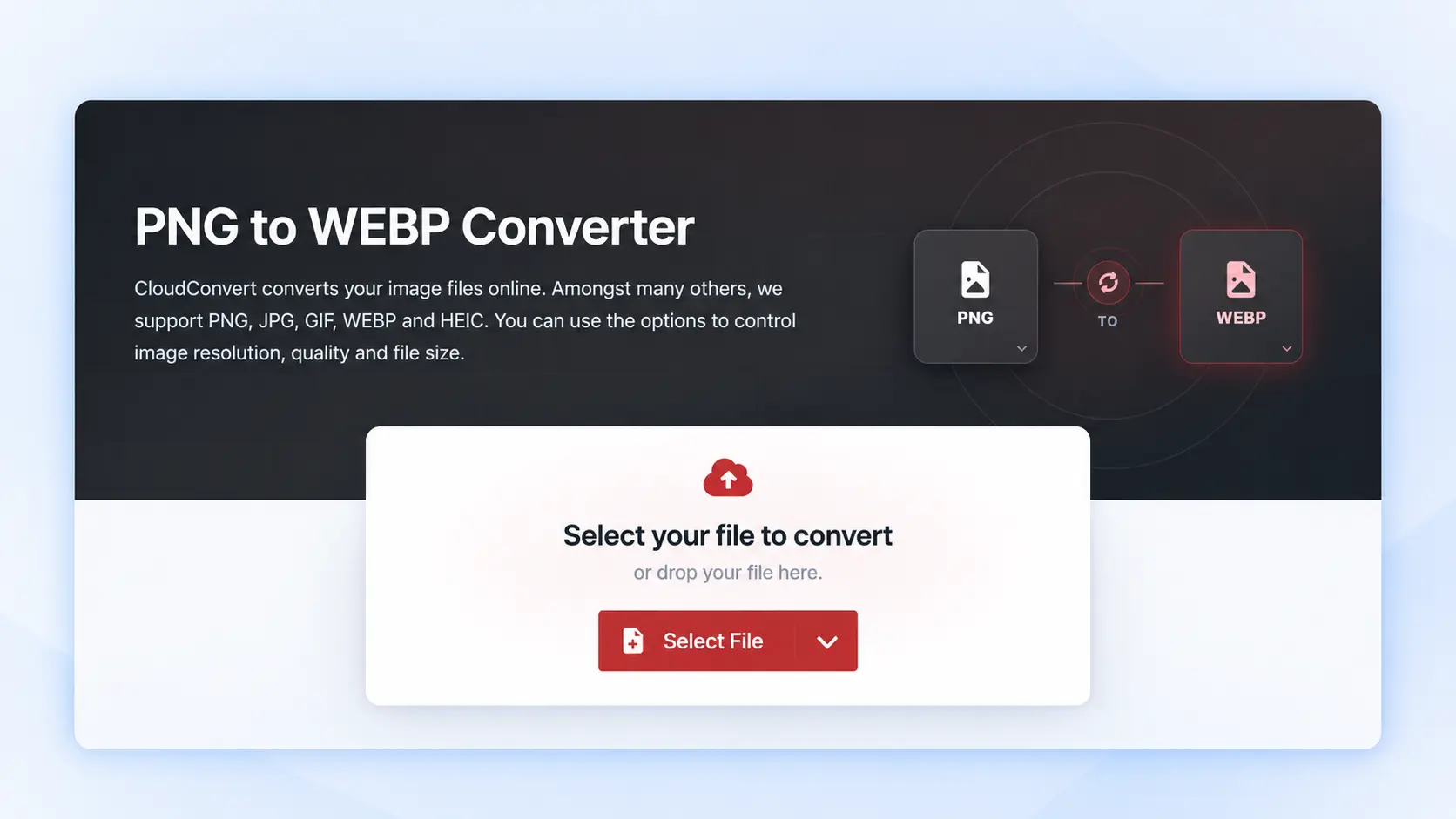
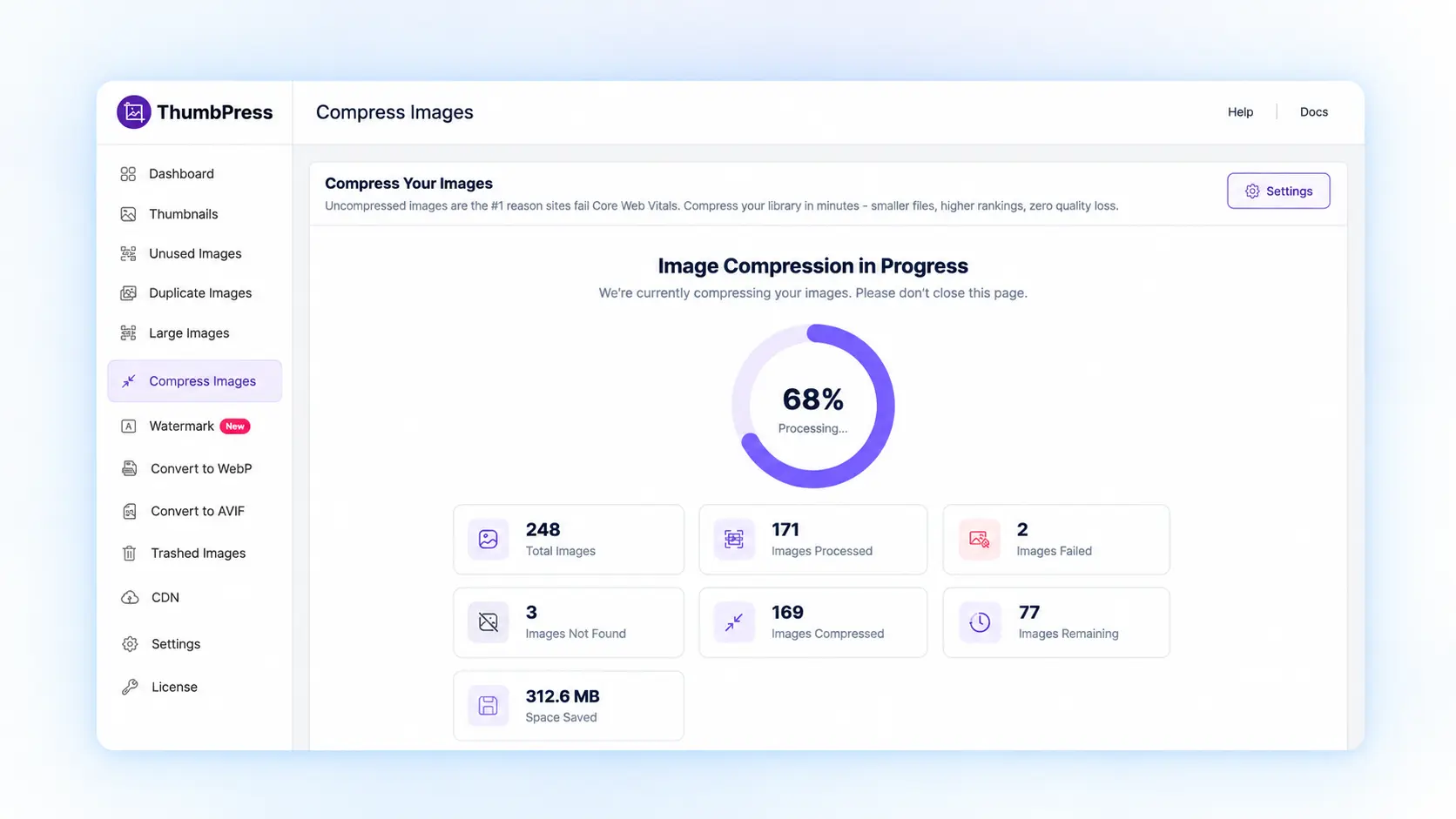
2. Use a WordPress Plugin: With ThumbPress, you can compress product images directly inside WordPress, including in bulk, without optimizing each image manually. You can also convert images to WebP or AVIF to reduce file sizes further.
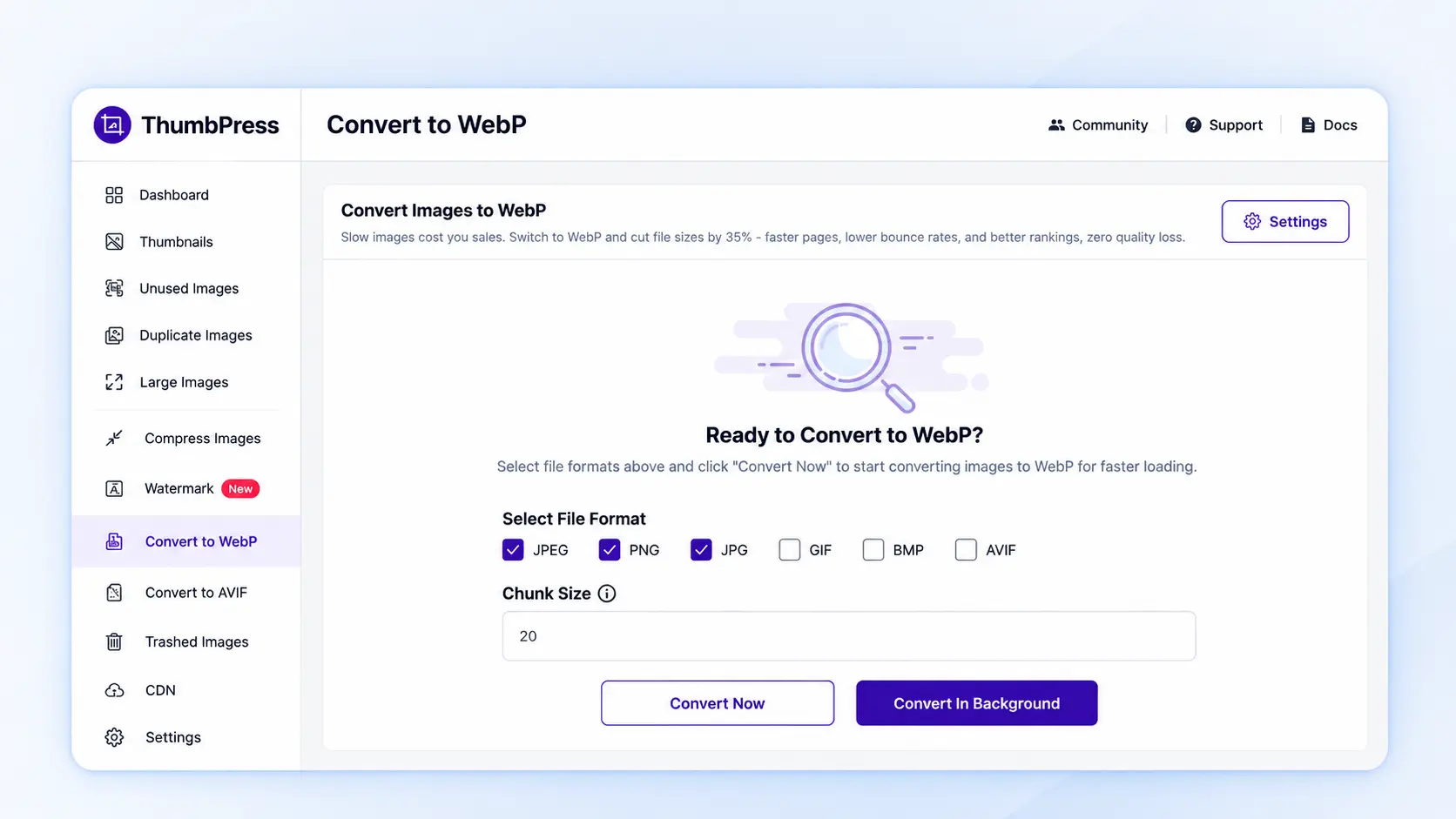
For a deeper walkthrough, see ThumbPress’s WooCommerce image optimization checklist. If your Network tab shows multi-megabyte images, ThumbPress can compress and convert them in bulk, so you don’t have to re-export every photo by hand.
2. Slow Hosting and Server Response
If the browser waits a long time for the first byte of HTML, nothing you do to images will help. WordPress is spending that time querying the database, running plugin code and assembling the page. Limited PHP workers and database limits make this worse, especially during traffic spikes or on large catalogs.
How to fix it:
- Check the “Waiting for server response” time on several product pages.
- Compare it with a simple page such as your About page. If simple pages are fast and products are slow, suspect WooCommerce queries, plugins or the theme before raw hosting power.
- Ask your host whether PHP workers (the processes that handle visitors’ requests at the same time) or database limits are being hit, and confirm your PHP and database versions meet WooCommerce’s current requirements.
- Move to better-suited hosting only if measurements show server capacity is the bottleneck.
3. Caching That Doesn’t Cover Product Pages
Caching lets the server reuse work instead of rebuilding the page for every visitor. Product and category pages are generally good candidates, while cart, checkout and account pages are personalized and must bypass it. Get this wrong and shoppers can see stale stock, wrong prices or someone else’s cart.
Reload a product page in a private window and read the response headers in the Network tab. Many hosts and cache plugins add a cache status header, though the name varies.
How to fix it:
- Turn on page caching for product and category pages, and confirm cart, checkout and My Account are excluded.
- Enable browser caching for static files, and check whether your host offers server-level or object caching.
- Purge product pages when stock or sale prices change.
- After any change, test add-to-cart, coupons, logged-in views and checkout.
Don’t switch on every optimization option at once, because two tools that rewrite the same scripts can conflict. WooCommerce’s own performance documentation is a reliable reference for what is safe to cache.
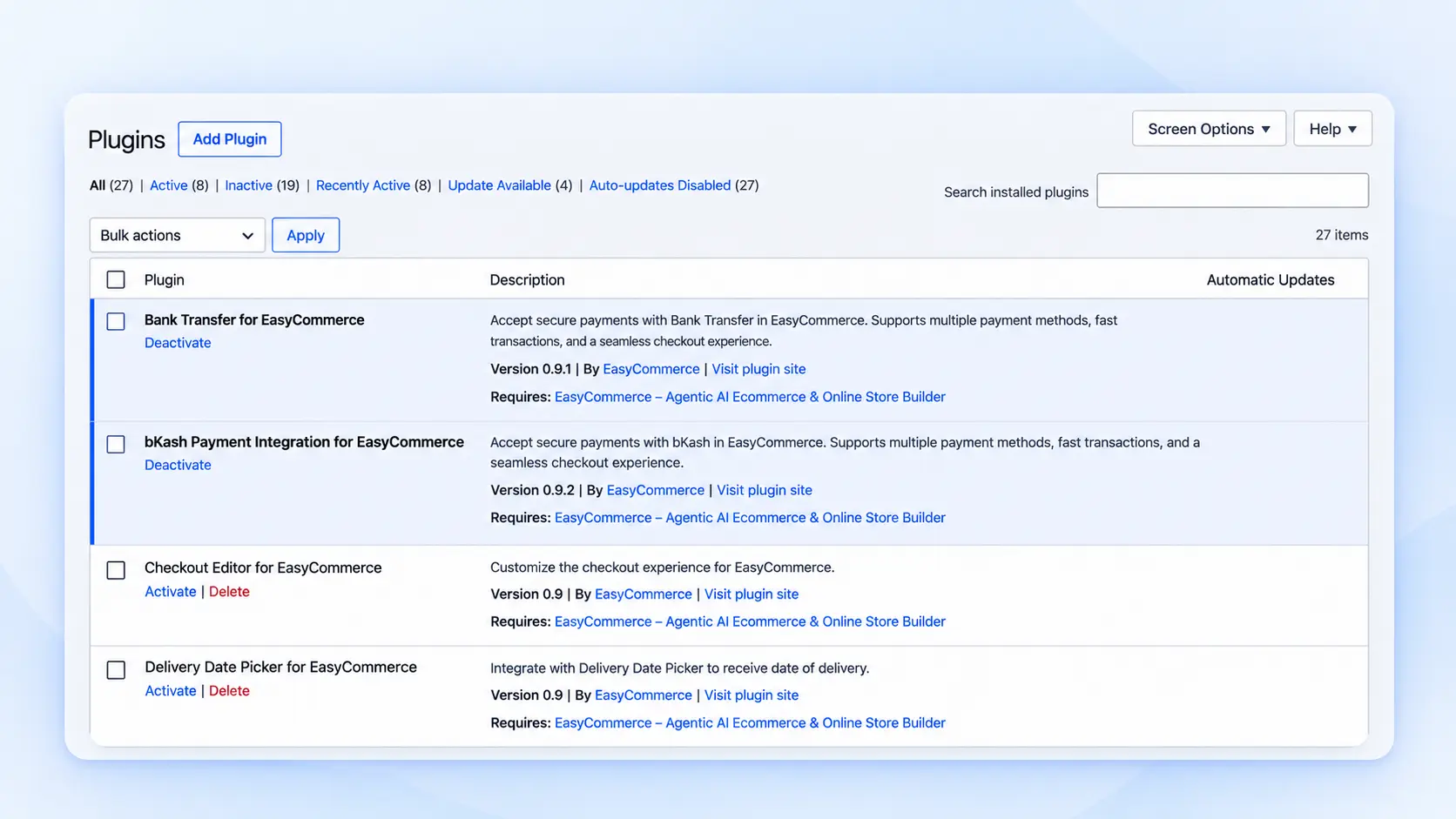
4. Too Many Plugins and Third-Party Scripts
Plugin count alone doesn’t predict speed. A single poorly built extension can do more damage than several well-built ones.
External scripts such as analytics, ad pixels, review widgets and live chat add requests and JavaScript, and together they often explain a poor INP score, where the page looks ready but responds late.
How to fix it:
- List every plugin and external service active on product pages.
- Use the Network tab and Query Monitor to find the slowest requests and queries.
- Remove tools you don’t use, and limit the rest to the pages that need them.
- Update plugins, and contact the developer if one is clearly responsible.
- Test on staging, one change at a time. Never deactivate plugins at random on a live store, because payment, shipping and tax features can depend on extensions that look optional.
5. A Heavy Theme or Page Builder
Themes and page builders decide how much HTML, CSS and JavaScript every product page needs. A heavily customized template may load sliders, animation libraries and icon packs that add nothing to the buying decision.
Builders aren’t automatically slow. What matters is what your specific template loads.
How to fix it:
- Remove sliders, animations and widgets that don’t help shoppers decide.
- Test the same product with a default or lightweight theme on staging. If it’s clearly faster, investigate your theme and builder integrations.
- After any template change, verify galleries, variation selectors, prices, structured data and add-to-cart buttons.
6. Variable Products That Slow Your WooCommerce Product Pages
If variable products load slowly while simple products perform well, variations may be the cause. WooCommerce must handle attributes, pricing, and stock, while extensions can add extra processing.
Super Speedy Plugins documented a store with just 72 variations generating around 3,200 queries due to a payment gateway’s express checkout feature.
How to fix it:
- Compare a slow variable product with a similar simple product to confirm variations are the cause.
- Count the variations. A single product with sizes, colors, fabrics and fits multiplied together is often better modeled differently, for example with add-ons for options that don’t need separate stock.
- Disable extensions one at a time on staging to find any that slow variation loading.
- Review custom code that runs when products or variations load.
- Update WooCommerce and your extensions after checking compatibility.
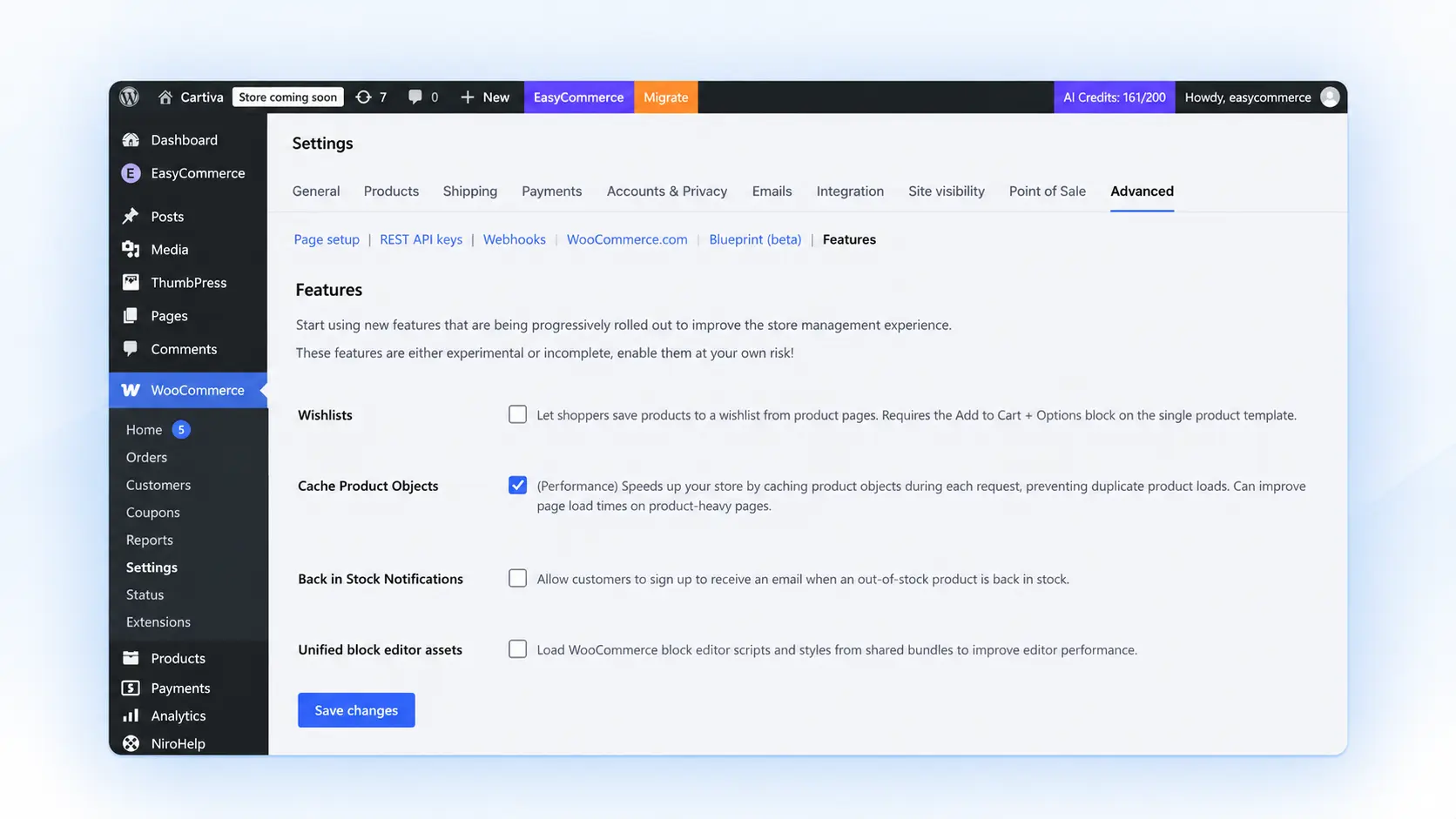
WooCommerce 11.0 reports that product object caching makes variable products load roughly 9–12% faster on product pages. It’s on by default for new stores. On existing stores, you can turn it on under WooCommerce → Settings → Advanced → Features (Cache Product Objects).
7. Gallery Images and Lazy Loading
Large product galleries can slow pages when every image loads immediately, competing with the main product image. Use lazy loading for below-the-fold images, but avoid delaying the first visible image, as it can worsen LCP.
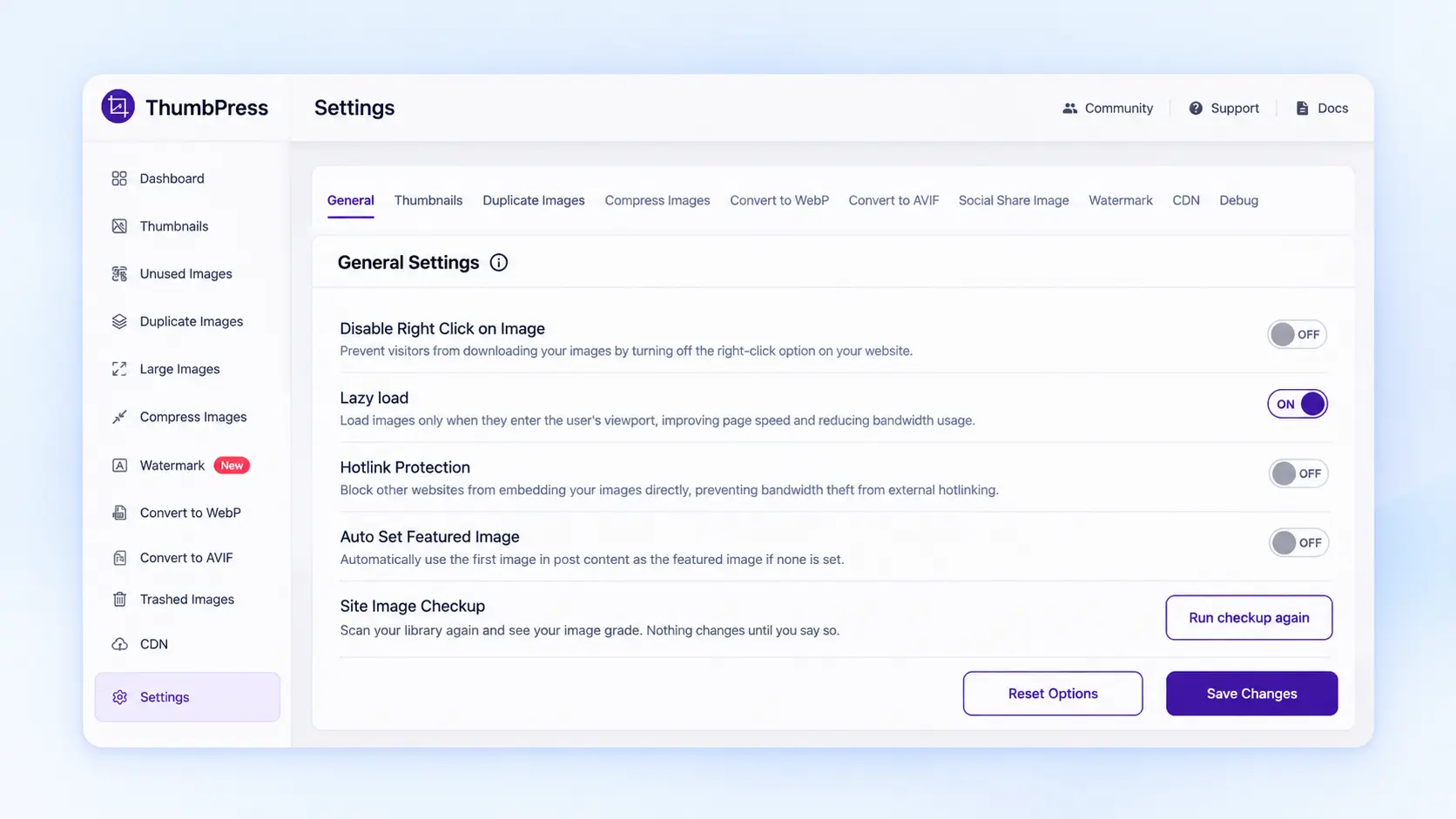
WooCommerce 10.6 enables lazy loading by default for images in the Product Image block. Check existing behavior before adding another lazy-loading tool to avoid conflicts.
How to fix it:
- Compress and resize every gallery image.
- Lazy-load thumbnails and images below the fold, but not the main image.
- Confirm the first product image isn’t lazy-loaded and has explicit dimensions.
If you use ThumbPress’s lazy load, open a product page afterward and confirm the first product image still loads right away.
How to Speed Up WooCommerce Product Pages: What to Fix First
Use this order by default:
- Baseline: Test a simple and a variable product on mobile and desktop, and record LCP, INP, CLS and server response time.
- Images: Resize, compress and convert oversized images, and check the first image’s loading behavior.
- Server and caching: Confirm eligible pages are cached and cart and checkout still work.
- Scripts and plugins: Remove what you don’t need and limit what loads on product pages.
- Theme and variations: Compare against a lighter template and a simple product.
- Retest: Repeat the same tests and confirm add-to-cart and checkout still behave.
If your diagnosis clearly shows a slow server or a JavaScript bottleneck, deal with that first.
How ThumbPress Helps When Images Slow Your Product Pages
Images are one of the most common and most fixable causes of slow WooCommerce product pages, and they are the part ThumbPress is built for.
For product pages, these ThumbPress features matter most:
- Compress images: Bulk or on-upload compression. ThumbPress cites typical reductions of 40–60%.
- Convert to WebP and AVIF: ThumbPress says WebP is about 30% smaller than JPEG, and AVIF compresses about 20% better than WebP.
- Lazy load images: Load images as visitors scroll. Keep the main product image eager.
- Detect large images: Find oversized files slowing pages down.
- Disable and regenerate thumbnails: Stop generating image sizes you never use.
- Image CDN: Serve images from a global edge network.
Every ThumbPress purchase comes with a 30-day money-back guarantee, so you can try ThumbPress on your slowest product page and compare the before and after numbers.
What ThumbPress won’t fix: If your diagnosis points to a slow host, heavy database queries, or third-party JavaScript, those need separate fixes. A CDN moves files closer to visitors, but it doesn’t replace the need to optimize them or to speed up a slow application server.
Final Verdict: Fix the Cause, Not Just the Symptom
When your WooCommerce product pages are slow, the first step isn’t another plugin. It’s a measurement. Test a real product page, then change one thing at a time, retest, and confirm the shopping experience still works from product page to checkout.
If your tests show large or inefficient images, ThumbPress can compress them, convert them to modern formats, trim unused thumbnails and deliver them through a CDN. Pair that with the right hosting, caching and script cleanup, and your product pages will load faster where it counts.
Ready to shrink your product images? Try ThumbPress with a 30-day money-back guarantee, then re-run PageSpeed Insights on the same product page.
Frequently Asked Questions
Product pages use different templates and do more work. They load product data, price rules, stock status, galleries, reviews and variation logic, plus any scripts added by plugins. A homepage usually does far less. Always test the slow product URL directly.
Yes, they can. Oversized files, outdated formats and galleries that load many large images at once increase page weight and delay the main product photo.
Variable products need price, stock and attribute data for every variation, and extensions that modify variations add more processing. If only the variable product is slow, check the variation count, add-ons, dynamic pricing and custom code.
No. Lazy loading suits images below the fold. The first visible product image is often the Largest Contentful Paint element, and delaying it can slow perceived loading. Since WooCommerce 10.6, Product Image block images lazy-load by default, so check how the first image behaves and adjust it if needed.
ThumbPress has a free version and a Pro version. The free version covers essentials such as thumbnail management, while advanced tools such as image compression and CDN support are in Pro. Every purchase has a 30-day money-back guarantee, and you can see the plans on the pricing page.