How to Fix Common Image Issues in WordPress (A Complete Guide)


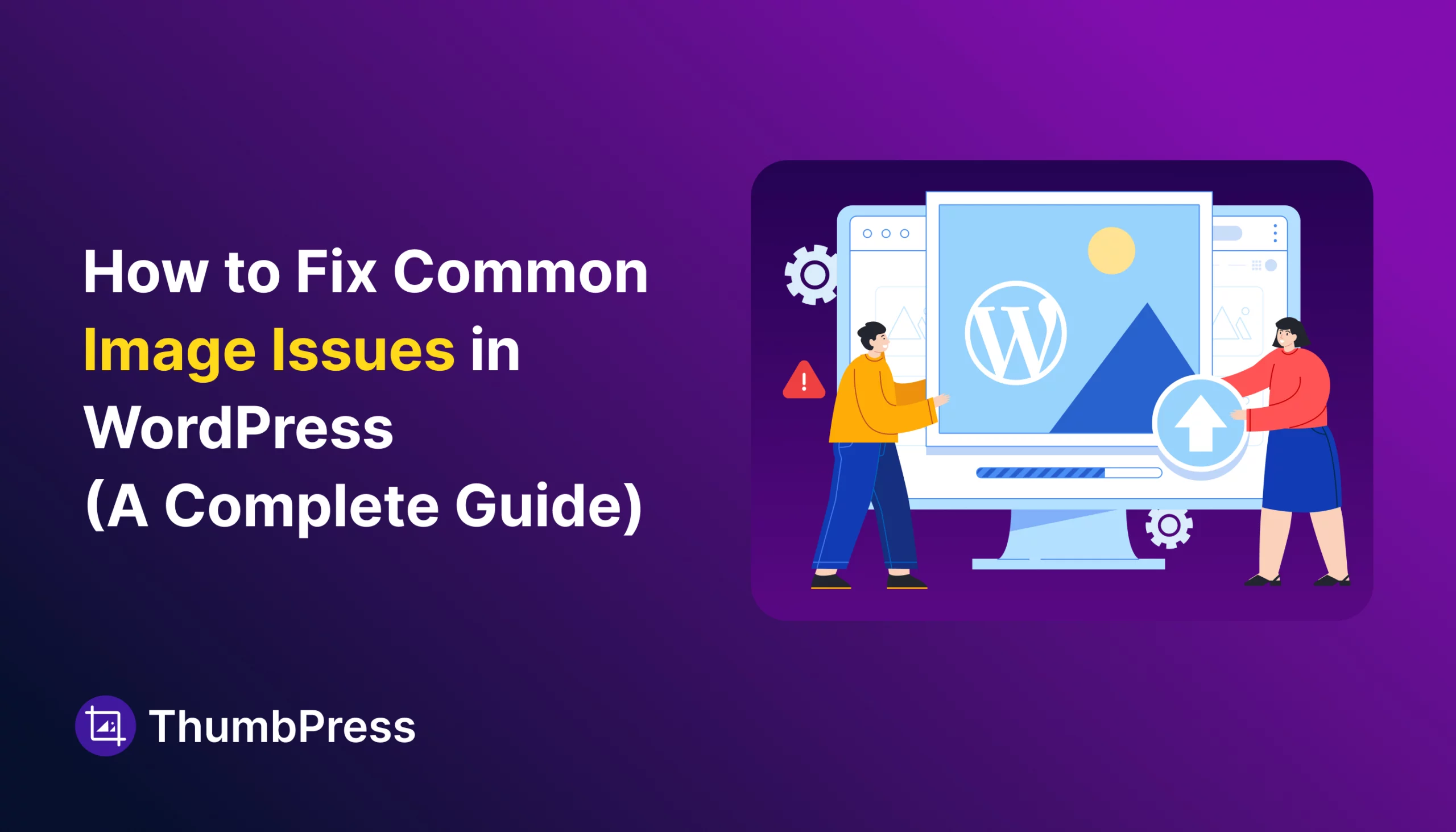
You upload a photo. It shows broken on the live site. You try again. Same result.
Or maybe your site is loading slowly, and you suspect images are the reason – but you’re not sure where to even start.
WordPress image problems are frustrating because they’re not always obvious. A broken link after migration, thumbnails that look wrong after switching themes, hundreds of images with no alt text – each one has a clear cause and a straightforward fix.
This guide covers every common image issue in WordPress, one by one. By the end, you’ll know exactly what’s wrong and how to fix it.
Why Image Issues in WordPress Are a Big Deal
Before we jump into fixes, let’s quickly understand why image problems deserve your attention.
Images are one of the biggest factors affecting your website’s performance and user experience. Studies show that pages with properly optimized images load up to 2x faster, and users are 53% more likely to leave a mobile site that takes longer than 3 seconds to load.
On top of that, search engines like Google consider page speed and image optimization as ranking signals. So if your images are broken or slow, they’re not just annoying your visitors, they’re hurting your SEO too.
Now let’s fix them, one by one.
Common Image Issues in WordPress (And Why They Happen and How to Solve)
Before jumping into solutions, you need to understand the root causes. Most image issues in WordPress happen due to:
Issue 1: Images Not Uploading to WordPress
You try to upload a photo and get an error – “HTTP error,” “Upload failed,” or just a spinning wheel that goes nowhere.

Why does it happen:
- The file is too large for your server’s upload limit
- Your server is running low on memory
- The uploads folder has the wrong file permissions
- A plugin or theme conflict is blocking the upload
How to fix it:
Step 1: Increase the upload file size limit. Go to your hosting control panel (like cPanel) and find the PHP settings. Increase upload_max_filesize and post_max_size. Or add this to your wp-config.php:
@ini_set('upload_max_size', '64M');
@ini_set('post_max_size', '64M');
You can also use ThumbPress’s Image Upload Limit module to define a max file size and resolution. Any upload that exceeds your rules gets blocked automatically – before it ever reaches the server.
Step 2: Increase the PHP memory limit. Add this to your wp-config.php:
define('WP_MEMORY_LIMIT', '256M');Step 3: Check folder permissions. Connect to your server via FTP (FileZilla works well) and make sure the /wp-content/uploads/ folder has permissions set to 755.
Step 4: Rule out plugin conflicts. If none of the above works, deactivate all plugins and try uploading again. Then reactivate them one by one until the problem returns — that’s your culprit.
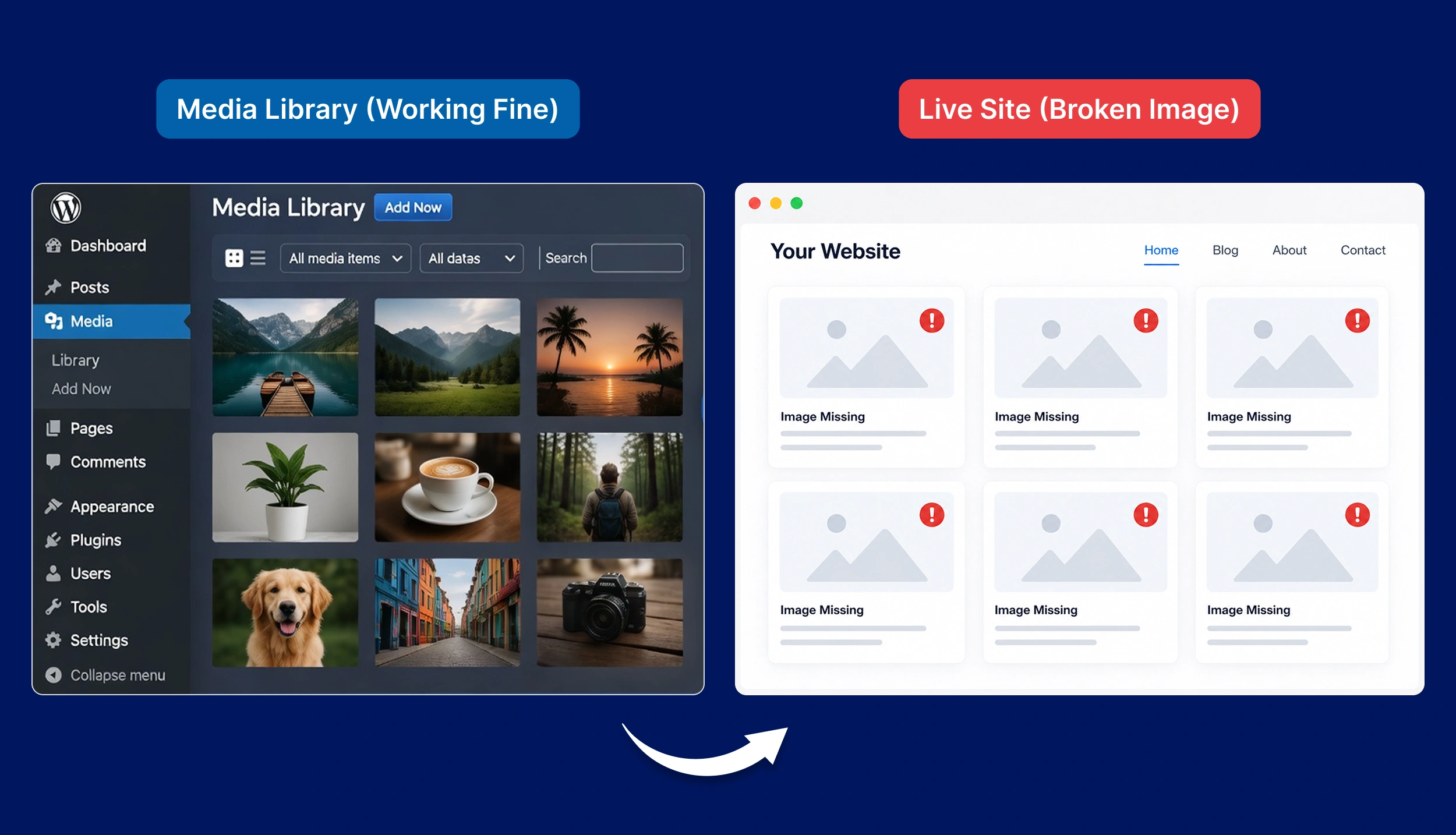
Issue 2: Images Showing as Broken on the Live Site
The image is in your media library, but it shows as a broken icon on the front end.
Why it happens:
The most common cause is a site migration. When you move WordPress to a new domain, the image URLs inside your posts still point to the old domain. The files are there – WordPress is just looking in the wrong place.
How to fix it:
- Install the free plugin Better Search Replace
- Go to Tools → Better Search Replace
- Search for: https://your-old-domain.com
- Replace with: https://your-new-domain.com
- Select all database tables
- Check Run as a dry run first — this shows what will change without making any changes
- If the preview looks right, uncheck dry run and click Run Search/Replace
Always back up your database before running a search and replace. The UpdraftPlus plugin handles this in under two minutes.
Issue 3: Too Many Thumbnails Clogging Your Server
Every image you upload creates multiple copies – a thumbnail, medium, large, and scaled version by default. Your theme adds more. Your plugins add more. A single upload can silently create 10 to 20 files.
Most of them never get used anywhere on your site.
How to fix it:
1. Adjust your default image sizes. Go to Settings → Media in your WordPress dashboard and reduce the three default sizes to match what your theme actually uses.
2. Stop generating sizes you don’t need. Install ThumbPress, then open the Disable Thumbnails module. Choose exactly which sizes to stop generating. Save, and WordPress will stop creating those copies for all future uploads.
3. Compress what’s already there. ThumbPress Pro includes built-in image compression that works directly from your dashboard:
- Open the Compress Images tab
- Set the chunk size (how many images to process at once)
- Click Compress Now or run it in the background
This reduces file size without any visible quality loss.
Issue 4: Images Look Wrong After Switching Themes
You switch to a new theme, and suddenly, images look stretched, poorly cropped, or blurry in layouts.
Why it happens:
Your old thumbnails were generated at the sizes your previous theme needed. Your new theme uses different dimensions. The files are still there – they just don’t match the new layout.
How to fix it:
Install ThumbPress and open the Regenerate Thumbnails tab:
- Set the chunk size
- Click Regenerate Now or run it in the background
- Clear your site cache once it finishes
Your images will now use the correct dimensions for your current theme.
Issue 5: Same Image Appearing Twice on a Page
You publish a post. The same image appears at the top and again inside the content. It looks messy and confuses readers.
Why does it happen:
When you set a Featured Image, it doesn’t appear inside the post editor – so many users assume it’s missing and upload the same image directly into the post body. That creates the duplicate.
It can also happen due to theme settings, plugin conflicts, or a Featured Image block added twice inside a Full Site Editor template.
How to fix it:
Option 1: Remove the image from the post content. Open the post editor, find the image inside the content, click the three dots, and select Remove Image. Hit Update. The featured image will now appear only once.
Option 2: Check your theme settings.
- Block themes: Go to Appearance → Editor and check the single post template for a duplicate Featured Image block
- Classic themes: Go to Appearance → Customize and look for an option to disable “Display featured image on single post.”
Option 3: Check plugin conflicts. Some lazy load or social sharing plugins can accidentally duplicate images. Deactivate plugins one by one to find the cause.
Issue 6: Duplicate Files Clogging Your Media Library
The same photo was uploaded twice for different uses. Multiple crops of the same original. Variations from an old photoshoot. They all pile up and waste server space – without affecting how your site looks.
How to fix it:
ThumbPress Pro includes a Detect Duplicate Images module:
- Open the Duplicate Images tab
- Set the chunk size
- Click Detect Now or run it in the background
- Review the grouped results
- Use the action button to replace duplicates with the original and remove the extras
No files are deleted automatically. You review everything first.
Issue 7: Image SEO Problems
Your images might look fine on the page, but if search engines can’t understand them, they’re invisible in search results.
Fix 1: Rename image files before uploading
A file named IMG_4839.jpg tells Google nothing. A file named fix-wordpress-image-upload-error.jpg tells Google exactly what it shows.
Rules for image filenames:
- Use lowercase letters only
- Separate words with hyphens (not underscores)
- Describe what’s actually in the image
- Include your target keyword if it fits naturally — don’t force it
Fix 2: Add alt text to every image
Alt text tells search engines what an image shows. It also helps screen readers describe images to visually impaired users. A large number of WordPress sites have images with no alt text at all – which means missed SEO and accessibility.
How to add alt text in WordPress:
- Click an image in the Gutenberg editor
- Look for the Alt Text field in the right sidebar
- Write a clear, short description (50–125 characters)
- Include your keyword naturally if it fits
Fix 3: Convert images to WebP or AVIF
WebP files are 25-35% smaller than JPEG with no visible quality loss. AVIF compresses even further. Smaller files load faster, which improves Core Web Vitals and SEO.
With ThumbPress:
- Go to the Convert to WebP or Convert to AVIF tab
- Set the chunk size
- Click Convert Now or run it in the background
This single change can noticeably cut load times on image-heavy pages.
Fix 4: Find and delete unused images
Every replaced image, unpublished draft, and removed banner leaves a file in your media library. Over time, these add up to real storage waste.
ThumbPress Pro’s Detect Unused Images module scans your entire site and shows every image not linked to any post or page. Delete them in bulk – nothing gets removed without your review.
Meet ThumbPress: One Plugin That Handles All of This
If you’ve been following along, you’ve noticed ThumbPress keeps coming up. That’s not a coincidence; it’s the most complete solution we’ve found for WordPress image management.
Most sites end up installing 4 or 5 separate plugins to handle different image problems: one to regenerate thumbnails, one to compress images, one to convert to WebP, one to disable unused sizes, and one to find orphaned files.
That plugin overload is itself a performance problem. ThumbPress replaces all of them
| Image Problem | What Most People Do | What ThumbPress Does |
| Too many thumbnails clogging the server | Edit functions.php | Disable specific sizes in 30 seconds |
| Missing thumbnails after theme switch | Install a separate plugin | Built-in Regenerate Thumbnails |
| Oversized image uploads | Deal with it later | Block oversized uploads before they hit the server |
| Large, bloated image files | Install Smush or ShortPixel | Detect and compress large images from the dashboard |
| Hundreds of unused images | Search media library manually | Detect and delete unused images in bulk |
| Images in JPEG/PNG format | Install Imagify or EWWW | Convert to WebP or AVIF in one click |
| Need to replace an old image | Delete, re-upload, fix broken links manually | Replace image without changing the URL |
| Images being hotlinked | Install a separate plugin | Built-in hotlink protection |
| Wrong thumbnail per social platform | Manually resize for each platform | Set per-platform social media thumbnails |
Final Thoughts
Most WordPress image problems follow a pattern: the default setup wasn’t built to scale, and things quietly pile up over time. Unused thumbnails, Bloated files, Missing alt text, Broken links after a migration.
Each one has a clear fix. And once you have the right tools in place, they stop being recurring problems.
If you want to handle all of this in one place, start with the free version of ThumbPress. The thumbnail control and WebP converter alone will make a noticeable difference on most sites.
Frequently Asked Questions
Why are my images showing as broken after I moved my site?
Your image URLs still point to your old domain. Use the Better Search Replace plugin to update all image URLs in your database. Always run the dry run first to preview changes before applying them.
What’s the best image format for WordPress in 2025?
WebP is the safe choice — widely supported and 25–35% smaller than JPEG. AVIF goes further in compression but is slightly newer. If your server and theme support it, AVIF is worth testing. For most sites, WebP is the practical starting point.
Why is WordPress generating so many thumbnail sizes?
WordPress core creates five default sizes. Your theme adds more. Your plugins add more. A single upload can create 15–20 copies — most of which are never used. ThumbPress’s Disable Thumbnails module lets you control exactly which sizes get generated.
Does fixing image issues actually improve Google rankings?
Yes. Faster load times improve Core Web Vitals (especially LCP), and Google uses these as ranking signals. A page with ten uncompressed PNG images might load in 8 seconds. After compression and WebP conversion, that can drop to 2–3 seconds — which has a direct impact on rankings and bounce rate.
Can ThumbPress replace my current image optimization plugin?
For most sites, yes. ThumbPress Pro covers compression, WebP and AVIF conversion, large image detection, unused image cleanup, duplicate detection, and thumbnail management in one plugin. If you’re running Smush, ShortPixel, Imagify, or Regenerate Thumbnails, ThumbPress can replace all of them — which also means fewer plugins loading on every page.
Is ThumbPress compatible with WooCommerce?
Yes. ThumbPress works with WooCommerce, Elementor, Divi, and most major WordPress themes and plugins.
Subscribe to Our Newsletter
Get the latest WordPress tutorials, trends, and resources right in your inbox. No Spamming, Unsubscribe Anytime.

Thank you for subscribing to our newsletter!


Table of Content
- Why Image Issues in WordPress Are a Big Deal
- Common Image Issues in WordPress (And Why They Happen and How to Solve)
- Issue 1: Images Not Uploading to WordPress
- Issue 2: Images Showing as Broken on the Live Site
- Issue 3: Too Many Thumbnails Clogging Your Server
- Issue 4: Images Look Wrong After Switching Themes
- Why it happens:
- Issue 5: Same Image Appearing Twice on a Page
- Why does it happen:
- Issue 6: Duplicate Files Clogging Your Media Library
- Issue 7: Image SEO Problems
- Meet ThumbPress: One Plugin That Handles All of This
- Final Thoughts
- Frequently Asked Questions