Images are often the heaviest part of a WordPress site, and in many cases they are also the element Google measures for Largest Contentful Paint.
For WooCommerce stores, that is not just a performance issue. Large product images can slow down category pages, product pages, and mobile shopping sessions – the exact places where speed affects conversions.
That is why converting images to AVIF is worth paying attention to. AVIF is now supported by modern browsers, Google’s Lighthouse guidance recommends modern formats like AVIF and WebP, and AVIF can significantly reduce image file sizes compared with older formats like JPEG and PNG.
In this guide, you will learn how to convert images to AVIF in WordPress without breaking your existing media library, losing image quality, or serving unsupported images to visitors.
What Is AVIF?
AVIF stands for AV1 Image File Format. It was developed by the Alliance for Open Media – a group that includes Google, Apple, Netflix, Mozilla, and Microsoft – and builds on the same AV1 video codec that powers high-quality streaming at low bitrates.
When applied to still images, that codec produces something special: files that are typically 50% smaller than JPEG and 20-25% smaller than WebP at the same visual quality. Netflix uses it internally for thumbnail delivery, and the results speak for themselves – dramatically faster load times with no visible quality loss.
For WordPress and WooCommerce users, the practical impact hits three areas:
- Core Web Vitals. LCP is your most visible Google ranking signal related to speed. Smaller images load faster, which directly improves your LCP score.
- Conversions. A faster store sells more. Every 100ms of improvement in load time correlates with measurable improvements in checkout completion.
- Server costs. Serving half the bytes per image means less bandwidth consumed, which adds up fast on high-traffic shops.
And the “browser support” objection that used to block AVIF adoption?
It’s basically gone. As of early 2026, Chrome, Firefox, Safari, and Edge all support AVIF natively. A WebP fallback covers the remaining edge cases.
Top 4 Benefits of Converting Images to AVIF
JPEG and PNG are still widely used, but they were not built for today’s image-heavy websites. Modern WordPress sites use large featured images, product galleries, landing page graphics, screenshots, and responsive layouts across desktop and mobile.
AVIF gives site owners a more efficient way to deliver those visuals. It reduces image file size while keeping quality high, which can improve loading speed, browsing experience, and performance scores.
1. Smaller Image File Sizes Without Poor Visual Quality
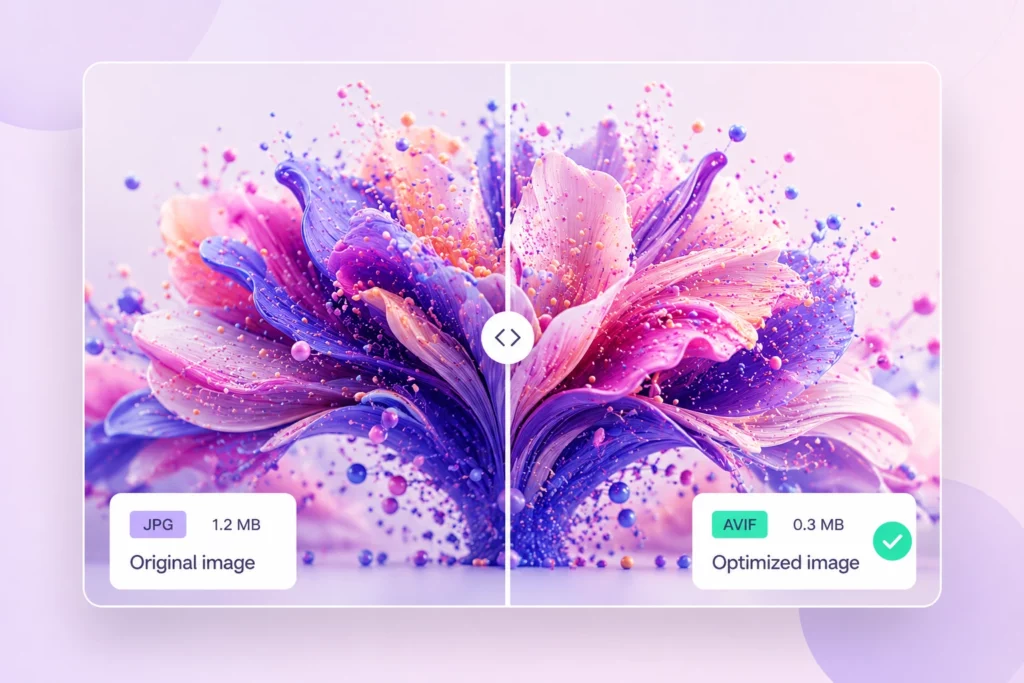
The main reason to use AVIF is compression. Compared to older formats like JPEG and PNG, AVIF can often produce much lighter images while preserving clean edges, color depth, and visual detail.
This matters because every extra kilobyte adds up, especially on image-heavy pages.
AVIF can help reduce:
- Featured image size on blog posts
- Product image size on WooCommerce pages
- Banner and hero image weight
- Screenshot and graphic-heavy content size
- Total page weight across mobile and desktop
The result is simple: your website sends less data to the browser, which helps pages load faster.
2. Faster WooCommerce Store Performance
WooCommerce stores depend heavily on images. A product page may include a main product image, gallery images, variation images, related products, upsells, and review photos. Category pages often load many product thumbnails at once.
That is why image weight has a direct impact on store speed.
Converting WooCommerce images to AVIF can help improve:
- Product gallery loading
- Shop and category page speed
- Mobile browsing experience
- Product search result pages
- Overall page responsiveness
This is not just a technical improvement. Faster product pages reduce friction during shopping, especially for mobile visitors who may leave if a page feels slow.
3. Better Core Web Vitals and PageSpeed Scores
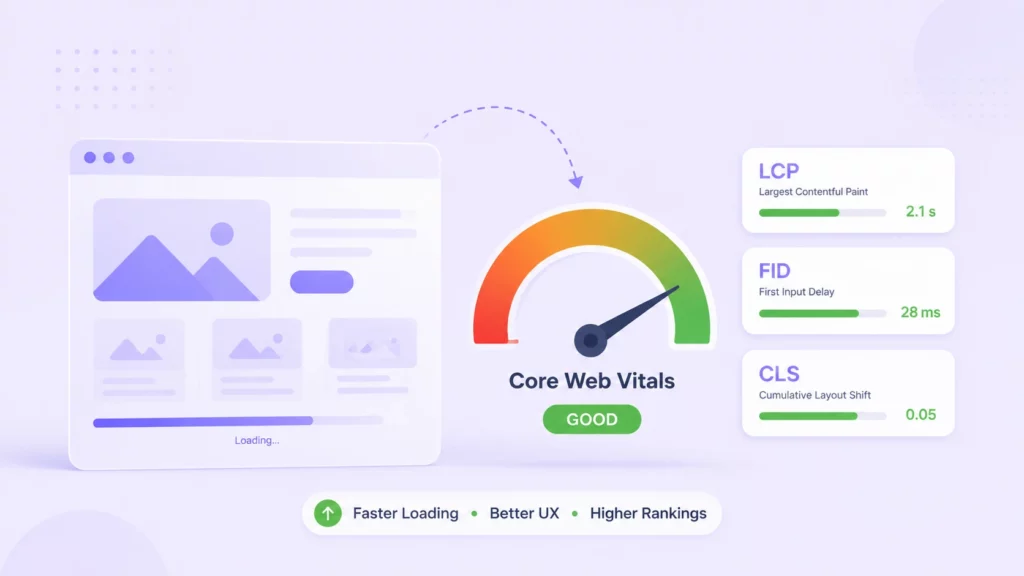
Large images are one of the most common reasons WordPress sites struggle with performance metrics. In many cases, the Largest Contentful Paint (LCP) element is a hero image, product image, featured image, or banner near the top of the page.
When that image is too large, the browser needs more time to download and display it.
AVIF can support better performance by helping with:
- Largest Contentful Paint
- Mobile PageSpeed scores
- Perceived loading speed
- User experience on slower connections
- Overall Core Web Vitals optimization
AVIF will not fix every speed issue on its own. Poor hosting, heavy plugins, unused CSS, and render-blocking scripts can still slow down a site. But image optimization is usually one of the easiest places to start because it reduces page weight without changing the website design.
4. Better SEO Performance
Image optimization is not a magic SEO trick, but it supports several things Google cares about: faster loading, better mobile experience, and cleaner page performance.
When AVIF reduces image file sizes, your pages can load faster without changing the design or removing important visuals. That can help improve user experience, especially on image-heavy blog posts, product pages, and WooCommerce category pages.
AVIF can support SEO by helping with:
- Faster page loading
- Better mobile performance
- Improved Core Web Vitals
- Lower bounce risk from slow pages
- Better experience on product and category pages
The important point is this: AVIF will not automatically make a weak page rank higher. Your content, internal links, search intent, and technical setup still matter. But if heavy images are slowing down your site, converting them to AVIF removes one common performance problem that can hold SEO back.
AVIF vs. JPEG vs. PNG vs. WebP
Every image format has its strengths. JPEG has been the go-to for photos for years, PNG is great when you need transparency, WebP offers a solid balance between quality and file size, and AVIF pushes compression even further. Here’s a quick side-by-side comparison to help you decide which format makes the most sense for your website.
| Feature | JPEG | PNG | WebP | AVIF |
| Compression | Good | Poor | Excellent | Best |
| Transparency | No | Yes | Yes | Yes |
| File Size | Large | Very Large | Small | Smallest |
| Image Quality | Good | Excellent | Excellent | Excellent |
| HDR Support | No | No | No | Yes |
| Best For | Photos | Graphics | Modern websites | High-performance websites |
If browser compatibility is your priority, WebP remains a safe choice. If maximum compression matters, AVIF is currently the better option.
For a detailed comparison, read our AVIF vs WebP vs JPEG guide
3 Easy Ways to Convert Images to AVIF in WordPress
There are several ways to convert images to AVIF in WordPress, and the best approach depends on your workflow, technical expertise, and the number of images you want to optimize.
If you prefer an automated plugin, converting images before uploading, or using developer tools for bulk processing, each method has its own advantages. Let’s look at the three most common options.
Method 1: Use an Image Optimization Plugin
Several WordPress plugins now support AVIF, making it easy to serve smaller, faster-loading images without changing your existing workflow. While they all offer AVIF conversion, they take slightly different approaches depending on what you need.
Popular AVIF-compatible plugins include:
- ThumbPress (Best for image optimization + media management)
- ShortPixel
- Optimole
ThumbPress
It is one of the most complete options if you’re looking for an all-in-one image optimization plugin. Besides converting images to both AVIF and WebP, it can compress images automatically during upload, bulk convert your existing media library, regenerate thumbnails, and keep backups of the original files.
It also includes browser fallback support and built-in media management tools, so you can optimize and organize your image library from one place.
ShortPixel
It is a great choice if compression is your top priority. It offers multiple compression modes, converts images to AVIF and WebP, and even supports PDF optimization while keeping original images as backups.
Optimole
It focuses on cloud-based optimization. Instead of processing images on your server, it optimizes and delivers them through its built-in CDN, automatically serving the right image size and format based on each visitor’s device.
Method 2: Convert Images Before Uploading
If you prefer to optimize images before uploading them to WordPress, you can convert them during your design workflow.
Many image editing applications and online tools now support AVIF. For example, you can use Affinity Photo, GIMP (with compatible builds or plugins), Squoosh, CloudConvert, or other AVIF conversion tools before uploading your images to WordPress.
This approach gives you:
- Complete control over image quality and compression
- Smaller uploads from the start
- Reduced storage usage
- A cleaner, more efficient Media Library
This method works well for designers, photographers, and agencies that already process images before publishing content.
Method 3: Use Command-Line Tools
If you’re managing a large WordPress or WooCommerce site, command-line tools offer the greatest flexibility and automation.
Popular options include:
- ImageMagick
- libavif
- Squoosh CLI
These tools allow you to batch-convert hundreds or even thousands of images using scripts, making them ideal for migrating existing media libraries or optimizing large eCommerce catalogs.
Although this method requires some technical knowledge, it’s often the preferred choice for developers and system administrators who need full control over the conversion process.
Convert Images to AVIF in WordPress(Using ThumbPress)
Here’s how to actually do it – from choosing a plugin to confirming it’s working.
First, install and activate the plugin.
Go to WordPress Dashboard → Plugins → Add New → Search for “ThumbPress” → Install → Activate
Once the plugin is active, open the ThumbPress dashboard to access its image optimization modules.
Method 1: Convert Existing Images to AVIF
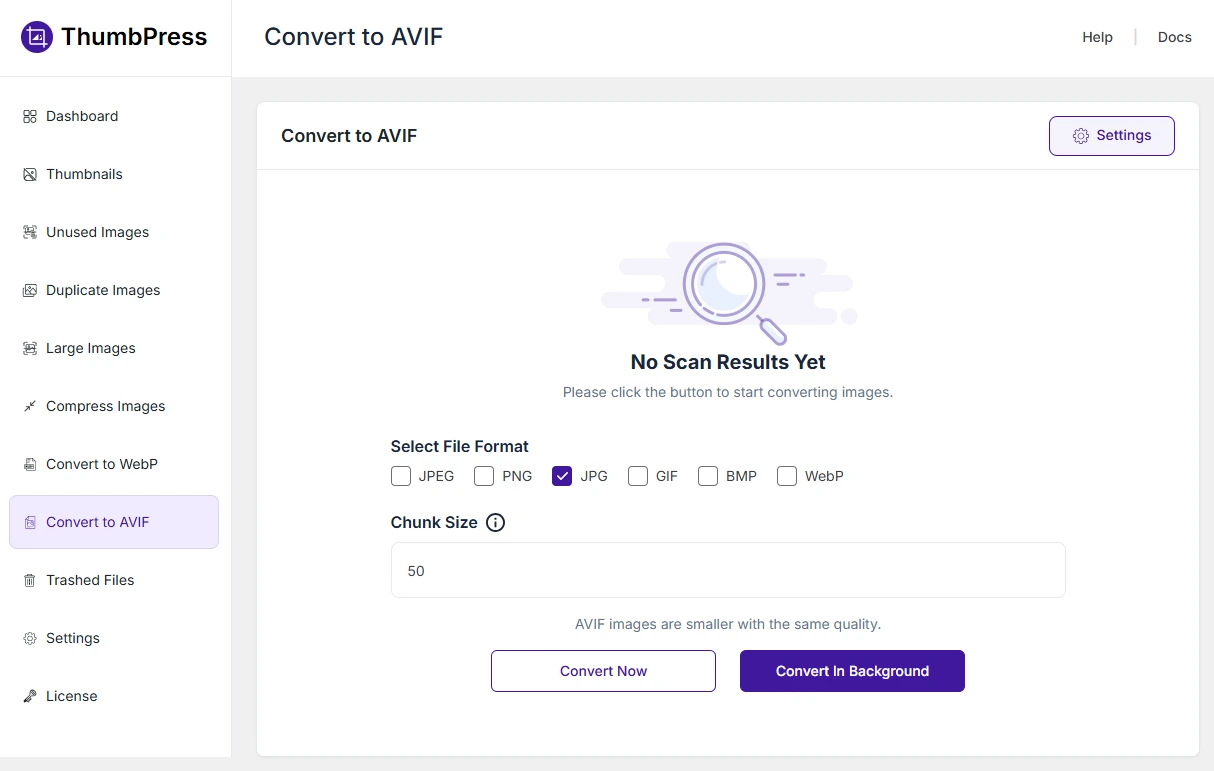
To optimize the images already in your Media Library:
- Navigate to ThumbPress → Convert to AVIF.
- Select your file format and configure the Chunk Size based on your server resources.
- Click Convert Now to start immediately, or choose Convert in Background if you’d like the conversion to run without interrupting your work.
Depending on the number of images in your library, the conversion process may take a few minutes.
Method 2: Automatically Convert During Uploads
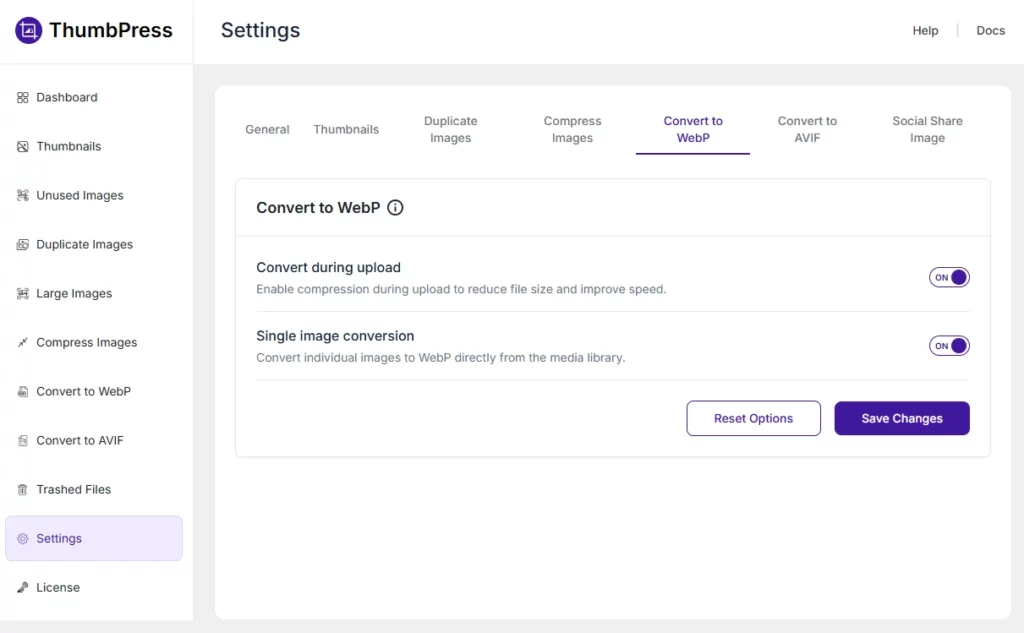
To ensure every new image is optimized automatically:
- Go to ThumbPress → Settings → Convert to AVIF.
- Enable Convert During Upload.
- Click Save Changes.
From this point on, every supported JPEG and PNG image you upload will be converted to AVIF automatically, so you won’t need to optimize images manually again. This helps keep your media library consistently optimized as your store grows.
Method 3: Convert a Single Image
Don’t want to convert your entire media library? ThumbPress also lets you optimize a single image whenever you need.
To optimize a single image instead of your entire media library:
- Go to ThumbPress → Settings → Convert to AVIF.
- Enable Single Image Conversion.
- Click Save Changes.
Once the feature is enabled, open your Media Library, select the image you want to optimize, and click Compress to AVIF.
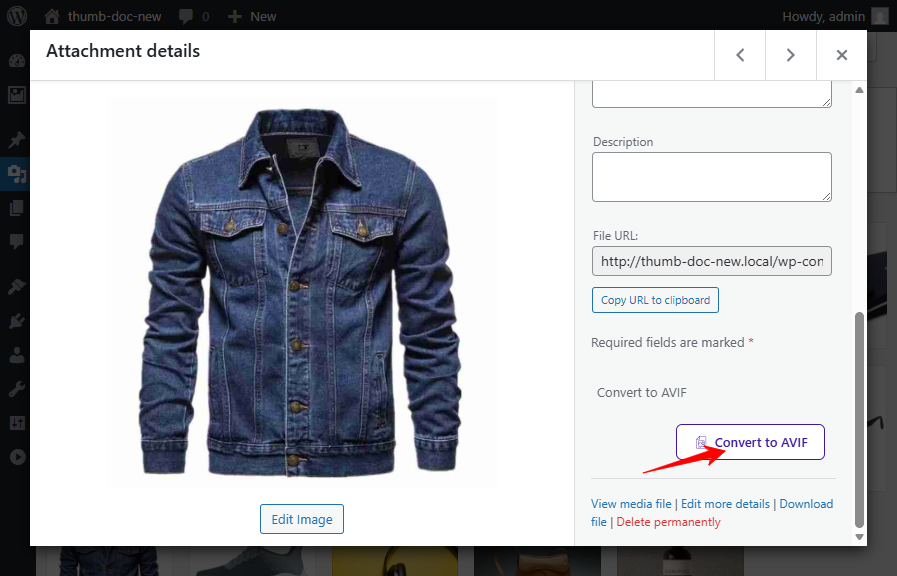
ThumbPress will convert only that image, making it a convenient option when you’ve uploaded a new product image or only need to optimize a few files without running a full bulk conversion.
Common AVIF Conversion Mistakes to Avoid
A few things trip people up when setting up AVIF on WordPress:
- Over-compressing thumbnails: Quality settings that work fine for large product images can produce visible artifacts on small thumbnails, where compression artifacts are more noticeable at small sizes. Test your thumbnail quality separately – or use a plugin that lets you set different quality levels per image size.
- Forgetting about existing images: Converting new uploads is easy. The harder part is bulk-converting your existing media library – sometimes thousands of images. Don’t skip this step. Most of your SEO and performance impact comes from pages that already exist, not new uploads.
- Not verifying fallback behavior: AVIF with no fallback means some users get broken images. Before you call the job done, test in an older browser or disable AVIF support in Chrome DevTools (under Rendering → Emulate CSS media type, or via a browser extension) to confirm your fallback images load correctly.
- Assuming WebP is good enough: WebP is solid, but AVIF is meaningfully better – roughly 20-25% smaller at the same quality. For a WooCommerce store serving thousands of product image requests daily, that gap compounds into real bandwidth savings and measurably faster pages. For a deeper look at the tradeoffs, the ShortPixel vs ThumbPress comparison breaks down how different tools handle next-gen format conversion.
- Ignoring image compression altogether: AVIF conversion works best alongside proper compression. If you’re converting a 5MB raw photo to AVIF, you’ll still end up with a large file. Convert and compress. ThumbPress’s Compress Images module handles both in the same workflow.
Final Thoughts
Converting images to AVIF is a simple way to make your WordPress site lighter and faster without sacrificing visual quality.
For WooCommerce stores, the benefit is even greater because product images, galleries, and category pages can quickly add weight. Pairing optimized AVIF images with a gallery solution like ThumbPress can help improve loading speed, browsing experience, and product presentation.
Start with your largest images, check your performance results, and make image optimization a regular part of your WordPress workflow.
Frequently Asked Questions (FAQs)
Can I use AVIF images in my WooCommerce product gallery and variation images?
Yes – and this is where AVIF saves the most weight. WooCommerce generates multiple sizes per upload (main image, gallery thumbs, catalog thumbs), and a good plugin converts all of them, not just the original. ThumbPress handles all registered WordPress image sizes by default. Double-check your plugin settings to make sure no size is being skipped.
What happens to my AVIF images if I deactivate my plugin?
Most plugins, including ThumbPress, store AVIF files separately from your originals. Deactivating simply means your site falls back to serving the original JPEG or PNG – nothing gets deleted. If you switch plugins later, you may need to re-convert your library, but your source files are always safe.
Does AVIF work with page builders like Elementor or Divi?
Yes. AVIF conversion happens at the Media Library level, so it works with any page builder – Elementor, Divi, Beaver Builder, or the native Block Editor. One thing to watch: if your builder caches image URLs directly, clear that cache after bulk conversion so AVIF files start being served properly.
Is AVIF suitable for all types of images on my WordPress site?
AVIF is best for photographic content – product photos, hero banners, detail-rich blog images. For logos and icons, SVG is still the better choice. For animations, WebP has more tooling support. A simple rule: convert photos to AVIF, keep logos as SVG, and you’ve covered everything.