
Trashed Files


The Trashed Files section in the ThumbPress plugin allows you to manage images that have been moved to trash but are not permanently deleted yet. This feature helps you review files before taking final action and ensures you do not accidentally lose important media.
Note: Deleted file restoration is available only with a Premium plan.
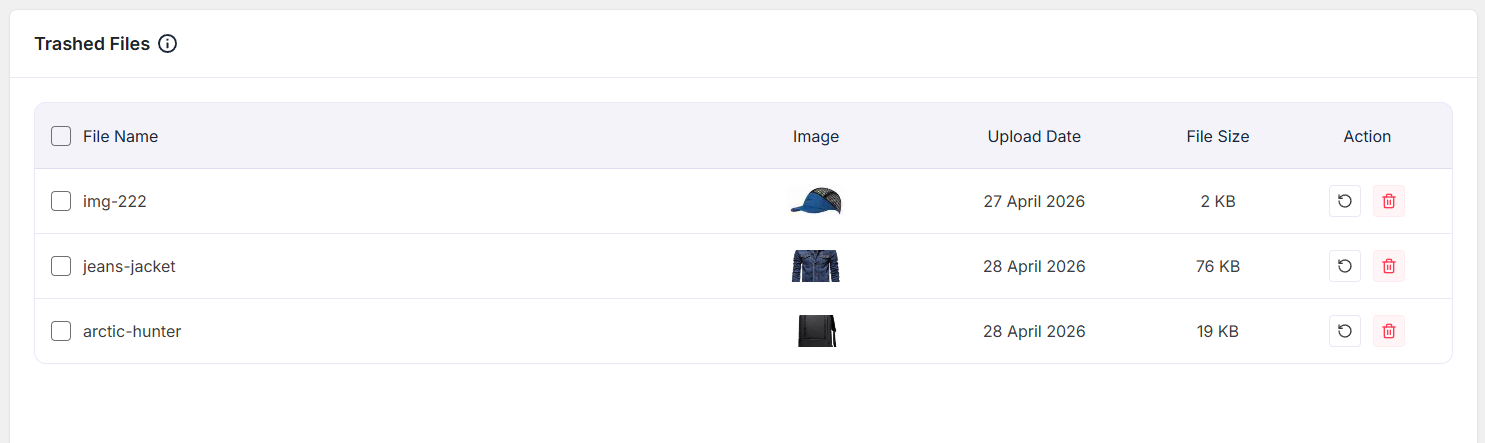
When images are deleted using ThumbPress, they are first moved to the trash. In this section, you can view all trashed files along with key details such as:
- File Name – The name of the image file
- Image – A preview thumbnail of the file
- Upload Date – The original upload date of the image
- File Size – The size of the file
- Action – Options to either restore or permanently delete the file
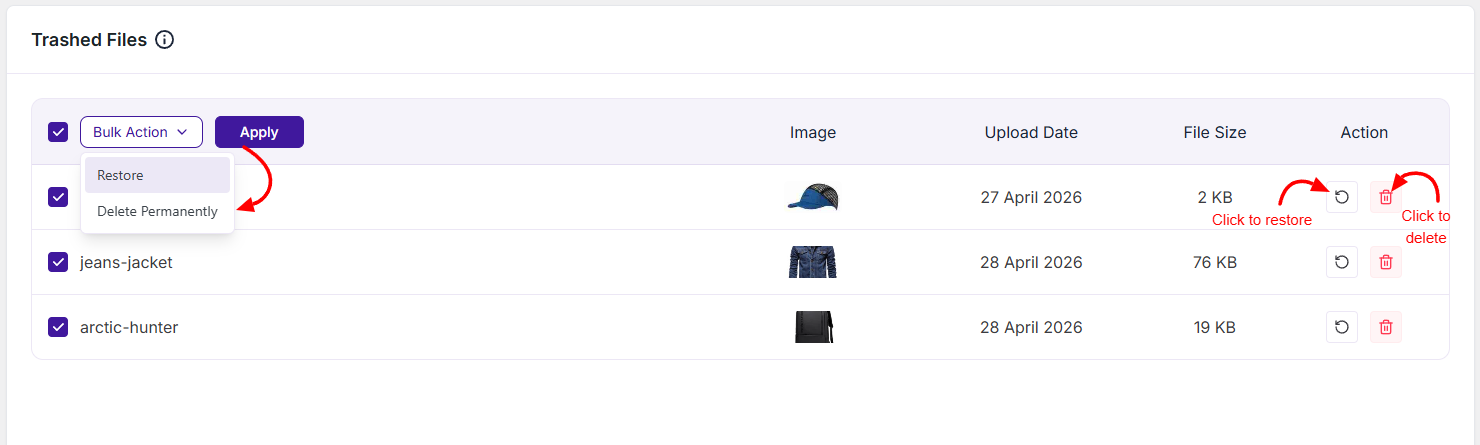
Restore
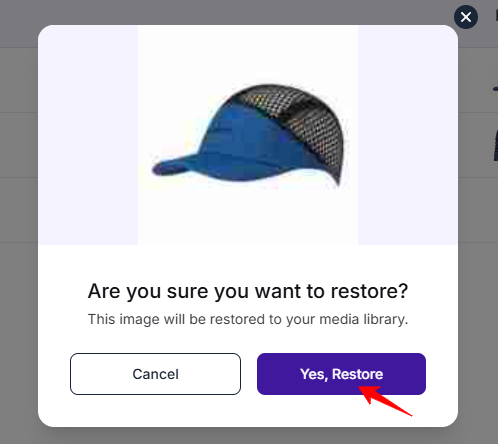
- Restores the selected image to the Media Library
- Useful if a file was deleted by mistake
- The file will return to its original location and become usable again
Delete Permanently
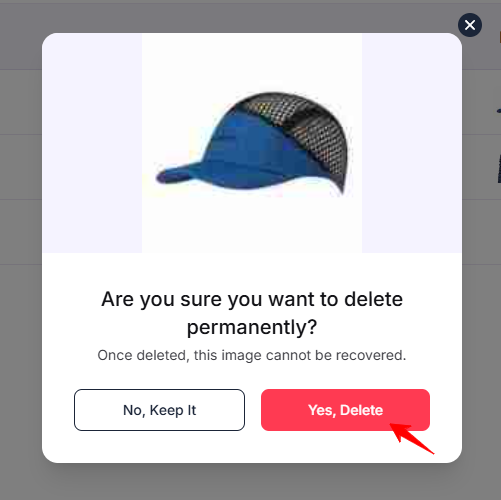
- Permanently removes the file from your server
- This action cannot be undone
- Helps free up storage space by removing unwanted images completely
⚠️ Check Where the Image Was Used Before Deleting It Permanently
Restore can bring a file back. Delete Permanently cannot.
When you trash an image, ThumbPress removes it from the Media Library and moves it to a quarantine folder. The file path stored in your database changes, so the image stops loading on your site right away. That is your chance to spot where it was being used: while it sits in the trash, any place that still needs it will show a missing or broken image.
A scan can only find images in the places it knows to look. An image that looks unused may still be sitting in a page builder layout, a theme option, a slider, or your CSS. So walk your site before you empty the trash.
🔄 Always hard refresh while checking
Your browser can keep showing a deleted image from cache for a while, which makes a broken spot look fine. Press Ctrl + Shift + R (Cmd + Shift + R on Mac) on every page you check so you see what visitors actually see.
👉 Places to check
- Your homepage, top posts, and top landing pages
- Pages built with Elementor, Divi, Bricks, or other builders
- Theme and Customizer: logo, favicon, header, background
- WooCommerce product, gallery, and category images
- Sliders, widgets, popups, and custom fields (ACF, Meta Box)
- Images you have linked in newsletters, ads, or other sites, since those break too
🌟 Play it safe
- Found a broken spot? Restore the image, then replace it properly before trashing again.
- Unsure? Restore it. Storage is cheap; a broken product photo is not.
- Download a copy before deleting so you can re-upload it later.
- Clear the trash in small batches, and let it sit a few days before you empty it.
Related: Unused Images · Duplicate Images · Large Images
Was this doc helpful?
Subscribe to Our Newsletter
Get the latest WordPress tutorials, trends, and resources right in your inbox. No Spamming, Unsubscribe Anytime.

Thank you for subscribing to our newsletter!