
Watermark Images Settings


ThumbPress Pro lets you add text or logo watermarks to your WordPress images. You can customize the watermark’s appearance, position, size, opacity, and more before applying it to your images.
Configure Watermark Settings
You can access the settings from:
WordPress Dashboard → ThumbPress → Settings → Watermark
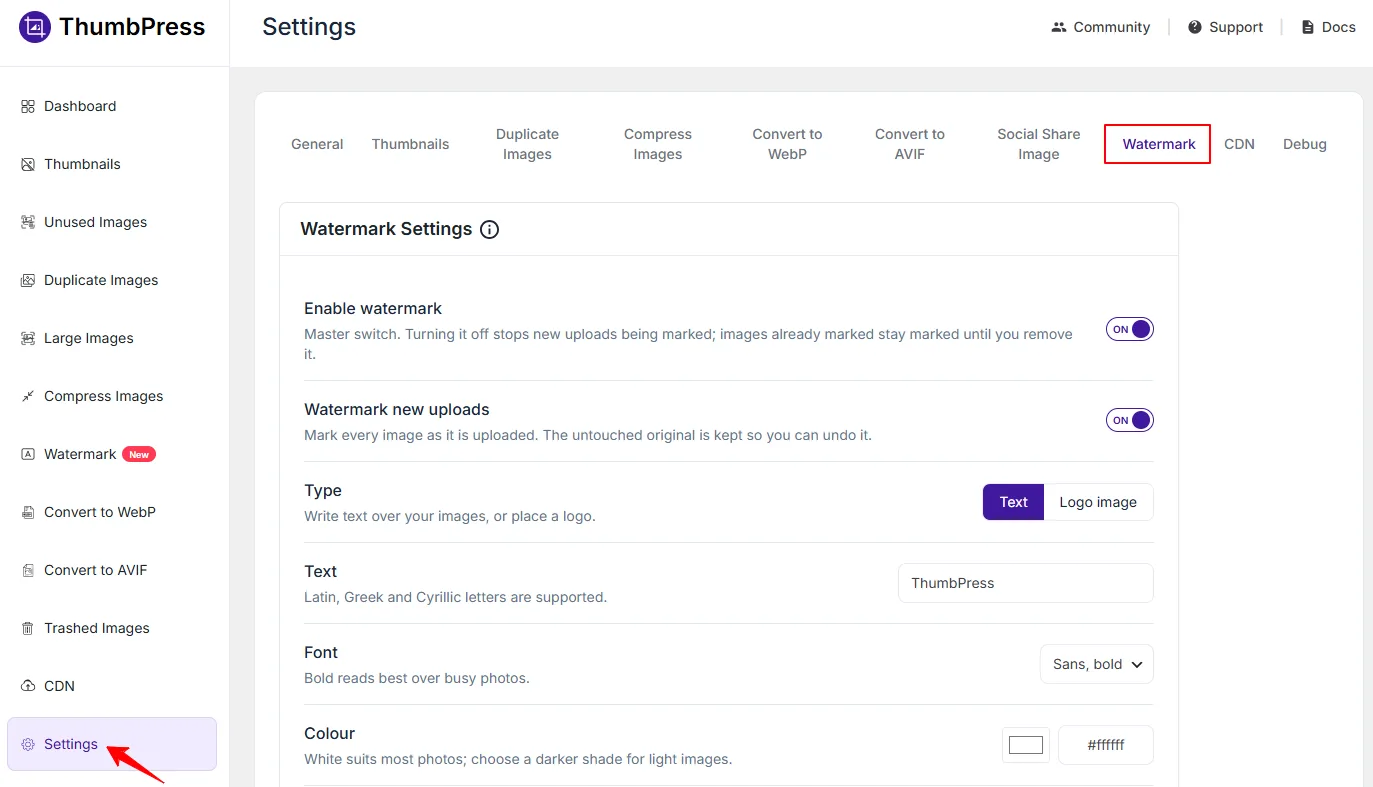
Before applying a watermark, you can adjust the following settings.
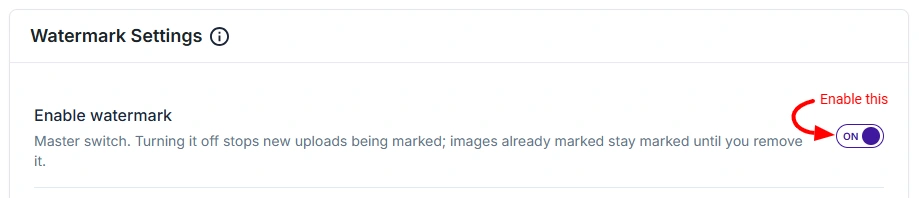
Enable Watermark
Enable this option to activate the Watermark Images feature.
Watermark New Uploads
Enable this option to automatically apply your configured watermark to newly uploaded images.
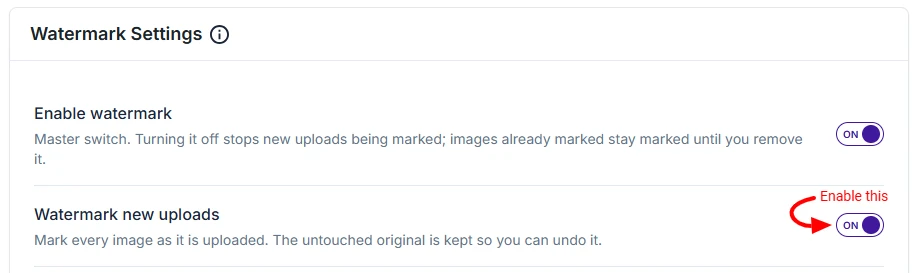
ThumbPress keeps the original image unchanged, so you can update or remove the watermark later.
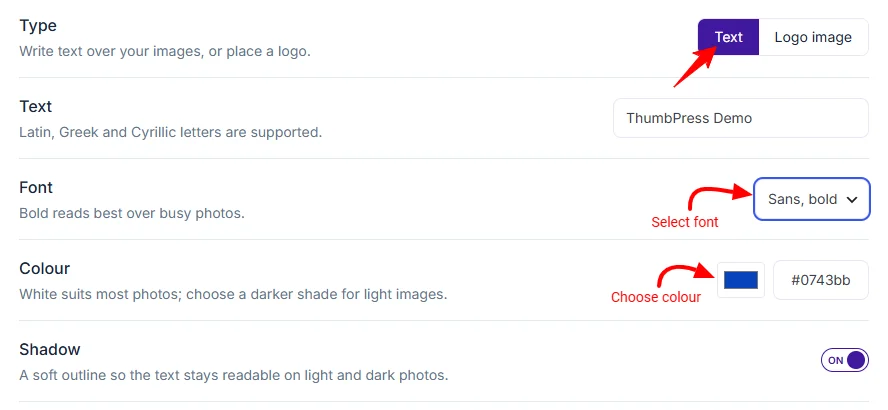
Watermark Type
Choose how you want the watermark to appear:
- Text – Add custom text to your images.
- Logo Image – Use an image from your Media Library as the watermark.
If you select Text, you can configure the text, font, color, and shadow.
If you select Logo Image, you can select a PNG, JPEG, or WebP image from your Media Library.

Position
Choose where the watermark should appear on the image.
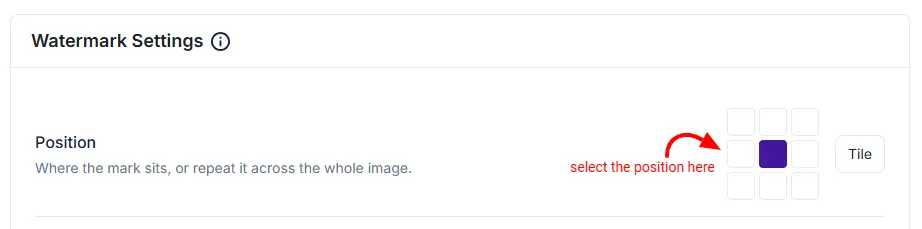
You can select from multiple predefined positions or choose Tile to repeat the watermark across the image.
Size
Set the watermark size relative to the image width. Adjust the percentage to make the watermark larger or smaller.

Opacity
Set how transparent or visible the watermark appears. Lower values make it more subtle, while higher values make it more visible.

Margin
Set the distance between the watermark and the image edges. When Tile is selected, the margin controls the spacing between repeated watermarks.

Rotation
Allows you to rotate the watermark from -90° to 90°. Choose the angle that best fits your image and watermark style.
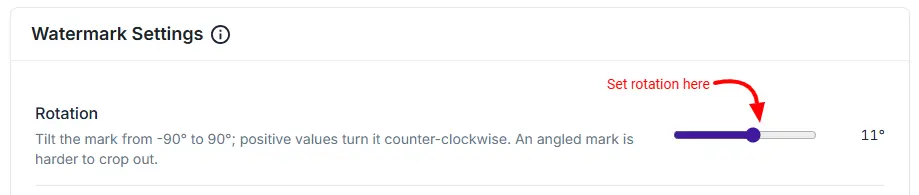
Image Sizes to Mark
Choose which WordPress image sizes should receive the watermark.
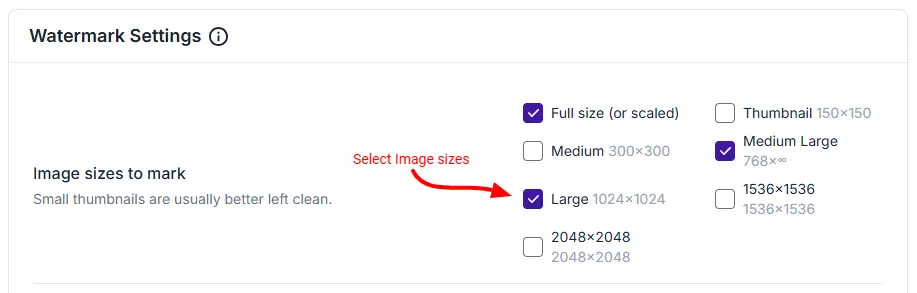
Available sizes include:
- Full Size
- Large
- Medium Large
- Medium
- Thumbnail
Image Types
Choose which image formats should be watermarked.

Supported formats include:
- JPEG
- PNG
- WebP
GIF and AVIF images are not watermarked.
Skip Small Images
Set a minimum image width and height to exclude smaller images from watermarking. Any image below the specified dimensions will be skipped.
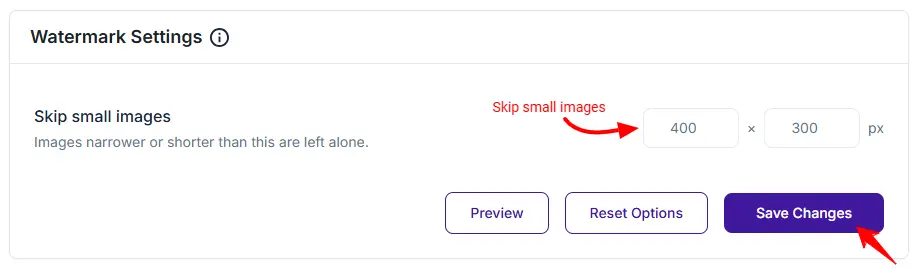
After configuring your settings, click Preview to see how the watermark will look on an image before applying it.
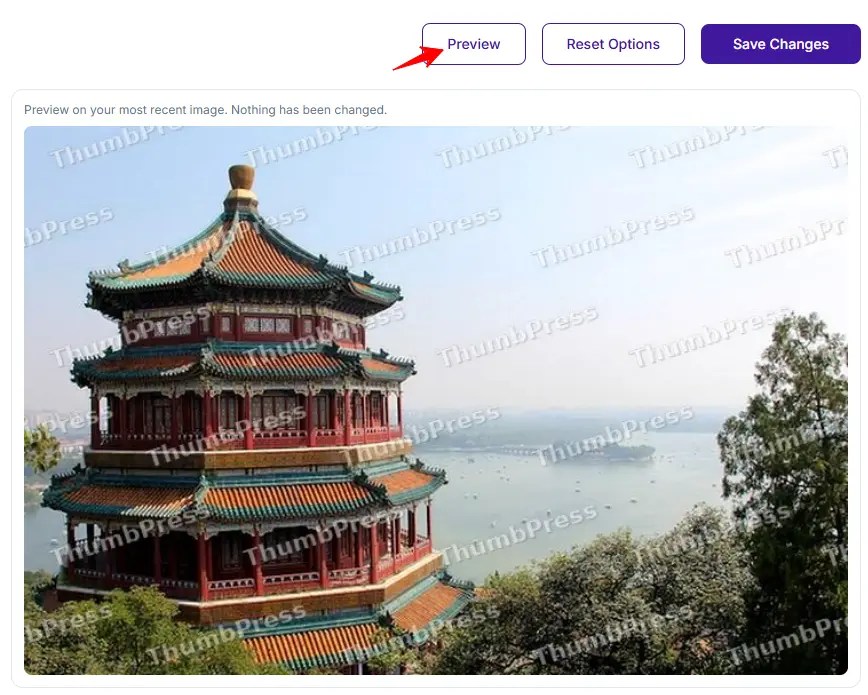
The preview does not make any changes to your original image.
If everything looks correct, click Save Changes to save your watermark settings.
Was this doc helpful?
Subscribe to Our Newsletter
Get the latest WordPress tutorials, trends, and resources right in your inbox. No Spamming, Unsubscribe Anytime.

Thank you for subscribing to our newsletter!