
Watermark Images


The Watermark Images feature in ThumbPress allows you to protect and brand your WordPress images by adding custom text or a logo. You can control how the watermark appears and apply it to images across your media library.
ThumbPress keeps the original image untouched, so you can change, re-apply, or remove the watermark whenever needed.
Accessing Watermark Images
To begin, navigate to:
WordPress Dashboard → ThumbPress → Watermark
The Watermark page gives you an overview of your media library and the current watermark status. You will see:
- Total Images – Total number of images available in your media library.
- Watermarked – Number of images that currently have a watermark.
- Not Yet Watermarked – Number of images that do not have a watermark yet.
Once you set your preferred watermark settings, you can choose how ThumbPress should apply them:
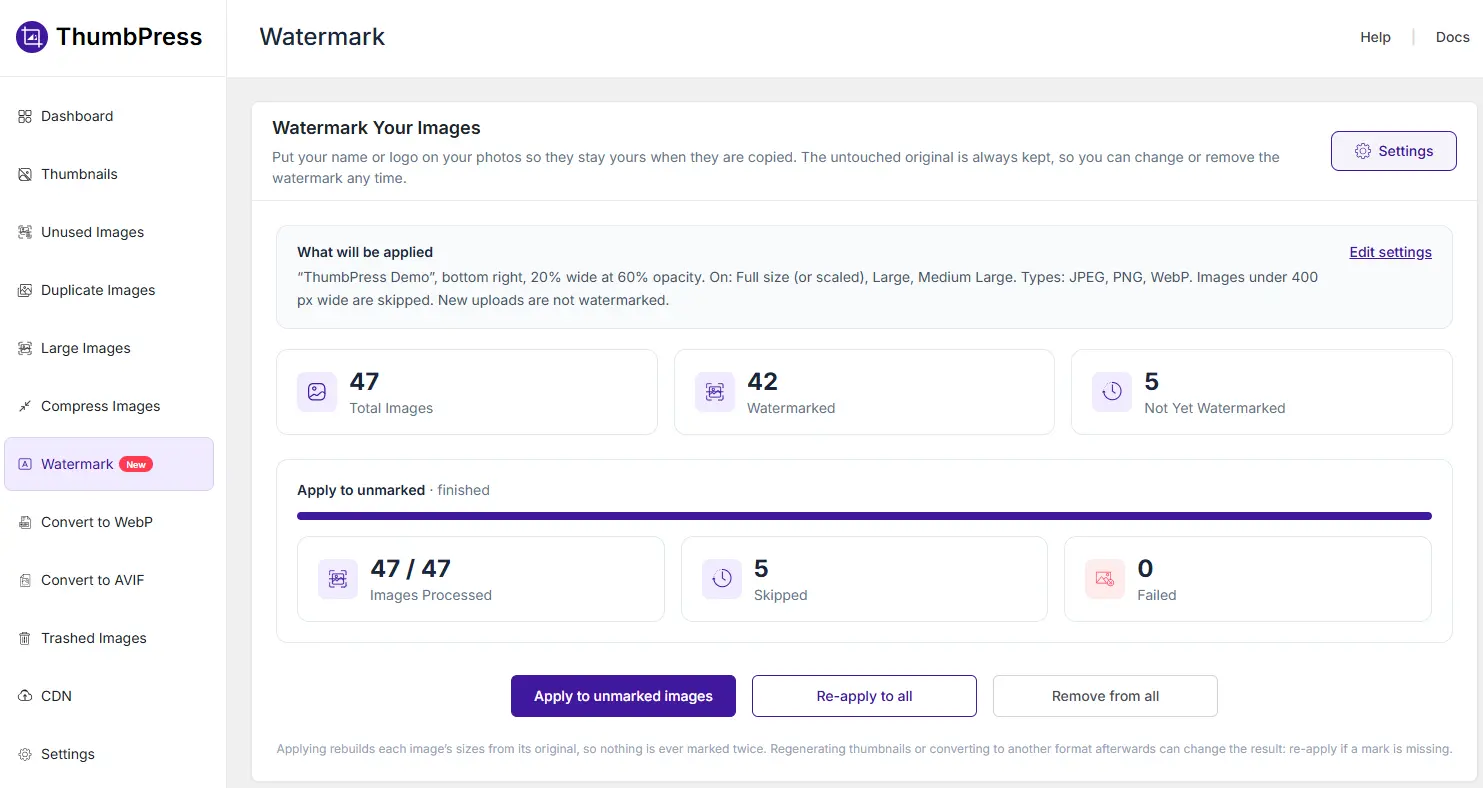
Apply to unmarked images
Click Apply to unmarked images to apply the configured watermark only to images that have not been watermarked yet. This helps prevent the same watermark from being added to an image more than once.
Re-Apply to all
Click Re-apply to all to apply the current watermark settings again to all supported images. This is useful when you change settings such as the watermark text, logo, position, size, or opacity.
ThumbPress rebuilds each image size from the original file before applying the watermark, so the new watermark is not stacked on top of an existing one.
Remove from all
Click Remove from all to remove the watermark from all affected images. ThumbPress restores the affected image sizes using the original files.
Because the original image is preserved, you can remove a watermark or apply a different watermark later without permanently modifying the source image.
Watermark Processing Status
While ThumbPress processes your images, the progress section shows the current processing status. You can see:
- Images Processed – The number of images that have been successfully processed.
- Skipped – The number of images that were not processed because they did not meet the configured requirements.
- Failed – The number of images that could not be processed.
A progress bar also shows the overall processing progress.
Regenerating thumbnails or converting an image to another format after applying a watermark may change the generated image files. If a watermark is missing afterward, return to the Watermark page and click Re-apply to all to apply the watermark again.
For detailed instructions on configuring the watermark options, see the Watermark Images Settings documentation.
Was this doc helpful?
Subscribe to Our Newsletter
Get the latest WordPress tutorials, trends, and resources right in your inbox. No Spamming, Unsubscribe Anytime.

Thank you for subscribing to our newsletter!