How to Disable Right-Click on Images Using the ThumbPress


To prevent unauthorized copying and downloading of images from your website, ThumbPress offers the “Disable right-click on images” feature. This feature adds a layer of protection by making it more difficult for casual users to save or use images without your permission.
Here is how you can use this feature:
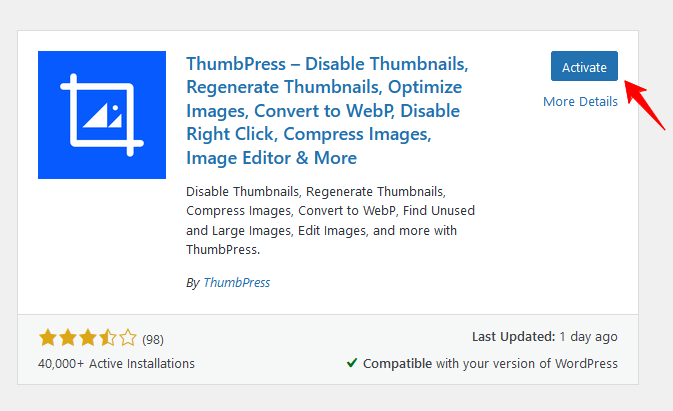
Step 1: Go to your site Dashboard >> Plugins >> Add New Plugin >> Search for ThumbPress. Now, Install ThumbPress and Activate it.
Step 2: After that, go to ThumbPress >> Modules. Enable the toggle bar of Disable Right Click on Image and press the Save Settings button to save the changes.
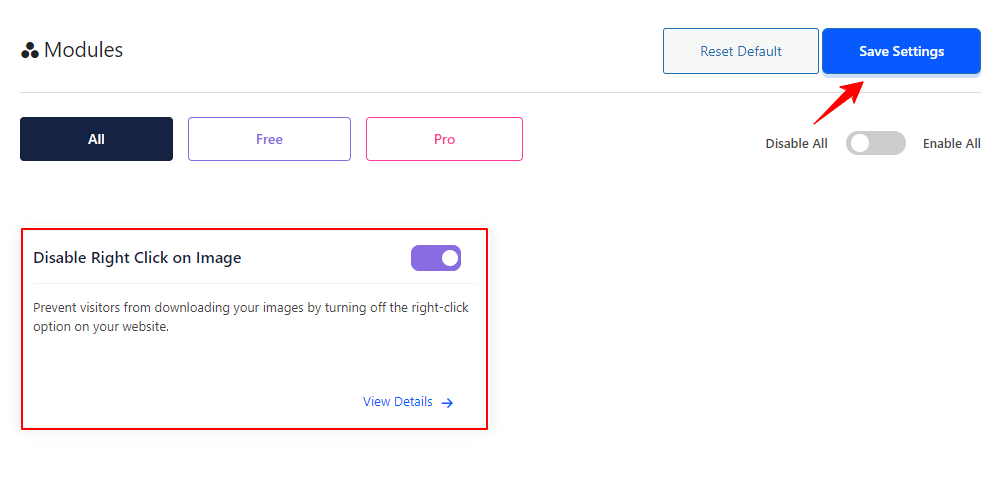
So now, this feature is included on your website, ensuring that the images of your site are safeguarded from unauthorized downloads and misuse.
Note: While disabling right-clicking can discourage casual users from copying images, it’s not a completely effective solution. More technically inclined users can still find ways to bypass this protection.
If you encounter any issues while setting up your shop page, feel free to reach out to our support team.
Was this doc helpful?
Subscribe to Our Newsletter
Get the latest WordPress tutorials, trends, and resources right in your inbox. No Spamming, Unsubscribe Anytime.

Thank you for subscribing to our newsletter!