How can I install and activate ThumbPress on my website?


Managing images and thumbnails can be a hassle, but ThumbPress, the all-in-one WordPress image management plugin, makes it simple and effortless. Before you start with the installing process make sure you have downloaded the free version of ThumbPress Here is how to install ThumbPress and its premium version on your site:
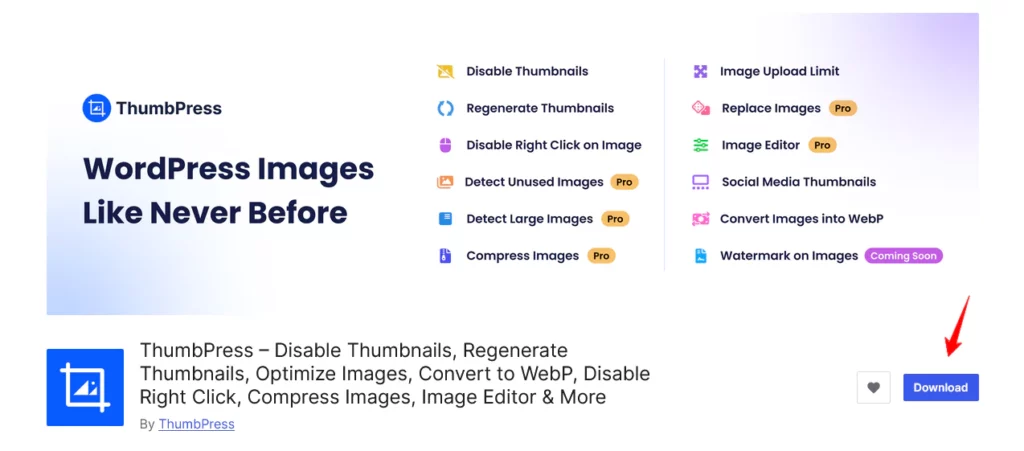
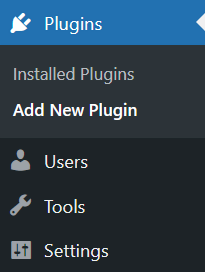
Step 1: Go to your WordPress dashboard and navigate to Plugins > Add New.
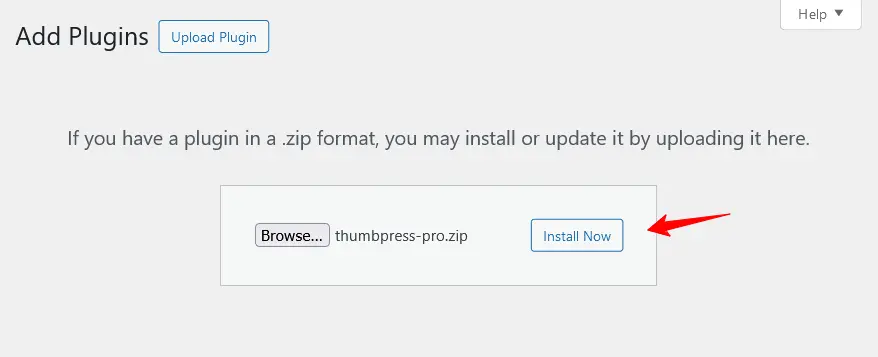
Step 2: Click the Upload Plugin button at the top and select the ThumbPress zip file you downloaded. Once the file is selected, click the Install Now button
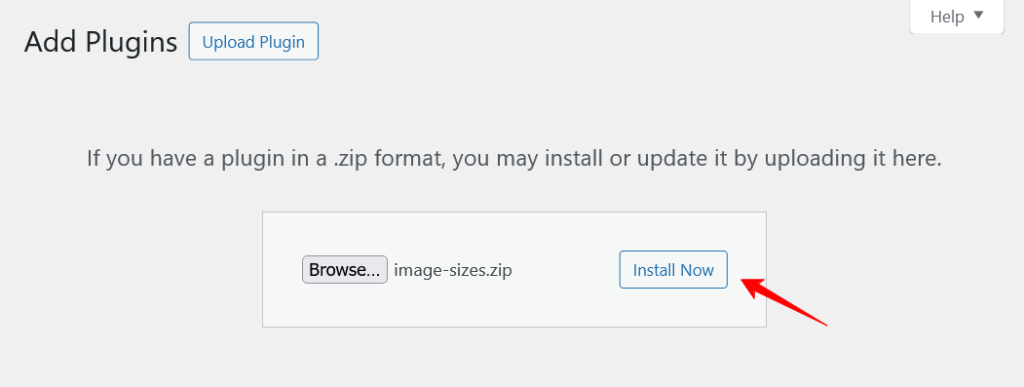
Step 4: After the plugin is installed, click the Activate button to enable ThumbPress.
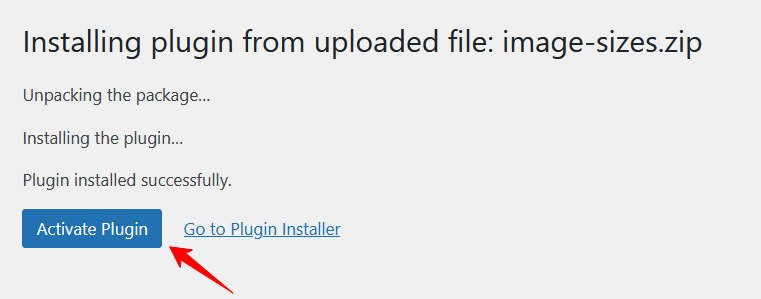
Step 5: You can also install ThumbPress directly from the WordPress repository. To do this, go to your WordPress dashboard, Navigate to Plugins > Add New Plugin> Search ‘ThumbPress’ and then install and activate the plugin.
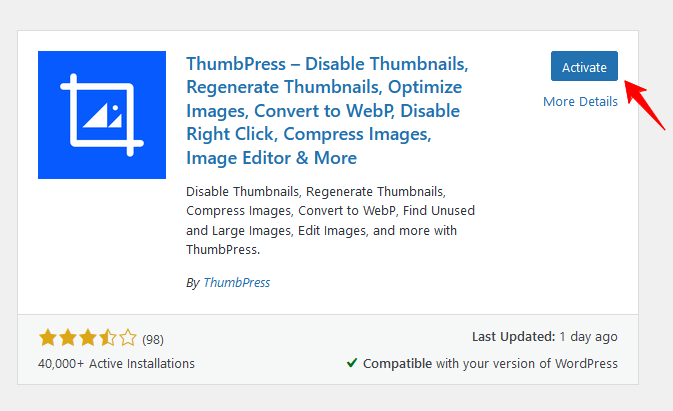
For the premium version, follow these steps:
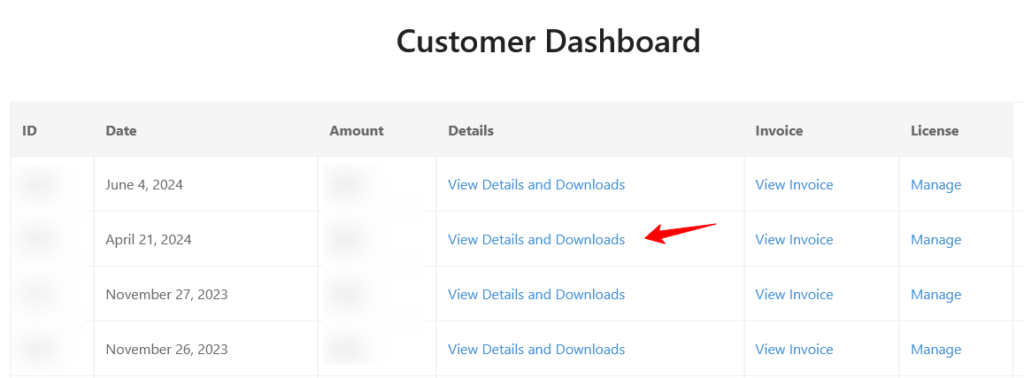
Step 1: Go to https://my.pluggable.io and log in to the Pluggable dashboard. Once logged in, click on the Customer Dashboard option.
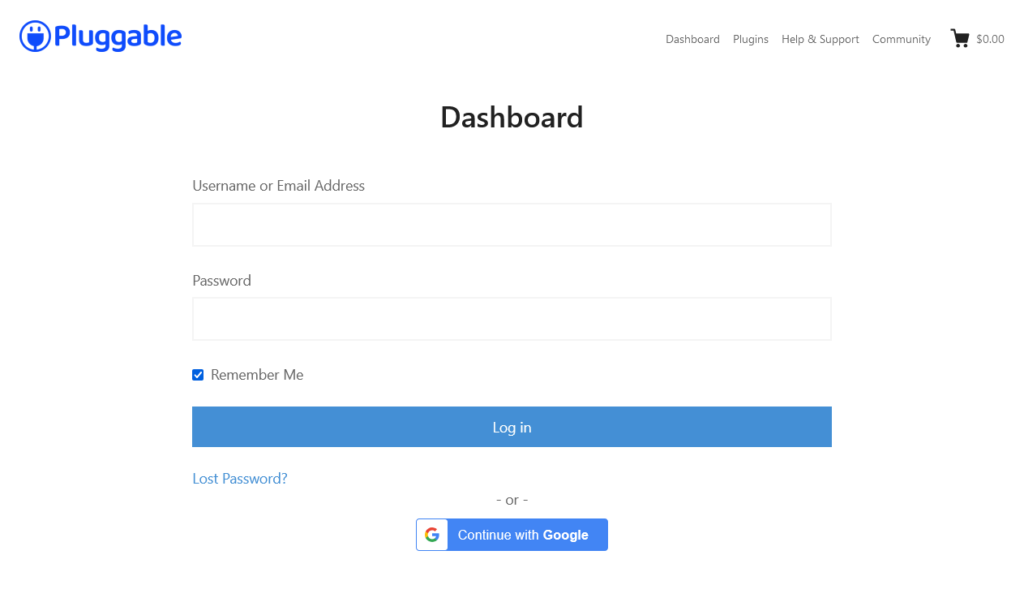
Step 2: Then you have to download the zip file of ThumbPress Pro from the Pluggable dashboard. Click on View Details and Downloads and below the page you will find Download.
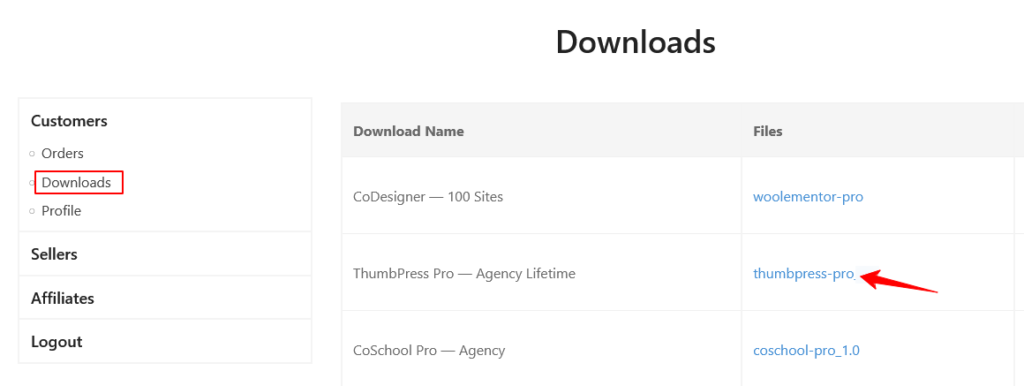
Step 3: There is another way. You can also download ThumbPress Pro from Pluggable dashboard by navigating Customer >> Downloads and click on ThumbPress Pro.
Step 4: After downloading the zip file, go to the WordPress dashboard and navigate to Plugins > Add New Plugin > Upload Plugin. After the Uploading is complete, click on the activate button.
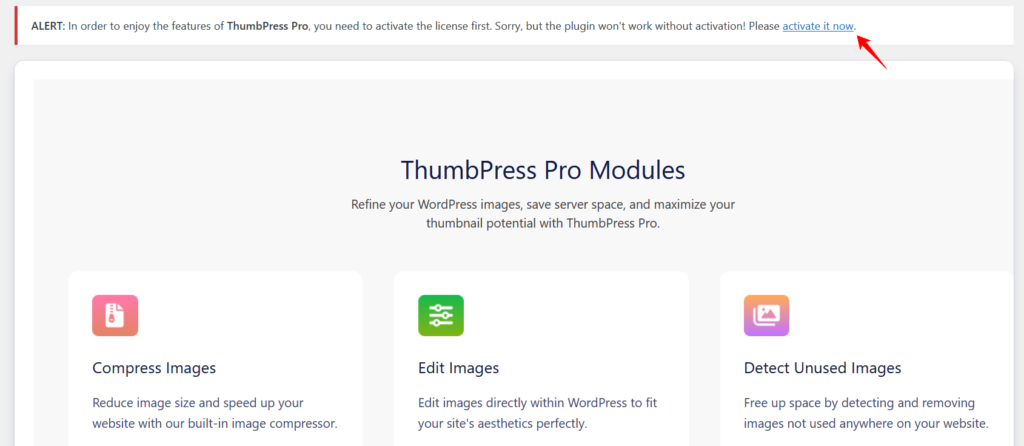
Step 5: After activating the ThumbPress Pro plugin, a notification will appear at the top of your WordPress dashboard asking you to activate the license. Click the Activate it Now button.
Step 6: A pop-up will appear displaying a form where you have to provide the Pluggable login details. Simply click the green Connect button to finalize the activation.
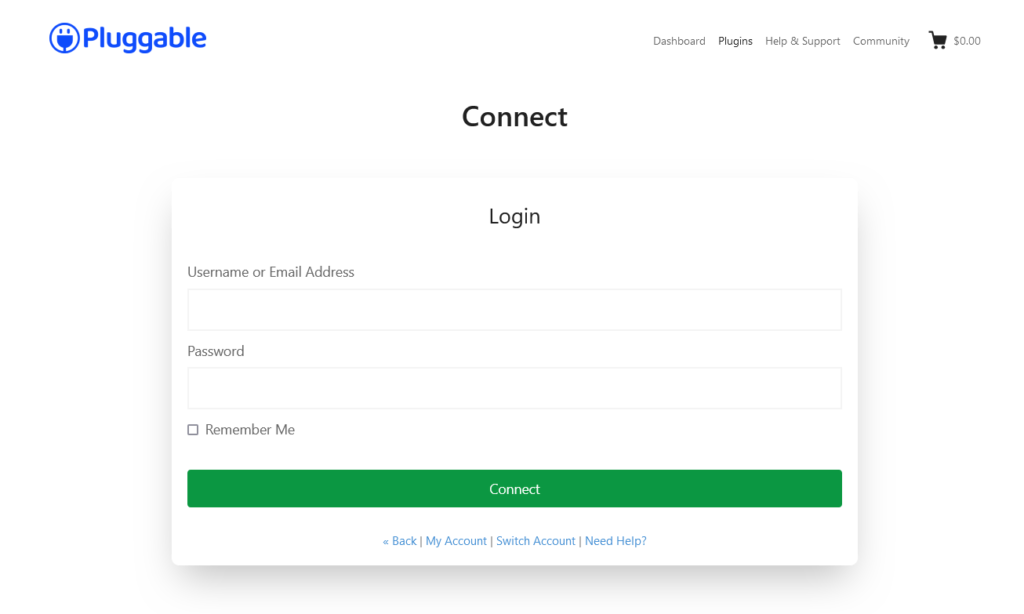
Choose associate license from the Pluggable dashboard and finally activate your ThumbPress License. If you require any assitance feel free to reach out to support. We’d be happy to assist you with your queries.
Was this doc helpful?
Subscribe to Our Newsletter
Get the latest WordPress tutorials, trends, and resources right in your inbox. No Spamming, Unsubscribe Anytime.

Thank you for subscribing to our newsletter!