Convert to WebP Settings


The Convert to WebP settings in ThumbPress help you optimize your website images by converting them into the modern WebP format, which reduces file size and improves loading speed without noticeable quality loss.
This feature includes extra settings for better control and flexibility.
Accessing the Settings
Go to: WordPress Dashboard → ThumbPress → Settings → Convert to WebP
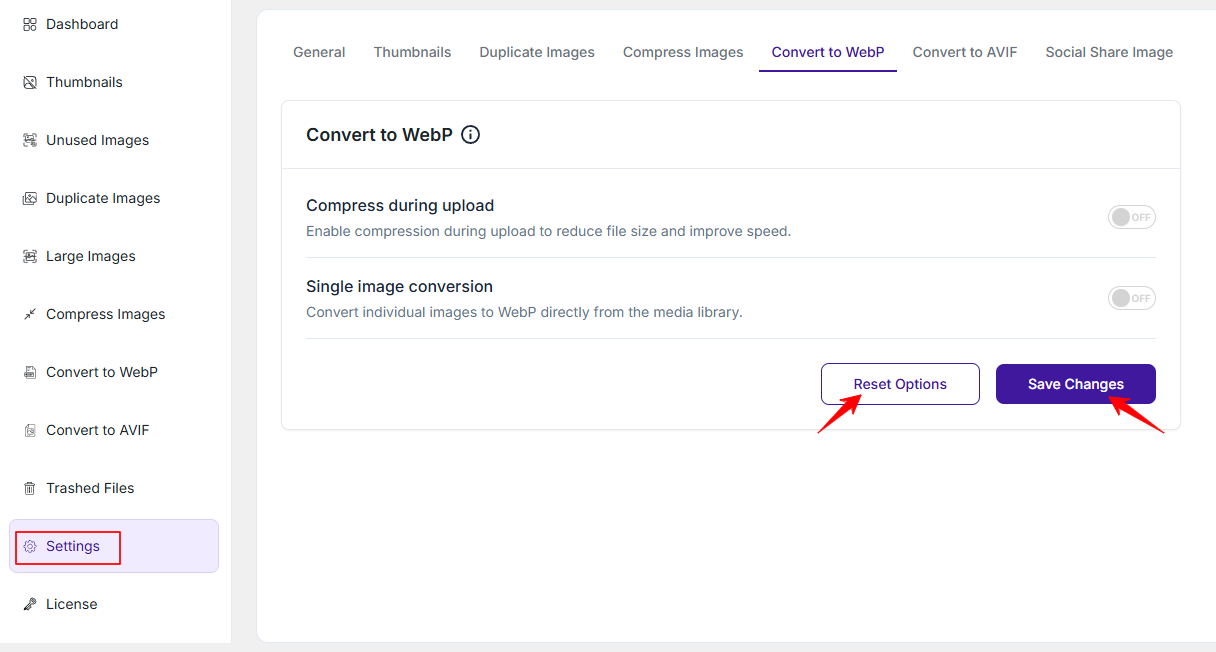
1. Compress During Upload
Enable this option to automatically convert and compress images into WebP format at the time of upload. This helps reduce image size instantly and improves overall site performance without requiring further manual action.
2. Single Image Conversion
Your future uploads will be converted to AVIF, but the existing images might require individual attention. Turn this feature ON to convert images to WebP from the media library one at a time.
Enabling this adds a “Convert to WebP” button when you open any image in the media library.
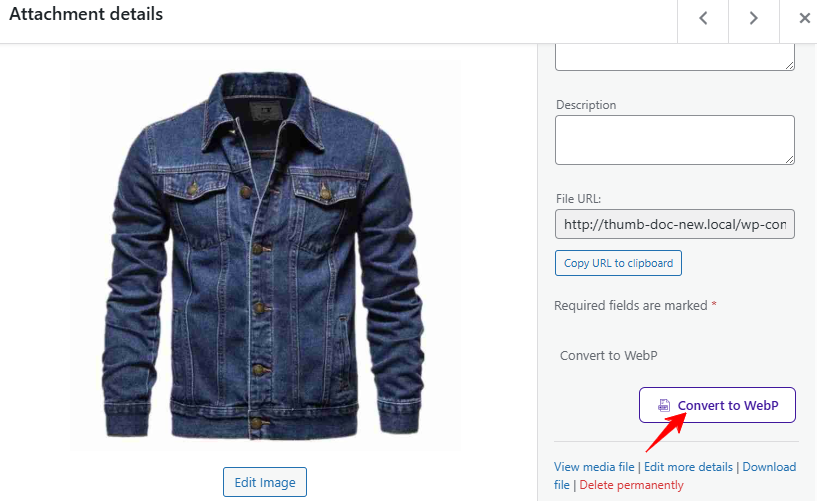
This is very useful when-
- You do not want a bulk or automatic conversion
- You want control over which images to convert
Save or Reset Settings
- Save: Save your changes to apply them. Without saving, nothing will take effect.
- Reset: Oppositely, click “Reset” anytime to restore the default settings.
Want to convert all your existing media library images to WebP at once? Follow this documentation.
Was this doc helpful?
Subscribe to Our Newsletter
Get the latest WordPress tutorials, trends, and resources right in your inbox. No Spamming, Unsubscribe Anytime.

Thank you for subscribing to our newsletter!