Installation and Activation


Installation and Activation
This guide explains the server requirements, how to install the free ThumbPress plugin, install ThumbPress Pro and activate your license.
Server & Hosting Requirements
Before installing ThumbPress, make sure your server meets these minimum requirements:
- WordPress: 6.0 or higher
- PHP: 7.4 or higher
- MySQL: 5.6 or higher
- HTTPS: Enabled (recommended)
Note: Most managed WordPress hosting providers already meet these requirements. If you’re unsure, contact your hosting provider to confirm.
Install ThumbPress (Free Version)
You can install ThumbPress directly from your WordPress dashboard or manually.
Method 1: Install from WordPress Dashboard
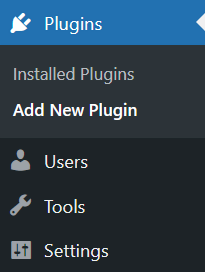
1. This is the easiest method. Go to WordPress Dashboard → Plugins → Add New Plugin
2. Search for “ThumbPress.”
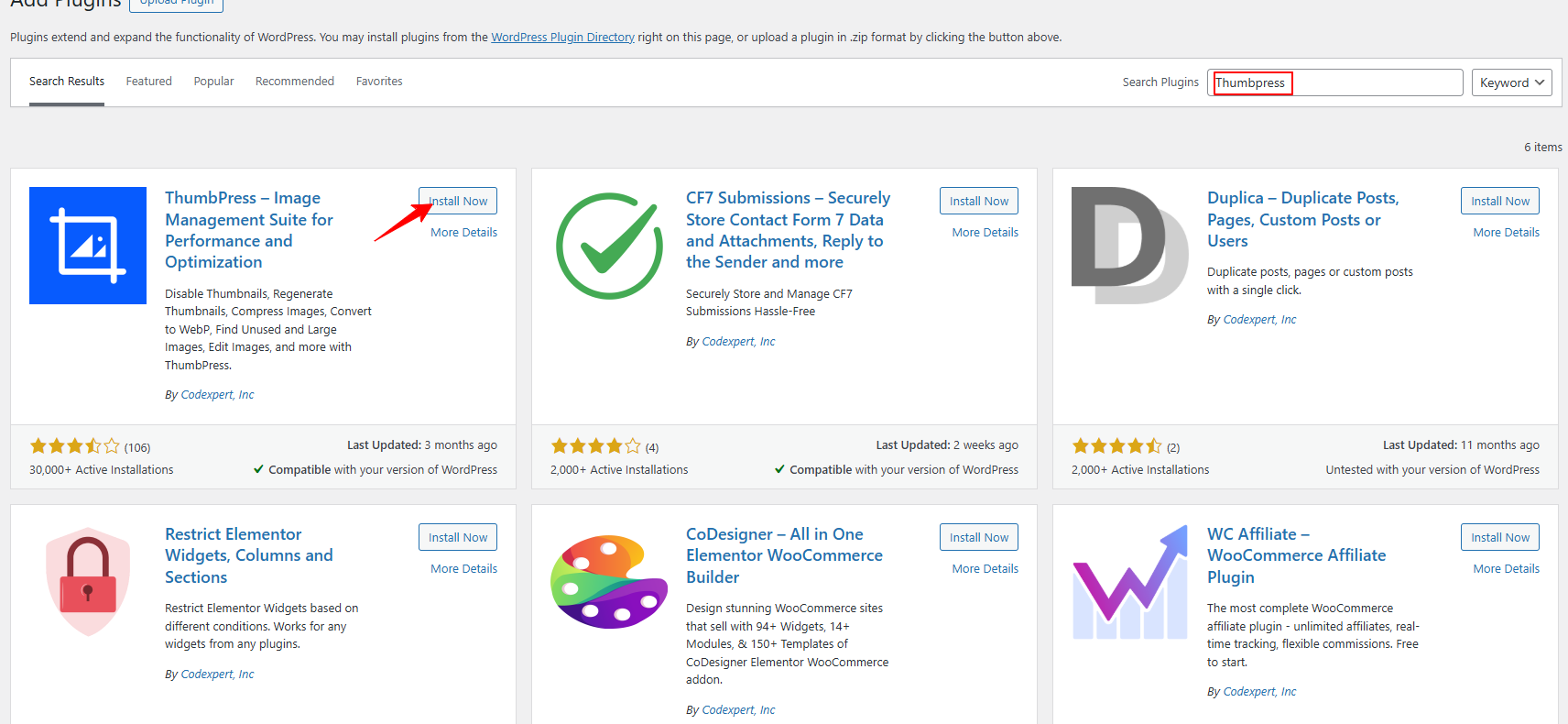
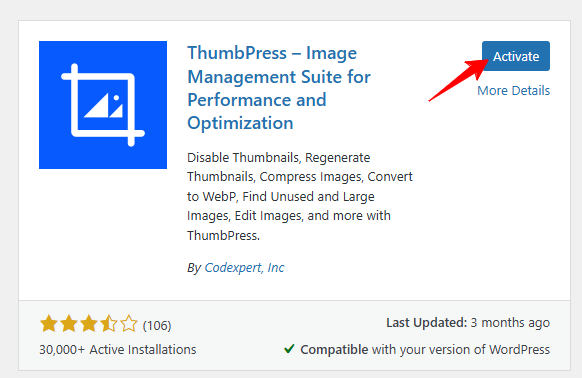
3. Click Install Now, then Activate
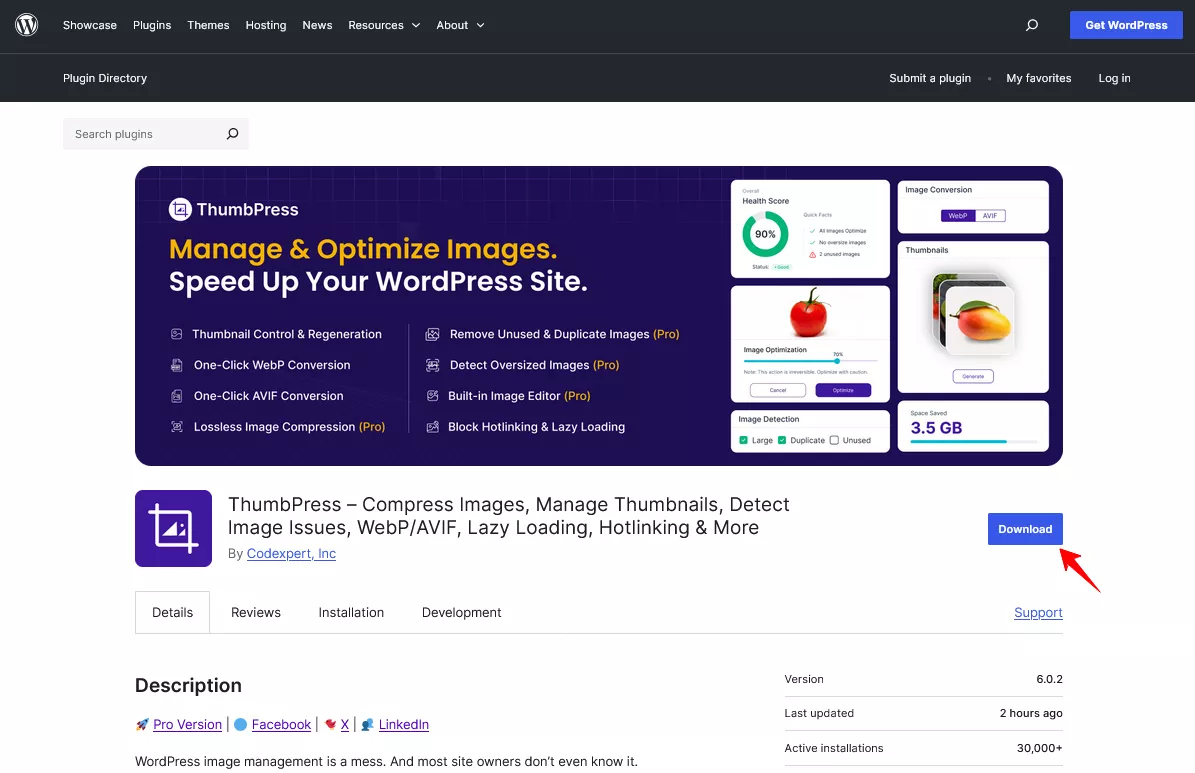
Method 2: Install from WordPress.org
1. You can also install the plugin manually. Download the plugin from: https://wordpress.org/plugins/thumbpress
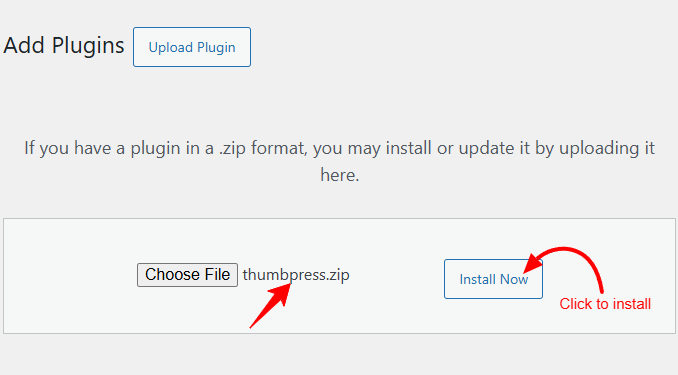
2. Click Choose File, select the downloaded .zip file, and click Install Now
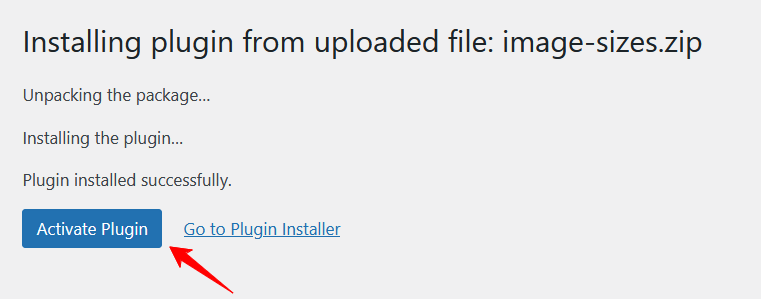
3. Click Activate Plugin
Install ThumbPress Pro
ThumbPress Pro includes advanced features like Image compression, WebP/AVIF conversion, Detect unused or large images, Image Editor, and more.
Important: You must install and activate the free version before installing Pro.
Steps to Install
1. Purchase ThumbPress Pro from: https://thumbpress.co/pricing
2. Go to https://my.pluggable.io and log in to your account
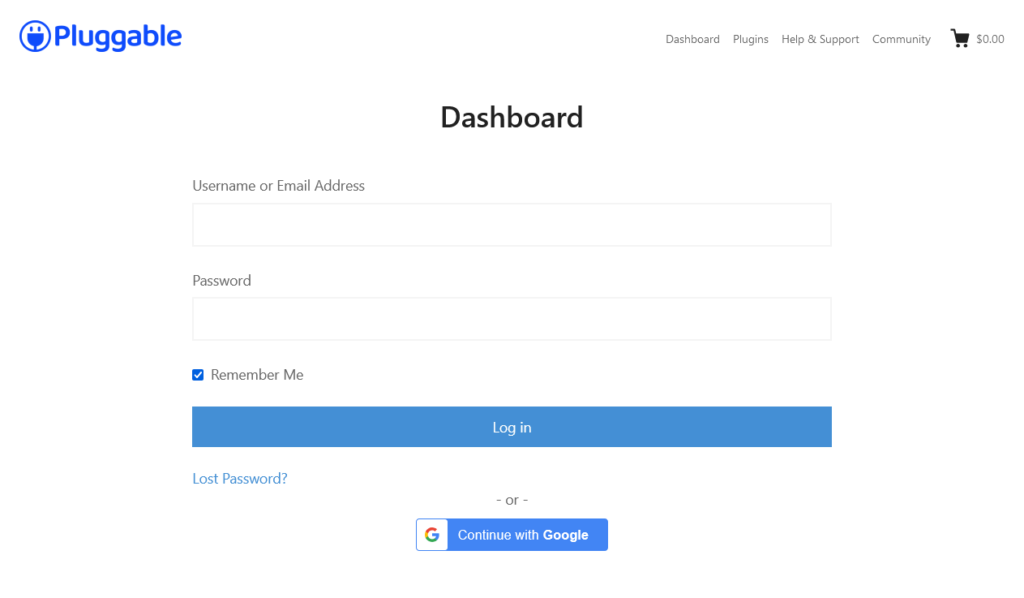
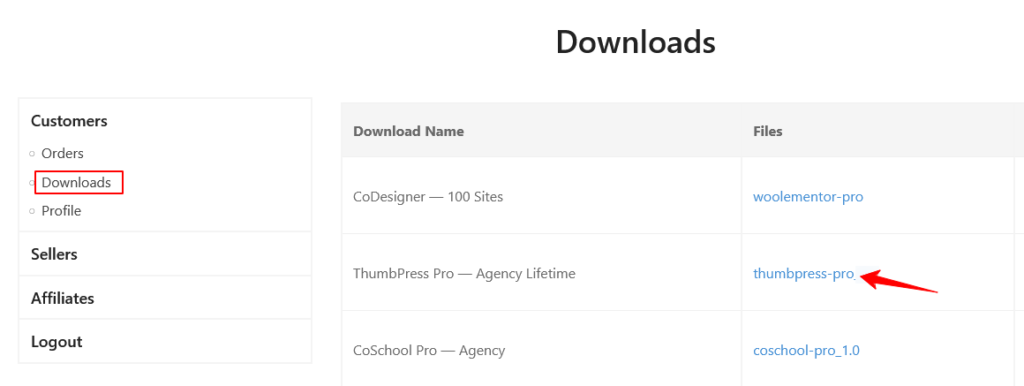
3. Open the Customer Dashboard → Downloads and click on ThumbPress Pro. This will start the download.
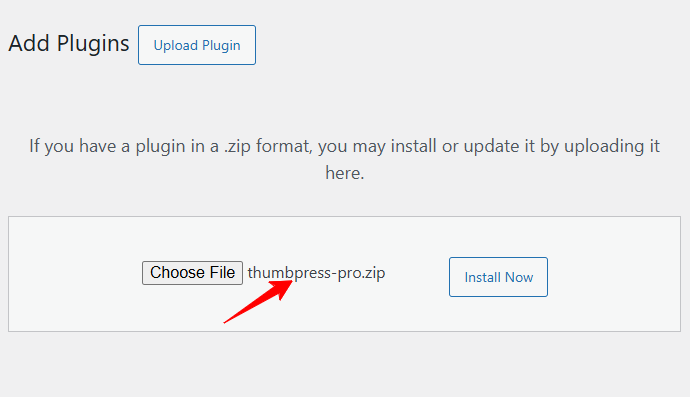
3. Upload the plugin:
- Go to WordPress Dashboard → Plugins → Add New → Upload Plugin
- Upload the .zip file
- Click Install Now, then Activate Plugin
Activate the ThumbPress Pro License
To access updates, premium features, and support, please activate your license.
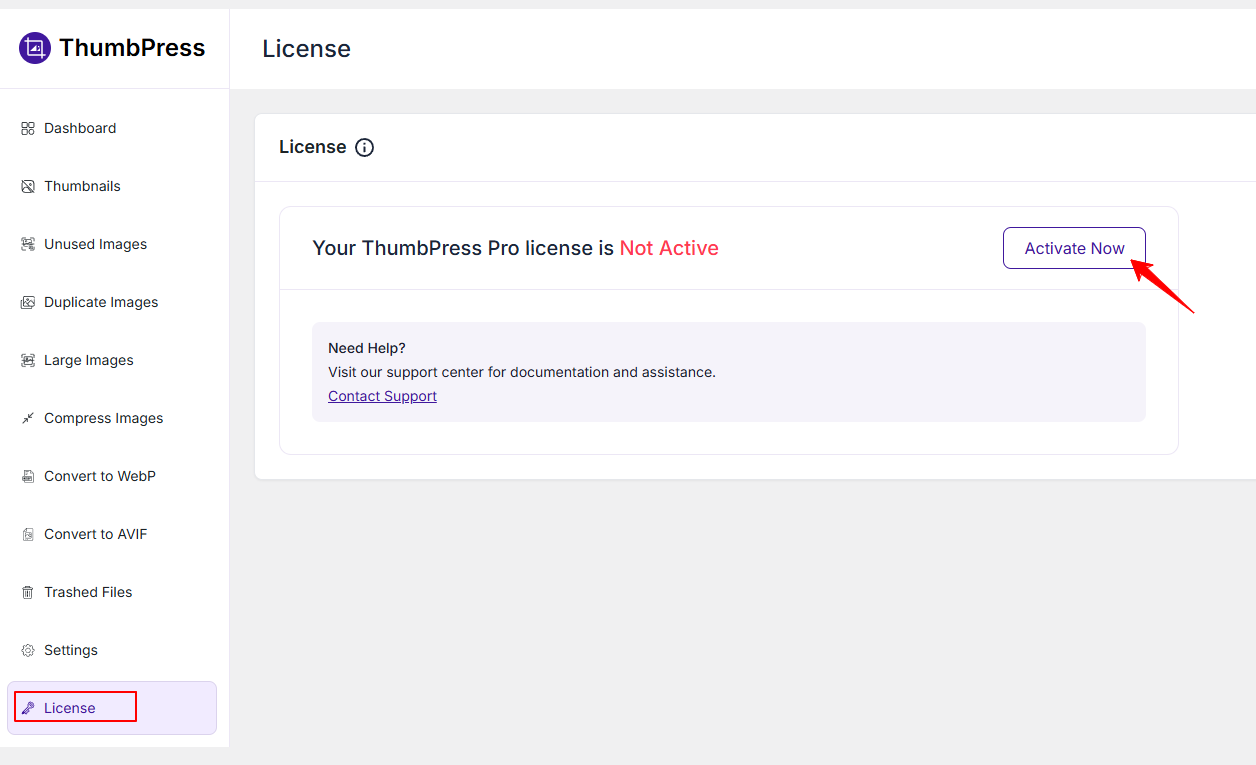
1. Go to WordPress Dashboard → ThumbPress → Settings → License
2. Click Activate it now
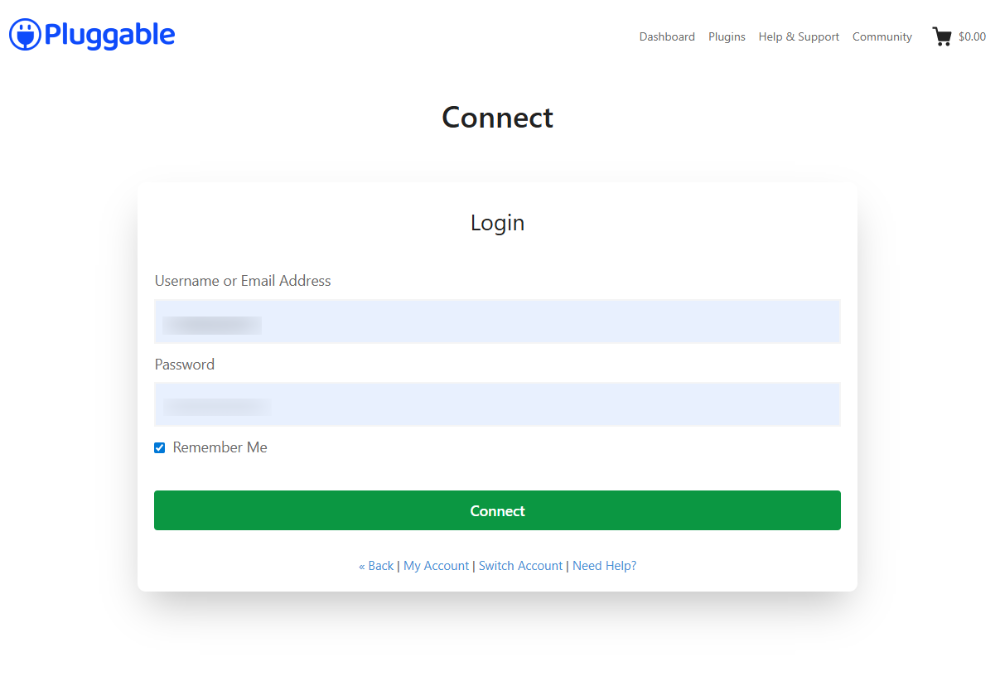
3. A pop-up will appear. Log in with your credentials and click on the Connect button.
4. Next, you need to choose a license from this page.
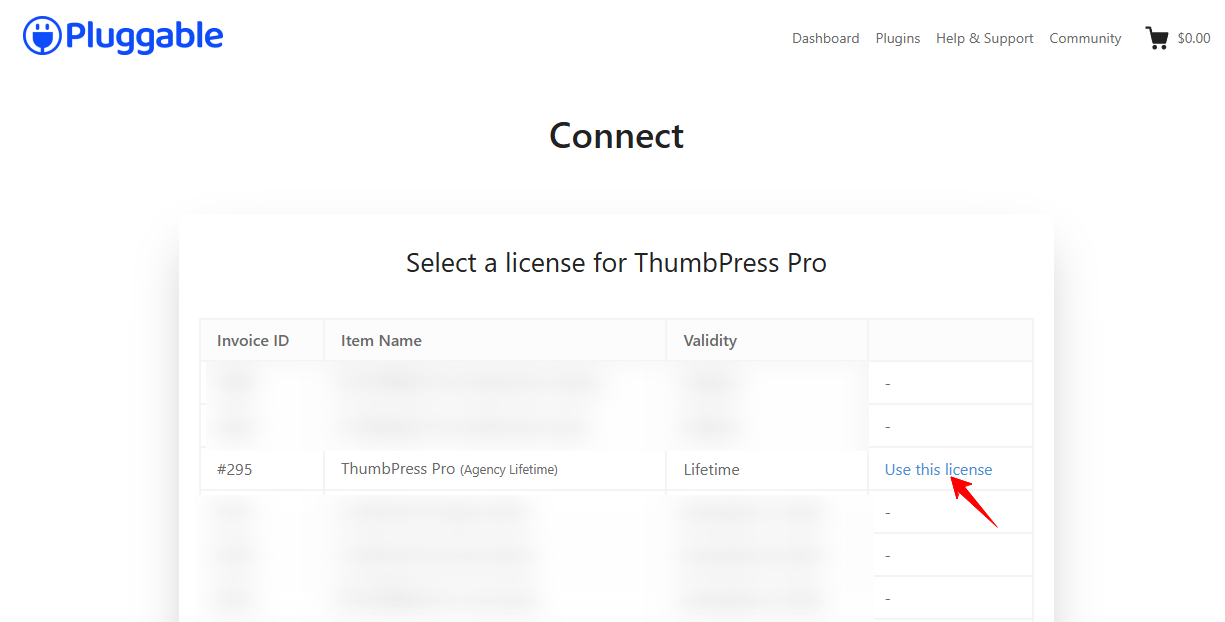
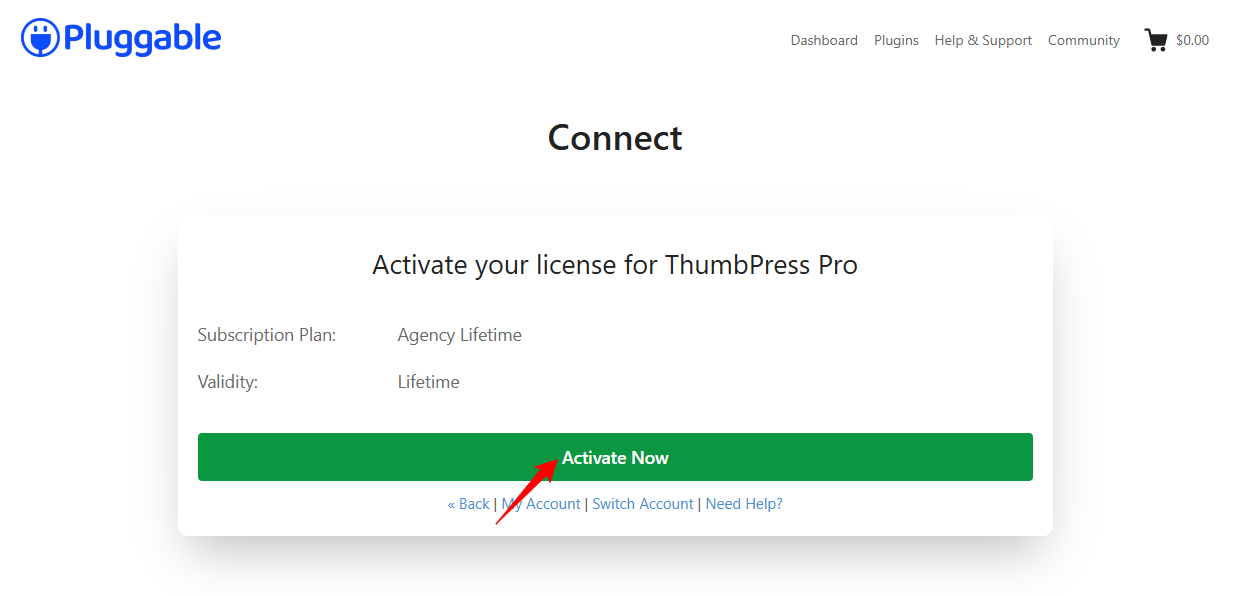
4. Click on the button “Activate Now” to activate your license for ThumbPress.
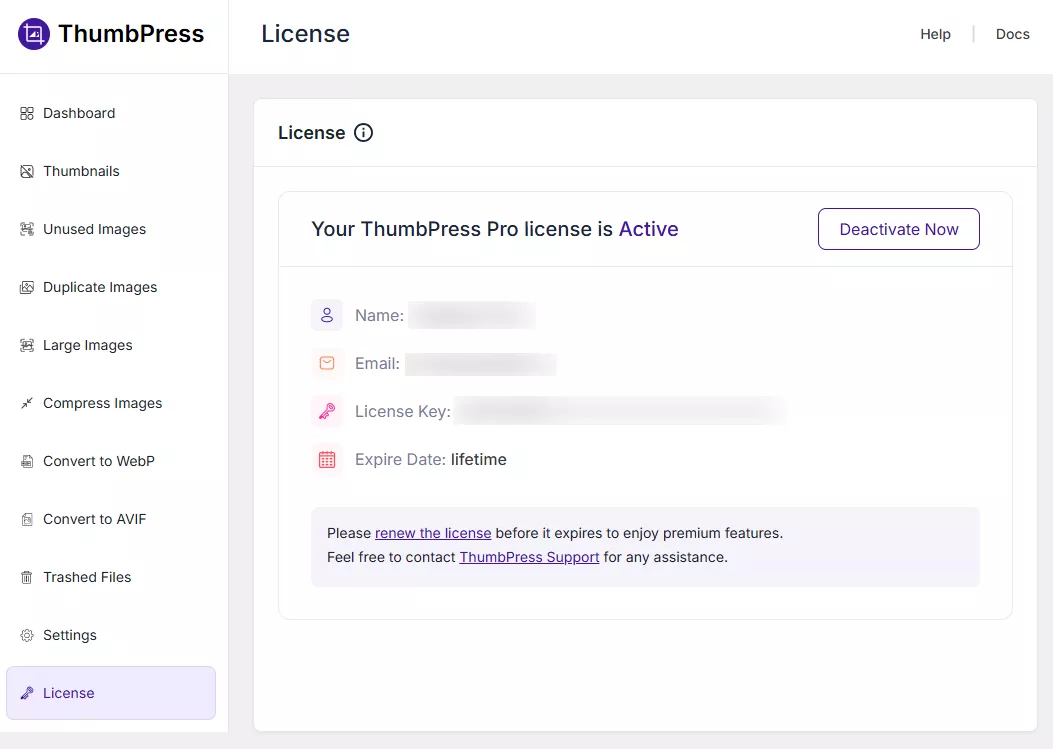
5. Finally, you will see the below details about your ThumbPress license in license section.
Was this doc helpful?
Subscribe to Our Newsletter
Get the latest WordPress tutorials, trends, and resources right in your inbox. No Spamming, Unsubscribe Anytime.

Thank you for subscribing to our newsletter!