Dashboard


Admin Dashboard provides a centralized overview of your website’s image health and optimization status. It helps you quickly identify issues such as unoptimized images, unused files, and opportunities to improve performance.
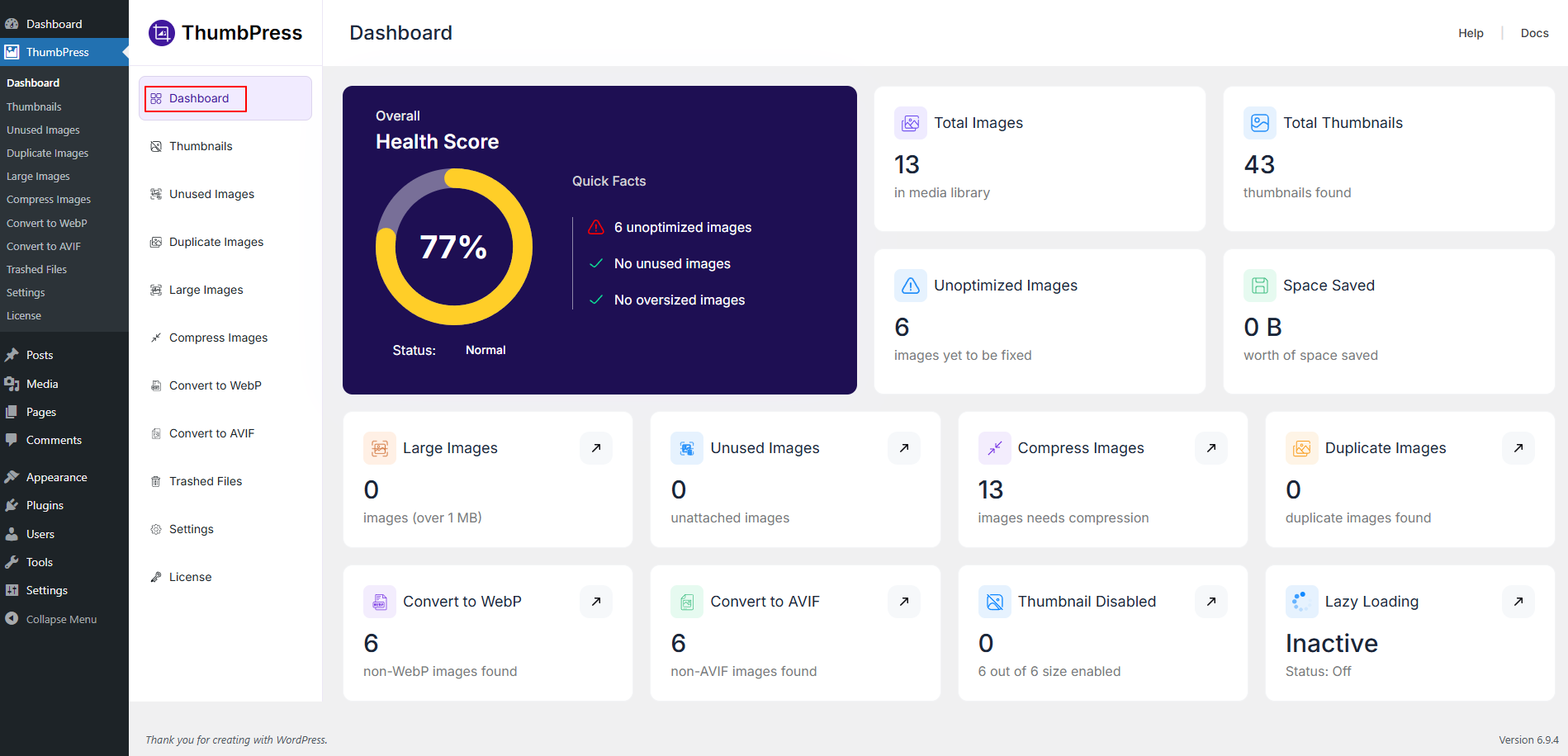
To access this Admin Dashboard, first, you have to go to the Dashboard section from ThumbPress → Dashboard
The dashboard is divided into three main sections:
1. Health Score
This is the most prominent section of the dashboard.
- Health Score (%)
Displays the overall optimization status of your media library. - Status Indicator
Shows the current condition (e.g., Normal, Needs Attention). - Quick Facts Like
- Number of unoptimized images
- Unused images status
- Oversized images status
This section gives you a quick snapshot of the most positive and negative image statuses of your site.
2. Statistics Cards
These cards provide key metrics about your media library:
- Total Images
Total number of images in your WordPress media library. - Total Thumbnails
The number of thumbnails your website has. - Unoptimized Images
Images that still need compression or optimization. - Space Saved
Total storage saved after optimization.
3. Optimization Modules
Each module represents a specific feature of ThumbPress:
Large Images
- Shows images larger than the defined size (e.g., over 1MB).
Unused Images
- Lists unattached images not used anywhere on the site.
Compress Images
- Displays images that need compression.
Duplicate Images
- Detects identical images stored multiple times.
Convert to WebP
- Shows images not yet converted to WebP format.
Convert to AVIF
- Displays images that can be converted to AVIF format.
Thumbnail Disabled
- Indicates how many thumbnail sizes are currently disabled.
Lazy Loading
- Displays current lazy loading status (Active/Inactive).
Navigation Shortcuts
Each module includes a quick action icon (↗) that redirects you to the detailed management page for that feature.
Was this doc helpful?
Subscribe to Our Newsletter
Get the latest WordPress tutorials, trends, and resources right in your inbox. No Spamming, Unsubscribe Anytime.

Thank you for subscribing to our newsletter!