Duplicate Images


The Duplicate Images feature in the ThumbPress plugin helps you identify and manage identical or similar images stored in your WordPress media library even if they have different file names. It detects duplicates based on the same resolution and same file format making it easy to remove unnecessary copies. This helps reduce storage usage and keeps your website clean, organized and optimized for better performance.
Accessing Duplicate Images
To open the duplicate image scanner, navigate to:
WordPress Dashboard → ThumbPress → Duplicate Images
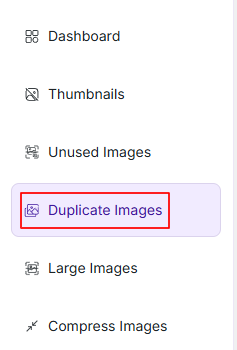
When you first open this section you will see a scan panel with options to start detecting duplicate images. If no scan has been performed yet the system will display a message indicating that no results are available.
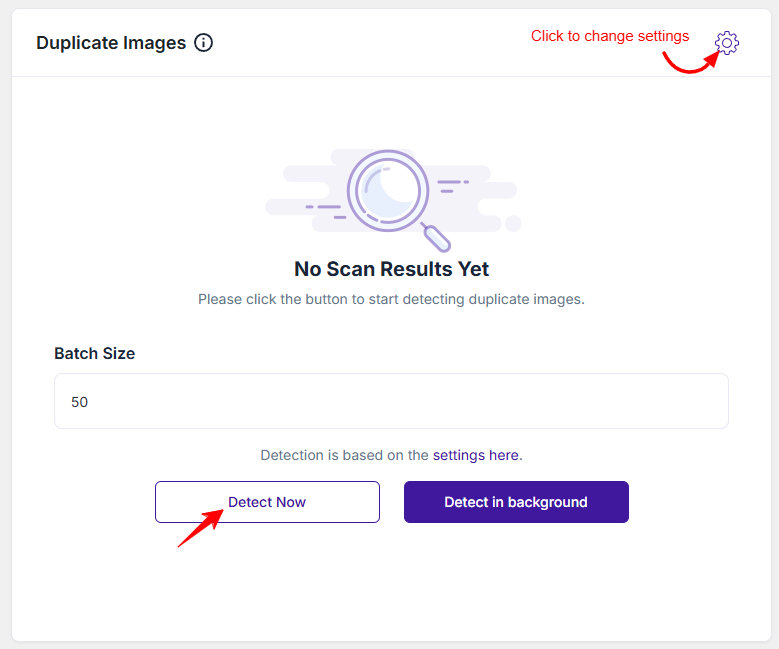
On the top you will find a Settings icon. To change duplicate images options you can click on that icon, it will redirect to Duplicate Images Settings page. To know more details about it please click here
Scan Options
You can control how the scan runs using the following options:
- Batch Size
Defines how many images are processed per cycle. A higher value speeds up scanning but may use more server resources. - Detect Now
Starts the scan immediately and processes images in real-time. - Detect in Background
Runs the scan in the background, allowing you to continue working without interruption.
Scan Results Summary
Once the scan is complete a summary report is displayed showing:
- Total Images – Number of images analyzed
- Images Processed – Number of images scanned
- Duplicate Detected – Total duplicate images found
- Completion Status – Progress indicator (e.g., 100%)
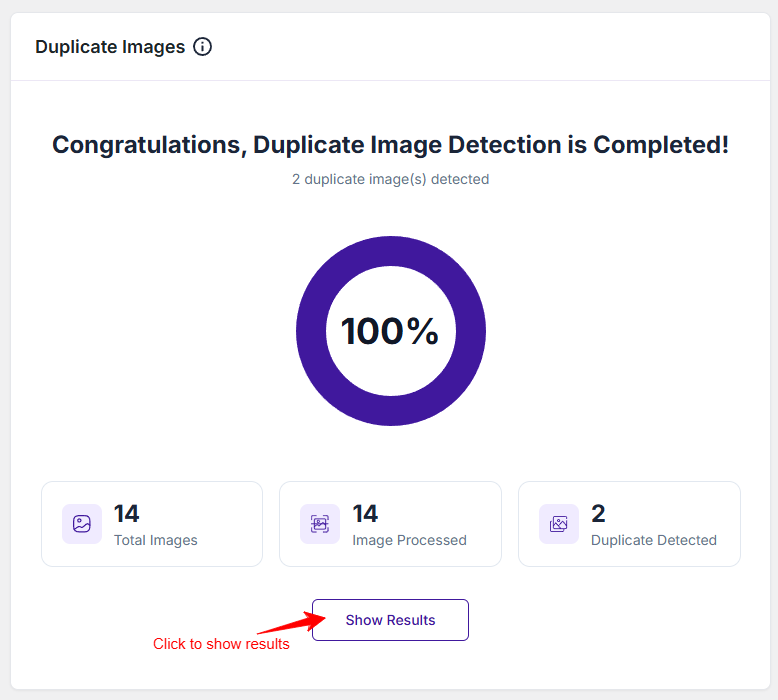
This gives you a quick overview of how much redundant data exists in your media library.
Viewing Duplicate Results
Click the Show Results button to view detailed duplicate image records. Each entry includes:
- File Name – Name of the original image
- Preview – Thumbnail of the image
- Duplicates – Number of duplicate copies found
- Wasted Space – Storage used by duplicate files
- Action – Option to manage duplicates
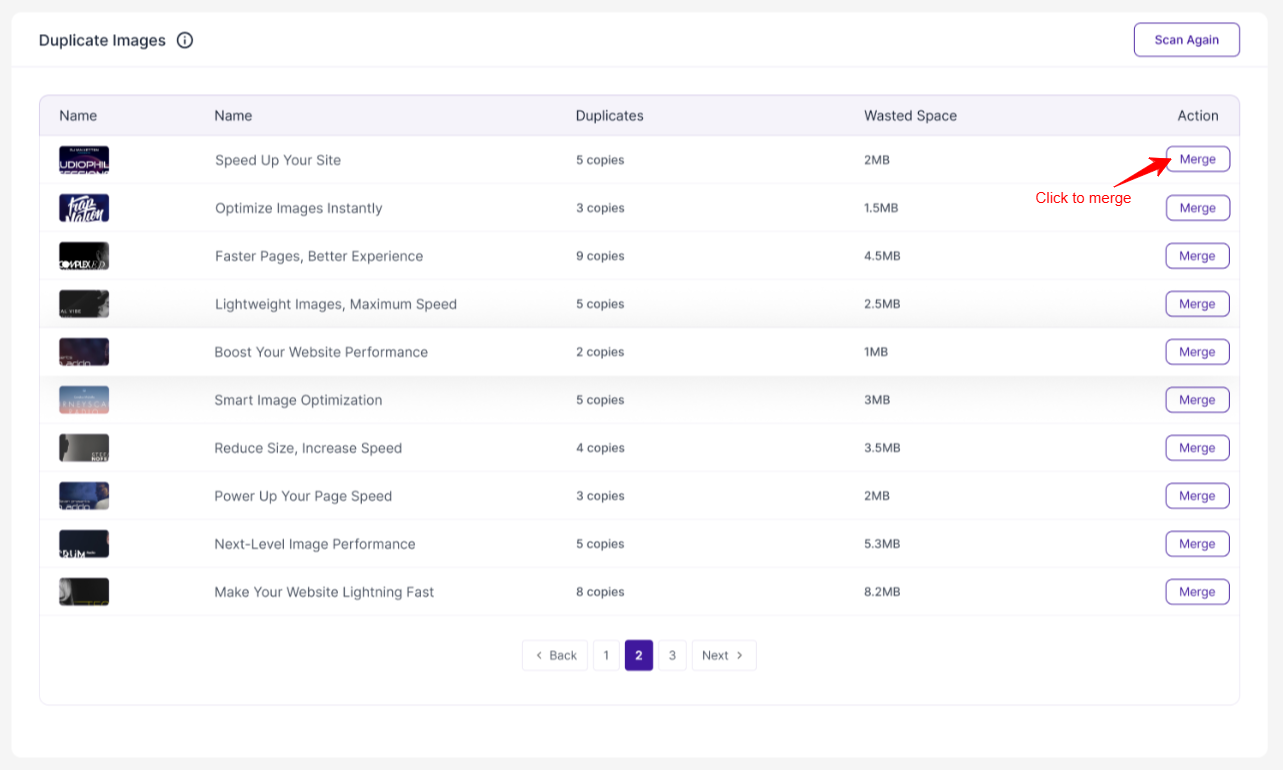
Managing Duplicates
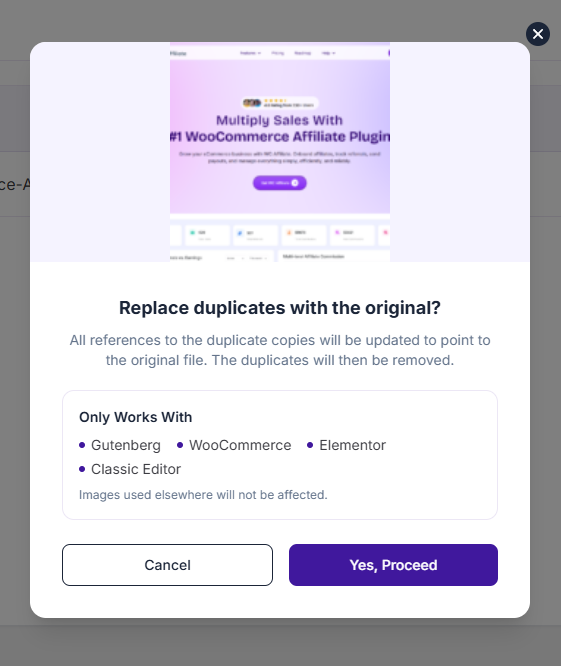
Merge: After clicking merge button, a Pop up will appear where you will have option to merge duplicate images by keeping one original file. And duplicate images will be stored in Trashed Files section.
Scan Again
After cleaning duplicates or adding new images you can click Scan Again to rerun the detection process and keep your library optimized.
Was this doc helpful?
Subscribe to Our Newsletter
Get the latest WordPress tutorials, trends, and resources right in your inbox. No Spamming, Unsubscribe Anytime.

Thank you for subscribing to our newsletter!