General Settings


The General Settings section in ThumbPress allows you to configure essential image handling and protection options for your WordPress media library.
This section is essential for controlling how images are uploaded, displayed, and protected in your WordPress site using ThumbPress. Proper configuration can significantly improve performance, security, and media management.
You can access this section by navigating to:
ThumbPress → Settings → General
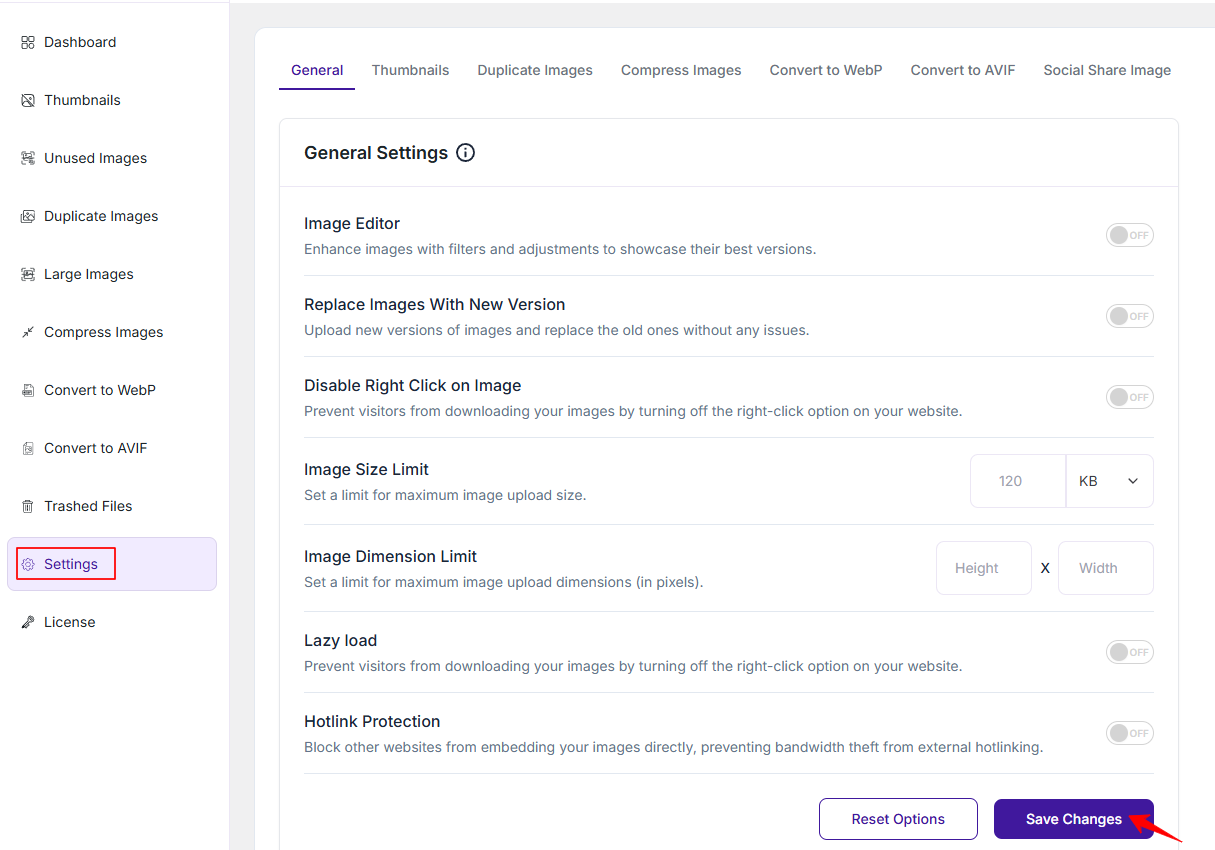
Below is a detailed explanation of each available option:
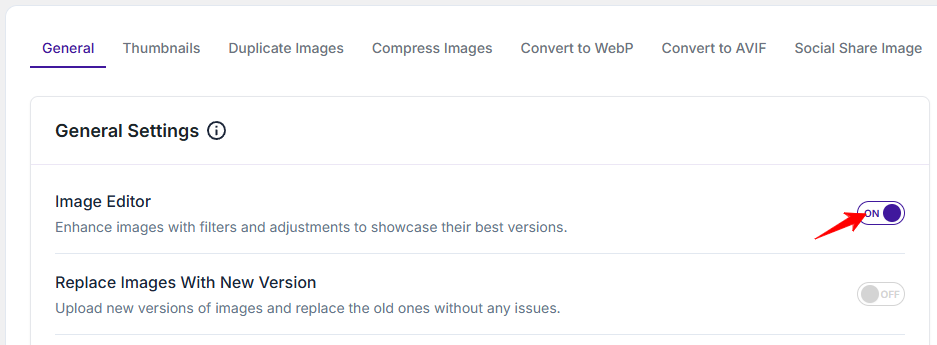
1. Image Editor
Enable this option to enhance your images using built-in filters and adjustments. This helps improve image appearance and ensures better visual quality across your website.
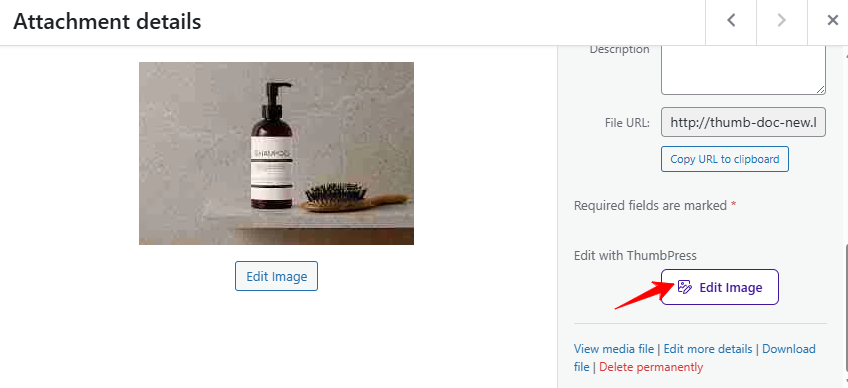
After enabling the Image Editor option and saving changes, the image editing feature becomes available within the Media Library. When you open any image from the Media Library, you will be able to access and use these editing tools directly
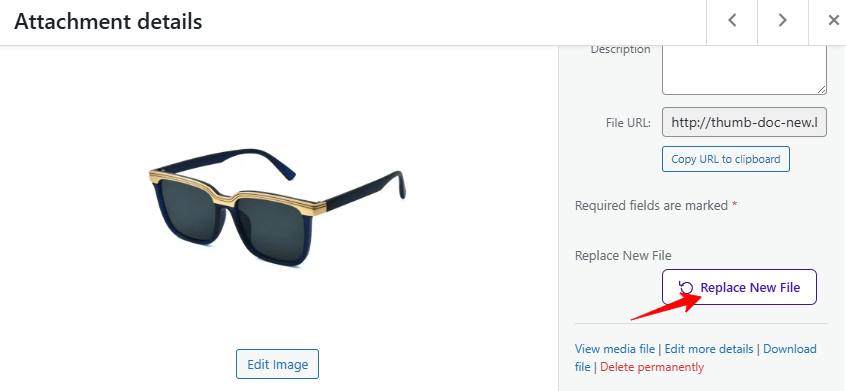
2. Replace Images With New Version
Turn this on if you want to upload updated versions of existing images and automatically replace the old ones without breaking links or affecting media usage across your site.
3. Disable Right Click on Image
This option prevents visitors from right-clicking on images, helping to reduce unauthorized downloads or copying of your media files.
4. Image Size Limit
Set a maximum file size limit for image uploads.
- Example: 120 KB
- You can even change the format criteria to MB (Megabyte)
This helps maintain optimized performance by preventing large images from getting uploaded.
4.1. Image Dimension Limit
Define the maximum allowed image dimensions (in pixels).
- Set Height and Width limits (in pixels))
This ensures that oversized images are not uploaded, keeping your site lightweight and fast.
5. Lazy Load
Enable lazy loading to delay image loading until they are visible on the screen. This improves page load speed and enhances user experience, especially on image-heavy pages.
6. Hotlink Protection
Activate this feature to prevent other websites from directly linking to your images. This protects your server bandwidth and avoids unauthorized use of your media.
Save Changes or Reset
- After making any updates, click Save Changes to apply your settings.
- Click Reset Options to revert all settings to their default values.
Was this doc helpful?
Subscribe to Our Newsletter
Get the latest WordPress tutorials, trends, and resources right in your inbox. No Spamming, Unsubscribe Anytime.

Thank you for subscribing to our newsletter!