Convert to WebP


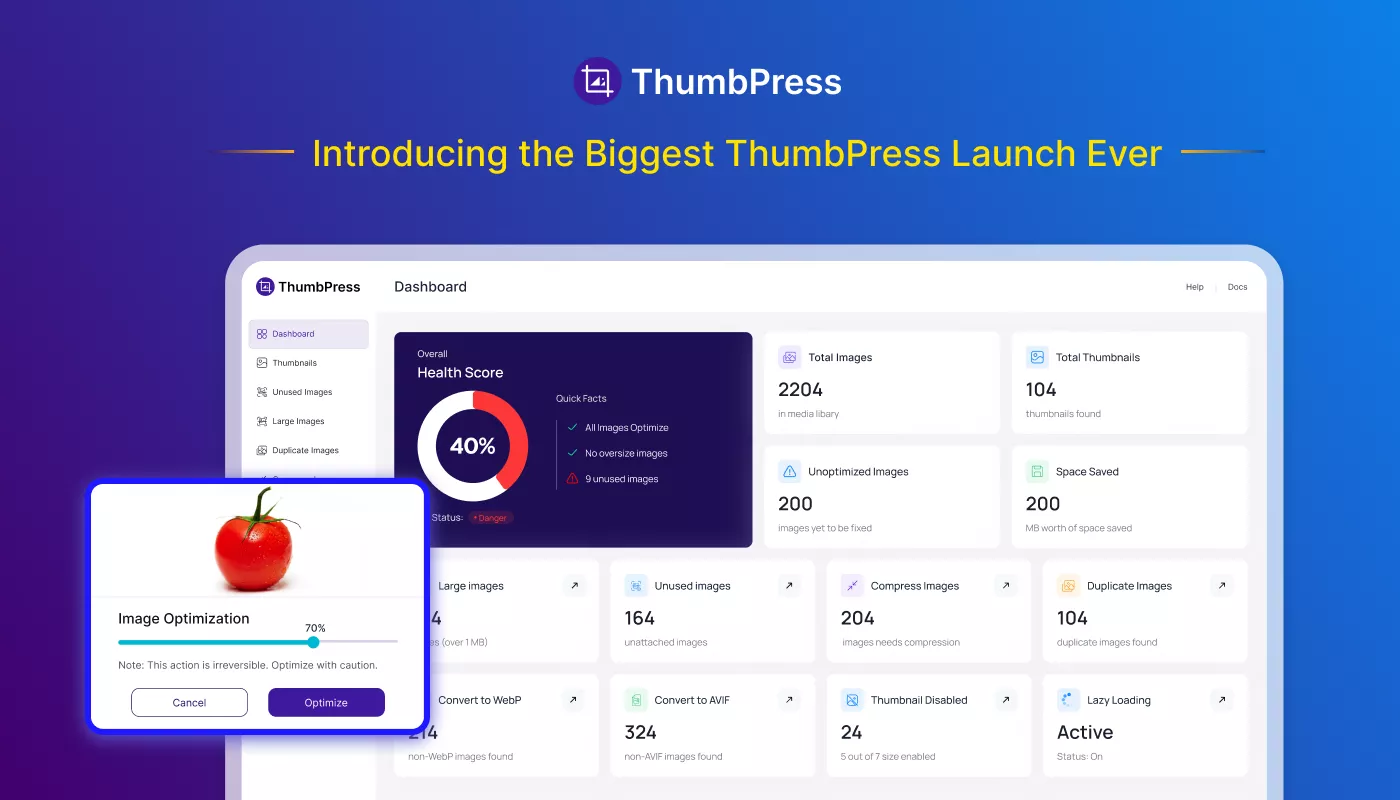
The Convert to WebP feature in ThumbPress allows you to convert your existing images into the modern WebP format and helping reduce file size and improve website performance without noticeable quality loss.
WebP is a next-generation image format that provides better compression compared to traditional formats like JPEG and PNG. By converting your images to WebP your website can load faster and use less bandwidth.
Accessing WebP Conversion
To begin converting images into WebP please navigate to
WordPress Dashboard → ThumbPress → Convert to WebP
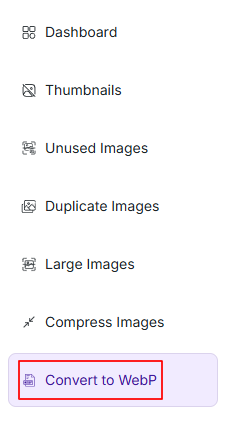
If you see “No Scan Results Yet” it means you need to start the scan process first.
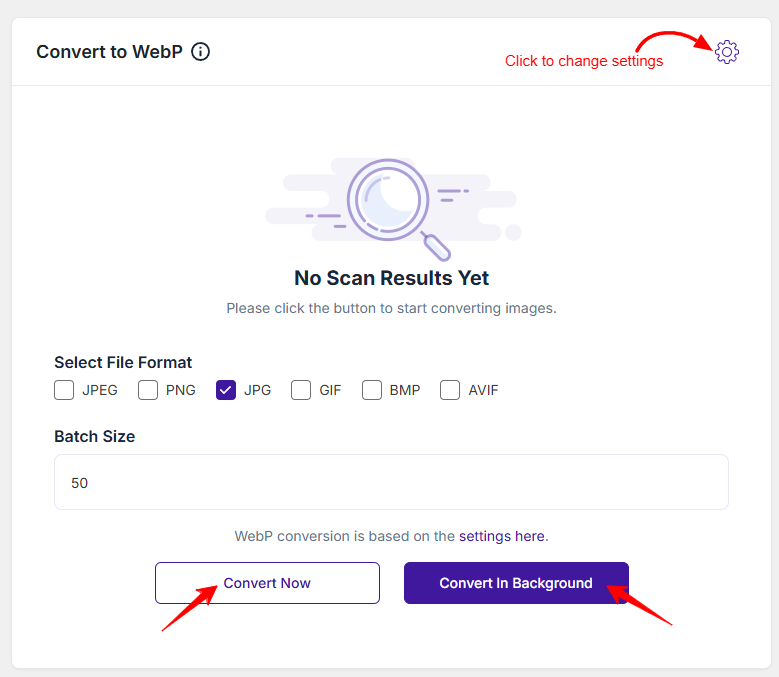
On the top you will find a Settings icon. To change WebP conversion settings you can click on that icon, it will redirect to Compress Images Settings page. To know more details about it please click here
Before starting conversion you can adjust the following settings:
Supported File Formats
You can convert JPEG, JPG, PNG, GIF, BMP, AVIF image formats to WebP. Select the formats you want to include before starting the conversion.
Batch Size
- The Batch Size determines how many images are processed at once.
- Default value: 50 images per batch
- You can adjust this based on your server performance.
Tip:
Use a smaller batch size if your hosting server has limited resources.
Convert Now
- Starts the conversion process immediately.
- Runs in the current session.
- Best for smaller image libraries.
Convert In Background
- Runs the conversion process in the background.
- Allows you to continue working without interruption.
- Recommended for large media libraries.
Once the process is complete it displays a detailed summary
Conversion Status
- A progress indicator (e.g., 100%) shows completion
Conversion Summary
The results section provides a quick overview of the operation:
- Total: Total number of images processed
- Converted: Number of images successfully converted to WebP
- Remaining: Images that were not converted (if any)
- Space Saved: Total storage reduced after conversion
You will also see a confirmation message like:
“WebP Conversion Complete – All images have been converted to WebP.”
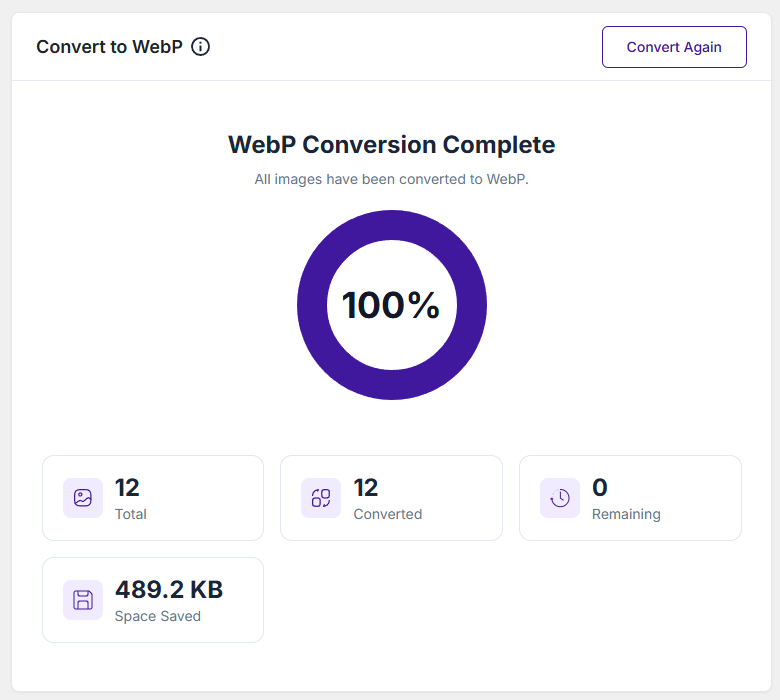
To convert newly uploaded images or re-run conversion please click the Convert Again button at the top right.
Was this doc helpful?
Subscribe to Our Newsletter
Get the latest WordPress tutorials, trends, and resources right in your inbox. No Spamming, Unsubscribe Anytime.

Thank you for subscribing to our newsletter!