Compress Images Settings


The Compress Images settings in ThumbPress help reduce image file size automatically by improving your website’s loading speed and performance.
To access this section:
WordPress Dashboard → ThumbPress → Settings → Compress Images
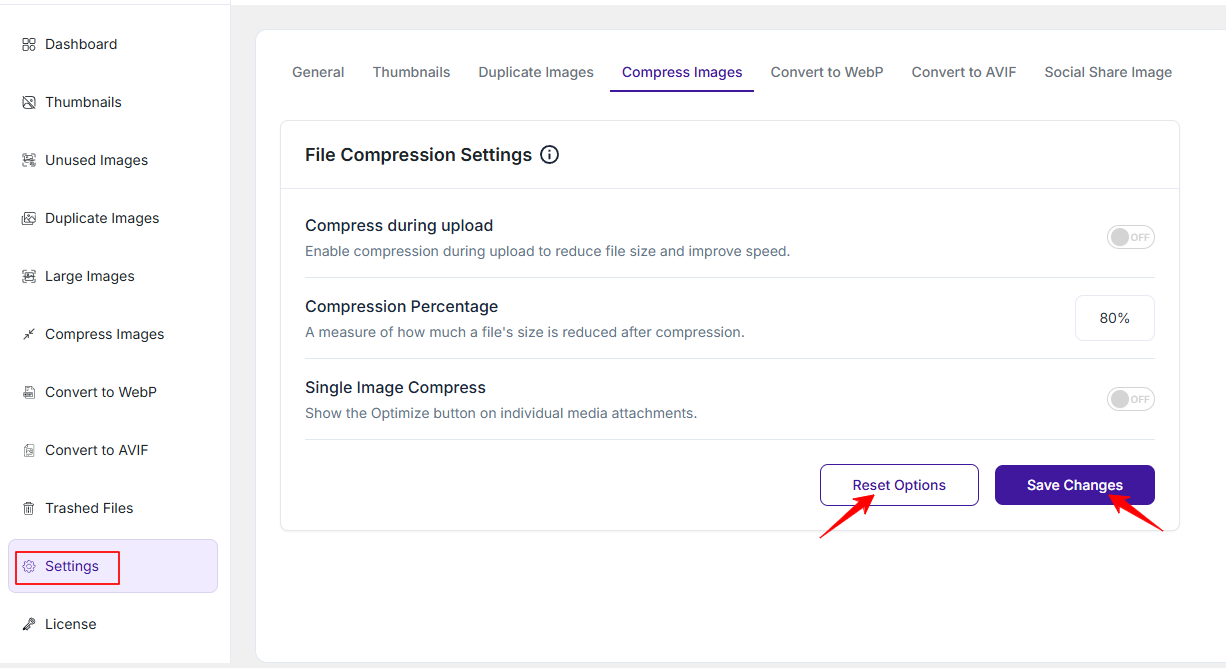
File Compression Settings
1. Compress during upload
Enable this option to automatically compress images at the time of upload. This reduces file size without needing manual optimization and helps keep your media library lightweight.
2. Compression Percentage
This defines how much the image size will be compressed. For example, setting it to 80% means images will be compressed significantly while trying to maintain acceptable quality. You can adjust this based on your balance between quality and performance.
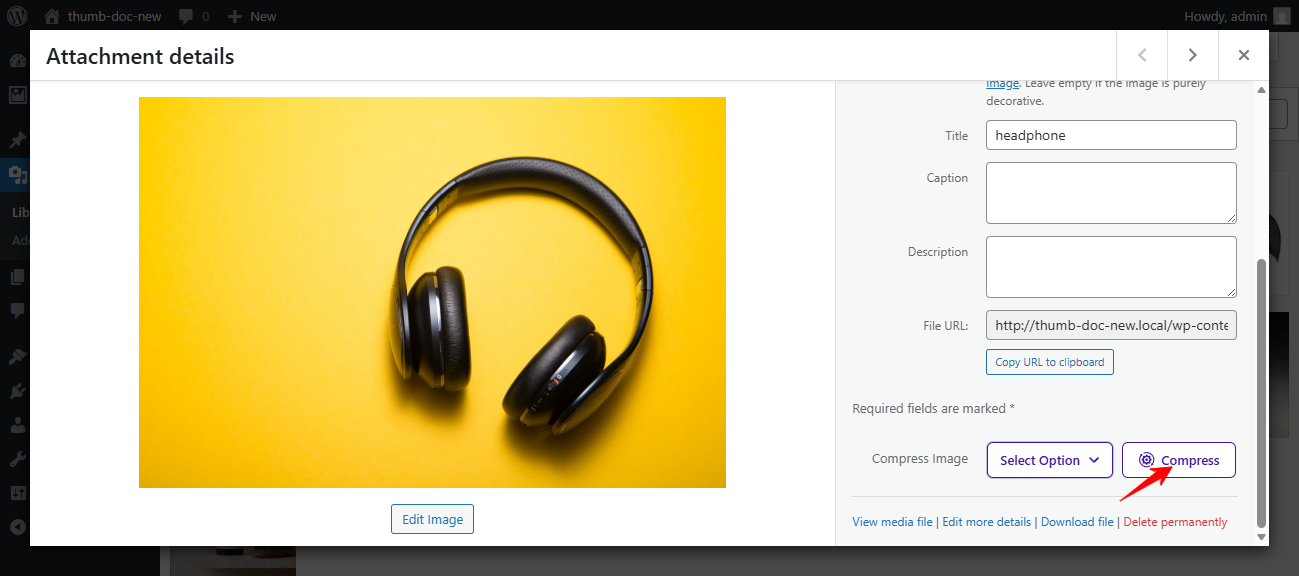
3. Single Image Compress
When enabled, this option adds an Optimize button to individual media files. It allows you to manually compress specific images instead of applying compression globally.
Save or Reset Settings
- Save Changes: Save your changes to apply them. Without saving, nothing will take effect.
- Reset Settings: Oppositely, click “Reset” anytime to restore the default settings.
Was this doc helpful?
Subscribe to Our Newsletter
Get the latest WordPress tutorials, trends, and resources right in your inbox. No Spamming, Unsubscribe Anytime.

Thank you for subscribing to our newsletter!