Regenerate Thumbnails


The Regenerate Thumbnails feature in ThumbPress allows you to recreate image thumbnails based on your current media settings. This is especially useful when you change image sizes, switch themes, or fix missing or incorrectly generated thumbnails.
Accessing Regenerate Thumbnails
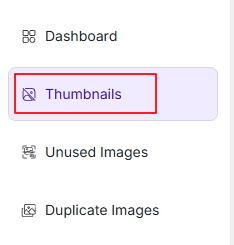
To open the duplicate image scanner, navigate to:
WordPress Dashboard → ThumbPress → Thumbnails
When you open the Regenerate Thumbnails section you will initially see a message indicating that no scan has been performed yet. From here you can start the regeneration process with a single click.
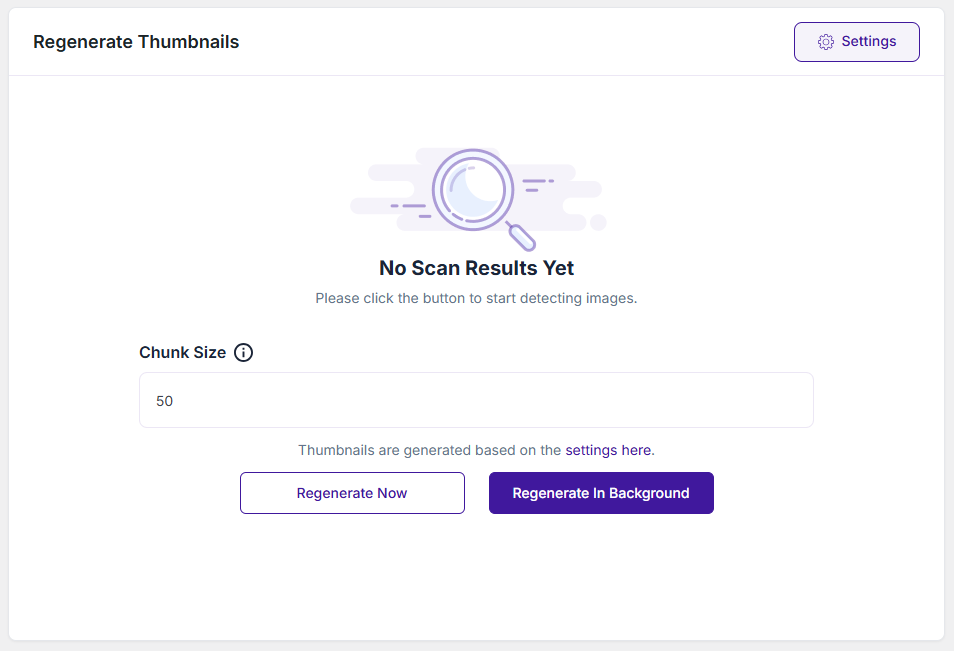
Thumbnail regeneration will follow your enabled and disabled thumbnail sizes. You can manage them from the Disable Thumbnails settings page. Click on the Settings icon in the top right corner to determine which thumbnail sizes to keep and which ones to let go.
Chunk Size
The Chunk Size option controls how many images are processed in a single server request cycle.
- Increasing the batch size may speed up the process, but it can consume more server resources
- Lower values are safer for shared or limited hosting environments
- Recommended chunk size amount for Detect Now is 5-10, for Detect in Background it’s 15-20
Regeneration Options
You will see two buttons to start the process:
Regenerate Now
- Starts the regeneration process immediately
- Runs in the current browser session
- Best for smaller media libraries
Regenerate In Background
- Runs the process in the background
- You can safely navigate away or continue working
- Recommended for large media libraries
Once the process is complete, you will see a summary dashboard with detailed results.
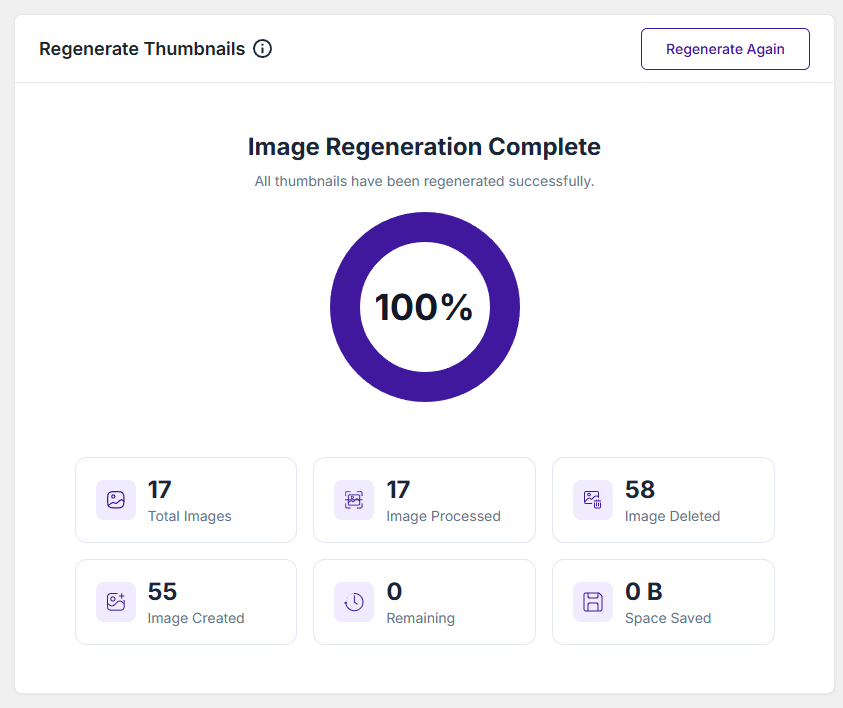
Completion Status
- A progress indicator showing 100% completion
- Confirmation message: all thumbnails regenerated successfully
Statistics Overview
- Total Images – Total number of images detected
- Image Processed – Number of images processed
- Image Deleted – Old or unused thumbnails removed during regeneration
- Image Created – Newly generated thumbnails
- Remaining – Images left to process (should be 0 after completion)
- Space Saved – Disk space recovered (if applicable)
Was this doc helpful?
Subscribe to Our Newsletter
Get the latest WordPress tutorials, trends, and resources right in your inbox. No Spamming, Unsubscribe Anytime.

Thank you for subscribing to our newsletter!