Social Share Image Settings


The Social Share Image feature in ThumbPress automatically generates optimized images for different social media platforms. These images are used when your content is shared, ensuring it looks professional and visually appealing across networks.
Currently, this feature is usable for the following four social platforms:
- X (formerly Twitter)
Configure The Social Share Image Settings
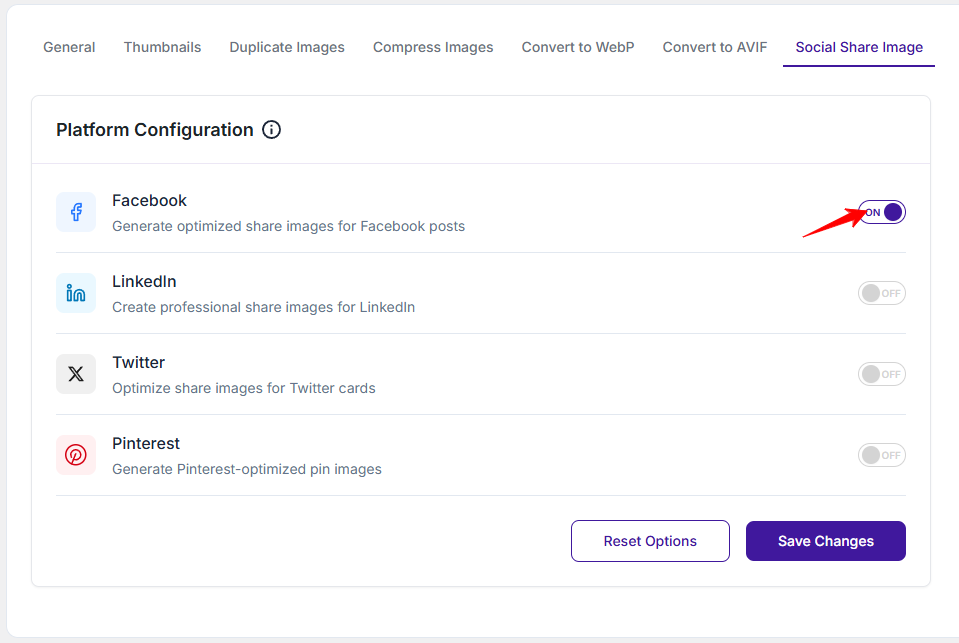
Navigate to: WordPress Dashboard → ThumbPress → Settings → Social Share Image tab.
Inside this section, you will find options to enable or disable image generation for specific social platforms.
For instance, let’s enable this option to generate optimized images for Facebook posts. These images are designed to match Facebook’s preferred sharing dimensions for better visibility and engagement.
After enabling the feature for Facebook, you will see the image uploading option in any post or page
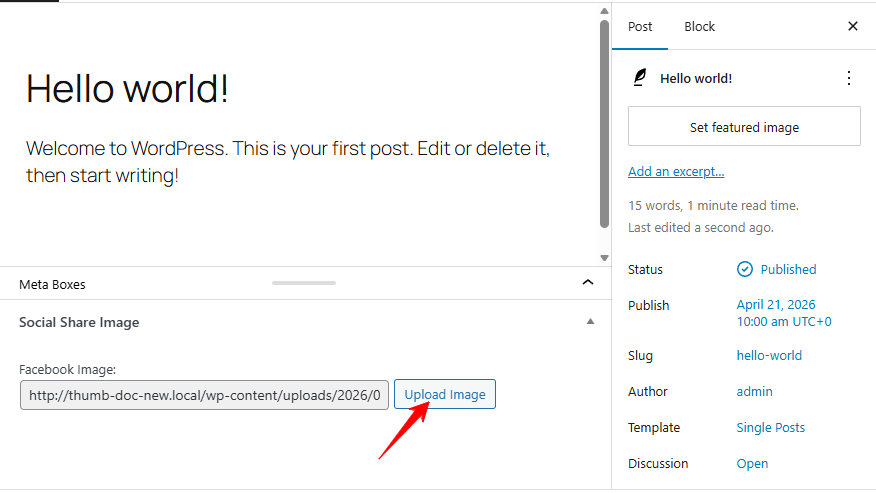
The same process applies to the other social platforms (LinkedIn, X, and Pinterest).
Reset or Save Options
- After making any adjustments, click Save Changes to apply and store your settings.
- Click Reset Options to restore all social share settings to their default state.
- You might need this if you want to start fresh or undo changes.
Was this doc helpful?
Subscribe to Our Newsletter
Get the latest WordPress tutorials, trends, and resources right in your inbox. No Spamming, Unsubscribe Anytime.

Thank you for subscribing to our newsletter!